Do I Need To Clear Cache On Samsung Tv Fix Buffering
Yes, clearing the cache on your Samsung TV can fix buffering and speed up slow apps. Over time, cached data builds up and causes performance issues on your smart TV. This guide shows you exactly when to clear your Samsung TV cache, how to do it safely, and simple tips to prevent buffering problems.
Do you own a Samsung TV and notice it is not running as fast as it used to? Maybe your apps take forever to load, or your favorite streaming service keeps buffering mid-show. If so, you might be wondering whether you need to clear the cache on your Samsung TV.
The short answer is yes. Clearing your cache can make a real difference. But many people are unsure what cache even is or whether it is safe to delete. This article breaks it all down in simple terms. You will learn what cache does, how to clear it, and when it actually helps fix buffering.
Cache is temporary data stored by your Samsung TV. It helps apps open faster by remembering things like login details and preferences. Think of it like a shortcut. Your TV uses these shortcuts so it does not have to download everything again every time you open an app.
Over time, those shortcuts pile up. Old cached files take up space. They can also become corrupted or outdated. When that happens, your TV starts to slow down. Apps might freeze, streams might buffer, and the whole experience gets frustrating.
So what causes cache to build up on a Samsung TV? Every time you open an app, it creates new cached files. Streaming apps like Netflix, Hulu, and YouTube are the biggest culprits. They store video previews, thumbnails, and other data to load content faster. The more you use these apps, the more cache accumulates.
Another factor is outdated cached data. Apps receive regular updates. But old cached files might not match the new version. This mismatch can cause errors and slowdowns. Your TV then struggles to keep up with what the app needs.
Some people worry that clearing cache will delete their saved passwords or app settings. That is not true. Clearing cache only removes temporary files. Your personal data stays safe. You will simply need to log back into apps the next time you open them.
Key Takeaways
- Clearing cache on Samsung TV can resolve buffering and app slowdowns effectively.
- Cached data accumulates over time and takes up valuable storage on your smart TV.
- You can clear cache without losing your personal settings or installed apps.
- Regular maintenance keeps your Samsung TV running smoothly and fast.
- Simple steps like restarting your TV also help improve performance.
- Knowing when to clear cache vs. when to factory reset saves you time.
📑 Table of Contents
Signs Your Samsung TV Cache Needs Clearing
How do you know it is time to clear your cache? Your Samsung TV usually gives you clear warning signs. Paying attention to these signals helps you act before problems get worse.
Buffering during streaming is the most common sign. If your show pauses every few minutes to load, cached data might be the cause. Slow loading screens also point to the same problem. Apps that take a long time to open are another red flag.
You might also notice apps crashing or freezing unexpectedly. Some Samsung TV users report that their home screen becomes sluggish. Menus take longer to respond. These are all signs that your TV needs a cache cleanup.
Another indicator is low storage space. Samsung TVs have limited internal memory. When cache fills up too much, there is less room for new apps and updates. Your TV might even warn you about storage being full. That is a clear signal to clear things out.
Buffering Issues On Samsung TV
Buffering is one of the most annoying problems with any smart TV. It interrupts your viewing experience and ruins the mood. While buffering can happen for many reasons, excessive cache is a leading cause.
When your Samsung TV buffers, it means the device is struggling to process data. Old cached files slow down the data processing speed. Your TV cannot keep up with the stream. The result is constant pauses and loading wheels.
Before you jump to clear your cache, make sure your internet connection is stable. Sometimes buffering comes from a weak Wi-Fi signal, not cache buildup. But if your connection is strong and you still buffer, clearing cache is a smart next step.
How To Clear Cache On Samsung TV
Now that you understand why clearing cache matters, let us walk through the steps. The process is simple and takes only a few minutes. You do not need any technical skills to do it.
Start by pressing the Home button on your Samsung TV remote. This takes you to the main dashboard. From there, navigate to Settings. The gear icon is usually in the top or bottom corner of the screen.
Once in Settings, look for Support or Device Care. The exact name varies by Samsung TV model. Newer models use Device Care. Older models might show Support. Select whichever option you see.
Next, tap on Storage or Memory. This section shows you how much storage your TV is using. You will see a breakdown of what is taking up space. Look for apps with large cached data amounts.
Now select the app you want to clear cache for. You will see options like Clear Cache and Clear Data. Always choose Clear Cache first. Clear Data removes everything including your saved settings. You only want to remove temporary files.
Repeat this process for any apps that are causing problems. Focus on streaming apps like Netflix, Disney Plus, and YouTube. These apps build up the most cache over time.
After clearing cache for all problematic apps, restart your Samsung TV. Rebooting your smart TV helps the system apply changes and start fresh. Press the power button and wait for the TV to fully restart before testing your apps again.
Clearing Cache On Samsung TV Apps Step By Step
Let us go through a specific example. Say your Netflix app keeps buffering. Here is exactly what to do.
- Press the Home button on your Samsung remote.
- Go to Settings and select Device Care.
- Tap on Storage to see app data breakdown.
- Find Netflix in the list of installed apps.
- Select Netflix and choose Clear Cache.
- Return to the home screen and reopen Netflix.
That is it. Your Netflix app should now run smoother. If buffering continues, you may also want to try clearing cache on other apps. Sometimes multiple apps with heavy cache slow down your entire TV system.
Quick Tips For Clearing Cache Safely
- Never tap Clear Data unless you want to reset the app completely.
- Clear cache one app at a time so you can track what helps.
- Restart your TV after clearing cache for best results.
- Write down your app login passwords before clearing cache.
- Do not clear cache for system apps unless they are causing problems.
Should You Clear Cache On Samsung TV Regularly?
Many people ask whether they should make cache clearing a regular habit. The answer depends on how often you use your Samsung TV and which apps you run.
If you use streaming apps every day, clearing cache once a month is a good routine. Heavy users might benefit from clearing cache every two weeks. This keeps your TV running at peak performance without any buildup issues.
For casual viewers who only use their TV a few times a week, clearing cache every few months is enough. You will notice the difference in app speed and streaming quality right away.
Think of it like cleaning your house. You do not need to deep clean every day. But regular maintenance keeps everything running smoothly. The same idea applies to your Samsung TV. A little routine care goes a long way.
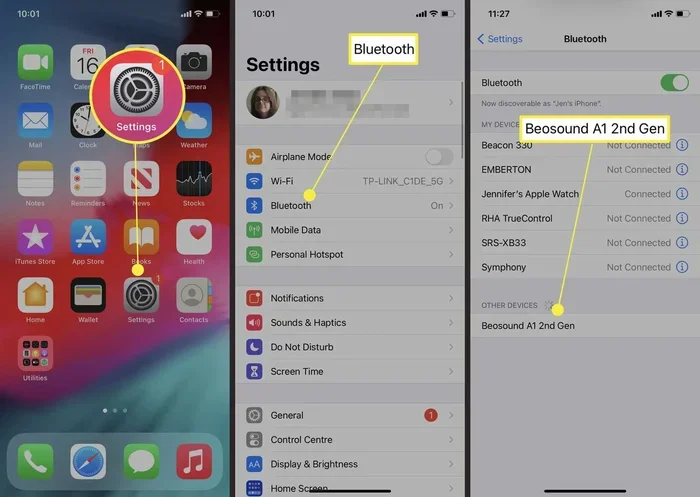
Some Samsung TV users also like to add Bluetooth capabilities to their TV for better audio options. When you add new features or devices, keeping your cache clean helps everything work together without lag or slowdowns.
Common Samsung TV Buffering Issues And Fixes
Clearing cache is not the only fix for buffering. There are several other reasons your Samsung TV might buffer. Understanding these helps you tackle the problem from multiple angles.
Slow Internet Connection
Your Wi-Fi speed directly affects streaming quality. If your internet is slow, no amount of cache clearing will fix buffering. Try running a speed test on another device in your home. Most streaming services need at least 5 Mbps for HD content and 25 Mbps for 4K.
If your Wi-Fi signal is weak in the room where your TV sits, consider moving your router closer. You can also try restarting your router to refresh the connection. Sometimes simply unplugging your router for 30 seconds and plugging it back in makes a big difference.
Outdated Samsung TV Software
Running outdated software on your Samsung TV can cause performance issues. Manufacturers release updates that fix bugs and improve speed. Check for software updates regularly to keep your TV running its best.
Go to Settings, then Support, and select Software Update. Choose Update Now and wait for the process to complete. Your TV will restart automatically when the update finishes.
Too Many Apps Running In Background
Samsung TVs allow multiple apps to run at the same time. But too many background apps eat up your TV’s memory. This can slow everything down and cause buffering even on fast internet connections.
To close background apps, press the Recent Apps button on your remote. You will see a list of open apps. Close the ones you are not using. This frees up memory and helps your TV run faster.
When Clearing Cache Is Not Enough
Sometimes clearing cache does not solve the problem. If you have cleared cache for all your apps and still experience buffering, it is time to try other solutions.
One option is to reset your Samsung TV to factory settings. This wipes everything and gives your TV a fresh start. Only do this as a last resort because it removes all your apps, settings, and preferences. Make sure you know your TV login details before proceeding.
Another option is to check your HDMI connections. Loose cables can cause streaming issues that look like buffering. Unplug and replug all HDMI cables to make sure they are secure. If you use an HDMI splitter or adapter, try bypassing it to see if that helps.
You might also want to check whether your Samsung TV needs a software update. Keeping your devices updated is important for performance across all smart devices. The same principle applies to your Samsung TV. Updates often include performance improvements that directly address buffering and slowdown issues.
Consider Your TV Model And Age
Older Samsung TV models have less processing power and memory. They naturally struggle more with modern streaming demands. If your TV is more than five years old, it might simply be time to consider an upgrade.
Newer Samsung TVs come with better processors and more RAM. They handle cache better and stream content more smoothly. If you find yourself constantly fighting buffering issues, a newer model might be the best long-term solution.
Expert Tips To Keep Your Samsung TV Running Fast
Prevention is always better than fixing problems after they start. Here are some expert tips to keep your Samsung TV in top shape.
- Restart your TV weekly. A simple restart clears temporary memory and refreshes the system. This is the easiest maintenance habit you can build.
- Delete apps you do not use. Unused apps still take up storage space and sometimes run in the background. Removing them frees up resources.
- Keep your Wi-Fi signal strong. Place your router in a central location. Avoid walls and obstacles between your router and TV.
- Update your apps regularly. App updates often include performance improvements. Enable automatic updates if your Samsung TV supports it.
- Clear cache after heavy streaming sessions. If you binge-watch for hours, clear cache the next day. This prevents buildup from long streaming periods.
These simple habits take just a few minutes each week. But they make a huge difference in your Samsung TV’s performance over time. Consistent maintenance keeps buffering at bay and ensures smooth streaming every time you sit down to watch something.
Some users also like to mirror their iPhone to their Samsung TV for a bigger screen experience. When you mirror content, your TV works harder to process the incoming signal. Keeping your cache clean helps handle this extra workload without slowdowns.
Frequently Asked Questions
Will clearing cache delete my apps on Samsung TV?
No, clearing cache will not delete your apps. It only removes temporary files stored by the app. Your app stays installed and your saved settings remain intact. You will simply need to log back into streaming services after clearing cache.
How often should I clear cache on my Samsung TV?
For most users, clearing cache once a month is sufficient. Heavy streamers might want to do it every two weeks. If you notice buffering or slow app performance, that is also a good time to clear cache regardless of your schedule.
Can clearing cache fix all Samsung TV buffering problems?
Clearing cache fixes many buffering issues caused by data buildup. However, it will not solve buffering caused by slow internet or outdated software. If clearing cache does not help, check your Wi-Fi speed and look for software updates next.
Is it safe to clear cache on all Samsung TV apps?
Yes, it is safe to clear cache on all apps. The process only removes temporary data. Never tap Clear Data unless you specifically want to reset an app to its original settings. Clear Cache is always the safer option.
What is the difference between clearing cache and factory resetting my Samsung TV?
Clearing cache removes only temporary files from individual apps. It is quick, targeted, and does not affect your settings. Factory resetting wipes your entire TV back to its original state. It removes all apps, settings, and personal data. Always try clearing cache first before considering a factory reset.
Does clearing cache improve Samsung TV streaming quality?
Yes, clearing cache can improve streaming quality by removing outdated or corrupted temporary files. When your TV processes data faster, streams load quicker and buffer less. Combine cache clearing with a strong Wi-Fi connection for the best streaming experience.
Conclusion
So do you need to clear cache on your Samsung TV to fix buffering? The answer is yes, in most cases. Cache buildup is one of the leading causes of slow performance and buffering on Samsung smart TVs. The good news is that clearing cache is simple, safe, and takes only a few minutes.
By following the steps in this guide, you can keep your Samsung TV running smoothly. Make cache clearing part of your regular TV maintenance routine. Combine it with weekly restarts, strong Wi-Fi, and timely software updates for the best results.
Your Samsung TV is a big investment. Taking a few simple steps to maintain it ensures you get the best viewing experience for years to come. Next time your TV starts buffering, do not panic. Just clear the cache and get back to enjoying your favorite shows without interruption.