Can You Use Logitech Without the Unifying Receiver
Yes, you can use many Logitech devices without the Unifying Receiver. Modern Logitech peripherals support Bluetooth connectivity, allowing you to pair keyboards, mice, and speakers directly to your computer or device. This guide walks you through every method, compatible models, and troubleshooting tips so you can ditch the dongle and keep working.
You just plugged in your favorite Logitech keyboard or mouse, and there it is — that tiny Unifying Receiver. It works great, but what if you lose it? Or what if you want a cleaner desk with fewer USB devices plugged in? Maybe you are traveling and forgot the little dongle at home. Whatever the reason, the question keeps coming up: Can You Use Logitech Without the Unifying Receiver?
The short answer is yes, in many cases. Logitech has built Bluetooth support into a wide range of its peripherals. This means you can connect keyboards, mice, and even speakers directly to your computer, laptop, or tablet without needing that small USB receiver. But the details matter. Not every Logitech device supports Bluetooth, and the setup process can vary depending on your model. In this guide, we will walk you through everything you need to know.
We will cover how Bluetooth works with Logitech gear, which devices are compatible, step-by-step pairing instructions, and what to do when things do not go as planned. Whether you are a casual user or someone who relies on Logitech wireless devices every day, this article has you covered.
Key Takeaways
- Bluetooth is the main alternative: Many Logitech devices support Bluetooth, removing the need for the Unifying Receiver entirely.
- Not all Logitech gear works without a receiver: Older models and some gaming peripherals still require a USB dongle for full functionality.
- You can connect up to six Bluetooth devices: Logitech Bluetooth adapters let you manage multiple peripherals wirelessly.
- Setup is simple: Pairing Logitech devices via Bluetooth takes just a few minutes and no special software.
- Check compatibility first: Always verify your specific Logitech model supports Bluetooth before you remove the receiver.
📑 Table of Contents
- What Is the Logitech Unifying Receiver?
- Can You Use Logitech Without the Unifying Receiver?
- How to Connect Logitech Devices Using Bluetooth
- Which Logitech Devices Support Bluetooth?
- Common Mistakes When Using Logitech Without the Receiver
- Expert Insights on Logitech Wireless Connectivity
- Key Takeaways
- Frequently Asked Questions
- Final Thoughts
What Is the Logitech Unifying Receiver?
The Logitech Unifying Receiver is a small USB dongle that connects multiple Logitech peripherals to a single computer. You can pair up to six devices with one receiver. This is why many people love it. One tiny plug handles your keyboard, mouse, and maybe even a trackpad.
The receiver uses a proprietary wireless protocol, not standard Bluetooth. This gives it a longer range and more stable connection in many cases. But it also means you need that specific dongle for everything to work. Lose it, and you might feel stuck.
Why People Want to Ditch the Receiver
There are several good reasons people look for alternatives to the Unifying Receiver:
- Lost or broken dongle: These tiny devices are easy to misplace.
- Fewer USB ports used: Removing the receiver frees up space for other devices.
- Portability: Traveling without the extra dongle means less clutter in your bag.
- Bluetooth flexibility: Connecting directly to a laptop, tablet, or phone is often more convenient.
- Cleaner workspace: Fewer cables and dongles mean a tidier desk.
All of these reasons are valid. And the good news is that Logitech has made it easier than ever to go receiver-free.
Can You Use Logitech Without the Unifying Receiver?
The answer depends on your device. Logitech Bluetooth support has expanded significantly over the past few years. Many newer keyboards, mice, and audio devices now include built-in Bluetooth. This lets you connect them directly to your computer or other devices without any receiver at all.
Here is how it breaks down:
- Logitech devices with Bluetooth built-in: These work perfectly without any receiver. You pair them just like you would with Bluetooth headphones with a Roku or any other Bluetooth device.
- Logitech devices that only use the Unifying Receiver: Older models and some gaming peripherals may not support Bluetooth. These still need the dongle.
- Hybrid devices: Some Logitech peripherals support both the Unifying Receiver and Bluetooth. You can switch between them as needed.
Before you try to go receiver-free, check your device model. You can usually find this information on the bottom of the device or in the product manual. Logitech also lists Bluetooth compatibility on its website for most products.
How to Connect Logitech Devices Using Bluetooth
If your Logitech device supports Bluetooth, the pairing process is straightforward. Here is how to do it step by step.
Step 1: Put Your Device in Pairing Mode
Most Logitech devices have a Bluetooth pairing button. On keyboards, this is often the Bluetooth icon key or a small button on the bottom. On mice, you might need to hold down a specific button combination. Check your device manual for exact instructions.
Once you press the pairing button, an LED light usually starts blinking. This means the device is ready to be found.
Step 2: Open Bluetooth Settings on Your Computer
On Windows:
- Go to Settings > Bluetooth & devices.
- Make sure Bluetooth is turned on.
- Click Add device > Bluetooth.
- Select your Logitech device from the list.
On macOS:
- Go to System Settings > Bluetooth.
- Make sure Bluetooth is enabled.
- Find your Logitech device in the list.
- Click Connect.
Step 3: Complete the Pairing
Your computer should now connect to the Logitech device. You may see a confirmation message. Once paired, the device should work immediately. You can now use your keyboard, mouse, or speaker without the Unifying Receiver.
Quick Tip: If your device does not show up, make sure it is still in pairing mode. Move closer to your computer. Restarting Bluetooth on both devices can also help. Much like when you connect to Wi-Fi without a security key, sometimes a simple restart solves the problem.
Which Logitech Devices Support Bluetooth?
Not all Logitech devices are created equal when it comes to Bluetooth support. Here is a breakdown of popular categories.
| Device Type | Bluetooth Support | Examples |
|---|---|---|
| Keyboards | Many newer models | MX Keys, K380, K480 |
| Mice | Select models | MX Master 3S, MX Anywhere 3S |
| Headsets and Speakers | Most modern models | Zone Wireless, Rally Bar Mini |
| Webcams | Rare | Most webcams still use USB only |
| Gaming Peripherals | Very limited | Most gaming mice need the receiver |
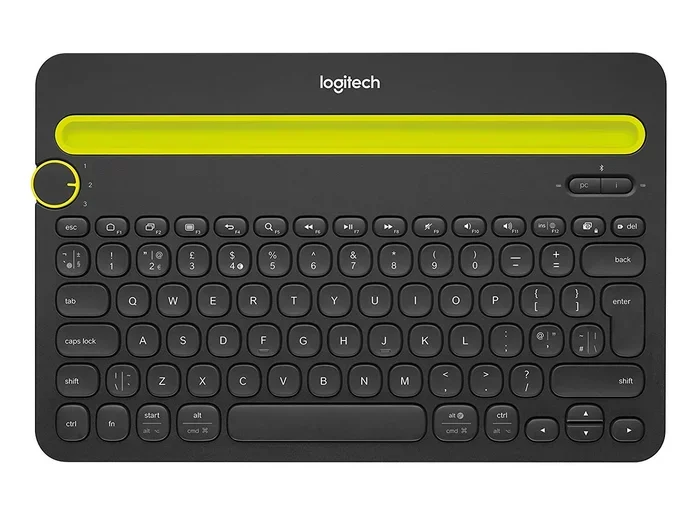
The Logitech K380 and MX Keys are excellent examples of keyboards that work great with Bluetooth. You can pair them with up to three different devices and switch between them easily. This is perfect if you use both a laptop and a desktop.
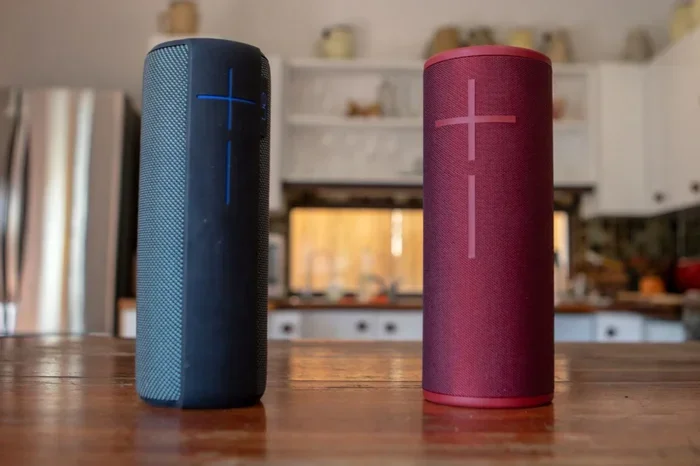
For audio, many Logitech speakers now support Bluetooth. You can even use your Logitech speaker as a Bluetooth speaker for your TV, similar to how you might use Alexa as a Bluetooth speaker for your TV. The setup is the same — just pair the speaker through your device’s Bluetooth settings.
Logitech Bluetooth Adapters
If your Logitech device does not have built-in Bluetooth but you still want to go wireless, you have an option. Logitech sells a Bluetooth adapter that can add Bluetooth capability to some supported devices. This adapter plugs into the Unifying Receiver port on compatible peripherals. It is a great middle-ground solution.
This adapter is especially useful for older Logitech devices that you love but do not want to replace. It lets you enjoy wireless connectivity without buying a whole new setup.
Common Mistakes When Using Logitech Without the Receiver
Going receiver-free is not always seamless. Here are some common mistakes to avoid.
Skipping the Compatibility Check
The biggest mistake is assuming every Logitech device supports Bluetooth. It does not. Before you throw away the receiver, verify that your specific model has Bluetooth capability. Check the product page on Logitech’s website or the user manual. This one step saves a lot of frustration.
Ignoring Firmware Updates
Logitech occasionally releases firmware updates that add Bluetooth support to older devices or improve existing connections. Use the Logitech Options or Logitech Options+ software to check for updates. Keeping your device updated ensures the best performance.
Overlooking Interference
Bluetooth uses the same 2.4 GHz frequency band as Wi-Fi and many other wireless devices. If your connection is unstable, interference might be the cause. Move your router away from your peripherals or switch your Wi-Fi channel. You can also boost your Wi-Fi at home to reduce overall wireless congestion in your space.
Forgetting to Charge
Bluetooth devices use more battery than receiver-connected ones. If your Logitech mouse or keyboard dies unexpectedly, check the battery level first. Keeping devices charged avoids unexpected disconnections.
Expert Insights on Logitech Wireless Connectivity
When it comes to Logitech peripheral connectivity, there are a few things worth keeping in mind. Bluetooth has come a long way, but the Unifying Receiver still has advantages in certain situations.
Latency matters for gaming. The Unifying Receiver typically offers lower latency than Bluetooth. If you are a competitive gamer, you might notice a slight delay with Bluetooth connections. For office work, browsing, and media consumption, Bluetooth is more than fast enough.
Range differs. Bluetooth generally has a shorter range than the Unifying Receiver’s proprietary connection. You can usually get about 10 meters (33 feet) with Bluetooth. The Unifying Receiver can reach further in some cases.
Multi-device switching is a game-changer. Devices like the Logitech MX Keys and MX Master series shine here. You can switch between a laptop, a desktop, and a tablet with a single keystroke or button press. This works over Bluetooth and is one of the best features Logitech offers.
Audio devices open up more options. If you use Logitech speakers or headsets, Bluetooth lets you connect them to phones, tablets, and smart TVs easily. You can even plug speakers into your laptop for a wired backup when the Bluetooth connection is not working. Having both options gives you flexibility.
Key Takeaways
- Bluetooth is the main alternative: Many Logitech devices support Bluetooth, removing the need for the Unifying Receiver entirely.
- Not all Logitech gear works without a receiver: Older models and some gaming peripherals still require a USB dongle for full functionality.
- You can connect up to six Bluetooth devices: Logitech Bluetooth adapters let you manage multiple peripherals wirelessly.
- Setup is simple: Pairing Logitech devices via Bluetooth takes just a few minutes and no special software.
- Check compatibility first: Always verify your specific Logitech model supports Bluetooth before you remove the receiver.
- Firmware updates help: Keeping your device updated can improve Bluetooth performance and add new features.
- Interference is real: Keep your Bluetooth peripherals away from Wi-Fi routers and other wireless devices for the best connection.
Frequently Asked Questions
Can I use any Logitech keyboard without the Unifying Receiver?
No, not every Logitech keyboard works without the receiver. Only models that have built-in Bluetooth support can connect wirelessly without the dongle. Check your specific model on Logitech’s website to confirm. Popular Bluetooth keyboards include the K380 and MX Keys series.
Do I need any special software to pair Logitech devices via Bluetooth?
No, you do not need special software for basic Bluetooth pairing. Your computer’s built-in Bluetooth settings handle the connection. However, Logitech Options or Logitech Options+ software can unlock extra features like custom shortcuts and multi-device switching.
Can I use Logitech Bluetooth headphones without the receiver?
Yes, if your Logitech headphones support Bluetooth, you can pair them directly with your phone, tablet, or computer. This works just like connecting any Bluetooth headphones with a PS5 or other Bluetooth-enabled device. Simply put the headphones in pairing mode and connect through your device’s Bluetooth settings.
What happens if my Logitech device does not show up in Bluetooth pairing mode?
First, make sure the device is fully charged. Then confirm it is in pairing mode by checking for a blinking LED light. Restart Bluetooth on your computer and try again. If it still does not work, check for firmware updates using Logitech Options software. Moving closer to your computer can also help, since Bluetooth range is limited.
Is Bluetooth as reliable as the Unifying Receiver for daily use?
For most everyday tasks like typing, browsing, and media playback, Bluetooth is very reliable. The Unifying Receiver may offer slightly better stability and lower latency, especially for gaming. But for office work and general use, Bluetooth performs excellently and gives you the freedom of a cleaner setup.
Can I connect Logitech devices to my phone or tablet using Bluetooth?
Yes, many Logitech Bluetooth keyboards and mice work with smartphones and tablets. The K380 keyboard, for example, can connect to three different devices including phones and tablets. This makes it a great portable companion for working on the go.
Final Thoughts
So, can you use Logitech without the Unifying Receiver? Absolutely, in most cases. With the growing support for Bluetooth across Logitech’s product lineup, going receiver-free is easier than ever. Whether you are using a wireless keyboard, a Bluetooth mouse, or even a Logitech speaker, you have options that do not require that tiny USB dongle.
The key is knowing what your device supports. Check for Bluetooth compatibility before you remove the receiver. Follow the simple pairing steps, and you will be working wirelessly in minutes. And if you run into issues, the troubleshooting tips above should help you get back on track.
Going receiver-free means a cleaner desk, fewer cables, and more flexibility. It is one of those small upgrades that makes a big difference in your daily workflow. So go ahead, unplug that Unifying Receiver, and enjoy the freedom of Logitech Bluetooth connectivity. Your workspace — and your sanity — will thank you.