How Do I Factory Reset A Google Nest Mini Complete Guide
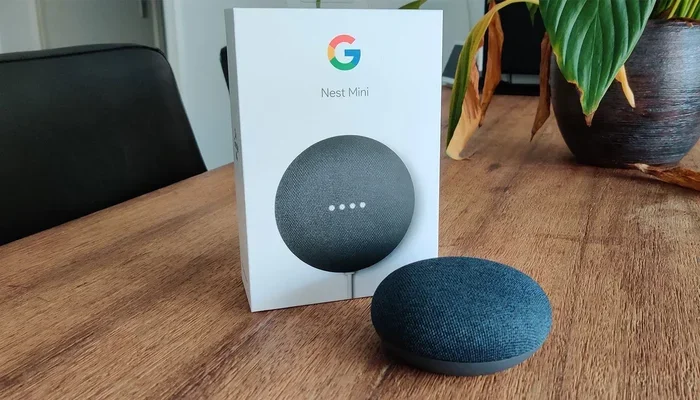
Factory resetting a Google Nest Mini is a simple process that can solve many issues, from connectivity problems to unresponsive voice commands. Whether you are selling your device, troubleshooting a glitch, or starting fresh, this complete guide walks you through every method step by step. You will learn the hard reset technique, the Google Home app method, and what to do after the reset is complete. Our guide also covers common mistakes, expert tips, and FAQs to make the entire process smooth and stress-free.
So you want to know how to factory reset a Google Nest Mini. Maybe your little speaker has been acting up, or maybe you are passing it on to someone else. Whatever the reason, you have come to the right place.
A factory reset wipes your Google Nest Mini clean. It removes all your Wi-Fi settings, voice preferences, linked accounts, and custom configurations. After the reset, your device is exactly the same as the day you pulled it out of the box. This guide will show you every way to do it, what to expect, and how to set things back up afterward.
Let us get into it. No fluff, no confusing jargon, just clear steps you can follow right now.
Key Takeaways
- A factory reset erases all your Google Nest Mini settings and returns it to original factory defaults.
- You can reset your Nest Mini using the physical buttons on the device or through the Google Home app.
- Always unlink your Google account and remove the device from the app before selling or giving it away.
- A factory reset is different from a simple reboot or restart.
- After resetting, you will need to set up the device again from scratch using the Google Home app.
- Common post-reset issues like Wi-Fi connection problems are easy to fix with a few simple steps.
📑 Table of Contents
- What Happens When You Factory Reset A Google Nest Mini
- When Should You Factory Reset A Google Nest Mini
- How To Factory Reset A Google Nest Mini Using the Buttons
- How To Factory Reset A Google Nest Mini Using the Google Home App
- What To Do After You Factory Reset A Google Nest Mini
- Common Problems After a Factory Reset (and How To Fix Them)
- Expert Tips To Avoid Needing a Factory Reset
- Final Thoughts on Factory Resetting Your Google Nest Mini
What Happens When You Factory Reset A Google Nest Mini
Before you start, it helps to understand what a factory reset actually does. When you factory reset a Google Nest Mini, the device goes back to its original state. Here is what gets wiped:
- Wi-Fi network credentials — Your saved passwords and network names are deleted.
- Google account link — The device is no longer tied to your Google profile.
- Voice match and preferences — Your custom voice settings are removed.
- Calendar and reminder data — Any synced calendar events or reminders are cleared.
- Smart home device links — Connected smart devices are unlinked from this speaker.
- Custom routines and commands — Any personal routines you created are gone.
Now, here is something important. A factory reset does not delete anything from your Google account itself. Your Google Calendar, Gmail, and other account data stay exactly as they are. The reset only affects the Nest Mini device. Think of it like wiping a whiteboard clean. The marker still exists, but the board is blank again.
This distinction matters because many people confuse a factory reset with deleting their Google account. It does not work that way. Your data stays safe in the cloud. Only the local settings on the Nest Mini are erased.
Soft Reset vs Hard Reset
It is worth noting the difference between a soft reset and a hard reset. A soft reset simply restarts the device. It does not erase any data. You can do a soft reset by unplugging the Nest Mini and plugging it back in after 30 seconds. A hard reset, which is what we are talking about here, fully wipes the device and restores it to factory defaults. When people say factory reset, they mean the hard reset.
When Should You Factory Reset A Google Nest Mini
Not every Google Nest Mini problem requires a factory reset. Sometimes a simple restart fixes things. But there are specific situations where a factory reset is the right move.
You Are Selling or Giving Away Your Nest Mini
If you are passing your Nest Mini to someone else, you absolutely need to factory reset it first. This ensures the next person can set it up with their own Google account. Leaving your account linked to the device creates privacy issues and can cause problems for the new owner.
The Speaker Is Unresponsive or Frozen
Have you ever asked your Nest Mini a question and gotten nothing back? Or maybe the light ring just sits there, frozen, doing nothing. Before you try anything else, a factory reset can often bring the device back to life. It clears out any software glitches that might be causing the freeze.
You Are Switching Google Accounts
Maybe you bought a new Google account or you want to link the Nest Mini to a family member’s account instead. A factory reset removes the old account link cleanly so you can start fresh with a new one.
You Are Troubleshooting Connectivity Issues
Sometimes your Nest Mini just will not connect to Wi-Fi no matter what you try. A factory reset clears all the old network settings and gives you a clean slate to set up a new connection. This solves many stubborn Wi-Fi problems.
You Have Done a Software Update and Things Broke
Rarely, a Google software update can cause unexpected issues. If your Nest Mini started misbehaving right after an update, a factory reset can roll things back to a stable state. You can then set it up again and wait for a fix from Google.
How To Factory Reset A Google Nest Mini Using the Buttons
The most direct way to factory reset a Google Nest Mini is by using the physical buttons on the device itself. This method works even if your speaker is completely unresponsive to voice commands. Here is how to do it.
Step by Step Instructions
- Locate the factory reset button. On most Google Nest Mini models, the reset button is a small pinhole on the bottom of the device. You will need a paperclip or a SIM ejector tool to press it.
- Unplug the Nest Mini from power. Make sure the device is completely powered off before you proceed.
- Press and hold the reset button. Use your paperclip to press into the pinhole. Keep holding it down.
- Plug the Nest Mini back into power. While still holding the reset button, plug the power cable back in.
- Wait for the light ring to flash. Keep holding the button until the light ring on top of the Nest Mini starts flashing. This usually takes about 5 to 10 seconds.
- Release the reset button. Once the light ring flashes, you can let go. The device will now begin the factory reset process.
- Wait for the setup chime. After the reset completes, the Nest Mini will play a short chime. This tells you the reset was successful.
That is it. Your Google Nest Mini has been factory reset. The entire process takes about one to two minutes. It is quick and does not require a phone or any other device.
What If the Reset Button Does Not Work
Sometimes the reset button on a Nest Mini can be finicky. If pressing it does not trigger the factory reset, try these things. Make sure you are using a thin, pointed object like a paperclip. A blunt object will not work. Also, make sure you hold the button for long enough. Some people release too early. Hold it for at least 10 seconds while the device powers on. If it still does not work, try the Google Home app method instead.
How To Factory Reset A Google Nest Mini Using the Google Home App
If you can still access your Google Home app, you can factory reset your Nest Mini without touching the physical buttons. This method is great when the speaker is still responsive and you want a cleaner process.
Step by Step Instructions
- Open the Google Home app on your phone. Make sure you are connected to the same Wi-Fi network as your Nest Mini.
- Find your Nest Mini. Tap on the device tile for your Google Nest Mini on the home screen.
- Tap the settings icon. This is usually a gear icon in the top right corner of the device screen.
- Scroll down and tap Remove device. The app will ask you to confirm. Tap Remove again.
- Confirm the removal. The Nest Mini will be removed from your Google Home setup.
- Re-add the device. To fully reset it, tap the plus icon in the Google Home app and set up the Nest Mini as a new device. During setup, you can choose to skip certain steps or start completely fresh.
Removing the device from the Google Home app does not always perform a full factory reset on its own. However, when you re-add it, the device starts fresh and clears most lingering settings. For a complete factory reset, the button method described above is more thorough.
Which Method Should You Use
Use the button method if your Nest Mini is frozen, unresponsive, or you want a guaranteed full factory reset. Use the Google Home app method if the device is still working and you want a clean removal before selling or transferring it. Both methods are valid, but the button method is the official factory reset for Google Nest Mini.
What To Do After You Factory Reset A Google Nest Mini
Once the factory reset is complete, your Nest Mini is a blank slate. Here is what you need to do next to get it working again.
Set Up the Device Again
Open the Google Home app on your phone. Tap the plus icon and select Set up device. Choose New device and follow the on-screen prompts. You will need to connect the Nest Mini to your Wi-Fi network and sign in with your Google account.
Re-link Your Smart Home Devices
If you had smart lights, thermostats, or other devices linked to your Nest Mini, you will need to re-link them. Go to the Devices tab in the Google Home app, tap Add, then select the device type you want to link. Follow the prompts to reconnect each device.
Re-train Voice Match
If you had Voice Match enabled, you will need to train it again. Go to the Google Home app settings for your Nest Mini and look for Voice Match. Follow the prompts to record your voice so the speaker recognizes you again.
Restore Your Routines
If you had custom routines set up, you will need to recreate them. This is a good time to review your routines and simplify them if needed. Go to the Routines section in the Google Home app and build your automation from scratch.
Update the Firmware
After setting up your Nest Mini again, check for firmware updates. The Google Home app will usually prompt you if an update is available. Keeping your device updated helps prevent the issues that led you to factory reset in the first place.
Common Problems After a Factory Reset (and How To Fix Them)
A factory reset should fix problems, but sometimes new ones pop up afterward. Here are the most common issues and how to solve them quickly.
The Nest Mini Will Not Connect to Wi-Fi
This is the most common post-reset issue. If your Nest Mini will not connect to Wi-Fi after a factory reset, try these steps. First, make sure your Wi-Fi network is working by connecting another device to it. Second, move the Nest Mini closer to your router. Third, make sure you are entering the correct Wi-Fi password. Fourth, restart your router and try again. If none of that works, try setting up the Nest Mini using the Google Home app on a different phone to rule out account issues.
The Setup Process Gets Stuck
Sometimes the Google Home app gets stuck during setup after a factory reset. If this happens, force close the app and reopen it. Make sure your phone is running the latest version of the Google Home app. You can also try restarting your phone and starting the setup process again. In rare cases, you may need to uninstall and reinstall the Google Home app.
The Nest Mini Says It Is Not Recognized
If the Google Home app does not detect your Nest Mini during setup, make sure the device is plugged in and the light ring is on. Also check that your phone is connected to the same Wi-Fi network. Try moving the Nest Mini closer to your phone during setup. If the light ring is not on at all, try a different power outlet and power cable.
Voice Commands Are Not Working
After a factory reset, your Nest Mini may not respond to voice commands right away. This is normal. The device needs a moment to fully initialize after setup. Wait a few minutes and try again. If it still does not work, check your microphone settings in the Google Home app and make sure the microphone is turned on.
The Factory Reset Keeps Failing
If you are trying to factory reset a Google Nest Mini and it keeps failing, do not panic. Try the button method again but hold the reset button for a longer time. Make sure you are using the correct Nest Mini model. Some older models have slightly different reset procedures. You can also try unplugging the device for a full minute before attempting the reset again.
Expert Tips To Avoid Needing a Factory Reset
Prevention is always better than cure. Here are some expert tips to keep your Google Nest Mini running smoothly and reduce the need for future factory resets.
- Keep your firmware updated. Google regularly releases updates that fix bugs and improve performance. Make sure your Nest Mini is always running the latest version.
- Restart your Nest Mini regularly. A simple restart once a week can clear out minor glitches before they become big problems.
- Use a stable Wi-Fi connection. Place your Nest Mini within good range of your router. Weak Wi-Fi signals cause many of the issues that lead people to factory reset their devices.
- Do not overload the device. Avoid linking too many smart home devices to a single Nest Mini. Keep your setup organized and manageable.
- Clear the cache periodically. In the Google Home app, you can clear the cache for your Nest Mini device settings to prevent data buildup issues.
- Use a quality power source. Cheap or damaged power cables can cause intermittent problems that mimic software issues.
Following these tips can significantly reduce the chances that you will ever need to factory reset a Google Nest Mini again. But if you do, now you know exactly how to handle it.
Final Thoughts on Factory Resetting Your Google Nest Mini
Factory resetting a Google Nest Mini is a straightforward process that solves a wide range of issues. Whether you use the physical button method or the Google Home app method, you now have everything you need to get the job done. The key is to know when a factory reset is necessary, follow the steps carefully, and set up your device properly afterward.
Remember that a factory reset erases all local settings but does not affect your Google account data. Always unlink the device from your account before giving it away or selling it. And after the reset, take your time with the setup process to make sure everything is configured correctly.
If you run into any issues during the reset or setup process, refer back to the troubleshooting tips in this guide. Most problems have simple solutions. With the right approach, your Google Nest Mini will be up and running in no time.
Now that you know how to factory reset a Google Nest Mini, you have the confidence to handle any situation. Keep this guide bookmarked for future reference. Your Nest Mini is in good hands.
Frequently Asked Questions
How long does it take to factory reset a Google Nest Mini?
The actual factory reset process takes about one to two minutes. The entire process, including unplugging, pressing the reset button, and waiting for the setup chime, should be done in under five minutes. If it takes longer, you may need to try the process again.
Will a factory reset delete my Google account data?
No. A factory reset only erases the local settings on your Nest Mini device. Your Google account data, including emails, calendar events, and photos stored in the cloud, remains completely safe and unaffected by the reset.
Can I factory reset a Google Nest Mini without the Google Home app?
Yes, you can. The physical button method on the bottom of the device allows you to factory reset a Google Nest Mini without needing the Google Home app or a phone. Just use a paperclip to press and hold the reset button while the device is powered on.
What is the difference between restarting and factory resetting a Google Nest Mini?
Restarting simply turns the device off and back on again. It does not erase any settings or data. A factory reset completely wipes all local settings and returns the device to its original out-of-the-box state. Use a restart for minor issues and a factory reset for deeper problems.
Do I need to set up my Google Nest Mini again after a factory reset?
Yes, absolutely. After a factory reset, your Nest Mini is completely blank. You will need to go through the full setup process again in the Google Home app, including connecting to Wi-Fi, signing in to your Google account, and re-linking any smart home devices.
Why is my Google Nest Mini not responding after a factory reset?
This can happen if the device did not fully complete the reset process or if there is a firmware issue. Try unplugging the Nest Mini for 30 seconds and plugging it back in. If the problem persists, try the factory reset process again using the button method and make sure you hold the reset button long enough for the light ring to flash.
=== CONCLUSION ===
Factory resetting a Google Nest Mini is one of the most useful skills you can have as a smart home user. Whether you are troubleshooting a stubborn issue, preparing the device for a new owner, or just want a fresh start, now you know exactly how to do it. The process is quick, simple, and does not require any special tools or technical expertise.
Remember the key steps. Use the physical button method for a guaranteed full factory reset. Use the Google Home app method for a clean removal and transfer. Always reconfigure your device properly after the reset. And follow our expert tips to keep things running smoothly in the future.
With this complete guide, you are fully equipped to handle any Google Nest Mini reset situation. Bookmark this page, share it with friends, and never let a stubborn speaker problem slow you down again.