Does Alexa Need Wi Fi Password to Set Up Smart Home
Yes, Alexa does need a Wi-Fi password to set up and connect to your smart home network. The Wi-Fi password is essential during the initial Alexa setup process through the Alexa app. Without a valid wireless network password, your smart speaker cannot connect to the internet or control smart home devices.
If you just bought an Amazon Echo or any Alexa-enabled device, you probably have one big question on your mind. Does Alexa need Wi-Fi password to get started? The short answer is yes. You need a Wi-Fi password to set up your smart home ecosystem properly.
Setting up a smart speaker might feel intimidating if you are not tech-savvy. But the good news is that Amazon designed the process to be simple. You just need your wireless network name and password, a smartphone, and about ten minutes of your time.
In this guide, we will walk you through everything you need to know about Alexa Wi-Fi setup. We will cover why the password matters, what happens if you do not have it, and how to troubleshoot common connection problems. By the end, you will feel confident setting up your home automation devices like a pro.
Key Takeaways
- Wi-Fi password is required: You must enter your Wi-Fi password during the initial Alexa setup to connect your device to the internet.
- Alexa cannot fully function offline: While some basic features work without Wi-Fi, full smart home control requires a stable internet connection.
- The Alexa app handles everything: All network settings and Wi-Fi connection steps are managed through the free Alexa app on your phone.
- Guest networks work too: You can connect Alexa to a guest wireless network as long as it has internet access.
- Troubleshooting is simple: Most connection issues can be fixed by restarting your router, checking the password, or moving closer to the router.
- Security matters: Always use a strong, unique password security setup for your home network to keep your smart devices safe.
📑 Table of Contents
- What Is Alexa and How Does It Connect to Wi-Fi?
- Do You Need a Wi-Fi Password to Set Up Alexa?
- Step-by-Step Guide to Connecting Alexa to Wi-Fi
- What If You Do Not Have the Wi-Fi Password?
- Troubleshooting Common Wi-Fi Connection Issues
- Tips for a Smooth Alexa Smart Home Setup
- Frequently Asked Questions
- Conclusion
What Is Alexa and How Does It Connect to Wi-Fi?
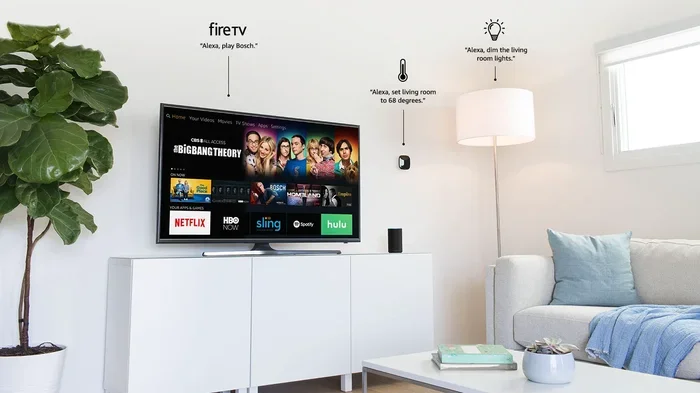
Alexa is Amazon’s voice assistant platform. It powers devices like the Echo Dot, Echo Show, and Echo Studio. These devices use your home internet connection to respond to voice commands, stream music, and control other smart home devices.
When you first power on an Alexa device, it looks for a Wi-Fi network to connect to. This is how it communicates with Amazon’s servers. Without this connection, Alexa cannot access the internet or respond to most commands.
Why Wi-Fi Is Essential for Alexa
Think of Wi-Fi as the lifeline for your smart speaker. Here is why it matters so much:
- Voice recognition: Alexa processes your voice commands through cloud servers. It needs the internet to understand what you are saying.
- Smart home control: You cannot turn on smart lights or adjust a thermostat without a working internet connection.
- Streaming services: Music, podcasts, and audiobooks all require a live wireless network.
- Software updates: Amazon regularly pushes updates to improve Alexa skills and fix bugs. These downloads need Wi-Fi.
So yes, your Wi-Fi password is not optional. It is a required piece of information during the setup phase.
Do You Need a Wi-Fi Password to Set Up Alexa?
The direct answer is yes. During the initial Alexa setup, the Alexa app will ask you to select your wireless network and enter the password. This is a non-negotiable step.
Here is what happens behind the scenes. When you open the Alexa app and tap “Add Device,” the app scans for available Wi-Fi networks. It then pairs your phone’s connection with the Echo device using a temporary Bluetooth signal. After that, it sends your network credentials to the Echo device so it can join your home network.
What Kind of Password Does Alexa Accept?
Alexa accepts most standard Wi-Fi passwords. Whether your router uses WPA, WPA2, or WPA3 encryption, the Alexa app can handle it. Here are a few things to keep in mind:
- Case sensitivity: Wi-Fi passwords are case-sensitive. Make sure you type them exactly as they appear on your router.
- Special characters: If your password has symbols like @, #, or $, the on-screen keyboard in the Alexa app lets you access them easily.
- Long passwords: Some routers generate long passwords. The Alexa app supports passwords up to 63 characters.
One important note: Alexa works best on 2.4GHz networks. Many modern routers use dual-band technology, broadcasting both 2.4GHz and 5GHz signals. While Alexa can sometimes connect to 5GHz, the 2.4GHz band offers better range and compatibility.
Step-by-Step Guide to Connecting Alexa to Wi-Fi
Now that you know the Wi-Fi password is essential, let us walk through the setup process step by step. This guide works for all Amazon Echo devices.
Step 1: Download the Alexa App
Go to the App Store on iPhone or the Google Play Store on Android. Search for “Amazon Alexa” and download the free app. Make sure your phone is connected to the same Wi-Fi network you want Alexa to join.
Step 2: Plug in Your Alexa Device
Connect your Amazon Echo to a power outlet. Wait for the light ring to turn orange or blue. This means the device is ready for setup.
Step 3: Open the Alexa App and Add a Device
Open the Alexa app on your phone. Tap the “Devices” icon at the bottom of the screen. Then tap the plus sign in the top right corner and select “Add Device.” Choose “Echo” from the list of smart home devices.
Step 4: Enter Your Wi-Fi Password
The app will now ask you to select your wireless network name from a list. Tap on your network and enter your Wi-Fi password. Double-check for typos. The app will then send this information to your Echo device.
Step 5: Wait for the Connection
Within a minute or two, your Alexa device should connect to the network. The light ring will turn solid blue, and you will hear a confirmation sound. You are now ready to start using home automation features.
Quick Tips for a Smooth Setup
- Place your Echo device close to the router during setup.
- Restart your router if the Alexa app cannot find your network.
- Make sure your wireless network is not hidden. Hidden networks require extra steps.
- Use the 2.4GHz band for the most reliable connection.
What If You Do Not Have the Wi-Fi Password?
Not having your Wi-Fi password is more common than you think. Maybe you just moved into a new place, or someone else set up the router and never shared the details. Whatever the reason, here is what you can do.
Check the Router Itself
Most routers have a sticker on the bottom or back. This sticker usually lists the default Wi-Fi network name and password. Look for a field labeled “Password,” “Key,” or “Passphrase.”
Log Into Your Router’s Admin Panel
If the sticker is worn off or the password has been changed, you can log into your router’s settings. Type your router’s IP address into a web browser. Common addresses are 192.168.1.1 or 192.168.0.1. Enter the admin username and password to find your network credentials.
Reset the Router
As a last resort, you can reset your router to factory settings. This will restore the default Wi-Fi password listed on the sticker. Keep in mind that this will erase all custom settings, so use this option carefully.
Can Alexa Connect Without a Password?
In some cases, yes. If your wireless network is open and has no password, Alexa can connect to it. However, this is rare in most homes today. Open networks also pose serious password security risks, so we do not recommend leaving your network unprotected.
Troubleshooting Common Wi-Fi Connection Issues
Even with the correct Wi-Fi password, things can go wrong. Here are the most common problems and how to fix them.
Alexa Says “Sorry, I Had Trouble Connecting”
This error message usually means one of three things. Either the password is wrong, the router is too far away, or the network is overloaded. Try typing the password again carefully. Move your Echo device closer to the router. Or restart your router to free up connections.
Alexa Connects but Keeps Dropping
An unstable connection can be frustrating. Here are some fixes:
- Restart your router: Unplug it for 30 seconds, then plug it back in.
- Check for interference: Microwaves, baby monitors, and other electronics can disrupt the wireless signal.
- Update your router firmware: Check the router manufacturer’s app or website for updates.
- Reduce the number of connected devices: Too many devices on one network can slow things down.
The Alexa App Cannot Find Your Network
If your wireless network does not appear in the app, try these steps:
- Make sure your router is broadcasting the network name (SSID).
- Check that your phone is connected to the same network.
- Restart your phone and try again.
- Move closer to the router.
Dual-Band Router Confusion
Many modern routers broadcast two networks: one for 2.4GHz and one for 5GHz. Sometimes they share the same name, which can confuse Alexa. If you experience issues, try connecting to the 2.4GHz network separately. You can do this in your phone’s network settings before starting the Alexa setup.
Tips for a Smooth Alexa Smart Home Setup
Setting up home automation should be exciting, not stressful. Here are some expert tips to make the process smooth and enjoyable.
Use a Strong, Unique Password
Your Wi-Fi password is the first line of defense for your smart home devices. Use a strong password that includes uppercase letters, lowercase letters, numbers, and symbols. Avoid using easy-to-guess passwords like “password123” or your street name.
Place Your Router Centrally
The location of your router affects Wi-Fi signal strength throughout your home. Place it in a central, open area. Avoid hiding it in a closet or behind a TV. Better signal means a more reliable Alexa connection.
Set Up a Guest Network
If you have many smart home devices, consider creating a guest wireless network. This keeps your main network less crowded and adds an extra layer of password security. You can give the guest network password to your Alexa devices while keeping your personal devices on the main network.
Keep the Alexa App Updated
Amazon regularly releases updates to the Alexa app that improve device compatibility and fix bugs. Check for updates in your app store regularly. An outdated app can sometimes cause connection issues.
Explore Alexa Skills After Setup
Once your smart speaker is connected, take some time to explore Alexa skills. These are like apps for Alexa. You can enable skills for weather updates, news briefings, smart home control, and much more. Simply say, “Alexa, enable [skill name]” or find them in the Alexa app.
Frequently Asked Questions
Can Alexa Work Without Wi-Fi?
Alexa can perform a few basic functions without Wi-Fi, such as playing alarms, using built-in timers, and controlling some local Bluetooth devices. However, most features, including smart home control and voice commands that require cloud processing, will not work without an active internet connection.
Can I Connect Alexa to Wi-Fi Without the Password?
No, you cannot connect Alexa to a password-protected wireless network without the password. The Alexa app requires you to enter the correct Wi-Fi password during setup. If your network is open and has no password, Alexa can connect without one, but this is uncommon and not recommended for security reasons.
Why Does Alexa Keep Disconnecting From Wi-Fi?
Frequent disconnections usually happen due to signal interference, router issues, or being too far from the router. Try restarting your router, moving the Echo device closer to the router, or switching to the 2.4GHz band. Also make sure your Wi-Fi password has not changed recently.
What Wi-Fi Frequency Does Alexa Support?
Alexa devices primarily support the 2.4GHz frequency band. Some newer Echo models can also connect to 5GHz networks, but 2.4GHz offers better range and wall penetration. For the most reliable Alexa setup, connect your device to a 2.4GHz network.
Can Alexa Connect to a Guest Network?
Yes, Alexa can connect to a guest wireless network as long as the guest network has internet access and the correct password. In fact, using a guest network for your smart home devices is a smart move for password security because it separates your IoT devices from your personal computers and phones.
How Do I Change Alexa’s Wi-Fi Network?
To change your Alexa Wi-Fi network, open the Alexa app, go to Devices, select your Echo device, and tap “Change Wi-Fi Network.” You will need to enter the new wireless network password. This is useful if you switch internet providers or get a new router.
Conclusion
So, does Alexa need Wi-Fi password to set up your smart home? Absolutely. The Wi-Fi password is the key that unlocks your entire home automation experience. Without it, your smart speaker cannot connect to the internet, control other devices, or access the full range of Alexa skills.
The good news is that the setup process is straightforward. You just need the Alexa app, your wireless network name, and your password. Within minutes, your Amazon Echo will be up and running, ready to respond to your voice commands and make your home smarter.
Remember to keep your password security strong, place your router strategically, and troubleshoot issues calmly when they arise. With the right internet connection and a little patience, you will enjoy everything that Alexa smart home technology has to offer. Now go ahead, grab that Wi-Fi password, and start building the smart home you have always wanted.