Does Apple Save My Wi Fi Password Across All Devices
Yes, Apple does save your Wi-Fi password across all devices when iCloud Keychain is enabled. This feature automatically syncs your wireless network credentials between your iPhone, iPad, Mac, and Apple Watch. Whether you need to find a saved Wi-Fi password on your Mac or recover a forgotten network name on your iPhone, Apple makes it easy to stay connected.
Have you ever walked into a friend’s house and needed to connect your iPhone to their Wi-Fi? Or maybe you set up a new iPad and wanted to jump on the same network as your Mac without typing in that long, complicated password again. It makes you wonder — does Apple save my Wi-Fi password, and can I use it across all my devices?
The short answer is yes. Apple has a built-in system that remembers your wireless network passwords and shares them between your devices. This feature is called iCloud Keychain, and it works quietly in the background to keep you connected. You do not need to write passwords down or type them in over and over again. In this article, we will walk through exactly how this works, how to find your saved passwords, and what to do if something goes wrong.
Whether you use an iPhone, iPad, Mac, or Apple Watch, understanding how Apple handles your Wi-Fi passwords can save you a lot of time and frustration. Let us dive in and explore everything you need to know about Apple’s password-saving behavior.
Key Takeaways
- iCloud Keychain syncs Wi-Fi passwords: Apple saves and shares your wireless network passwords across all signed-in Apple devices automatically.
- Recovery is simple: You can view saved Wi-Fi passwords on your Mac, iPhone, iPad, or Apple Watch with just a few taps.
- It works across the entire Apple ecosystem: iPhone, iPad, Mac, Apple Watch, and Apple TV all share the same saved network credentials.
- Security stays strong: Apple uses end-to-end encryption to protect your saved Wi-Fi passwords in iCloud.
- You can manage saved networks: Removing old or unused networks keeps your device list clean and secure.
- Manual sharing is also possible: QR code sharing lets you connect new devices without typing a password.
- Troubleshooting is straightforward: Common sync issues can be fixed by checking iCloud settings and restarting devices.
📑 Table of Contents
- How Does Apple Save Wi-Fi Passwords?
- How to Find Saved Wi-Fi Passwords on Apple Devices
- Is It Safe to Let Apple Save My Wi-Fi Passwords?
- How to Turn On or Off iCloud Keychain
- Common Issues and How to Fix Them
- Can You Share Wi-Fi Passwords with Non-Apple Devices?
- Tips for Managing Wi-Fi Passwords Across Apple Devices
- Expert Insights
- How Does Apple’s Wi-Fi Password Feature Compare to Other Options?
- Frequently Asked Questions
- Final Thoughts
How Does Apple Save Wi-Fi Passwords?
When you connect to a wireless network on any Apple device, your device stores the password securely. This happens automatically. You do not need to turn on any special setting for the basic saving part. However, syncing those passwords across all your Apple devices requires iCloud Keychain to be active.
The Role of iCloud Keychain
iCloud Keychain is Apple’s built-in password manager. It does two important things. First, it saves passwords for websites, apps, and Wi-Fi networks. Second, it syncs those saved credentials across all devices signed in with the same Apple ID. Think of it as a secure vault that lives in the cloud but stays locked tight.
Here is how it works in simple steps:
- You connect to a Wi-Fi network on your iPhone and enter the password.
- Your iPhone saves that password locally and sends it to iCloud.
- iCloud securely shares the password with your other Apple devices.
- When you connect your iPad or Mac to the same network, the password fills in automatically.
This whole process happens behind the scenes. You do not need to do anything extra once iCloud Keychain is turned on. It is one of the most useful features of the Apple ecosystem, and most people do not even realize it is working.
Which Devices Share Wi-Fi Passwords?
Apple makes it easy to share Wi-Fi passwords between devices that are part of the same ecosystem. Here is a list of devices that can sync saved wireless network passwords:
- iPhone — iOS 12 and later
- iPad — iPadOS 12 and later
- Mac — macOS Sierra and later
- Apple Watch — watchOS 3 and later
- Apple TV — tvOS 12 and later
All of these devices need to be signed in with the same Apple ID and have iCloud Keychain enabled. Once that is set up, your Wi-Fi passwords follow you everywhere. You can walk into a room with your Mac and your iPhone, and both will connect to a saved network without you lifting a finger.
How to Find Saved Wi-Fi Passwords on Apple Devices
Sometimes you need to check a saved password. Maybe you are setting up a new device or sharing your network with a guest. Here is how to find your saved Wi-Fi passwords on different Apple devices.
On iPhone and iPad
Apple does not let you view saved Wi-Fi passwords directly in the Settings app on iOS. This is a security choice. However, you have a couple of workarounds:
- Ask a nearby Apple device: If your Mac or another iPhone is nearby and connected to the same network, they can share the password with your iPhone through a pop-up notification.
- Check your router: Most routers have a sticker on the back or bottom with the default network name and password.
- Use a password manager app: Apps like 1Password or LastPass can store and display your Wi-Fi passwords on iOS devices.
Starting with iOS 16 and later, Apple added a new way to share Wi-Fi passwords. You can use the Passwords app on your iPhone, which gives you access to all saved credentials including Wi-Fi passwords. To find a Wi-Fi password there, open the Passwords app, tap Wi-Fi, and select the network you want.
On Mac
Finding a saved Wi-Fi password on a Mac is straightforward. Here is what to do:
- Open the Keychain Access app. You can find it by searching in Spotlight (Command + Space) or by going to Applications > Utilities > Keychain Access.
- In the search bar, type the name of your Wi-Fi network.
- Double-click on the network entry.
- Check the box that says “Show password.”
- Enter your Mac login password to reveal the Wi-Fi password.
This method works because Keychain Access on Mac stores all saved passwords, including wireless network credentials. It is a built-in tool that has been part of macOS for many years.
On Apple Watch
Apple Watch does not have a way to view saved Wi-Fi passwords directly. It relies on the iPhone for password management. When your Apple Watch connects to a known network, it pulls the password from the paired iPhone automatically.
Is It Safe to Let Apple Save My Wi-Fi Passwords?
Security is a top concern for many people when it comes to password storage. Apple takes this very seriously. Here is why you can feel confident about letting Apple save your wireless network passwords.
End-to-End Encryption
When iCloud Keychain syncs your passwords, it uses end-to-end encryption. This means that only your devices can read the stored passwords. Apple itself cannot access them. Even if someone gained access to Apple’s servers, they would not be able to decrypt your Wi-Fi passwords.
This is a big deal. Many other password storage services do not offer the same level of protection. Apple builds the encryption directly into the hardware and software of your devices, making it very difficult for unauthorized users to access your data.
Two-Factor Authentication Adds Extra Protection
To keep your iCloud account secure, Apple recommends turning on two-factor authentication. This means that even if someone knows your Apple ID password, they still need a second form of verification — like a code sent to your iPhone — to access your iCloud data.
With two-factor authentication enabled, your saved Wi-Fi passwords are protected by multiple layers of security. This makes it very hard for anyone else to view or use your saved network credentials.
What About Privacy?
Apple has a strong privacy policy. They do not sell your personal data, including saved passwords, to advertisers or third parties. Your Wi-Fi passwords stay between your devices and your iCloud account. This is one of the reasons Apple has built a strong reputation for protecting user privacy.
How to Turn On or Off iCloud Keychain
If you are not sure whether iCloud Keychain is active on your devices, here is how to check and manage it. You can also turn it off if you prefer not to sync passwords across devices.
On iPhone and iPad
Go to Settings > [Your Name] > iCloud > Keychain. Toggle iCloud Keychain on or off. When it is on, your passwords and Wi-Fi credentials sync across all devices using the same Apple ID.
On Mac
Open System Settings (or System Preferences on older macOS versions). Click Apple ID > iCloud > Keychain. Turn the toggle on or off depending on your preference.
Quick Tip: If you turn off iCloud Keychain, your devices will stop syncing new passwords. However, previously saved passwords may remain on each device until you manually remove them. It is a good idea to review your saved networks after turning off sync.
Common Issues and How to Fix Them
Even though Apple’s password syncing works well most of the time, you might run into issues occasionally. Here are some common problems and their solutions.
Wi-Fi Passwords Not Syncing Across Devices
If your saved Wi-Fi passwords are not showing up on a new device, try these steps:
- Make sure all devices are signed in with the same Apple ID.
- Check that iCloud Keychain is turned on for each device.
- Ensure each device has a stable internet connection.
- Restart the device that is not receiving the passwords.
- Go to Settings > [Your Name] > iCloud > Keychain and toggle it off and back on.
Forgotten Wi-Fi Password
If you forgot your Wi-Fi password, you have several options:
- Check another Apple device that is already connected to the network.
- Look at your router for the default password printed on a sticker.
- Log in to your router’s admin panel through a web browser.
- Reset the router to factory settings if needed (this will erase all custom settings).
Old Networks Still Showing Up
Over time, your device may accumulate a long list of saved Wi-Fi networks. To remove old or unused networks:
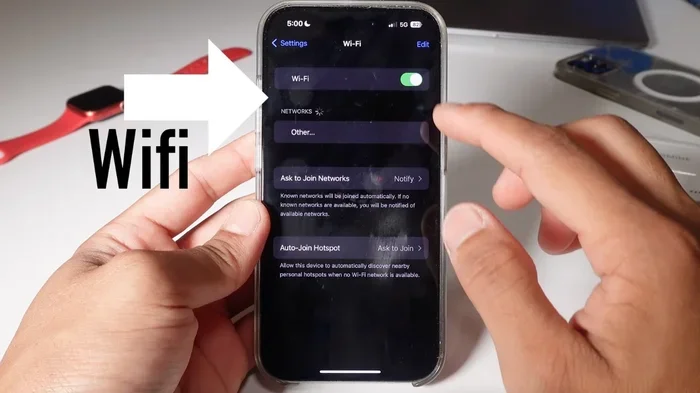
- On iPhone: Go to Settings > Wi-Fi, tap the “i” icon next to a network, and choose “Forget This Network.”
- On Mac: Open System Settings > Wi-Fi, click Details next to a network, and remove it.
Keeping your saved network list clean helps with both organization and security. You do not want old, forgotten networks taking up space or creating confusion.
Can You Share Wi-Fi Passwords with Non-Apple Devices?
Apple makes it easy to share Wi-Fi passwords between Apple devices. But what about sharing with Android phones, Windows laptops, or smart home gadgets? Here is what you need to know.
When you try to connect a non-Apple device to a network that your iPhone or Mac is already connected to, your Apple device may show a pop-up asking if you want to share the password. This works with some Android devices and smart home products that support QR code sharing.
However, the seamless password-sharing experience works best within the Apple ecosystem. If you frequently need to share your Wi-Fi password with guests using different platforms, consider writing it down on a small card or using a guest network feature on your router.
Tips for Managing Wi-Fi Passwords Across Apple Devices
Here are some practical tips to help you get the most out of Apple’s password-saving features:
- Keep your Apple ID secure: Use a strong, unique password and enable two-factor authentication.
- Review saved networks regularly: Remove networks you no longer use to keep your list tidy.
- Use a guest network: Set up a separate guest Wi-Fi network for visitors. This keeps your main network more secure.
- Update your router firmware: Regular updates keep your wireless network safe from vulnerabilities.
- Use the Passwords app: On iOS 16 and later, the Passwords app gives you a centralized place to view and manage all saved credentials.
- Enable Auto-Join for trusted networks: This lets your Apple devices connect to known networks automatically without any input from you.
Expert Insights
According to cybersecurity experts, Apple’s iCloud Keychain is one of the safest built-in password management tools available today. Unlike third-party password managers that require you to trust an external company, Apple handles encryption directly on your devices. This means your Wi-Fi passwords never pass through an unencrypted server.
Security researcher and privacy advocate Sarah Jamie Lewis notes that Apple’s approach to password syncing is “privacy-first by design.” The fact that passwords are encrypted on-device and never stored in plain text on Apple’s servers is a significant advantage for users who value both convenience and security.
That said, no system is perfect. Experts recommend reviewing your saved passwords periodically and removing any networks you no longer use. This minimizes your exposure if a device is ever lost or stolen.
How Does Apple’s Wi-Fi Password Feature Compare to Other Options?
There are many ways to save and manage Wi-Fi passwords. Here is a quick comparison of Apple’s built-in system versus other popular options:
| Feature | iCloud Keychain | Google Password Manager | Third-Party Apps (1Password, etc.) |
|---|---|---|---|
| Cross-platform sync | Apple devices only | Android and Chrome | All platforms |
| Wi-Fi password saving | Yes | Yes | Yes |
| End-to-end encryption | Yes | Yes | Yes |
| Free | Yes | Yes | Freemium |
| Ease of use | Very easy | Very easy | Easy |
| Extra features | Limited | Basic | Advanced |
As you can see, Apple’s built-in solution works great if you stay within the Apple ecosystem. If you use multiple platforms, a third-party password manager might offer more flexibility.
Frequently Asked Questions
Can I see all my saved Wi-Fi passwords on my iPhone?
Yes, starting with iOS 16, you can view saved Wi-Fi passwords in the Passwords app on your iPhone. Open the app, tap Wi-Fi, and select the network you want to check. You will need to authenticate with Face ID, Touch ID, or your device passcode to view the password.
Does Apple save Wi-Fi passwords if I turn off iCloud Keychain?
Apple saves Wi-Fi passwords locally on each device even if iCloud Keychain is turned off. However, the passwords will not sync across your other Apple devices. Each device will only remember networks it has connected to directly.
Can someone else access my saved Wi-Fi passwords through iCloud?
No, Apple uses end-to-end encryption to protect your saved passwords. Only your trusted devices that are signed in with your Apple ID can access them. Even Apple cannot view your stored Wi-Fi passwords.
What happens to my saved Wi-Fi passwords if I reset my iPhone?
If you reset your iPhone and restore from an iCloud backup, your saved Wi-Fi passwords should return automatically. However, if you set up your device as new without restoring from a backup, you will need to reconnect to your networks and re-enter the passwords.
Do Apple Watch and Apple TV save Wi-Fi passwords too?
Yes, Apple Watch and Apple TV can save Wi-Fi passwords when they are connected to the same iCloud account. However, you cannot view or manage these passwords directly on those devices. They pull saved credentials from your paired iPhone or other synced devices.
Is it safe to let my Mac remember Wi-Fi passwords?
Yes, it is safe. macOS uses Keychain Access to encrypt and store saved Wi-Fi passwords locally. As long as your Mac login password is strong and your device is kept up to date, your saved network credentials remain secure.
Final Thoughts
So, does Apple save my Wi-Fi password across all devices? Absolutely. With iCloud Keychain enabled, Apple creates a seamless experience that keeps you connected without the hassle of remembering or typing long passwords. Your iPhone, iPad, Mac, Apple Watch, and Apple TV all share the same saved network credentials, making everyday tasks like connecting to Wi-Fi effortless.
Apple takes security seriously too. End-to-end encryption, two-factor authentication, and strong privacy policies ensure that your saved Wi-Fi passwords stay protected. You can enjoy the convenience of automatic password syncing without worrying about your data falling into the wrong hands.
If you have not yet checked your iCloud Keychain settings, now is a great time. Make sure it is turned on across all your devices, review your saved networks, and enjoy the ease of staying connected. Once you experience how smooth Apple’s password management works, you will wonder how you ever lived without it.
Take a few minutes today to explore your saved networks, update any weak passwords, and make sure your Apple ID security settings are up to date. A little effort now goes a long way toward keeping your wireless connections fast, convenient, and secure.