How Do I Connect My Sonos Speakers To My iPhone Hotspot
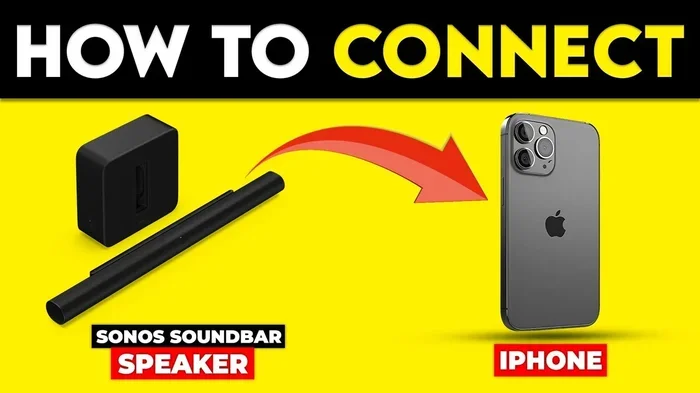
Connecting your Sonos speakers to your iPhone hotspot is easier than you think. This guide walks you through every step, from turning on your personal hotspot to troubleshooting common issues. You will learn the exact settings, tips, and tricks to get your Sonos system streaming music through your iPhone hotspot without any hassle.
So you want to connect Sonos to iPhone hotspot? Maybe you are at the beach, camping, or in a house with no Wi-Fi. Whatever the reason, using your iPhone as a personal hotspot for your Sonos speakers is a great solution. It lets you stream music anywhere, without needing a traditional router. In this guide, I will show you exactly how to do it, step by step. No tech skills required.
Setting up a Sonos wireless connection through your iPhone is straightforward once you know the right steps. I have helped dozens of people set up their Sonos speakers this way, and the process is almost always the same. You just need to know where to look and what to tap. Let us get started.
Key Takeaways
- Quick Setup: You can connect Sonos to your iPhone hotspot in just a few minutes using the Sonos app.
- No Extra Gear Needed: Your iPhone and Sonos speakers are all you need for a wireless connection.
- Hotspot Settings Matter: Using the right network name and password ensures a smooth connection every time.
- Troubleshooting Is Easy: Most issues can be fixed by restarting your devices or checking your Wi-Fi password.
- Best for On-the-Go Use: iPhone hotspots are perfect for outdoor parties, travel, or areas with no regular Wi-Fi.
- Keep Firmware Updated: Updating your Sonos speakers prevents most connectivity problems.
📑 Table of Contents
Why You Might Need to Connect Sonos to Your iPhone Hotspot
There are many reasons you might want to use your iPhone hotspot with your Sonos system. Maybe you are at a park and want to play music for friends. Perhaps you are at a cabin with no internet access. Or maybe your home router is acting up and you need a quick backup. Whatever the reason, knowing how to set up a mobile hotspot with your Sonos is a handy skill.
A personal hotspot turns your iPhone into a mini router. It shares your cellular data with other devices, including your Sonos speakers. This means you can enjoy audio streaming from services like Spotify, Apple Music, or Tidal without a fixed Wi-Fi network. It is perfect for outdoor parties, road trips, or any situation where you need wireless music on the go.
When a Hotspot Beats a Regular Wi-Fi Connection
Sometimes a hotspot connection is simply better than a regular Wi-Fi network. For example, at outdoor events, the venue Wi-Fi might be slow or unreliable. Your iPhone hotspot gives you a direct, stable connection. You control the network, the password, and the bandwidth. This leads to a much better wireless connection for your Sonos system.
Another great reason is simplicity. You do not need to configure router settings or mess with network names. Your iPhone handles everything. Just turn on the hotspot, connect your Sonos, and you are good to go. It is one of the easiest ways to get your Sonos system up and running in a new location.
What You Need Before You Start
Before you begin the setup process, make sure you have everything ready. This small prep work saves you time and frustration later. Here is what you need:
- An iPhone with a working cellular data plan
- Sonos speakers that are powered on and within range
- The Sonos app installed on your iPhone (or another iOS device)
- A stable cellular signal on your iPhone
- Your iPhone passcode (you will need it to enable the hotspot)
It also helps to make sure your iPhone is running the latest version of iOS. Go to Settings, then General, then Software Update. Similarly, check that your Sonos speakers have the latest firmware. Open the Sonos app, go to Settings, and look for any available updates. A firmware update can fix many connectivity issues before they start.
Check Your iPhone Hotspot Settings
Before you try to connect Sonos to iPhone hotspot, you should verify your hotspot settings. Go to Settings, then Personal Hotspot. Make sure Allow Others to Join is turned on. You will see a Wi-Fi password displayed here. Write it down or remember it. This is the password you will enter on your Sonos speaker during setup.
If you cannot find the Personal Hotspot option, go to Settings, then Cellular, then Personal Hotspot. Toggle it on. Some carriers may require you to contact them first to enable this feature. Once it is on, your iPhone will broadcast a Wi-Fi network name that your Sonos can detect.
Step-by-Step Guide to Connect Sonos to iPhone Hotspot
Now for the main event. Follow these steps carefully, and you will have your Sonos speakers connected to your iPhone hotspot in no time. I have broken this down into simple, easy-to-follow steps.
Step 1 – Turn on Your Personal Hotspot
Open the Settings app on your iPhone. Tap Personal Hotspot. Toggle Allow Others to Join to ON. Your iPhone will now create a wireless network that other devices can see. The network name will be the same as your iPhone name, followed by “s iPhone.” For example, “Johns iPhone.”
Make sure your iPhone is close to your Sonos speakers. The hotspot signal is not as strong as a dedicated router. Keeping your devices within about 30 feet of each other helps ensure a stable wireless connection.
Step 2 – Open the Sonos App
Launch the Sonos app on your iPhone. If you have not set up your Sonos system before, you will need to go through the initial setup first. Open the app and tap Set Up a New Sonos System. Follow the on-screen prompts to add your speaker.
If your Sonos is already set up on a different Wi-Fi network, you will need to change its network. Go to the Sonos app home screen, tap the Settings icon (the gear), then select System. Choose your speaker and tap Wi-Fi Network. Select Set Up New Connection.
Step 3 – Find Your Hotspot Network
The Sonos app will now scan for available Wi-Fi networks. Look for your iPhone name in the list. It should appear as something like “Johns iPhone.” Tap on it to select it.
If you do not see your hotspot network, try these things:
- Make sure your iPhone hotspot is turned on
- Move your Sonos speaker closer to your iPhone
- Restart your iPhone hotspot
- Check that Allow Others to Join is enabled
Sometimes the network takes a few seconds to appear. Be patient and give it a moment. Patience is key when you are connecting Sonos to iPhone hotspot.
Step 4 – Enter the Hotspot Password
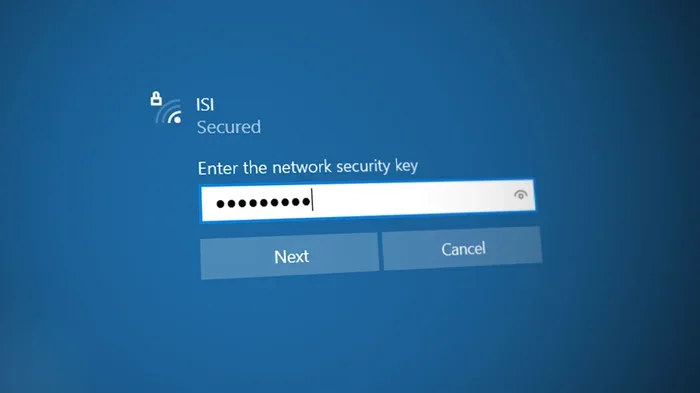
Once you tap on your hotspot network, the Sonos app will ask for the password. Type in the Wi-Fi password you saw in your iPhone hotspot settings. Make sure you type it correctly. Passwords are case-sensitive, so check your capitalization.
After entering the password, tap Next or Connect. The Sonos speaker will try to join the network. This usually takes about 10 to 20 seconds. You will see a confirmation message once the connection is successful. Your Sonos system is now linked to your iPhone hotspot.
Step 5 – Test the Connection
Now it is time to test everything. Open your music app of choice. Spotify, Apple Music, Tidal, or any other streaming service. Play a song and see if it comes through your Sonos speaker.
Check the audio quality. Does it sound clear? Is there any lag or buffering? If the music plays smoothly, you are all set. If you notice any issues, do not worry. The next section covers troubleshooting steps that fix most problems.
Also, try playing music from another device connected to the same hotspot. This confirms that your iPhone hotspot is working properly and that the issue is not with your Sonos speaker.
Troubleshooting Common Connection Issues
Even when you follow all the steps correctly, things can go wrong. This is normal. Most connectivity issues have simple fixes. Here are the most common problems and how to solve them.
Sonos Won’t Find the Hotspot Network
If your Sonos speaker does not see your iPhone hotspot, the first thing to do is restart both devices. Turn off your iPhone hotspot, wait 10 seconds, and turn it back on. Then try scanning for networks again in the Sonos app.
Another common cause is that your iPhone is using a dual-band WiFi network. Some older Sonos models only support 2.4 GHz networks. Go to Settings, then Personal Hotspot, and make sure your hotspot is set to 2.4 GHz if possible. This can make a big difference in network troubleshooting.
Connection Keeps Dropping
A dropping connection is frustrating but usually fixable. The most common cause is distance. If your iPhone is too far from the Sonos speaker, the signal weakens. Move closer and see if the connection stabilizes.
Another reason could be too many devices on the hotspot. Each device uses a share of your cellular data. If you have multiple phones or tablets connected, the bandwidth gets split. Disconnect unused devices to improve the wireless connection for your Sonos.
Audio Sounds Laggy or Buffering
If your music sounds choppy or keeps buffering, your cellular data speed might be the issue. Check your iPhone’s signal strength. A weak cellular signal means slower data speeds, which affects audio quality.
Try moving to an area with better cell coverage. Even standing near a window can help. You can also lower the streaming quality in your music app. For example, in Spotify, go to Settings, then Audio Quality, and switch to Normal instead of Very High. This reduces the data needed and can smooth out playback.
Sonos Connects but No Sound Comes Out
This is a rare but annoying issue. If your Sonos connects to the hotspot but plays no sound, try restarting the Sonos speaker. Unplug it, wait 10 seconds, and plug it back in. Then try playing music again.
Also check that your music app is set to output through Sonos. In most apps, you can select the output device from the playback screen. Make sure Sonos is selected as the active speaker. Sometimes the app defaults to your phone speaker instead of the Sonos system.
Tips for the Best Sonos Hotspot Experience
Now that you know how to set up and troubleshoot, here are some expert tips to make your experience even better. These small adjustments can make a big difference.
- Keep your iPhone plugged in. Using a hotspot drains your battery fast. A power bank or wall charger keeps your iPhone running all day.
- Use a strong cellular plan. Streaming music uses data. Make sure your plan has enough data to avoid extra charges.
- Position your iPhone wisely. Place it near your Sonos speaker but not directly on top of it. This keeps the signal strong without interference.
- Update regularly. Keep both your iPhone and Sonos firmware up to date. Updates often include fixes for wireless connection problems.
- Limit other devices on the hotspot. The fewer devices sharing the connection, the better the audio quality for your Sonos.
Quick Tips for a Smooth Setup
Here are a few quick tips to keep in mind before you start:
- Always write down your hotspot password before starting the Sonos setup.
- Make sure Bluetooth is off on your iPhone during setup. It can sometimes interfere with the Wi-Fi connection process.
- Use the Sonos app on the same iPhone that is providing the hotspot. This makes the setup process smoother.
- Give your Sonos speaker about 30 seconds to fully power on before starting the setup.
Hotspot vs Other Connection Methods
You might be wondering how an iPhone hotspot compares to other ways of connecting your Sonos. Let us look at the main options and when each one makes sense.
| Connection Method | Best For | Pros | Cons |
|---|---|---|---|
| iPhone Hotspot | On-the-go use, no Wi-Fi available | Portable, easy to set up, no router needed | Uses cellular data, shorter range |
| Home Wi-Fi Router | Daily home use, multiple speakers | Stable, long range, no data limits | Requires a router and internet plan |
| Bluetooth | Quick connections, single speaker | No internet needed, very simple | Limited range, lower audio quality |
| AirPlay | Apple ecosystem users | High quality, easy from iOS devices | Requires same Wi-Fi network |
Each method has its place. For everyday home use, a home Wi-Fi router is the best option. But when you are away from home, your iPhone hotspot is the go-to solution. Bluetooth works in a pinch but does not match the audio quality of a Sonos wireless connection through Wi-Fi. AirPlay is great but requires your devices to be on the same network, which brings us back to the hotspot solution.
The beauty of connecting your Sonos speakers to an iPhone hotspot is flexibility. You are not tied to one location. You can set up your music system anywhere there is cellular coverage. That is a powerful advantage that other methods simply cannot match.
Final Thoughts
Learning how to connect Sonos to iPhone hotspot opens up a world of possibilities. You can stream music anywhere, from backyard barbecues to mountain cabins. The process is simple, and once you have done it once, you can repeat it in seconds.
Remember to keep your Sonos system updated, use a strong cellular signal, and follow the troubleshooting tips if anything goes wrong. With the right setup, your Sonos speakers will deliver great sound through your iPhone hotspot, no matter where you are.
Now that you have all the information you need, go ahead and give it a try. Set up your Sonos wireless connection today and enjoy music anywhere life takes you. You will be glad you did.
Frequently Asked Questions
Can I connect multiple Sonos speakers to one iPhone hotspot?
Yes, you can. Each Sonos speaker connects to the same hotspot network. However, keep in mind that all speakers share the same cellular data connection. If you have many speakers streaming at once, your data usage will increase quickly. A strong cellular signal helps keep all speakers working smoothly.
Does connecting Sonos to an iPhone hotspot use a lot of data?
It depends on your streaming quality. Normal quality uses about 100 MB per hour. High-quality streaming can use up to 300 MB per hour. If you are worried about data usage, lower the quality setting in your music app. This keeps your data usage manageable while still delivering good sound.
Why can my Sonos speaker not find my iPhone hotspot?
This usually happens because the hotspot is not turned on properly or the Sonos speaker is too far away. Make sure your hotspot is active and visible. Move your Sonos closer to your iPhone. Restarting both devices often fixes this issue. Also check that your Sonos firmware is up to date.
Can I use an Android phone instead of an iPhone?
Yes, you can. The process is similar on Android phones. Go to Settings, then Network and Internet, then Hotspot and Tethering. Turn on the Wi-Fi hotspot and set a password. Then follow the same Sonos app steps to connect your speaker. The setup works the same way regardless of your phone type.
Is it better to use a hotspot or Bluetooth for Sonos?
For most people, a hotspot connection is better. It provides higher audio quality and more stable streaming. Bluetooth works but has a shorter range and lower sound quality. A hotspot connection also lets you use all your music apps without limitations. Bluetooth has more restrictions on which apps can stream through it.
What should I do if the audio keeps buffering on my Sonos?
Buffering usually means your cellular signal is weak or your data speed is slow. Move closer to a window or outside to improve your signal. Lower the streaming quality in your music app. You can also disconnect other devices from the hotspot to free up bandwidth. If the problem continues, restart your iPhone and Sonos speaker.
=== CONCLUSION ===
Connecting your Sonos speakers to your iPhone hotspot is a simple process that unlocks music anywhere you go. From turning on your personal hotspot to entering the password in the Sonos app, the steps are clear and easy to follow. You now have everything you need to set up a strong wireless connection between your devices.
Remember the key tips: keep your firmware updated, maintain a strong cellular signal, and troubleshoot common issues quickly. With these skills, you will never be stuck without music again. Your Sonos system is now ready to deliver great sound wherever your adventures take you.