How Do I Connect My Bluetooth Heart Rate Monitor Easily
Connecting your Bluetooth heart rate monitor is easier than you think. Whether you use a chest strap or wrist-based device, this guide walks you through the entire heart rate monitor setup process. You will learn how to pair your wireless fitness device with your phone, tablet, or fitness tracker in just a few minutes.
You have a Bluetooth heart rate monitor sitting in your drawer. Maybe you just bought it. Maybe it has been there for a while. Either way, you are ready to start heart rate tracking during your workouts. But the question is simple: how do you actually connect it?
The good news is that setting up a wireless fitness device does not require any technical skills. You do not need to be a tech expert. You just need a few minutes and the right steps. This guide will show you exactly how to connect your Bluetooth heart rate monitor to your phone, tablet, or fitness watch. We will cover everything from the first pairing to fixing common problems.
By the end of this article, you will feel confident using your fitness wearable for every run, ride, or gym session. Let us get started.
Key Takeaways
- Bluetooth heart rate monitors come in two main types: chest straps and wrist-based sensors, each with unique benefits.
- Pairing your device is simple and usually takes less than five minutes once you know the steps.
- Most fitness apps support Bluetooth connectivity for seamless heart rate tracking during workouts.
- Troubleshooting common issues like signal drops or failed pairings is straightforward with the right tips.
- Regular maintenance and firmware updates keep your wireless heart rate sensor working accurately.
- Using your heart rate monitor with multiple devices expands your fitness tracking capabilities.
📑 Table of Contents
- What Is a Bluetooth Heart Rate Monitor?
- How to Connect Your Bluetooth Heart Rate Monitor
- Troubleshooting Common Connection Issues
- Tips for Better Heart Rate Tracking
- Can You Connect a Heart Rate Monitor to Multiple Devices?
- Which Bluetooth Heart Rate Monitor Should You Choose?
- How to Maximize Your Heart Rate Monitor’s Potential
- Final Thoughts
What Is a Bluetooth Heart Rate Monitor?
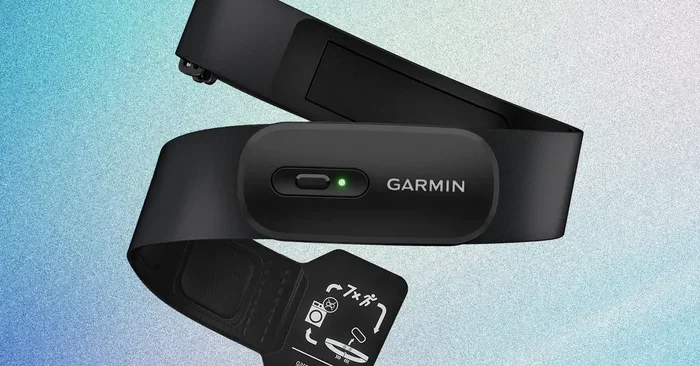
A Bluetooth heart rate monitor is a small device that measures your pulse and sends the data wirelessly to another device. It uses Bluetooth technology to transmit workout data in real time. This means you can see your heart rate on your phone screen while you exercise.
There are two main types of heart rate monitors on the market today. The first is a chest strap monitor. It wraps around your chest and detects the electrical signals from your heartbeat. The second is a wrist-based monitor. It sits on your wrist like a watch and uses light sensors to measure blood flow.
Both types offer Bluetooth connectivity. Both send data to fitness apps. And both help you train smarter by showing your heart rate zones during a cardio workout. The choice between them depends on your comfort and your fitness goals.
Why Use a Bluetooth Heart Rate Monitor?
Using a wireless heart rate sensor gives you real-time feedback during exercise. You no longer have to guess how hard you are working. Your device tells you exactly what your heart is doing. Here are some key reasons to use one:
- Accurate training: You stay in the right heart rate zone for your fitness level.
- Better workout tracking: Your fitness app records precise data over time.
- Safety: You can spot signs of overexertion before they become dangerous.
- Motivation: Seeing your progress keeps you going during tough workouts.
- Wireless freedom: No cables or wires hold you back during movement.
How to Connect Your Bluetooth Heart Rate Monitor
The heart rate monitor setup process is straightforward. Whether you have a chest strap or a wrist-based device, the general steps are similar. Let us walk through them together.
Step 1: Charge Your Device
Before you do anything else, make sure your monitor has enough battery. A low battery can cause connection problems later. Plug your device into its charger and wait until the light shows it is fully charged. Most monitors take about one to two hours to charge completely.
Quick Tip: If you have not used your monitor in a while, charge it fully before your first use. This ensures the best Bluetooth connectivity from the start.
Step 2: Download the Right App
Most Bluetooth heart rate monitors work best with a companion app. Check the manufacturer’s website or the box your monitor came in. Look for the recommended app name. Common options include Garmin Connect, Polar Beat, Wahoo Fitness, and Sensoria Fitness.
Once you find the right app, download it from the App Store or Google Play Store. Make sure your phone’s Bluetooth is turned on before you open the app. This is essential for Bluetooth device pairing to work properly.
Step 3: Put Your Monitor in Pairing Mode
Every monitor has a way to enter pairing mode. For chest straps, this usually means wetting the sensors and pressing a button. The LED light will start blinking, which tells you it is ready to be found. For wrist-based monitors, you may need to go into the settings menu and select Bluetooth.
Think of this step like pairing Bluetooth headphones to a TV. The device needs to be visible so your phone can find it. Make sure you are in a quiet space with no other Bluetooth devices competing for connection.
Step 4: Find and Connect
Open your fitness app on your phone. Look for a section called Devices, Sensors, or Bluetooth. Tap on “Add Device” or “Search.” Your monitor should appear in the list of available devices. Tap on it to complete the connection.
Some apps will ask you to confirm a PIN or code. If so, simply follow the on-screen instructions. Once connected, you should see your heart rate measurement appear on the screen within a few seconds.
Step 5: Test the Connection
Do a quick test before your real workout. Stand up and move around for a minute. Check if the heart rate numbers on your screen are updating. If they are steady and changing with your movement, you are all set. If the numbers stay flat or show errors, go back and check each step.
Troubleshooting Common Connection Issues
Even with the best wireless fitness device, you may run into problems sometimes. Do not worry. Most issues are easy to fix. Here are the most common ones and how to solve them.
Device Not Showing Up in the App
This is the most common problem. First, make sure Bluetooth is turned on in your phone settings. Then try turning Bluetooth off and back on again. Restart your monitor and put it back in pairing mode. Sometimes simply restarting both devices fixes the issue.
Also check if your phone is too far from the monitor. Bluetooth connectivity works best within about 30 feet. If you are in another room, move closer and try again.
Connection Keeps Dropping
If your monitor connects but then disconnects during a workout, a few things could be causing this. Other Bluetooth devices nearby can interfere with the signal. Turn off any unused Bluetooth devices in the area. Also make sure your monitor is snug against your skin. A loose chest strap or a wrist monitor that slides around can lose signal.
Think about how Bluetooth on a hearing aid works best when it is close to the source device. The same principle applies here. Keep your phone or watch within a few feet of your monitor.
Paired But No Heart Rate Data
If the connection shows as successful but no numbers appear, the sensor may not be making proper contact. For chest straps, make sure the electrodes are wet. A small amount of water or conductive gel helps a lot. For wrist monitors, tighten the band so it sits firmly against your skin.
Tips for Better Heart Rate Tracking
Once your monitor is connected, you want to get the best possible results. Here are some practical tips to improve your heart rate tracking experience.
Wear Your Monitor Correctly
For chest straps, place the sensor pad right against your skin. The strap should be snug but not too tight. You should be able to slide one finger underneath. For wrist monitors, position the device about two finger-widths above your wrist bone. This placement gives the most accurate readings.
Keep Your Firmware Updated
Manufacturers release updates that improve Bluetooth sync performance and accuracy. Open your companion app regularly and check for firmware updates. Installing them takes just a few minutes but can make a big difference in how your device performs.
Use One App at a Time
Running multiple fitness apps at the same time can confuse your Bluetooth connection. Pick one app as your primary tracker and stick with it. This keeps your wireless workout data clean and consistent.
Clean Your Monitor After Each Use
Sweat and dirt can build up on the sensors and affect performance. Rinse your chest strap or wipe down your wrist monitor after every workout. Let it dry completely before storing it. This simple habit extends the life of your fitness wearable and keeps readings accurate.
Can You Connect a Heart Rate Monitor to Multiple Devices?
Yes, you can. Most modern Bluetooth heart rate monitors can remember several paired devices. This is helpful if you use a phone for running and a tablet for gym workouts. However, only one device can receive data at a time. You need to disconnect from one device before connecting to another.
The process of switching devices is similar to how you would use a Bluetooth printer without Wi-Fi — the device maintains its own Bluetooth identity and can connect to different receivers as needed. Just go into the Bluetooth settings on your new device and select your monitor from the list.
This multi-device support makes heart rate tracking flexible. You are not locked into just one phone or one watch. You can mix and match devices based on what you are doing on any given day.
Which Bluetooth Heart Rate Monitor Should You Choose?
If you are shopping for a new monitor, there are a few things to keep in mind. Not all monitors are the same. Here is what to look for when choosing the right one for your needs.
| Feature | Chest Strap | Wrist-Based |
|---|---|---|
| Accuracy | Very high | Good to high |
| Comfort | Requires wearing a strap | Feels like a regular watch |
| Battery Life | Long, often months | Days to weeks |
| Water Resistance | Usually high | Varies by model |
| Price Range | Budget to premium | Budget to premium |
| Bluetooth Range | Up to 30 feet | Up to 30 feet |
Your choice depends on personal preference. If you want the most accurate readings during intense cardio workouts, a chest strap is hard to beat. If you prefer something lightweight and easy to wear all day, a wrist-based monitor is a great option.
Many people also use both. They wear a chest strap for running and a wrist monitor for everyday heart rate measurement. There is no wrong answer. The best monitor is the one you will actually use consistently.
How to Maximize Your Heart Rate Monitor’s Potential
Connecting your monitor is just the beginning. The real value comes from how you use the data. Here are some ways to get the most out of your wireless fitness device.
First, set up custom heart rate zones in your app. These zones tell you whether you are in a fat-burning range, a cardio zone, or a peak performance zone. Training in different zones on different days gives you a balanced fitness routine.
Second, review your weekly and monthly trends. A single workout tells you one thing. Patterns over time tell you much more. Look for improvements in your resting heart rate or faster recovery times. These are signs that your fitness is growing.
Third, share your data with a coach or training partner. Many apps let you export workout data as a file or a link. This makes it easy to get feedback and adjust your training plan based on real numbers.
Final Thoughts
Connecting your Bluetooth heart rate monitor does not have to be complicated. With the right steps, you can have your device paired and working in under ten minutes. Start with a full charge, download the right app, put your monitor in pairing mode, and connect through your phone’s Bluetooth settings.
If you run into issues, remember that most problems have simple fixes. Check your battery, move closer to your phone, and make sure the sensors have good contact with your skin. Keep your firmware updated and clean your device after each use for the best long-term performance.
Once your monitor is connected, you open up a world of heart rate tracking possibilities. You can train smarter, push harder when needed, and recover properly when your body needs rest. A wireless heart rate sensor is one of the most useful tools in any fitness routine. Now that you know how to set it up, get out there and make the most of every heartbeat.
Frequently Asked Questions
How long does it take to connect a Bluetooth heart rate monitor?
Most people complete the entire process in under five minutes. Charging the device and downloading the app may take a bit longer the first time, but subsequent pairings are even faster once your phone remembers the device.
Why won’t my Bluetooth heart rate monitor connect to my phone?
The most common reasons are low battery, Bluetooth being turned off, or the monitor not being in pairing mode. Try restarting both your phone and the monitor, then attempt the connection again. Moving closer to your phone can also help resolve the issue.
Can I use my Bluetooth heart rate monitor without a phone?
Some monitors can store data internally and sync later. However, for real-time heart rate tracking during a workout, you typically need a phone, tablet, or compatible fitness watch to receive the Bluetooth signal and display the data.
Is a chest strap or wrist monitor better for Bluetooth connectivity?
Both types offer excellent Bluetooth connectivity and send data to your phone just as effectively. Chest straps tend to be slightly more accurate during high-intensity exercise, while wrist monitors are more convenient for everyday wear and casual workouts.
How far can my Bluetooth heart rate monitor be from my phone?
Most Bluetooth heart rate monitors work reliably within 30 feet of your phone. If you move too far away or put your phone in another room, the connection may drop. Keeping your phone in an armband or pocket close to your body helps maintain a stable link.
Do I need Wi-Fi to use my Bluetooth heart rate monitor?
No, Wi-Fi is not required for the Bluetooth connection itself. Your monitor uses Bluetooth to send data directly to your phone. However, you will need an internet connection to sync your workout data to the cloud or download updates from your fitness app.