How Do I Clear Cache On Iphone And Improve Performance
Learning how to clear cache on iPhone is one of the easiest ways to free up storage and speed up your device. This guide walks you through clearing Safari browser cache, app data, and iPhone storage settings step by step. You will also find quick tips to prevent cache buildup and keep your phone running smoothly every day.
Have you ever noticed your iPhone feeling slow? Apps take longer to open. Pages load sluggishly. And your storage seems full even when you barely added anything new. The culprit is often cache data.
Cache is temporary information that apps and browsers save to help them load faster next time. Over time, this data piles up. It eats into your storage and can actually slow your device down. That is why how do I clear cache on iPhone is one of the most searched questions by iPhone users today.
In this guide, I will walk you through every method to clear cache on your iPhone. You will learn how to clear Safari cache, remove app data, and manage your storage like a pro. Whether you have an iPhone 15 or an older model, these steps work for all devices running iOS 15 and above.
By the end of this article, you will know exactly how to clear cache on iPhone and improve performance in just a few minutes. No tech skills required. Just simple, easy-to-follow steps that anyone can use.
Key Takeaways
- Clearing Safari cache is quick: Just go to Settings, then Safari, and tap Clear History and Website Data.
- Offloading apps frees up space: This feature removes the app but keeps your data safe.
- Restart your iPhone regularly: A simple reboot clears temporary files and boosts performance.
- Check storage often: Use iPhone Storage settings to find what is taking up the most room.
- Avoid common mistakes: Do not delete important data by accident when clearing cache.
📑 Table of Contents
- Why Does Cache Build Up On iPhone?
- How To Clear Cache On iPhone Safari
- How To Clear App Cache On iPhone
- Additional iPhone Storage Management Tips
- How To Speed Up iPhone After Clearing Cache
- Common Mistakes To Avoid When Clearing Cache On iPhone
- Expert Tips for Long-Term iPhone Storage Health
- Conclusion
Why Does Cache Build Up On iPhone?
Understanding cache helps you understand why clearing it matters. Every time you visit a website or open an app, your iPhone saves small files. These files include images, scripts, and temporary data. The next time you visit the same site or open the same app, it loads faster because those files are already saved.
That sounds helpful, right? And it is, in small amounts. But here is the problem. Over weeks and months, those tiny files add up. They can take up several gigabytes of space. This buildup affects your iPhone storage and slows down your device.
Think of it like a junk drawer. At first, it is useful. You keep things there for quick access. But after a while, the drawer gets stuffed. You cannot find what you need, and it slows you down. That is exactly what happens with cache on your iPhone.
What Is Cache and How Does It Work?
Cache files are like shortcuts. When you visit a website, your browser saves logos, images, and page layouts locally. Next time you visit, the page loads from those saved files instead of downloading everything again. This makes browsing faster and smoother.
Apps do the same thing. Social media apps save images and videos. Shopping apps save product pictures. Games save game data. All of this helps the app run better. But it also means your iPhone memory fills up faster than you might expect.
When Does Cache Become a Problem?
Cache becomes a problem when it grows too large. You might notice your phone lagging. Apps might crash more often. Or you might get a storage warning even though you have not downloaded anything new. These are all signs that your cache needs attention.
Another issue is outdated cache. Sometimes saved files become stale or corrupted. This can cause websites to display incorrectly. Apps might show old information instead of fresh content. Clearing the cache forces your device to fetch the latest data, which often fixes these glitches.
How To Clear Cache On iPhone Safari
The Safari browser is the most common source of cache buildup on iPhone. If you use Safari every day, its stored data can grow significantly. Clearing Safari cache is the first and most important step in how do I clear cache on iPhone.
Step-by-Step Guide to Clear Safari Cache
Follow these simple steps to clear your Safari browser data:
- Open the Settings app on your iPhone.
- Scroll down and tap Safari.
- Tap Clear History and Website Data.
- Confirm by tapping Clear History and Data again.
That is it. This removes your browsing history, cookies, and cached files from Safari. Your phone will feel noticeably lighter right away.
What Gets Deleted When You Clear Safari Data?
When you clear Safari cache, several types of data get removed:
- Browsing history — the list of websites you visited.
- Cookies — small files that track your activity on websites.
- Cached images and files — temporary data saved for faster loading.
- Website data — stored information from sites you visited.
Keep in mind that clearing this data means you will need to log back into websites. Your saved passwords in iCloud Keychain will remain safe. But some site preferences and settings will reset.
How To Clear Cache For Specific Websites Only
If you do not want to delete all your Safari data, you can target specific websites instead. Here is how:
- Open Settings and go to Safari.
- Scroll down and tap Advanced.
- Tap Website Data.
- Search for the site you want to clear.
- Swipe left on the website name and tap Delete.
This method is great when only one or two sites are causing problems. You keep all your other browsing data intact. It is a smart way to manage browser history without losing everything.
How To Clear App Cache On iPhone
Safari is not the only place where cache builds up. Individual apps store their own temporary data too. Social media apps like Instagram and TikTok are notorious for this. So are messaging apps like WhatsApp and Telegram.
Unlike Safari, iOS does not give you a single button to clear all app cache at once. You need to use different methods for different apps. Here is how to handle the most common scenarios.
Method 1: Delete and Reinstall the App
The most thorough way to clear app cache is to delete the app and reinstall it. This wipes all temporary data the app has stored. Here is what to do:
- Press and hold the app icon on your home screen.
- Tap Remove App.
- Choose Delete App.
- Go to the App Store and reinstall the app.
Important: Make sure your app data is backed up first. Some apps sync data to the cloud automatically. Others do not. Check before you delete anything you might need later.
Method 2: Use the Offload App Feature
Apple offers a clever middle-ground option called Offload App. This feature removes the app itself but keeps all your documents and data. When you reinstall the app, everything comes back exactly as it was.
Here is how to offload an app:
- Go to Settings and tap General.
- Tap iPhone Storage.
- Find the app you want to offload and tap it.
- Tap Offload App.
- Confirm by tapping Offload App again.
This is one of the best storage optimization tricks for iPhone users. You free up space from the app itself while keeping all your important data safe. It is perfect for apps you use rarely but still want to keep.
Method 3: Clear In-App Cache Manually
Some apps have built-in cache clearing options. For example, Spotify lets you clear offline downloads and cache separately. TikTok has a clear cache button in its settings. Check the settings or storage section inside each app to see if this option exists.
Common apps with manual cache clearing include:
- Spotify — go to Storage and tap Clear Cache.
- TikTok — go to Settings and Data Usage, then Clear Cache.
- Instagram — go to Settings and Free Up Space.
- WhatsApp — go to Settings and Storage and Data.
Checking these settings regularly helps you manage app data without deleting the entire app. It is a quick habit that keeps your phone running smoothly.
Additional iPhone Storage Management Tips
Clearing cache is just one part of managing your iPhone storage. There are several other things you can do to keep your device fast and clutter-free. These tips complement your cache-clearing efforts and help you maintain long-term performance.
Review Your Storage Usage
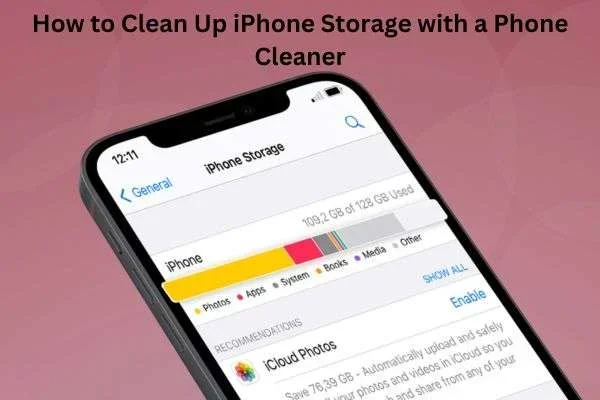
Apple provides a built-in tool to see exactly what is using your storage. Here is how to access it:
- Open Settings and tap General.
- Tap iPhone Storage.
- Wait a few moments for the breakdown to load.
You will see a color-coded list of everything on your phone. Apps, photos, videos, and system data are all listed. This makes it easy to identify what is taking up the most space. You can then decide what to delete, offload, or keep.
Enable iCloud Photo Optimization
Photos and videos are usually the biggest storage hogs on any iPhone. Enabling iCloud Photo Optimization helps a lot. Your full-resolution photos stay in the cloud, while smaller versions live on your device. You can always download the originals whenever you need them.
To turn this on, go to Settings, tap your name, tap iCloud, and then tap Photos. Select Optimize iPhone Storage. This simple change can free up several gigabytes of space.
Use iCloud Storage for Backups
Regular backups protect your data and free up local storage. iCloud backups store your photos, app data, and settings in the cloud. This means you can safely delete local copies without losing anything important.
Go to Settings, tap your name, tap iCloud, and then tap iCloud Backup. Turn it on if it is not already enabled. Your iPhone will back up automatically every day when connected to Wi-Fi.
How To Speed Up iPhone After Clearing Cache
Clearing cache is a great first step. But to get the best results, you should pair it with a few other actions. These steps help your iPhone recover its full speed after a cache cleanup.
Restart Your iPhone
A simple restart works wonders. It clears temporary files from your device memory and refreshes all running processes. After clearing cache, restart your iPhone to let the changes take full effect.
To restart, press and hold the side button and either volume button until the power slider appears. Slide to power off, wait 30 seconds, and turn it back on. This is one of the easiest device maintenance habits you can build.
Update iOS to the Latest Version
Apple regularly releases iOS updates that include performance improvements and bug fixes. Keeping your iPhone updated ensures it runs as efficiently as possible. Sometimes, slow performance is caused by outdated software, not cache at all.
Go to Settings, tap General, and tap Software Update. If an update is available, download and install it. Make sure your phone is connected to Wi-Fi and has enough battery before starting.
Reduce Motion and Animation Effects
iPhone animations look great but use processing power. If your phone feels slow, reducing these effects can help. Go to Settings, tap Accessibility, tap Motion, and turn on Reduce Motion. This makes transitions simpler and can improve perceived speed.
You can also reduce transparency by going to Settings, Accessibility, Display and Text Size, and turning on Reduce Transparency. These small changes add up and make a noticeable difference in how fast your iPhone feels.
Common Mistakes To Avoid When Clearing Cache On iPhone
While clearing cache is straightforward, there are a few mistakes people commonly make. Knowing what to avoid helps you protect your data and get the best results.
Mistake 1: Deleting Important Data Along With Cache
The biggest mistake is not knowing what will be deleted. Clearing Safari history and website data removes saved passwords for some sites. It also removes cookies that keep you logged in. Before you clear anything, make sure you know what is at stake. Write down any important login credentials first.
Mistake 2: Clearing Cache Too Frequently
Some people clear cache every day. This is unnecessary and can actually hurt performance. Cache exists for a reason. It helps apps and websites load faster. Clearing it too often means your device has to rebuild everything from scratch each time.
A good rule of thumb is to clear cache once every two to four weeks. Or do it when you notice your phone slowing down or when you get a storage warning. This keeps things balanced.
Mistake 3: Ignoring App-Specific Cache
Many people only clear Safari cache and forget about individual apps. But apps like Spotify, Instagram, and TikTok store huge amounts of temporary data. If you do not clear app-specific cache regularly, your iPhone performance will still suffer even after cleaning Safari.
Make it a habit to check a few key apps once a month. Go into each app settings and look for a clear cache option. It takes just a few minutes and makes a real difference.
Mistake 4: Not Backing Up Before Major Cleanup
Whenever you do a significant cleanup, back up your iPhone first. Use iCloud or connect to a computer and back up through Finder or iTunes. This ensures you do not lose anything important if something goes wrong during the process.
Backing up takes just a few minutes. But it gives you peace of mind. You can clear cache and delete apps with confidence knowing your data is safe.
Expert Tips for Long-Term iPhone Storage Health
Clearing cache is a quick fix. But maintaining long-term storage health requires regular habits. Here are some expert-backed tips that help you keep your iPhone running smoothly all year round.
Set a monthly reminder to check your storage usage. Just five minutes once a month can prevent major buildup. Go to Settings, General, iPhone Storage, and review what has grown over the past weeks.
Use the Offload Unused Apps feature. iOS can do this automatically for you. Go to Settings, General, iPhone Storage, and turn on Offload Unused Apps. Your iPhone will automatically remove apps you have not used in a while while keeping their data intact.
Delete old messages and attachments. Messaging apps store tons of cache from photos, videos, and voice messages sent over time. Go to Settings, General, iPhone Storage, and find your messaging app. You may be surprised how much space old conversations take up.
Consider upgrading your iCloud storage if you consistently run low. Apple offers plans starting at just 50 GB. This gives you more room for photos, backups, and files without filling up your phone.
Use a trusted storage analyzer app to get a detailed breakdown of what is using your space. Apps like PhoneView or iMazing let you explore your iPhone files in depth and find hidden cache files you might have missed.
Restart your iPhone at least once a week. This clears temporary memory and refreshes system processes. It is one of the simplest and most effective maintenance habits you can adopt.
Conclusion
Learning how to clear cache on iPhone is a simple but powerful skill. It helps you free up storage, speed up your device, and keep everything running smoothly. Whether you clear Safari cache, offload apps, or manage your storage settings, each step makes a real difference.
Remember to clear your cache regularly but not too often. Use the offload feature for apps you rarely use. Check your storage settings monthly. And always back up before making big changes. These habits keep your iPhone healthy and fast for years to come.
Now that you know exactly how do I clear cache on iPhone, you can take control of your device performance today. Try these steps and feel the difference. Your iPhone will thank you.