How Do I Change the Wifi on My Ring Doorbell Easily
Changing the wifi on your Ring Doorbell is simple and takes just a few minutes. Whether you are switching to a new network or fixing connectivity issues, this guide walks you through every step. You will learn how to reconnect your Ring Doorbell to wifi, troubleshoot common problems, and keep your device running smoothly.
So your internet provider changed your network, or maybe you just set up a new router. Now your Ring Doorbell is offline, and you are not sure what to do next. The good news is that changing the wifi on your Ring Doorbell is much easier than you might think. You do not need to be a tech expert to get this done.
In this guide, we will walk you through every step of the process. You will learn how to reconnect your Ring Doorbell to a new network, fix common problems, and make sure your device stays connected. We also share tips on improving your Ring Doorbell wifi range and avoiding mistakes that trip up most people.
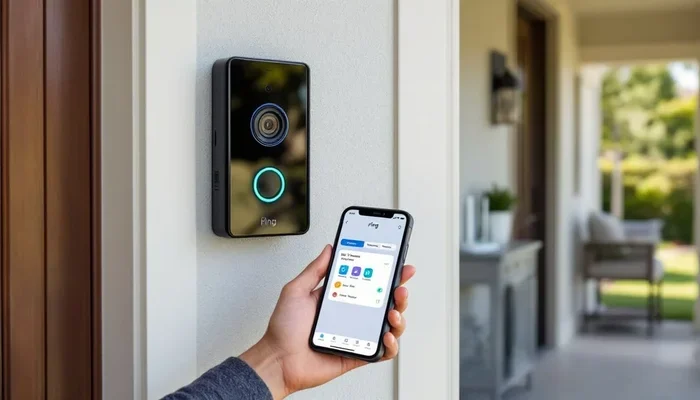
Whether you have a Ring Video Doorbell, Ring Doorbell Pro, or any other model, the process is very similar. All you need is your smartphone, the Ring app, and your new wifi password. Let us get started.
Key Takeaways
- Easy Process: You can change the wifi on your Ring Doorbell using the Ring app in just a few simple steps.
- 2.4GHz Network Required: Ring Doorbells work best with a 2.4GHz wifi network, not 5GHz.
- Troubleshooting Is Straightforward: Most wifi issues can be fixed by resetting your device or checking your router settings.
- Signal Strength Matters: A strong wifi signal ensures your Ring Doorbell works reliably at all times.
- Guest Networks May Cause Issues: Using a guest wifi network can sometimes prevent your Ring Doorbell from connecting properly.
- Keep Your Password Handy: Always have your new wifi password ready before starting the change process.
📑 Table of Contents
- Why You Might Need to Change Wifi on Your Ring Doorbell
- How to Change Wifi on Ring Doorbell Using the App
- Understanding Ring Doorbell Wifi Requirements
- Troubleshooting Common Ring Doorbell Wifi Problems
- How to Improve Ring Doorbell Wifi Range
- Common Mistakes to Avoid When Changing Ring Doorbell Wifi
- Expert Insights on Ring Doorbell Wifi Management
- Key Takeaways
- Frequently Asked Questions
Why You Might Need to Change Wifi on Your Ring Doorbell
There are several reasons why you might need to reconnect your Ring Doorbell to wifi. Understanding these reasons helps you prepare for the process and avoid surprises along the way.
You Got a New Router
If you recently bought a new router or your internet provider upgraded your equipment, your network name and password likely changed. Your Ring Doorbell will no longer recognize the old connection. You need to update it with the new wifi network name and password.
You Moved to a New Home
Moving is another common reason. Your Ring Doorbell is still connected to your old home network. Once you set up internet at your new place, you need to reconfigure the wifi settings on your device.
Your Wifi Network Name Changed
Sometimes you do not even change your password. You just renamed your network. The Ring Doorbell does not recognize the new name, so it disconnects. In this case, you simply need to pair the device again with the updated network.
You Want to Switch to a Better Network
Maybe your current wifi signal is weak where your doorbell is installed. You might want to switch to a stronger network or a mesh wifi system. Changing the wifi connection lets you pick a better network for more reliable performance.
How to Change Wifi on Ring Doorbell Using the App
The Ring app makes it easy to update your wifi connection on any Ring Doorbell model. Here is the step-by-step process you should follow.
Step 1: Open the Ring App
First, open the Ring app on your smartphone. Make sure you are logged in with the same account that controls your Ring Doorbell. The app is available for both iPhone and Android devices.
Step 2: Select Your Doorbell
On the main screen, tap on your Ring Doorbell. This takes you to the device dashboard. You will see the live feed and current status of your device.
Step 3: Go to Device Settings
Tap the gear icon in the top right corner. This opens the device settings menu. Look for the option that says Wi-Fi Network or Network Status.
Step 4: Choose Change Wi-Fi
Tap on Change Wi-Fi Network or a similar option. The app will put your doorbell into setup mode. You will see a message telling you to look for a new network on your phone.
Step 5: Connect to Your New Network
Go to your phone’s wifi settings. Find your new network name and tap on it. Enter your new wifi password when prompted. The app will automatically push the new settings to your Ring Doorbell.
Step 6: Wait for the Connection
Give the device a moment to connect. You will see a solid blue light or hear a chime when the connection is successful. Go back to the Ring app to confirm that your Ring Doorbell wifi is now active.
Quick Tips for a Smooth Wifi Change
- Stay close to your router during the setup process for the best signal.
- Have your new wifi password written down before you start.
- Make sure your phone is connected to the same network you want the doorbell to join.
- Restart your router if the connection fails the first time.
- Be patient and let the app finish the setup without interrupting it.
Understanding Ring Doorbell Wifi Requirements
Not all wifi networks work well with Ring Doorbells. Knowing what your device needs helps you avoid frustration and wasted time.
2.4GHz vs 5GHz Networks
Ring Doorbells work best on a 2.4GHz wifi network. Most routers broadcast both 2.4GHz and 5GHz signals. The 5GHz band is faster but has a shorter range. The 2.4GHz band travels farther and penetrates walls better, which is exactly what you need for a doorbell.
If your router uses a combined network name for both bands, try splitting them. Log into your router settings and give the 2.4GHz network a unique name. Then connect your Ring Doorbell to that network specifically.
Minimum Wifi Speed
Your Ring Doorbell needs at least 2Mbps upload speed for video streaming. A speed test on your phone will tell you if your network meets this requirement. If your speed is too low, consider upgrading your internet plan or moving your router closer to the doorbell.
Wifi Signal Strength
A strong signal is essential for reliable performance. If your Ring Doorbell keeps disconnecting, weak signal strength might be the culprit. You can check your wifi signal strength using your phone or a wifi analyzer app. If the signal is weak at the doorbell location, you might need a wifi extender.
Troubleshooting Common Ring Doorbell Wifi Problems
Sometimes the wifi change process does not go smoothly. Here are the most common issues and how to fix them.
Ring Doorbell Won’t Connect to New Network
If your doorbell refuses to connect, start by checking your wifi password. Make sure you typed it correctly. Passwords are case-sensitive, so double-check for capital letters and special characters. Also, confirm that your network is a 2.4GHz network and not a 5GHz-only network.
Connection Keeps Dropping
A connection that keeps dropping usually points to a weak signal. Try moving your router closer to the front door. If that is not possible, consider using a wifi range extender to boost the signal where your doorbell is installed.
Setup Mode Won’t Activate
If the Ring app does not put your doorbell into setup mode, try a hard reset. On most Ring Doorbell models, you can press and hold the reset button for about 15 seconds. The LED light will flash, indicating the device is ready for a fresh setup.
Wifi Network Not Showing Up
If your new network does not appear in the app, make sure your phone is connected to it. Also, try turning your phone’s wifi off and back on. Sometimes restarting the Ring app itself solves the problem.
How to Improve Ring Doorbell Wifi Range
Even after successfully changing your wifi, you might notice the signal is not strong enough at the doorbell location. Here are some proven ways to extend your Ring Doorbell wifi range.
Move Your Router
The simplest fix is to move your router closer to the front door. Even a few feet can make a big difference. Place your router in a central, elevated location for the best coverage throughout your home.
Use a Wifi Range Extender
A wifi range extender amplifies your existing signal and pushes it farther. Place the extender halfway between your router and your doorbell. This creates a stronger, more reliable connection for your Ring Doorbell.
Consider a Mesh Wifi System
If you have a large home or thick walls, a mesh wifi system might be the best long-term solution. Mesh systems use multiple nodes to create seamless coverage throughout your property. This ensures your Ring Doorbell stays connected no matter where it is mounted.
Use a Wired Connection
Some Ring Doorbell models support a wired ethernet connection. If you can run a cable from your router to the doorbell location, this provides the most stable and reliable connection possible. It also eliminates any wifi dependency entirely.
Common Mistakes to Avoid When Changing Ring Doorbell Wifi
Many people make avoidable mistakes when changing the wifi on their Ring Doorbell. Here are the ones to watch out for.
Using a Guest Network
It might be tempting to connect your Ring Doorbell to a guest network. However, guest networks often block device-to-device communication. Your Ring Doorbell may not work properly on a guest network. Always use your main wifi network for the best results.
Skipping the Router Restart
After changing your wifi settings, always restart your router. A simple reboot clears any cached data and helps your devices find the new network faster. This one step solves many connection problems.
Forgetting to Update the Ring App
An outdated Ring app can cause setup failures. Before you start, check the App Store or Google Play Store for any available updates. Installing the latest version ensures you have all the newest features and bug fixes.
Rushing Through the Process
Take your time. Rushing through the setup often leads to errors. Follow each step carefully, and do not interrupt the process once it starts. Patience pays off with a smooth and successful connection.
Expert Insights on Ring Doorbell Wifi Management
Managing your Ring Doorbell’s wifi connection does not have to be complicated. Most issues come down to three things: signal strength, network type, and password accuracy. Keep these three factors in mind whenever you need to change or update your Ring Doorbell wifi.
One pro tip is to label your wifi networks clearly. If you have both 2.4GHz and 5GHz networks, give them distinct names. This way, you always know which network to connect your Ring Doorbell to. It saves time and prevents confusion in the future.
Another helpful habit is to periodically check your Ring Doorbell’s connection status in the app. The app shows signal strength and connection quality at a glance. If you notice the signal weakening over time, it might be time to adjust your router position or add a range extender.
Finally, keep your Ring app and firmware up to date. Ring regularly releases updates that improve wifi connectivity and fix bugs. Staying current ensures your doorbell works reliably and securely.
Key Takeaways
- Changing wifi on your Ring Doorbell is simple: Use the Ring app, select your device, and follow the on-screen prompts to connect to a new network.
- Always use a 2.4GHz network: Ring Doorbells are designed for 2.4GHz wifi, which offers better range and wall penetration than 5GHz.
- Troubleshooting is straightforward: Most connection issues are fixed by checking your password, restarting your router, or resetting the doorbell.
- Signal strength is critical: If your doorbell has weak signal, move your router closer or use a wifi range extender to boost coverage.
- Avoid common mistakes: Do not use guest networks, skip router restarts, or rush through the setup process.
- Regular maintenance helps: Periodically check your connection status and keep your app updated for the best performance.
Frequently Asked Questions
Can I change my Ring Doorbell wifi without the app?
No, the Ring app is required to change the wifi settings on your Ring Doorbell. The app provides a simple, guided process that walks you through every step. You cannot change the wifi connection directly on the doorbell itself.
Why does my Ring Doorbell keep disconnecting from wifi?
Frequent disconnections usually happen because of a weak signal or an incompatible network. Make sure you are connected to a 2.4GHz network and that the signal strength is good at the doorbell location. Restarting your router can also help stabilize the connection.
Can I connect my Ring Doorbell to a 5GHz wifi network?
Most Ring Doorbell models only support 2.4GHz networks. A few newer models support dual-band, but 2.4GHz remains the most reliable option. Check your specific Ring Doorbell model’s specifications to confirm which frequencies it supports.
How long does it take to change wifi on a Ring Doorbell?
The entire process usually takes about 5 to 10 minutes. If you run into issues, it might take a little longer. Having your new wifi password ready and your phone close to the router speeds things up considerably.
Will I lose my Ring Doorbell recordings when I change wifi?
No, changing your wifi connection does not delete any recordings. Your videos and event clips are stored in the cloud, not on the device itself. As long as you reconnect the doorbell to wifi, everything will sync back normally.
What should I do if the Ring app does not detect my doorbell during setup?
First, make sure your doorbell is in setup mode. Press and hold the reset button for 15 seconds until the LED light flashes. Also, check that your phone is connected to a 2.4GHz network and that the Ring app is updated to the latest version.