Do Tvs Have Sdi Inputs Here Is What You Need To Know
Not all TVs have SDI inputs. SDI (Serial Digital Interface) is a professional broadcast standard found mainly on studio monitors and high-end displays. Most consumer TVs rely on HDMI instead, but you can use an SDI-to-HDMI converter to bridge the gap.
Do TVs have SDI inputs? This is a question that comes up a lot among video professionals, AV enthusiasts, and anyone trying to connect broadcast-grade equipment to a display. The short answer is that most consumer TVs do not include SDI ports. However, the full story is more nuanced than that. Let us walk through everything you need to know about SDI inputs on TVs, from what SDI actually is to how you can connect SDI sources to any display.
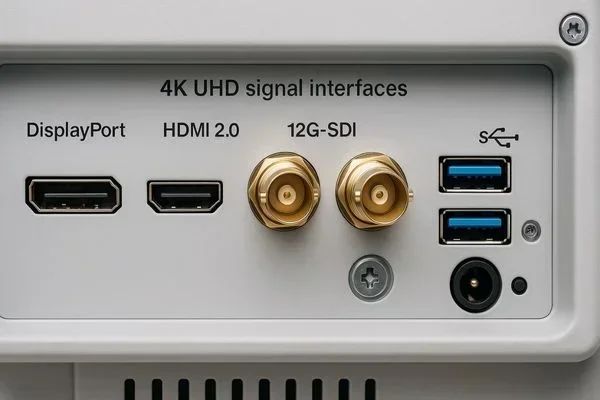
If you have ever looked at the back of a professional monitor and spotted a chunky round connector labeled SDI, you have seen the backbone of broadcast video. SDI stands for Serial Digital Interface, and it is a standard designed for transmitting uncompressed digital video signals over coaxial cable. Unlike the HDMI cables you plug into your home entertainment system, SDI was built for the demands of professional video production, live broadcasting, and long cable runs.
So why does this matter for regular TV buyers? Well, if you are working with professional video gear or building a dedicated production setup, knowing whether a TV or monitor supports SDI can save you time, money, and frustration. Understanding SDI inputs helps you make informed decisions about which display to buy and how to set up your video workflow.
Key Takeaways
- SDI inputs are rare on consumer TVs: Most standard TVs do not include SDI ports. They are primarily found on professional broadcast monitors.
- SDI stands for Serial Digital Interface: It is a professional video standard used in broadcast and production environments for reliable, long-distance signal传输.
- HDMI is the standard for home TVs: Consumer TVs almost always use HDMI ports rather than SDI connections for video input.
- You can still use SDI devices with any TV: An SDI-to-HDMI converter lets you connect professional SDI sources to standard consumer displays.
- Different SDI types exist: SD-SDI, HD-SDI, 3G-SDI, and 12G-SDI each support different resolutions and bandwidth levels.
- Check your TV ports before buying: Always inspect the back panel of a TV to confirm what input types it supports before making a purchase.
📑 Table of Contents
What Is SDI and How Does It Work?
SDI is a digital video standard developed by the Society of Motion Picture and Television Engineers (SMPTE). It transmits video data over a single coaxial cable using a BNC connector. The signal is uncompressed, which means there is no quality loss during transmission. This makes SDI the go-to choice for professional environments where reliability and image quality are non-negotiable.
The Different Types of SDI
SDI is not just one thing. There are several versions, each designed for different resolution levels and bandwidth requirements. Here is a quick breakdown:
- SD-SDI (Standard Definition SDI): Supports standard definition video up to 480i or 576i. This is the original SDI format and is rarely used in modern setups.
- HD-SDI (High Definition SDI): Handles high definition video at 720p or 1080i. This was widely adopted in broadcast studios during the 2000s.
- 3G-SDI: Supports 1080p at 60 frames per second. It triples the bandwidth of HD-SDI and is common in modern production environments.
- 12G-SDI: The newest mainstream SDI standard, supporting 4K resolution at 60fps. It packs four times the bandwidth of 3G-SDI.
- 24G-SDI and 48G-SDI: These cutting-edge formats support even higher resolutions and frame rates for ultra-high-end production work.
Each type of SDI uses the same basic connector shape (a BNC connector), but the cable and hardware must match the standard. You cannot plug an HD-SDI source into an SD-SDI cable and expect it to work properly. Matching the SDI standard to your equipment is essential for a clean signal.
SDI vs HDMI: What Is the Difference?
People often compare SDI and HDMI because both carry digital video signals. But they serve very different purposes. HDMI is the consumer standard found on almost every TV, monitor, and projector you buy at a retail store. SDI is the professional standard built into broadcast monitors and high-end production displays.
Here are the key differences:
- Connector type: HDMI uses a flat, small connector. SDI uses a round BNC connector that locks in place.
- Cable length: SDI can run much longer distances without signal degradation. A good SDI cable can carry a signal over 100 meters or more. HDMI cables typically max out around 15 meters without a booster.
- Target market: HDMI is for consumers. SDI is for professionals.
- Audio handling: HDMI carries both video and audio in one cable. SDI carries only video. You need a separate audio path with SDI setups.
- Locking mechanism: BNC connectors on SDI cables twist to lock. HDMI plugs just push in and can accidentally disconnect.
For most home users, HDMI is perfectly fine. But if you are running a live broadcast or a professional video setup, SDI offers advantages that HDMI simply cannot match. The locking BNC connection alone is a game changer in environments where cables get bumped and moved frequently.
Do Consumer TVs Have SDI Inputs?
The honest answer is no. The vast majority of consumer TVs sold today do not include SDI inputs. When you look at the ports on the back of a Samsung, LG, Sony, or TCL TV, you will see HDMI ports, USB ports, and maybe an optical audio output. You will not find a BNC SDI port.
Consumer TV manufacturers design their products for the mass market. The average person watching Netflix or playing video games does not need SDI connectivity. HDMI provides everything a home user needs in a compact, affordable package. SDI adds cost and complexity that most consumers simply do not need.
Exceptions: Professional and Pro-Sumer TVs
There are exceptions to the rule. Some professional-grade monitors and high-end displays do include SDI inputs alongside HDMI and other connection types. Brands like Blackmagic Design, SmallHD, and AJA Video Systems manufacture monitors built specifically for video professionals that feature SDI connectivity.
These professional monitors are not your average living room TV. They are designed for editing suites, broadcast control rooms, live event venues, and studio environments. They tend to be expensive, often costing several thousand dollars. But for anyone working in professional video, they are essential tools.
If you are shopping for a display and you specifically need SDI inputs, look for monitors labeled as broadcast monitors, production monitors, or professional reference displays. Standard consumer TVs will not have them. Always check the specifications panel before purchasing to confirm what input options are available.
How to Connect SDI Sources to a Standard TV
So what happens if you have an SDI source, like a camera or a video switcher, and you want to connect it to a regular consumer TV? You have options. You do not need to buy an expensive professional monitor just to get the job done.
Using an SDI-to-HDMI Converter
The most common and practical solution is to use an SDI-to-HDMI converter. These small devices take an SDI video signal and convert it to HDMI so you can plug it into any standard TV. They are widely available and range in price from around $50 to $500 depending on the resolution and features.
Here is how a typical setup works:
- Connect your SDI source (camera, recorder, or switcher) to the SDI input on the converter using an SDI cable.
- Plug an HDMI cable from the converter’s HDMI output to your TV.
- Switch your TV to the correct HDMI input.
- Power on the converter and your SDI source.
That is it. You now have a professional SDI source displaying on a consumer TV. Make sure the converter supports your SDI standard (HD-SDI, 3G-SDI, or 12G-SDI) to get the best possible picture quality.
Popular SDI-to-HDMI Converters
A few brands stand out in this space. The Blackmagic Design Video Converters line is well respected in the industry. AJA Video Systems also makes reliable conversion boxes. For budget-friendly options, brands like Magewell and EasyCap offer entry-level converters that handle HD-SDI to HDMI conversion without breaking the bank.
When choosing a converter, pay attention to these details:
- Supported SDI standard: Make sure it matches your source output.
- Maximum resolution: Confirm it supports the resolution you need, whether that is 1080p or 4K.
- Audio pass-through: Some converters also extract and convert the embedded audio from SDI to HDMI.
- Power source: Some converters are powered by USB, while others need a wall adapter.
Why SDI Inputs Matter in Professional Settings
If you are not a video professional, you might wonder why SDI inputs even matter. The answer lies in the unique demands of professional video production and broadcast environments.
Reliability and Signal Integrity
SDI was designed for one thing: rock-solid signal transmission. In a live broadcast or a theater setting, a dropped signal is a disaster. The locking BNC connector on SDI cables ensures a secure connection that will not accidentally pop loose. The coaxial cable design also provides excellent shielding against electromagnetic interference.
Compare this to HDMI, which uses a friction-fit connector that can wobble or disconnect if a cable gets tugged. In a professional environment where reliability is everything, SDI has a clear advantage.
Long Cable Runs
Another major benefit of SDI is distance. In a large broadcast facility, a camera might be 50 or 100 meters away from the control room. HDMI simply cannot handle that distance without a repeater or booster. SDI cables can carry clean signals over those long distances with no problem.
This is why you see SDI everywhere in stadiums, concert venues, and large broadcast facilities. The ability to run long cable runs without signal loss is a game changer for these environments.
Embedded Audio and Metadata
SDI can carry embedded audio within the video signal, along with metadata like timecode and closed captions. This makes it a complete solution for professional video workflows where you need everything traveling through a single cable path.
Of course, if you want to add Bluetooth audio capabilities to a TV setup, you might explore options like making your TV have Bluetooth for wireless audio streaming alongside your SDI or HDMI video connections.
Common Myths About SDI Inputs on TVs
There are several misconceptions floating around about SDI and TVs. Let us clear up a few of the most common ones.
Myth 1: All High-End TVs Have SDI
This is not true. A TV can cost $5,000 or more and still not have a single SDI port. Price and SDI support are not directly related. What matters is the intended use of the display. A $5,000 consumer TV from Sony is designed for home entertainment, not broadcast production.
Myth 2: SDI Is Better Than HDMI for Everyone
SDI is better for professional environments with specific needs like long cable runs and locking connections. For a home theater or casual viewing setup, HDMI is perfectly fine and often more convenient. SDI is not universally better. It is better for specific use cases.
Myth 3: You Need Special Cables for SDI
While SDI does use BNC connectors instead of HDMI connectors, the cables themselves are standard coaxial cables. You do not need anything exotic or overly expensive. A good quality RG6 or RG59 coaxial cable with BNC connectors will work for most SDI applications. Just make sure the cable is rated for the SDI standard you are using.
Myth 4: SDI Is Becoming Obsolete
Some people think SDI is being replaced entirely by HDMI or newer wireless technologies. That is not happening in the professional world. SDI remains the backbone of broadcast and production environments. Even as new standards emerge, SDI continues to evolve with formats like 24G-SDI and 48G-SDI pushing the boundaries of what is possible.
What to Look for When Buying a TV With SDI Inputs
If you have determined that you genuinely need SDI inputs on your display, here is what you should look for before making a purchase.
Check the Port Panel
The first step is to physically inspect the input panel on the back or side of the TV. Look for BNC connectors labeled SDI, HD-SDI, or 3G-SDI. Some monitors will list all supported SDI standards on the panel or in the manual.
Consider a Professional Monitor Instead
If you cannot find a consumer TV with SDI inputs, do not force it. Professional broadcast monitors are purpose-built for this kind of work. Brands like SmallHD, Canon DP-V, and Sony BVM series offer displays with comprehensive SDI support and excellent image quality for professional use.
If you have an older laptop or device lying around, you might also explore creative ways to repurpose it. For ideas on what you can do with older tech, check out what you can do with your old laptop for inspiration on extending the life of older equipment.
Think About Future-Proofing
When investing in a professional monitor or display, think about what SDI standards you will need in the future. If you are currently working with HD-SDI but plan to upgrade to 4K production, make sure the monitor supports 12G-SDI or higher. Buying a display that can grow with your workflow saves money in the long run.
Firmware and Software Updates
Just like any electronic device, professional monitors and TVs benefit from regular firmware updates. These updates can add new SDI standard support, fix bugs, and improve performance. Keeping your display updated ensures it continues to work with the latest SDI equipment. For more on keeping devices updated, check out why updating your car software matters for a broader perspective on device maintenance.
Quick Tips for Working With SDI
- Always match your SDI standard: Use the same SDI version on your source, cable, and display for the best results.
- Use quality BNC connectors: Loose or poorly made BNC connections cause signal dropouts and picture problems.
- Keep SDI cables away from power cables: This reduces electromagnetic interference that can degrade your video signal.
- Label your cables: In a professional setup with many SDI runs, label each cable at both ends to avoid confusion.
- Test before you commit: Always test your full SDI signal chain before a live event or production to catch any issues early.
Final Thoughts
So, do TVs have SDI inputs? Most consumer TVs do not. SDI inputs are primarily found on professional broadcast monitors and high-end production displays designed for video professionals. If you need SDI connectivity for your workflow, you have two main paths: buy a professional monitor that includes SDI inputs natively, or use an SDI-to-HDMI converter to connect your SDI source to a standard consumer TV.
Understanding the difference between SDI and HDMI helps you choose the right display for your needs. Whether you are a seasoned broadcast engineer setting up a control room or a content creator looking for a reliable monitoring solution, knowing your options puts you in a much better position.
The world of video connectivity can feel overwhelming with all the different standards and connectors. But once you understand what SDI is and how it fits into the bigger picture, the decision becomes much clearer. SDI is a powerful, reliable standard that serves professional video production well, and knowing how to work with it gives you a real advantage.
Before you buy any display or converter, take a few minutes to assess your actual needs. Do you need SDI for professional work, or is HDMI sufficient for your setup? The answer to that question will guide you to the right equipment and save you from unnecessary expenses. Make the choice that fits your workflow, and you will be happy with your setup for years to come.
Frequently Asked Questions
Can I add SDI inputs to a TV that does not have them?
You cannot add SDI inputs directly to a TV that was not designed with them. However, you can use an SDI-to-HDMI converter to connect SDI sources to a TV that has HDMI ports. The converter bridges the gap between professional SDI equipment and consumer TVs. This is the most practical and affordable solution for most users.
What is the difference between SDI and HDMI cables?
SDI cables use round BNC connectors and carry uncompressed digital video over coaxial cable. HDMI cables use a flat connector and carry both video and audio in a single cable. SDI supports much longer cable runs than HDMI without signal loss. HDMI is designed for consumer use while SDI is built for professional environments.
Do all professional monitors have SDI inputs?
Most professional monitors designed for broadcast and production work include SDI inputs. However, not all of them do. Some professional monitors rely solely on HDMI or DisplayPort. Always check the specifications of a monitor before purchasing if SDI connectivity is a requirement for your setup.
Can I use an SDI cable with an HDMI TV directly?
No, you cannot plug an SDI cable directly into an HDMI port. The connectors and signal standards are completely different. You need an SDI-to-HDMI converter or adapter to connect SDI equipment to an HDMI display. Without a converter, the two are not compatible.
Is SDI better than HDMI for gaming?
No, SDI is not better than HDMI for gaming. HDMI supports higher refresh rates, HDR, and features that modern gaming requires. SDI carries only video signals and lacks the features gamers need. HDMI is the clear choice for gaming setups.
How far can an SDI cable run without signal loss?
A standard SDI cable can run up to 100 meters or more without significant signal loss, depending on the cable quality and the SDI standard being used. This is far beyond what HDMI cables can handle. For very long runs, using a high-quality coaxial cable rated for the specific SDI standard ensures reliable performance.
=== CONCLUSION ===
Do TVs have SDI inputs? The answer depends on what kind of TV you are looking at. Consumer TVs almost never include SDI ports because they are designed for home entertainment, not professional video production. Professional broadcast monitors and high-end production displays are the displays that feature SDI connectivity.
If you need to connect SDI equipment to a standard TV, an SDI-to-HDMI converter is your best friend. It is a simple, affordable solution that lets you use professional gear with any HDMI display. Understanding the different SDI standards, knowing your cable options, and matching your equipment properly will ensure a clean, reliable video signal every time.
Whether you are working on a live broadcast, editing video in a production suite, or setting up a professional monitoring station, the right display with the right inputs makes all the difference. Take the time to evaluate your needs, check your equipment compatibility, and choose the setup that works best for your workflow. The right knowledge is your most powerful tool in the world of video connectivity.