How Do I Change My Bluetooth Settings on Any Device
Changing your Bluetooth settings is easier than you think, and this guide walks you through it on any device. Whether you are on a phone, laptop, TV, or tablet, you will learn how to pair, unpair, troubleshoot, and optimize your Bluetooth connections. We cover Bluetooth settings for all major operating systems so you can get connected fast.
Have you ever stared at your screen, trying to figure out where the Bluetooth settings are hidden? You are not alone. Millions of people search for this every single day. Whether you want to connect a new pair of headphones, share files between devices, or fix a stubborn connection problem, knowing how to navigate your Bluetooth settings menu is essential.
The good news is that changing Bluetooth settings is not as complicated as it seems. Once you understand the basic layout and logic, you can handle almost any Bluetooth connectivity task. This guide covers every major device type, so no matter what you are using, you will find clear steps that work.
We will walk through pairing, unpairing, troubleshooting, and optimizing your Bluetooth connection. By the end, you will feel confident managing your devices like a pro. Let us dive in and take control of your Bluetooth settings right now.
Key Takeaways
- Bluetooth settings work similarly across most devices, making it easy to learn once and apply everywhere.
- Pairing mode is the key to connecting any two Bluetooth devices successfully.
- Troubleshooting steps like toggling Bluetooth off and on can solve most connection problems.
- Updating your device software often fixes Bluetooth issues you did not expect.
- Managing paired devices keeps your Bluetooth list clean and your connections fast.
- Bluetooth range matters — staying within 30 feet ensures a stable connection.
📑 Table of Contents
- Understanding Your Bluetooth Settings
- How to Change Bluetooth Settings on iPhone and iPad
- How to Change Bluetooth Settings on Android
- How to Change Bluetooth Settings on Windows and Mac Computers
- How to Change Bluetooth Settings on Smart TVs
- Troubleshooting Common Bluetooth Issues
- Advanced Bluetooth Settings You Should Know
- How to Keep Your Bluetooth Settings Optimized
Understanding Your Bluetooth Settings
Before you change anything, it helps to understand what Bluetooth settings actually control. Bluetooth is a short-range wireless technology that lets devices talk to each other without cables. Your Bluetooth settings manage which devices can see your phone or computer, which ones you are already connected to, and how they communicate.
Every device has a Bluetooth settings menu, but it looks a little different depending on your operating system. The core functions remain the same, though. You can turn Bluetooth on and off, see a list of paired devices, make your device visible to others, and adjust connection preferences. Think of it as the control center for all your wireless connections.
What Bluetooth Controls on Your Device
Your Bluetooth settings handle several important tasks. Here is what you can typically do:
- Toggle Bluetooth on or off — this is the most basic and most-used feature.
- See paired devices — a list of all devices you have connected before.
- Make your device discoverable — this lets other devices find you for Bluetooth pairing.
- Adjust connection priority — some devices let you choose which Bluetooth device connects first.
- Manage audio profiles — control how sound routes to your Bluetooth headphones or speakers.
- Update firmware — some platforms let you update your Bluetooth adapter software.
Once you know what each section does, navigating becomes second nature. You will spend less time searching and more time enjoying your connected devices.
How to Change Bluetooth Settings on iPhone and iPad
Apple makes it simple to access and modify your Bluetooth settings on iOS devices. The process is clean and intuitive. Here is exactly what to do on your iPhone or iPad.
Step-by-Step for iOS Devices
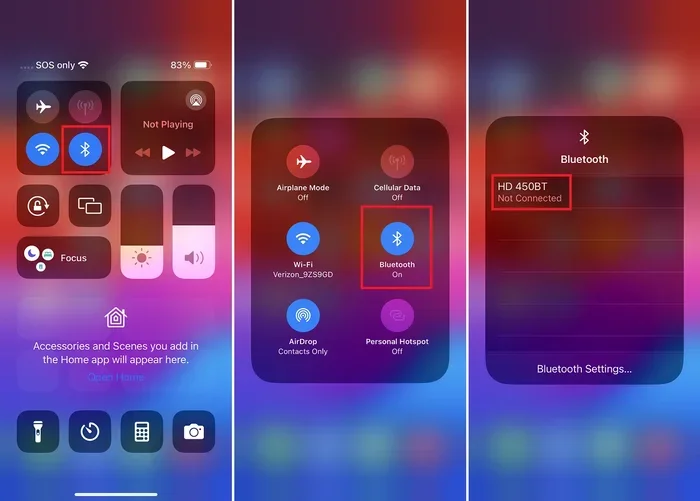
First, open the Settings app. It is the gray gear icon on your home screen. Next, tap Bluetooth near the top of the menu. You will see a toggle switch at the top. Flip it on to enable Bluetooth connectivity. Once on, your phone starts scanning for nearby devices automatically.
Below the toggle, you will see a list of available devices. Tap the one you want to pair with. If it is a new device, make sure it is in pairing mode first. You will see a spinning animation while the devices connect. Once paired, the device appears under My Devices with a status note.
To change settings for a specific device, tap the blue “i” icon next to it. From there, you can forget the device, update its name, or adjust audio routing. This Bluetooth settings menu gives you fine control over each connection.
Quick Tips for iOS Bluetooth
- Keep your Bluetooth range within 30 feet for the best signal.
- If a device does not show up, toggle Bluetooth off and back on.
- Restart your iPhone if Bluetooth pairing keeps failing.
- Update your iOS version — Apple often fixes Bluetooth connectivity bugs in updates.
Apple also lets you share your Bluetooth connection with family members through Handoff and AirPlay. These features extend what your Bluetooth settings can do beyond simple pairing.
How to Change Bluetooth Settings on Android
Android phones offer a slightly different layout, but the core functions are the same. Whether you use a Samsung, Google Pixel, or another brand, the steps are very similar. Let us walk through it.
Accessing Bluetooth on Android
Swipe down from the top of your screen to open the quick settings panel. Look for the Bluetooth icon. Tap it to turn Bluetooth settings on. For more options, tap and hold the Bluetooth icon, or go to Settings and then Connections, then Bluetooth.
Once in the Bluetooth settings menu, you will see a list of available devices and paired devices. To pair a new device, tap it from the available list. Your phone will search and connect automatically if the other device is in pairing mode.
To manage a paired device, tap the gear icon next to it. You can rename the device, toggle Bluetooth visibility, or unpair it entirely. Some Android phones also let you adjust Bluetooth audio codecs for better sound quality.
Android Bluetooth Pro Tips
- Clear your Bluetooth cache if devices keep disconnecting randomly.
- Use the Bluetooth device list to track which devices you have connected.
- If Bluetooth connection issues persist, try resetting network settings.
- Some Android phones support Bluetooth low energy for longer battery life on connected devices.
Android gives you more flexibility than many people realize. Spending a few minutes exploring your Bluetooth settings can unlock better performance and fewer headaches.
How to Change Bluetooth Settings on Windows and Mac Computers
Desktop and laptop computers handle Bluetooth settings a bit differently than phones. Here is how to manage them on both major platforms.
Windows PC Bluetooth Settings
On Windows, click the Start menu and go to Settings. Then click Devices and Bluetooth & other devices. You will see a toggle to turn Bluetooth enabled on or off. Below that is a list of paired devices and a section to add new ones.
To pair a new Bluetooth device, click Add Bluetooth or other device. Choose Bluetooth from the list. Your PC will search for available devices. Select the one you want and follow the on-screen prompts. Windows also lets you remove devices and check their battery levels right from this menu.
If your PC does not have built-in Bluetooth, you may need a Bluetooth adapter. These are small USB dongles that add Bluetooth connectivity to any computer. They are affordable and easy to set up.
Mac Bluetooth Settings
On a Mac, click the Apple menu and open System Settings. Click Bluetooth in the sidebar. The toggle at the top turns Bluetooth on or off. You will see a list of paired devices and nearby available devices.
To pair a new device, click Connect next to it. To remove a device, hover over it and click the X button. Macs also let you share your Bluetooth connection with other Apple devices through Handoff and Universal Clipboard.
Both Windows and Mac make it straightforward to manage your Bluetooth settings. The key is knowing where to look, and now you know.
How to Change Bluetooth Settings on Smart TVs
Smart TVs have become a hub for Bluetooth audio and device connections. Whether you want to connect wireless headphones or use a Bluetooth speaker, your TV’s Bluetooth settings make it possible.
Connecting Bluetooth Devices to Your TV
Most modern smart TVs have a Bluetooth settings menu built into the main Settings app. Go to Settings, then look for Bluetooth or Sound Output. You will see options to turn on Bluetooth and search for available devices.
Put your headphones or speaker in pairing mode first. Then select your TV’s Bluetooth option and choose the device from the list. The connection should happen within seconds. Some TVs let you connect multiple Bluetooth devices at once, which is great for shared listening.
If your TV does not have built-in Bluetooth, you can add a Bluetooth transmitter. These small plugs connect to your TV’s audio output and broadcast a Bluetooth signal to your headphones or speakers. They are an easy and affordable fix.
For LG TV owners, pairing Bluetooth headphones to your LG TV follows the same general steps. Simply go to Settings, Sound, and look for the Bluetooth audio option. Select your headphones and the connection is established quickly.
TV Bluetooth Tips
- Always check if your TV supports Bluetooth before buying a transmitter.
- Keep your Bluetooth headphones within range for uninterrupted audio.
- Some streaming devices like Roku also support Bluetooth audio output through dedicated accessories.
Your TV’s Bluetooth settings open up a world of wireless audio possibilities. Once set up, you can enjoy private listening without disturbing anyone in the room.
Troubleshooting Common Bluetooth Issues
Even with the best Bluetooth settings, problems can happen. Here are the most common issues and how to fix them quickly.
Bluetooth Not Turning On
If your Bluetooth settings will not toggle on, try a few quick fixes. First, restart your device. This clears temporary glitches that can block Bluetooth connectivity. If that does not work, check for a software update — outdated software often causes Bluetooth not working issues.
On some devices, Airplane Mode can interfere. Make sure Airplane Mode is off before trying again. If the problem persists, you may need to reset your Bluetooth settings entirely. On iPhones, this means resetting network settings. On Android, clearing the Bluetooth cache often does the trick.
Devices Not Pairing
Bluetooth pairing fails for a few common reasons. First, make sure the other device is in pairing mode. Most devices only stay in pairing mode for a short window. Second, check that your Bluetooth range is close enough — 30 feet is the standard maximum.
If you have too many paired devices saved, your Bluetooth device list can get cluttered. Remove old devices you no longer use. This frees up memory and can improve Bluetooth connection speed. Also, make sure your device software is up to date, as older firmware can cause Bluetooth connectivity issues.
Poor Audio Quality
If your Bluetooth audio sounds scratchy or delayed, the issue is usually distance or interference. Move closer to the connected device and remove obstacles between them. Wi-Fi routers and microwaves can interfere with Bluetooth signals, so try moving away from those.
Some Bluetooth headphones and speakers support different audio codecs. Check your Bluetooth settings menu to see if you can switch to a higher-quality codec. This can dramatically improve sound clarity and reduce lag.
Advanced Bluetooth Settings You Should Know
Once you are comfortable with the basics, there are some advanced Bluetooth settings worth exploring. These can take your wireless experience to the next level.
Bluetooth Low Energy (BLE)
Many modern devices support Bluetooth low energy, also called BLE. This technology uses less power while maintaining a strong Bluetooth connection. It is perfect for fitness trackers, smartwatches, and other small devices that need long battery life. Check your Bluetooth settings to see if your device supports BLE and whether it is enabled.
Device Priority and Profiles
Some Bluetooth settings menus let you set connection priorities. This means you can choose which Bluetooth device connects automatically when you turn on Bluetooth connectivity. Audio profiles control how sound is handled — for example, you can set different profiles for calls versus music playback.
Managing Visibility and Discovery
Your device’s Bluetooth visibility setting controls whether other devices can see it. Keeping visibility on all the time can drain your battery and create security risks. Set your device to be discoverable only when you are actively trying to pair a new device. Once paired, you can turn visibility back off for better Bluetooth performance and security.
These advanced features might seem small, but they make a big difference in your daily Bluetooth experience. Take a few minutes to explore what your device offers.
How to Keep Your Bluetooth Settings Optimized
Maintaining your Bluetooth settings is just as important as setting them up correctly. A little regular upkeep goes a long way toward preventing problems.
- Review your paired devices regularly and remove ones you no longer use.
- Update your device software to get the latest Bluetooth driver improvements.
- Restart Bluetooth once a week to clear temporary connection issues.
- Keep devices charged — low battery can weaken Bluetooth signals.
- Check for interference from other wireless devices in your environment.
These simple habits keep your Bluetooth connection strong and reliable. You will spend less time troubleshooting and more time enjoying your wireless devices.
Remember, every device handles Bluetooth settings a little differently, but the core principles are the same. Once you understand the basics on one device, you can apply that knowledge anywhere. Whether you are connecting Bluetooth headphones, speakers, or smart home gadgets, the process follows a familiar pattern.
If you ever run into a problem you cannot solve, do not hesitate to check your device manufacturer’s support page. They often have specific guidance for their hardware. And if you want to learn more about connecting Bluetooth devices to specific platforms, check out our guides on using Bluetooth on hearing aids, pairing Bluetooth headphones to LG TVs, and making your TV Bluetooth-enabled.
Now you have everything you need to master your Bluetooth settings on any device. Go ahead and try it out — you will be surprised how quickly it clicks. Happy connecting!
Frequently Asked Questions
Why won’t my Bluetooth turn on?
Restart your device first — this fixes most Bluetooth connectivity issues. Make sure Airplane Mode is off and your software is up to date. If the problem continues, try resetting your Bluetooth settings entirely.
How do I put a device in pairing mode?
Most devices have a dedicated pairing button or a Bluetooth option in their own settings. Hold the button for a few seconds until a light flashes. Check the device manual for specific Bluetooth pairing instructions.
What is the range of Bluetooth?
Standard Bluetooth range is about 30 feet. Walls and other obstacles can reduce this. Keeping devices closer together gives you a stronger and more stable Bluetooth connection.
Can I connect multiple Bluetooth devices at once?
Yes, most modern devices support multiple paired devices. You can switch between them in your Bluetooth settings menu. Just make sure your device has enough bandwidth to handle active connections.
Why is my Bluetooth audio quality poor?
Poor audio is often caused by distance, interference, or an outdated Bluetooth adapter. Move closer to the connected device and reduce Wi-Fi interference. Check if your device supports better Bluetooth audio codecs.
How do I remove a Bluetooth device from my list?
Go to your Bluetooth settings and find the device in your paired list. Tap the gear icon or settings button next to it and select Forget or Remove. This clears the connection and frees up space in your Bluetooth device list.