How Do I Add A Bluetooth Adapter To Improve Connectivity
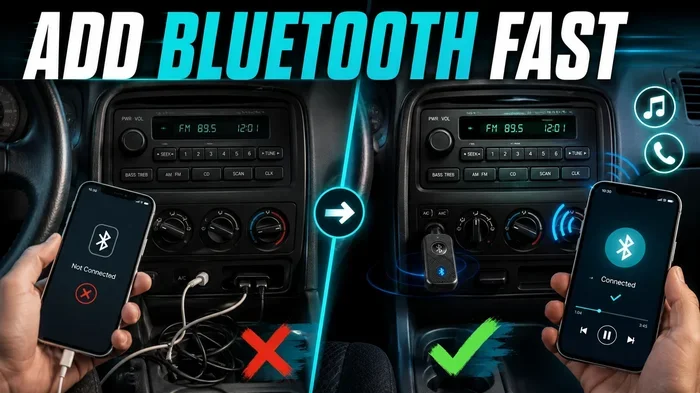
Adding a Bluetooth adapter is one of the simplest ways to make any device wireless-ready. Whether you want to connect headphones, speakers, or peripherals, a Bluetooth dongle or USB adapter opens up a world of wireless possibilities in minutes.
Have you ever wanted to go wireless but your device just doesn’t support Bluetooth? That frustration is more common than you might think. Many older TVs, desktop computers, and gaming consoles lack built-in wireless capability. The good news is that adding a Bluetooth adapter solves this problem quickly and affordably.
A Bluetooth adapter is a small device that plugs into a USB port or connects via another interface to give your device wireless abilities. It lets you stream audio, connect peripherals, and pair accessories without cables. In this guide, we walk you through everything you need to know about how to add a Bluetooth adapter to improve your connectivity.
Whether you are trying to connect wireless headphones to a TV, stream music from a laptop, or use a Bluetooth speaker with your console, this guide covers it all. We will look at the types of adapters available, how to set them up, and how to get the best performance from your new wireless connection.
Key Takeaways
- Bluetooth adapters are small USB devices that add wireless capability to laptops, desktops, and TVs without built-in Bluetooth.
- USB Bluetooth adapters are the most popular option because they are plug-and-play and work with most operating systems.
- Pairing a Bluetooth adapter takes just a few minutes once you enable wireless discovery mode on your device.
- Bluetooth range typically extends 30 feet indoors, but walls and interference can reduce signal strength.
- Troubleshooting common issues like pairing failures or lag is straightforward with simple resets and driver updates.
- Choosing the right Bluetooth version matters for speed, range, and compatibility with your devices.
📑 Table of Contents
- What Is a Bluetooth Adapter and Why Do You Need One?
- Types of Bluetooth Adapters You Can Choose
- Step-by-Step Guide to Adding a Bluetooth Adapter
- Tips for Getting the Best Performance From Your Bluetooth Adapter
- Common Bluetooth Adapter Problems and How to Fix Them
- Expert Insights on Bluetooth Adapter Technology
- Frequently Asked Questions
- Conclusion
What Is a Bluetooth Adapter and Why Do You Need One?
A Bluetooth adapter is a hardware device that enables wireless communication between your gadget and other Bluetooth-enabled accessories. Think of it as a tiny wireless bridge. It translates data between your device and Bluetooth peripherals like headphones, speakers, keyboards, and mice.
Many modern devices come with Bluetooth built in. But older equipment often does not. That is where a Bluetooth dongle or USB wireless adapter comes in handy. You simply plug it in, install the driver if needed, and you are ready to go.
Who Benefits Most From a Bluetooth Adapter?
Several groups of people find Bluetooth adapters incredibly useful:
- TV owners who want to connect wireless headphones or speakers without cables cluttering the room.
- Desktop computer users who need to add wireless capability to a machine that lacks it.
- Gamers who want to use wireless headphones with a PS5 or other consoles that do not have native Bluetooth support.
- Office workers who want to connect wireless keyboards, mice, and headsets to their workstations.
- Travelers who need to pair devices on the go without relying on Wi-Fi connections.
Types of Bluetooth Adapters You Can Choose
Not all Bluetooth adapters are the same. Different types serve different needs. Understanding your options helps you pick the right one for your setup.
USB Bluetooth Dongles
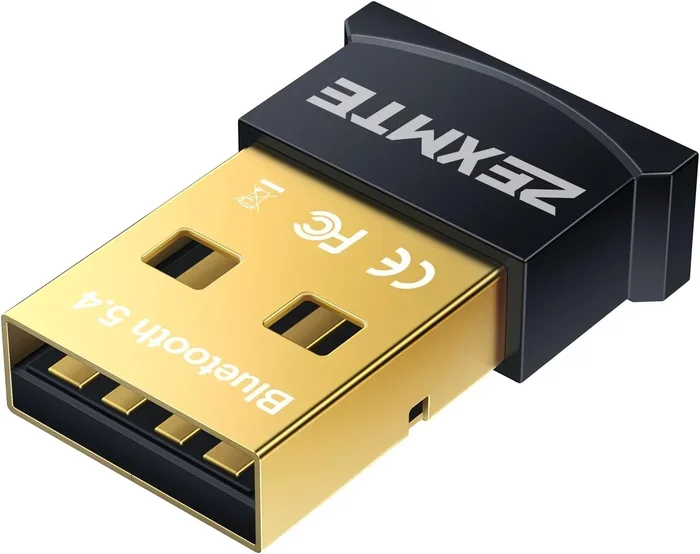
USB Bluetooth dongles are the most popular type. They are small, affordable, and plug directly into a USB port. Most work instantly on popular operating systems like Windows, macOS, and even some smart TVs. A typical USB Bluetooth adapter supports Bluetooth 4.0 or 5.0, which offers solid range and speed for everyday use.
Internal Bluetooth Cards
For desktop PCs, internal Bluetooth cards slide into a PCIe slot on the motherboard. These provide a more permanent solution than USB dongles. They tend to offer better signal strength because they connect directly to the system board. However, they require opening your computer case and some technical comfort.
Bluetooth Receiver Sticks
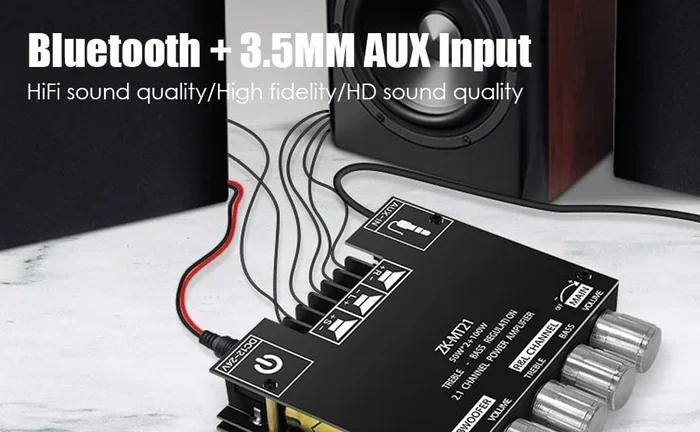
Bluetooth receivers are designed for audio use. They plug into a 3.5mm audio jack or USB port and receive Bluetooth signals from your phone or tablet. These are great for wireless streaming to older speakers or TVs. They are simple to use and often cheaper than full adapters.
Comparison Table: USB Dongle vs. Internal Card vs. Receiver
| Feature | USB Dongle | Internal Card | Bluetooth Receiver |
|---|---|---|---|
| Ease of Setup | Very Easy | Moderate | Very Easy |
| Price Range | $5 – $30 | $20 – $50 | $5 – $25 |
| Signal Strength | Good | Excellent | Good |
| Portability | High | Low | High |
| Best For | Laptops and TVs | Desktop PCs | Audio Streaming |
Step-by-Step Guide to Adding a Bluetooth Adapter
Now that you know what type of adapter to get, let us walk through the setup process. The steps are simple and do not require advanced technical skills.
Step 1: Choose the Right Adapter for Your Device
Before you buy, check what your device supports. Look at the available ports and the Bluetooth version your device can handle. For most users, a USB Bluetooth 5.0 adapter is the best choice. It offers the fastest speeds and the widest range. Make sure the adapter is compatible with your operating system.
Step 2: Plug in the Adapter
Insert the USB dongle into an available port. If you are using a laptop, try a front-facing port for a stronger signal. Avoid USB hubs for the initial setup because they can sometimes weaken the connection. Once plugged in, your device should recognize the hardware immediately.
Step 3: Install Drivers (If Needed)
Most modern adapters use plug-and-play technology. This means Windows and macOS will install the necessary drivers automatically. However, some adapters come with a setup CD or a download link. Visit the manufacturer’s website to get the latest drivers for the best performance.
Step 4: Enable Bluetooth Discovery Mode
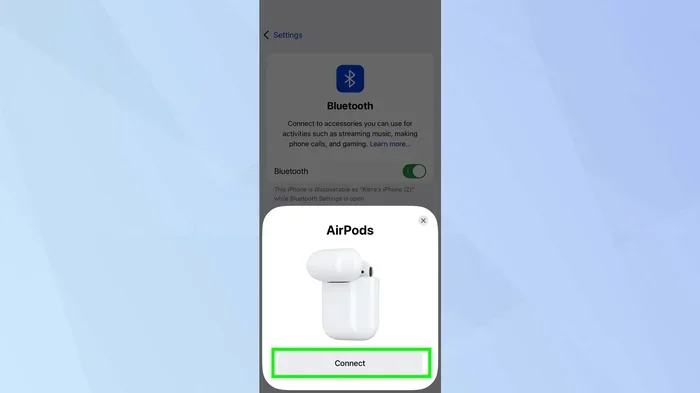
Go to your device’s Bluetooth settings and turn Bluetooth on. Then put your accessory (like headphones or a speaker) into pairing mode. Most devices have a dedicated Bluetooth or pairing button. When the adapter detects the accessory, select it from the list of available devices.
Step 5: Test the Connection
Once paired, play some audio or test your peripheral to confirm everything works. Check the wireless range by moving around the room. A good adapter should maintain a stable connection within 30 feet. If you experience drops, move closer to the adapter or reduce interference from other wireless devices.
Tips for Getting the Best Performance From Your Bluetooth Adapter
Setting up your adapter is only half the battle. To get the most out of your wireless connection, follow these practical tips.
Keep the Adapter Close to Your Devices
Bluetooth signals weaken with distance and obstacles. Place your adapter in a central location. If you are using it with a TV, plug the adapter into a port near the middle of the room. Avoid hiding it behind metal objects or inside closed cabinets.
Reduce Wireless Interference
Other wireless devices can cause signal drops. Microwaves, cordless phones, and even baby monitors operate on similar frequencies. Keep your Bluetooth adapter away from these sources. If you notice lag or stuttering, move the adapter to a different USB port or location.
Update Your Adapter Firmware
Manufacturers release firmware updates that improve performance and fix bugs. Check the manufacturer’s website periodically for updates. Keeping your adapter current ensures the best wireless connectivity and compatibility with new devices.
Use High-Quality Accessories
Not all Bluetooth headphones or speakers are created equal. Cheap peripherals may have weaker antennas and lower-quality codecs. Investing in quality Bluetooth headphones or speakers gives you a much better experience. Look for devices that support aptX or LDAC codecs for richer sound quality.
Quick Tips for Smoother Pairing
- Always make sure your accessory is fully charged before pairing.
- Restart both your device and the adapter if pairing fails.
- Remove old paired devices from your Bluetooth list to free up memory.
- Keep your operating system updated for the best Bluetooth support.
- If using a TV adapter, check that your TV supports A2DP profile for audio streaming.
Common Bluetooth Adapter Problems and How to Fix Them
Even with the best adapter, you may run into issues now and then. Here are the most common problems and their solutions.
Adapter Not Detected by Your Device
If your device does not recognize the adapter, try a different USB port. Avoid USB 3.0 ports if your adapter has known compatibility issues with them. Also, check Device Manager on Windows to see if the adapter appears under “Other Devices.” Right-click and update the driver if needed.
Paired But No Audio
Sometimes the connection works but no sound comes through. Check your audio output settings. Make sure your Bluetooth device is set as the default output. On Windows, right-click the speaker icon and select your Bluetooth device from the output list.
Connection Drops Frequently
Intermittent drops are often caused by distance or interference. Move closer to the adapter. Also, check if other USB devices are causing power issues. A powered USB hub can help stabilize the connection if you have many devices plugged in.
Pairing Mode Won’t Activate
If your accessory will not enter pairing mode, try resetting it. Most devices have a reset procedure in the manual. For headphones, this usually means holding the power button for 10 seconds. After resetting, try pairing again.
Expert Insights on Bluetooth Adapter Technology
The Bluetooth technology landscape has evolved rapidly over the past few years. Bluetooth 5.0 and later versions offer significantly better range and speed compared to older versions. Here is what experts recommend when choosing an adapter.
Look for Bluetooth 5.0 or higher. These versions offer up to four times the range of Bluetooth 4.2 and faster data transfer speeds. This is especially important for audio streaming where you want smooth, lag-free sound.
Consider multipoint connectivity. Some premium adapters can connect to two devices simultaneously. This means you can stream audio from your laptop while staying connected to your phone for calls. It is a game-changer for productivity and entertainment.
Check codec support. Advanced audio codecs like aptX and aptX HD deliver near-lossless sound quality over Bluetooth. If audio quality matters to you, choose an adapter that supports these codecs. This is particularly relevant for music lovers and audiophiles.
For those looking to connect accessories to a console or TV, consider how an adapter compares to other connectivity options. For example, some users prefer using Bluetooth headphones with a PS5 through a dedicated wireless adapter rather than a generic USB dongle. The dedicated solution often provides lower latency and better stability for gaming.
Frequently Asked Questions
Do I need to install drivers for a Bluetooth adapter?
Most modern Bluetooth adapters use plug-and-play technology and install drivers automatically on Windows and macOS. However, for the best performance, visit the manufacturer’s website to download the latest drivers. Older adapters or lesser-known brands may require manual driver installation.
Can I use a Bluetooth adapter with any TV?
Most TVs with a USB port can use a Bluetooth adapter, but compatibility varies. Smart TVs from major brands like Samsung, LG, and Sony often work well with USB Bluetooth dongles. Check your TV’s manual to confirm it supports Bluetooth audio profiles like A2DP for streaming sound.
How far can a Bluetooth adapter reach?
A standard Bluetooth adapter works within about 30 feet indoors. Walls, furniture, and other wireless signals can reduce this range. Bluetooth 5.0 adapters offer better range, sometimes up to 80 feet in open spaces with fewer obstacles.
Can I connect multiple devices to one Bluetooth adapter?
Yes, most adapters can store multiple paired devices. However, they can only actively connect to one device at a time for audio streaming. Some advanced adapters support multipoint, which allows simultaneous connections to two devices for seamless switching.
Is a Bluetooth adapter the same as a Bluetooth receiver?
Not exactly. A Bluetooth adapter adds wireless capability to a device that does not have it. A Bluetooth receiver takes an existing device and makes it Bluetooth-enabled for audio output. Receivers typically connect via a 3.5mm jack or USB port and are designed specifically for audio use.
Will a Bluetooth adapter affect my internet speed?
No. Bluetooth operates on a different frequency band than Wi-Fi. It does not interfere with your internet connection. However, if both Bluetooth and Wi-Fi are on the same device, they may share processing resources slightly, but this rarely affects performance in everyday use.
Conclusion
Adding a Bluetooth adapter is one of the easiest and most affordable ways to upgrade your device connectivity. Whether you want to stream audio wirelessly, connect peripherals without cables, or simply enjoy a clutter-free setup, a Bluetooth dongle or receiver does the job perfectly.
Follow the steps in this guide to choose the right adapter, install it correctly, and get the best performance from your wireless connection. With the right Bluetooth adapter, you can turn any device into a wireless powerhouse. Start today and experience the freedom of seamless wireless connectivity in your home or office.
Remember, the key to a great experience is choosing a quality adapter, keeping it updated, and placing it in a good location. Once you go wireless, you will wonder how you ever managed with cables.