How Do I Activate My Verizon Mobile Hotspot Quickly
Activating your Verizon mobile hotspot is simple once you know the right steps. Whether you use an iPhone or Android device, you can turn your phone into a portable Wi-Fi hub in just a few minutes. This guide covers activation, settings, troubleshooting, and pro tips to get your hotspot running smoothly.
There is nothing worse than needing internet access on the go and realizing your Verizon mobile hotspot is not working. Whether you are traveling, working remotely, or just need a backup connection, your phone can become a powerful Wi-Fi hub. But before you can start browsing, you need to know exactly how to turn it on.
This guide walks you through every step of the process. You will learn how to activate your Verizon mobile hotspot on both iPhone and Android devices. We also cover common problems, security best practices, and tips to get the best performance. By the end, you will feel confident setting up your hotspot anytime you need it.
The process is straightforward, but small details matter. From checking your data plan to adjusting your network settings, each step plays a role. Let us dive in and get you connected.
Key Takeaways
- Easy Activation: You can activate your Verizon mobile hotspot through Settings or the My Verizon app in under two minutes.
- Works on All Devices: The process is similar for both iPhone and Android smartphones.
- Check Your Plan: Make sure your Verizon data plan supports hotspot usage before you start.
- Troubleshooting Is Simple: Most common hotspot issues can be fixed with basic steps like restarting your device.
- Security Matters: Always set a strong password to keep your hotspot connection safe.
- Optimize Performance: A few tweaks can significantly improve your hotspot speed and battery life.
📑 Table of Contents
- Understanding Your Verizon Mobile Hotspot
- How to Activate Your Verizon Mobile Hotspot
- Verizon Mobile Hotspot Settings and Configuration
- Troubleshooting Common Verizon Hotspot Problems
- Tips for Better Hotspot Performance
- Staying Secure While Using Your Verizon Hotspot
- Verizon Hotspot Plans and Data Limits
- Conclusion
Understanding Your Verizon Mobile Hotspot
A mobile hotspot turns your smartphone into a Wi-Fi router. It shares your cellular data connection with other devices like laptops, tablets, and gaming consoles. Verizon offers this feature on most of its plans, but the exact steps to activate it depend on your phone type.
Before you begin, make sure your Verizon data plan includes hotspot or tethering. Some older plans may not support this feature, or they might limit the amount of data you can use. You can check your plan details by logging into your My Verizon account or calling customer support.
What Is a Mobile Hotspot?
A mobile hotspot uses your phone’s cellular connection to create a local Wi-Fi network. Other devices can then connect to this network and access the internet. Think of it as a portable router that fits in your pocket. This is incredibly useful when Wi-Fi is not available or when you need a reliable backup connection.
Verizon uses the term “Mobile Hotspot” for this feature on most devices. Some Android phones may also call it “Tethering” or “Portable Hotspot.” The function is the same regardless of the name.
Can You Use a Hotspot on Flights?
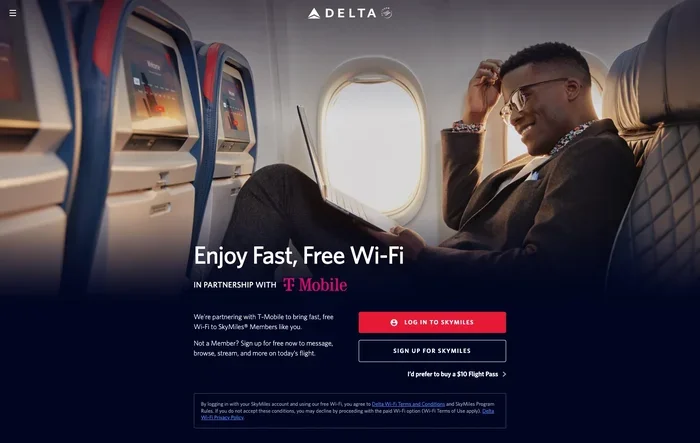
If you are wondering whether you can use your Verizon hotspot during a flight, the answer depends on the airline and the flight mode settings. Many passengers look for ways to stay connected while airborne. You can get Wi-Fi on flights through airline-provided networks, but using your phone as a hotspot mid-flight is generally not allowed due to FAA regulations. Always check with your airline before attempting to use cellular features during a flight.
How to Activate Your Verizon Mobile Hotspot
Now let us get to the main event. Activating your Verizon mobile hotspot takes just a couple of minutes. The steps differ slightly depending on whether you are using an iPhone or an Android phone.
Activating on iPhone
Follow these steps to turn on your hotspot on an iPhone:
- Open the Settings app on your iPhone.
- Tap on Personal Hotspot. You might need to scroll down to find it.
- Toggle Allow Others to Join to ON.
- Set a Wi-Fi password if you have not already done so.
- Your hotspot is now active. Other devices can find your iPhone in their Wi-Fi list.
If you do not see the Personal Hotspot option, go to Settings, then Cellular, and make sure Cellular Data is turned on. You may also need to contact Verizon to add the hotspot feature to your line.
Activating on Android
Android phones have a slightly different path, but it is just as easy:
- Open the Settings app on your Android device.
- Tap on Network and Internet or Connections (the name varies by brand).
- Select Hotspot and Tethering or Mobile Hotspot.
- Toggle the Mobile Hotspot switch to ON.
- Tap on the hotspot name to set a password and customize the network name.
On Samsung phones, you can also swipe down from the top of your screen to access Quick Settings and tap the Hotspot icon for a faster activation. This is a great shortcut if you use your hotspot frequently.
Using the My Verizon App
Another way to manage your hotspot is through the My Verizon app. You can check whether your plan supports hotspot data, monitor your usage, and even toggle certain features on or off. While the app does not directly turn on your hotspot, it is a helpful tool for managing your Verizon mobile data and ensuring everything is set up correctly.
Verizon Mobile Hotspot Settings and Configuration
Once your hotspot is active, you can fine-tune the settings for a better experience. The default settings work fine for most users, but a few adjustments can make a big difference.
Setting a Strong Password
Always set a strong password for your hotspot. A weak password means anyone nearby can connect to your network and use your data. Use a mix of letters, numbers, and special characters. Avoid simple passwords like “12345678” or “password.”
Choosing the Right Wi-Fi Band
Many Verizon phones support both 2.4 GHz and 5 GHz Wi-Fi bands. The 5 GHz band offers faster speeds but shorter range. The 2.4 GHz band is slower but reaches farther. If you are close to your connected device, choose 5 GHz for the best hotspot speed. If you are farther away, 2.4 GHz may be more stable.
Managing Connected Devices
You can see which devices are connected to your hotspot right from your phone’s settings. If you notice an unfamiliar device, change your password immediately. Most phones also let you set a limit on the number of devices that can connect at once. This helps prevent strangers from using your data.
Can You Use Wi-Fi and Bluetooth at the Same Time?
Yes! Your phone can handle multiple wireless connections simultaneously. If you are wondering about using Wi-Fi and Bluetooth at the same time, the answer is a definite yes. You can connect to your hotspot via Wi-Fi while also pairing Bluetooth headphones or speakers. This is useful for presentations or media sharing without using cellular data for audio.
Troubleshooting Common Verizon Hotspot Problems
Even with the best setup, you might run into issues. Here are the most common problems and how to fix them.
Hotspot Not Showing Up on Other Devices
If other devices cannot find your hotspot, try these steps:
- Turn your hotspot off and back on again.
- Restart your phone completely.
- Make sure your cellular data is enabled.
- Check that your phone is not in Airplane Mode.
- Move closer to the device trying to connect.
Sometimes simply toggling the hotspot setting off and on again resolves the issue. If the problem persists, check for a software update on your phone.
Slow Hotspot Speeds
Slow speeds are frustrating but common. Here is what you can do:
- Move to an area with stronger cellular signal.
- Reduce the number of connected devices.
- Switch to the 5 GHz band if available.
- Close background apps on your phone.
- Check your Verizon data usage to see if you have been throttled.
Verizon may slow down your data speeds after you hit a certain usage threshold. If you are on an unlimited plan, check whether your plan includes a mobile hotspot data limit.
Hotspot Disconnects Frequently
If your hotspot keeps dropping, try these fixes:
- Update your phone’s software to the latest version.
- Reset your network settings (this clears saved Wi-Fi networks too).
- Remove the SIM card and reinsert it.
- Check if your phone’s battery saver mode is interfering with the hotspot.
Battery saver mode can restrict background data and cause your hotspot to disconnect. Turn it off when you are actively using your hotspot.
Can You Boost Your Wi-Fi Signal Outside?
If you are using your Verizon hotspot outdoors and the signal is weak, you might wonder about signal boosters. You can boost your Wi-Fi signal outside using external antennas or signal repeaters, but these solutions typically work for home routers. For mobile hotspots, your best bet is to stay in an area with strong cellular coverage or use a Wi-Fi extender designed for mobile devices.
Tips for Better Hotspot Performance
A few simple habits can help you get the most out of your Verizon mobile hotspot.
Keep Your Phone Charged
Using your phone as a hotspot drains the battery quickly. Keep a charger handy, especially during long sessions. You can also use a portable battery pack to stay powered up throughout the day.
Monitor Your Data Usage
Hotspot data adds up fast. Streaming videos, video calls, and large downloads consume a lot of data. Keep an eye on your usage through the My Verizon app to avoid unexpected overage charges. Consider downloading content for offline use when possible.
Use a VPN for Security
A virtual private network (VPN) encrypts your internet traffic and adds a layer of security. This is especially important when you are using your hotspot in public places like cafes or airports. A VPN helps protect your sensitive information from potential snoopers.
Explore Portable Wi-Fi Options
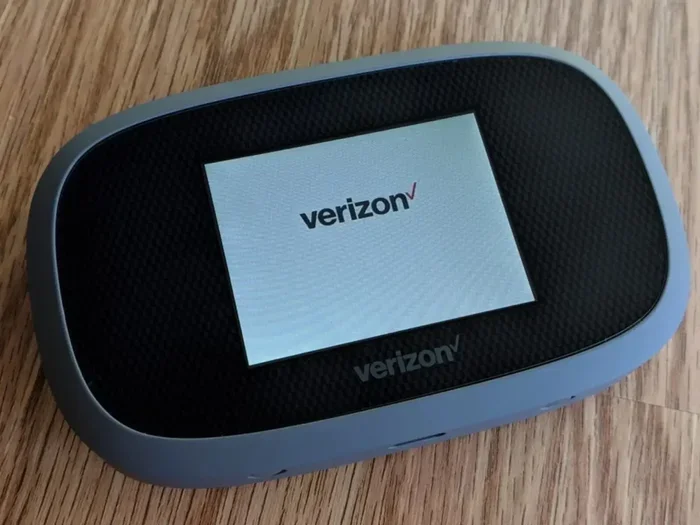
If you find yourself relying heavily on a hotspot, you might want to explore dedicated portable Wi-Fi options. Mobile hotspots are standalone devices that create a Wi-Fi network using a cellular data plan. They are separate from your phone and can offer better battery life and performance for extended use.
Staying Secure While Using Your Verizon Hotspot
Security is often overlooked when setting up a mobile hotspot, but it is essential. Your hotspot broadcasts a Wi-Fi signal that anyone nearby can detect. Without proper precautions, unauthorized users could access your network.
Always use WPA2 or WPA3 encryption for your hotspot. These are the most secure encryption standards available. Avoid using WEP, as it is outdated and easy to crack. Change your hotspot password regularly, especially if you have shared it with others.
Also, be cautious about what you do while connected to your hotspot. Avoid accessing sensitive accounts or entering financial information on public networks unless you are using a VPN. Taking these simple steps keeps your data safe and your connection private.
Verizon Hotspot Plans and Data Limits
Understanding your data limits is crucial for a smooth hotspot experience. Verizon offers several plans with different hotspot allowances.
Most unlimited plans from Verizon include a set amount of high-speed hotspot data, typically ranging from 5 GB to 50 GB per month. After you exceed this limit, your speeds may be reduced but your hotspot will continue to work. If you need more data, you can add a hotspot data add-on through your My Verizon account.
Prepaid plans may have different hotspot rules. Some prepaid plans include hotspot access, while others do not. Always verify your plan’s hotspot allowance before relying on it for important tasks.
If you find that your hotspot data runs out quickly, consider adjusting your usage habits. Lower video streaming quality, limit large downloads, and disconnect devices that are not actively using the network.
Conclusion
Activating your Verizon mobile hotspot is quick and easy once you know the steps. Whether you are on an iPhone or Android device, the process takes just a few minutes. You can turn your phone into a reliable internet source for all your devices, whether you are at home, in the office, or on the road.
Remember to check your data plan, set a strong password, and troubleshoot any issues using the tips in this guide. With the right setup and a little care, your Verizon hotspot will serve you well every time you need it. Stay connected, stay productive, and enjoy the freedom of mobile internet wherever you go.