Can You Tell If Someone Has Accessed Your Wifi Connection
Yes, you can tell if someone has accessed your wifi connection by watching for slow internet, unknown devices on your network, and unusual router lights. Unauthorized wifi access can compromise your personal data and drain your bandwidth. This guide walks you through every sign, tool, and step to detect and prevent network intruders from using your wireless network without permission.
Have you ever wondered if someone else is using your wifi without your knowledge? It is a scary thought, but the truth is that you can often tell if someone has accessed your wifi connection. Your network gives off warning signs, and once you know what to look for, you can catch an intruder fast.
Unauthorized wifi access is more common than most people think. A neighbor, a passerby, or even someone across the street could be tapping into your wireless network. This not only slows down your internet but can also put your personal data at risk. The good news is that this guide will show you exactly how to detect and stop it.
We will cover every sign of network intrusion, walk you through simple checks, and give you actionable steps to lock down your wireless network. Whether you are a tech beginner or someone who knows a bit about routers, you will find practical advice here. Let us get started and take back control of your wifi connection.
Key Takeaways
- Slow internet and unknown devices are the top signs that someone has accessed your wifi connection.
- Checking your router’s admin panel lets you see a full list of connected devices and spot unfamiliar ones.
- Changing your wifi password and updating router firmware are the fastest ways to kick off unauthorized users.
- WPA3 encryption and a strong password make your wireless network far harder to breach.
- Router lights and DNS settings can reveal suspicious activity on your network.
- Regular monitoring of your network keeps intruders out and your data safe.
📑 Table of Contents
- How to Tell If Someone Has Accessed Your Wifi Connection
- How to Check Who Is Connected to Your Wifi
- Common Signs of a Wifi Hacker on Your Network
- How to Secure Your Wifi Connection After Detecting Intrusion
- Quick Tips to Keep Your Network Safe
- Common Mistakes That Leave Your Wifi Vulnerable
- What to Do If You Cannot Remove the Intruder
- Conclusion
How to Tell If Someone Has Accessed Your Wifi Connection
The first step in protecting your network is knowing the warning signs. Most people do not realize they have been sharing their wifi password with strangers for weeks or even months. Here are the clearest signals that someone else is using your internet.
Your Internet Speed Drops Suddenly
A sudden network slowdown is one of the most common signs of unauthorized access. When an unknown device starts streaming, downloading, or uploading on your network, it eats up your bandwidth. You might notice videos buffering, pages loading slowly, or video calls freezing.
Now, slow internet can happen for many reasons. Your provider might have network issues, or your router might need a reboot. But if the slowdown happens consistently, especially during times when you are not using much data, it is worth investigating. A bandwidth usage spike when you are not actively online is a red flag.
You Find Unknown Devices on Your Network
Every device that connects to your wireless network gets a unique identifier. You can check your router’s device list to see what is connected. If you spot a device you do not recognize, someone else is using your wifi connection.
Do not panic if you see an unfamiliar name right away. Some devices have generic names like “Android_1234” or “iPhone-ABC.” But if you cannot identify any of the devices on your list, that is a clear sign of unauthorized access. We will walk you through exactly how to check this list in the next section.
Your Router Lights Behave Strangely
Your router has several lights that indicate activity. If you notice the wifi light blinking constantly when you are not using the internet, something might be wrong. A device downloading large files or someone streaming content will cause those lights to flash actively.
Check your router manual to understand what each light means. Most routers have a power light, an internet light, a wifi light, and sometimes a light for each ethernet port. If the wifi light blinks intensely when all your devices are off, it is time to dig deeper.
Your Data Usage Spikes Unexpectedly
Many internet providers offer online portals where you can check your monthly data usage. If you see a sudden jump in data consumption that does not match your habits, an unknown user might be on your network. Large downloads, cloud backups, or streaming from an unauthorized device can drive those numbers up fast.
Keep an eye on your billing cycle. Some providers reset data counters at the start of each month. Comparing your usage patterns month over month helps you spot anomalies early. A consistent, unexplained increase in bandwidth usage is a strong clue that someone is piggybacking on your wifi connection.
Your DNS Settings Have Changed
This one is a bit more technical, but it is very important. Your DNS settings control how your devices find websites on the internet. If someone has accessed your router admin panel, they might change your DNS to redirect you to malicious sites or track your browsing habits.
You can check your DNS settings by logging into your router. Look for the DNS server addresses and compare them to your provider’s default settings. If they have been altered without your knowledge, you have a serious security breach on your hands. We will explain how to check and fix this below.
How to Check Who Is Connected to Your Wifi
Now that you know the signs, let us look at how to actually see who is on your network. Checking your connected devices is the most reliable way to confirm if someone has accessed your wifi connection without permission.
Method 1: Log Into Your Router Admin Panel
Every router has a built-in admin panel you can access through a web browser. Here is how to do it step by step.
- Open a web browser on a device connected to your network.
- Type your router’s IP address into the address bar. Common addresses are 192.168.1.1 or 192.168.0.1.
- Enter your admin username and password. These are often printed on a sticker on the back of your router.
- Look for a section called “Connected Devices,” “Device List,” or “DHCP Client List.”
- Review the list carefully. Note every device you recognize and flag anything unfamiliar.
Each device on the list will show a name, an IP address, and a MAC address. The MAC address is a unique hardware identifier that can help you confirm whether a device belongs to you. Write down your own devices’ MAC addresses for easy comparison.
Method 2: Use a Network Scanning App
If logging into your router feels too technical, you can use a network scanning app on your phone or computer. Apps like Fing, NetX, or Advanced IP Scanner scan your network and list every connected device in seconds.
These apps show you the device name, IP address, and manufacturer for each connection. They are incredibly user-friendly and perfect for people who are not tech-savvy. Simply download the app, connect to your wireless network, and run a scan. It is that simple.
Method 3: Check Your Router’s Companion App
Many modern routers come with a companion app that lets you manage your network from your phone. Brands like Netgear, TP-Link, and ASUS offer apps that show connected devices in real time. These apps often send push notifications when a new device joins your network, making detection even easier.
If your router supports a companion app, download it and explore the device management section. You can often block unknown devices, rename them, or set up alerts for future connections. This is one of the easiest ways to monitor your network security on the go.
Common Signs of a Wifi Hacker on Your Network
Understanding the motives behind wifi hacking helps you take it more seriously. Not all intrusions are the same, and knowing what a hacker might do can help you spot the signs faster.
They Are Stealing Your Bandwidth
The most common reason someone accesses your wifi connection without permission is free internet. A neighbor or visitor might connect to your network to stream movies, play online games, or browse the web without paying for their own service. While this might seem harmless, it slows down your own internet speed and could violate your service agreement.
They Are Trying to Access Your Personal Data
A more dangerous scenario involves someone using your network to access shared files, intercept your online activity, or launch attacks on other networks. If your network security is weak, a skilled wifi hacker could potentially see unencrypted data passing through your router. This is why strong network encryption is so important.
They Are Using Your Network for Illegal Activity
This is the scariest possibility. Some criminals use stolen wireless networks to download illegal content, launch cyberattacks, or hide their real location. If law enforcement traces that activity back to your IP address, you could face serious legal trouble. This is exactly why detecting and preventing unauthorized access is critical.
How to Secure Your Wifi Connection After Detecting Intrusion
Once you confirm that someone has accessed your wifi connection, you need to act fast. The following steps will help you lock down your network and prevent future breaches.
Change Your Wifi Password Immediately
The first and most important step is to change your wifi password. Go to your router admin panel, find the wireless security settings, and create a new strong password. Use a mix of uppercase letters, lowercase letters, numbers, and special characters. A password like “Sunshine123!” is much harder to crack than “password123.”
After changing the password, every device on your network will be disconnected and will need the new password to reconnect. This immediately kicks off any unauthorized users. Make sure your new password is something you can remember but others cannot guess.
Update Your Router Firmware
Router manufacturers regularly release firmware updates that patch security vulnerabilities. An outdated router firmware is an open door for network intruders. Log into your admin panel and look for a “Firmware Update” or “Router Update” section. If an update is available, install it right away.
Some modern routers update automatically, but many do not. Make it a habit to check for updates every few months. This small step goes a long way in keeping your wireless network safe and secure.
Enable WPA3 Encryption
Encryption type determines how well your data is protected over the air. If your router still uses WEP or WPA, upgrade to WPA3 immediately. WPA3 is the latest and most secure encryption standard available for home networks. It protects against brute-force attacks and makes it extremely difficult for anyone to crack your wifi password.
If your router does not support WPA3, at minimum use WPA2 with AES encryption. Avoid using TKIP, as it is outdated and vulnerable. You can find these settings in your router’s wireless security section.
Disable WPS and Remote Management
WPS (Wi-Fi Protected Setup) was designed to make connecting devices easier, but it has known security flaws. Hackers can exploit WPS to gain access to your network even without knowing your password. Go to your router settings and turn WPS off completely.
Similarly, disable remote management unless you specifically need it. Remote management allows you to access your router admin panel from outside your home network, but it also creates an entry point for attackers. Turning it off reduces your exposure to unauthorized access.
Create a Guest Network
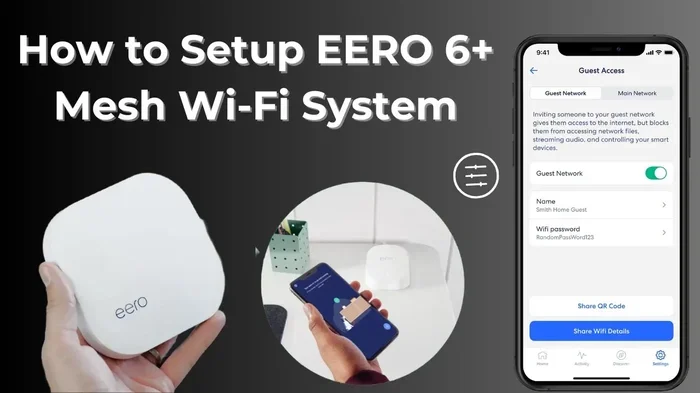
If you often have visitors who need internet access, set up a guest network. A guest network is separate from your main wifi connection and gives visitors internet access without letting them see your shared files or devices. Most modern routers have a guest network feature that is easy to enable in the admin panel.
Give your guest network a different password from your main network. Change the guest password periodically, especially if you have frequent visitors. This simple step adds a strong layer of network security to your home.
Quick Tips to Keep Your Network Safe
Prevention is always better than cure. Here are some quick habits that will keep your wireless network protected around the clock.
- Change your default router admin password. Most routers ship with generic admin credentials like “admin/admin.” Change these immediately to something unique and strong.
- Hide your network name (SSID). Hiding your SSID makes your network invisible to casual scanners. It is not foolproof, but it adds an extra layer of obscurity.
- Monitor your device list monthly. Make it a routine to check your connected devices every few weeks. This keeps you aware of any new additions.
- Use a strong, unique wifi password. Avoid using personal information like birthdays or names in your password. The more random, the better.
- Restart your router regularly. A simple reboot can clear temporary connections and refresh your network settings. Aim to restart once a week.
- Keep your router in a central location. Placing your router away from windows reduces the signal range outside your home, making it harder for outsiders to detect your network.
- Use a vpn for sensitive activities. A virtual private network encrypts your internet traffic, adding protection even if someone is on your network.
Common Mistakes That Leave Your Wifi Vulnerable
Many people unknowingly make their wireless network an easy target. Avoiding these common mistakes can significantly reduce your risk of unauthorized access.
Using the Default Password
Leaving your router’s default admin password unchanged is one of the biggest security mistakes. Anyone who knows the router brand can look up the default credentials online and gain full control of your network settings. Always change both your admin password and your wifi password to something unique.
Ignoring Firmware Updates
Outdated firmware contains known vulnerabilities that hackers can exploit. If you never update your router, you are leaving the door wide open. Set a calendar reminder to check for updates every month or two. It takes just a few minutes and can save you from a major security breach.
Sharing Your Password Too Freely
It is tempting to share your wifi password with everyone, but the more people who have it, the higher the risk. If you must share, consider using a guest network. And if you no longer need someone to have access, change your password right away.
Not Checking Connected Devices
Many people set up their router once and never look back. Over time, devices come and go, but so do unauthorized connections. Making a habit of checking your device list regularly is one of the simplest and most effective things you can do to protect your network security.
What to Do If You Cannot Remove the Intruder
Sometimes, even after changing your password, an intruder persists. This can happen if someone has cloned your MAC address or if your router has a deeper vulnerability. Here is what to do in that situation.
First, try changing your wifi password again and restarting your router. Sometimes the intruder’s device holds a cached connection that gets disconnected after a reboot. If that does not work, perform a factory reset on your router. This wipes all settings and returns the router to its original state. You will need to reconfigure everything, but it guarantees a clean start.
If the problem continues after a factory reset, contact your internet service provider or consider replacing your router. Older routers may not support modern encryption types and are more vulnerable to attacks. A new router with the latest security features is a worthwhile investment for your network security.
Conclusion
So, can you tell if someone has accessed your wifi connection? Absolutely. Your network shows clear signs like slow speeds, unknown devices, strange router lights, and unexpected data spikes. By staying alert and knowing what to look for, you can catch unauthorized access early and take action before any real damage is done.
Taking control of your wireless network security does not require advanced technical skills. Simple steps like changing your password, updating firmware, enabling WPA3 encryption, and regularly checking your device list make a huge difference. A little prevention goes a long way in keeping your data safe and your internet running smoothly.
Start today. Log into your router, check your connected devices, and make sure your network security is up to date. Your wifi connection is your gateway to the internet, and it deserves strong protection. Stay vigilant, stay safe, and enjoy peace of mind knowing your network is yours and yours alone.
Frequently Asked Questions
Can someone access my wifi without me knowing?
Yes, it is entirely possible for someone to access your wifi connection without you noticing, especially if your network has a weak password or outdated encryption. Most routers do not send alerts when a new device connects, which is why regular monitoring is essential to detect unauthorized access early.
How do I find out what devices are connected to my wifi?
You can check your connected devices by logging into your router admin panel or using a network scanning app like Fing. Both methods show a complete device list with names, IP addresses, and MAC addresses. Compare the list to your own devices to spot anything unfamiliar.
What should I do if I find an unknown device on my network?
First, change your wifi password immediately to disconnect the unknown device. Then update your router firmware and enable WPA3 encryption if available. Block the device through your router settings and monitor your network closely for any further suspicious activity.
Can a neighbor hack my wifi from far away?
Yes, a neighbor or anyone within range of your wireless network signal can attempt to access it, especially if your encryption is weak or your password is simple. Using strong encryption like WPA3 and a complex password significantly reduces the risk of network intrusion from outside your home.
Is it illegal for someone to use my wifi without permission?
In many places, using someone else’s wifi connection without permission is considered illegal and can result in fines or even criminal charges. However, the burden often falls on the network owner to prove unauthorized access, which is why securing your network security is so important.
How often should I check my wifi for unauthorized access?
It is a good practice to check your connected devices at least once a month. You should also review your bandwidth usage and router logs regularly. Making this a routine habit helps you catch any unauthorized access quickly before it becomes a bigger problem.