Can I Use A Router As A Splitter Instead Of Buying New
Can I Use A Router As A Splitter? The answer is yes, and it can save you a lot of money. Many people do not realize that their existing router can act as a network splitter in certain setups. This guide walks you through everything you need to know about using a router as a splitter instead of buying new equipment. You will learn the differences, the setup steps, and the common mistakes to avoid.
Have you ever looked at your networking gear and wondered if you really need to buy something new? Maybe you have an extra router sitting in a closet and a need to split your internet connection to more devices. The good news is that you might already have the solution. Can I use a router as a splitter? Yes, you can. And it is simpler than most people think.
Many internet users face the same problem. They need to connect more devices than their current setup allows. Buying a new splitter or switch feels like the obvious answer. But before you spend money, it is worth understanding what your router can already do. A router as a splitter is a practical, budget-friendly option that works well for many home and small office setups.
In this article, we will cover everything you need to know. We will explain how routers and splitters work, when using a router as a splitter makes sense, and how to set it up step by step. We will also look at the downsides and common mistakes so you can avoid problems. By the end, you will know exactly whether this approach fits your needs.
The goal is simple. Help you get more out of the equipment you already own. No fluff. No unnecessary tech jargon. Just clear, practical advice that you can use right away.
Key Takeaways
- Yes, you can use a router as a splitter: A router can distribute your internet signal to multiple devices, acting similarly to a dedicated splitter.
- It saves money: Instead of buying a new splitter or switch, you can repurpose your existing router for basic signal distribution.
- There are limitations: A router used as a splitter may not offer the same performance as a dedicated network splitter or switch.
- Setup is simple: With the right configuration, you can connect multiple devices through your router’s LAN ports or Wi-Fi.
- Common mistakes can hurt performance: Overloading ports, poor placement, and wrong settings can cause slow speeds and signal loss.
- Know when to buy new gear: If your needs grow beyond what a router can handle as a splitter, a dedicated device may be the better choice.
📑 Table of Contents
- What Is The Difference Between A Router And A Splitter?
- Can You Really Use A Router As A Splitter?
- When It Makes Sense To Use A Router As A Splitter
- Router As Splitter Vs Buying A Dedicated Splitter
- Step By Step: How To Configure Your Router As A Splitter
- Common Mistakes People Make When Using A Router As A Splitter
- Expert Tips For Better Network Performance When Splitting With A Router
- When Should You Buy A Dedicated Splitter Instead?
- Conclusion
What Is The Difference Between A Router And A Splitter?
Before we dive into using a router as a splitter, it helps to understand what each device does. People often confuse these two pieces of networking gear. But they serve different purposes, even though they sometimes overlap.
How A Router Handles Network Traffic
A router is the brain of your home network. It connects to your modem and creates a local network. Think of it as a traffic director. It sends data to the right device in your home. Your router assigns IP addresses. It manages Wi-Fi connections. It also handles security with a built-in firewall.
Most routers have four or more LAN ports. These ports let you plug in devices with Ethernet cables. The router also broadcasts a Wi-Fi signal. This lets phones, laptops, and tablets connect wirelessly. So a router does a lot of heavy lifting in any network setup.
How A Splitter Distributes Signals
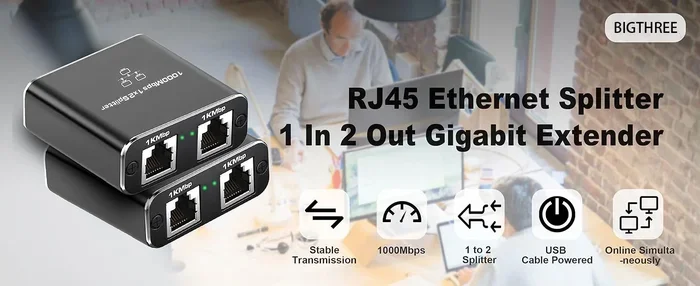
A network splitter does one main job. It takes one input signal and splits it into multiple outputs. In a basic Ethernet setup, a splitter lets you run two cables from one connection. A coaxial splitter works similarly with TV or cable signals. The key idea is distribution without added intelligence.
A splitter does not assign IP addresses. It does not manage traffic. It simply divides a signal. This makes it a dumb device in the networking world. But for simple tasks, a dumb device can work just fine.
Where The Two Overlap
Here is where things get interesting. Both a router and a splitter can share a connection with multiple devices. A router does this more intelligently. A splitter does it more simply. In many home setups, a router can fill the role of a splitter. This is especially true when you just need to connect a few extra devices.
Can You Really Use A Router As A Splitter?
The short answer is yes. A router can act as a signal splitter in many situations. But the details matter. Not every router setup works the same way. And not every situation calls for using a router this way.
The Short Answer Is Yes, With Some Caveats
When you connect multiple devices to your router, you are already splitting your internet connection. Each LAN port on your router sends the same internet signal to a different device. In a basic sense, this is what a splitter does. Your router just does it with more smarts built in.
But there is a catch. A router used as a splitter has limits. It may not handle heavy traffic as well as a dedicated network switch or Ethernet splitter. The performance depends on your router model, your internet speed, and how many devices you connect.
What Happens When You Connect Multiple Devices
When you plug multiple devices into your router, the router shares the available bandwidth. Each device gets a portion of the total speed. If you have a 100 Mbps internet plan and five devices streaming video, each device gets a share of that 100 Mbps. The router manages this sharing automatically.
A dedicated splitter does not manage bandwidth. It just passes the signal along. So the router actually gives you more control. But the router also introduces more points where things can go wrong. Speed drops, connection drops, and lag can all happen if the router is not set up correctly.
Wi-Fi Splitting Versus Wired Splitting
Your router can split your connection wirelessly through Wi-Fi. This is the most common way people share internet in their homes. Every device connected to your Wi-Fi is getting a split of the total bandwidth.
Wired splitting happens through the LAN ports. Each Ethernet cable connected to your router sends a separate data stream. Both wireless and wired splitting use your router. The difference is in how the signal travels to each device.
When It Makes Sense To Use A Router As A Splitter
Not every situation calls for buying new gear. Sometimes your existing router is all you need. Here are the scenarios where using a router as a splitter works best.
Setting Up A Home Network On A Budget
Budget is the number one reason people ask this question. Buying a new splitter, switch, or hub costs money. If you already have a router, why spend more? Using your router as a splitter lets you connect multiple devices without extra hardware.
This works great for families. A family router often needs to handle phones, tablets, laptops, smart TVs, and gaming consoles. All of these devices connect through the router. The router splits the connection naturally. No extra purchase needed.
Using Your Router In A Small Office
Small offices can also benefit from this approach. A small business with five to ten employees may not need an expensive managed switch. A good home router can handle basic office tasks. It splits the internet connection among computers, printers, and phones.
Just keep in mind that a router used this way may struggle under heavy load. If your office streams a lot of video or transfers large files, a dedicated network switch might be a better long-term investment.
Temporary Or Guest Network Setups
Sometimes you need a quick solution. Maybe you are hosting a party and need extra Wi-Fi access. Or maybe you are setting up a temporary workspace. Using your router as a splitter in these cases makes perfect sense. It is fast, free, and easy to set up.
Router As Splitter Vs Buying A Dedicated Splitter
How do the two options compare? Let us look at the pros and cons side by side.
| Feature | Router As Splitter | Dedicated Splitter Or Switch |
|---|---|---|
| Cost | Free (uses existing gear) | $15 to $100+ depending on model |
| Setup Difficulty | Easy if router is already configured | Very easy, plug and play |
| Performance | Good for light to moderate use | Better for heavy or dedicated use |
| Number Of Ports | Typically 4 LAN ports plus Wi-Fi | Varies, often 5 to 48 ports |
| Advanced Features | Firewall, parental controls, QoS | Basic signal distribution only |
| Signal Loss | Minimal when used properly | Minimal, designed for this purpose |
| Best For | Home use, temporary setups, budget limits | Heavy traffic, offices, permanent setups |
As you can see, both options have their place. The right choice depends on your needs, budget, and how much traffic your network handles.
Step By Step: How To Configure Your Router As A Splitter
Setting up your router as a splitter is straightforward. Follow these steps and you will be up and running in no time.
- Connect your router to the modem. Plug an Ethernet cable from your modem into the router’s WAN port. This gives your router access to the internet.
- Log in to your router settings. Open a web browser and type in your router’s IP address. Common addresses are 192.168.1.1 or 192.168.0.1. Check the label on your router if you are not sure.
- Enter your admin credentials. Use the default username and password printed on your router. Change these later for better security.
- Check your LAN settings. Make sure your router is set to assign IP addresses automatically. This is called DHCP. It lets each connected device get its own address.
- Connect your devices. Plug Ethernet cables into the LAN ports. Or connect devices wirelessly through Wi-Fi. Your router will now split the connection to all devices.
- Test the connection. Open a browser on each device and make sure the internet works. Run a speed test on each device to check performance.
That is it. You are now using your router as a splitter. It really is that simple for most setups.
Quick Tip: If you want to use your router as a splitter in a different building or room, place it near the center of your space. This reduces signal loss and gives all devices a stronger connection. Avoid hiding your router behind thick walls or inside cabinets.
Common Mistakes People Make When Using A Router As A Splitter
Even though the setup is simple, people make mistakes that hurt performance. Here are the most common ones to avoid.
Overloading The Router With Too Many Devices
Most home routers handle four to eight wired devices well. Beyond that, performance drops. If you connect fifteen devices to one router, everyone suffers. The router runs out of processing power. Speeds slow down. Connections drop.
The fix is simple. Do not connect more devices than your router can handle. If you need more ports, add a cheap network switch between your router and the extra devices.
Ignoring Bandwidth Splitting
Every device that connects to your router shares the total bandwidth. If four devices are streaming 4K video, your 100 Mbps connection gets divided four ways. That leaves 25 Mbps per device, which is enough for most streaming but not ideal.
Be mindful of what your devices are doing. Heavy tasks like video calls or large downloads eat up bandwidth fast. Spread heavy tasks across different times if possible.
Using Old or Cheap Ethernet Cables
The cable matters more than people think. An old Cat3 cable will limit your speed to 10 Mbps. A Cat5e cable supports up to 1 Gbps. A Cat6 cable handles even more. Using the wrong cable wastes your router’s potential.
Always use the best cables you can afford. They are cheap and they make a big difference in speed and reliability.
Not Updating Router Firmware
Router manufacturers release updates that fix bugs and improve performance. An outdated router may have slower speeds or security holes. Check for firmware updates every few months. Most routers have an update button in the admin panel.
Placing The Router Poorly
Where you put your router affects how well it splits the signal. Walls, furniture, and appliances all block Wi-Fi. Placing your router in a basement or behind a TV cabinet weakens the signal everywhere.
Keep your router in an open, central location. Elevate it on a shelf. Keep it away from microwaves, baby monitors, and other devices that cause interference.
Expert Tips For Better Network Performance When Splitting With A Router
Want to get the most out of your router used as a splitter? These expert tips help you squeeze better performance from your setup.
Use Quality of Service (QoS) settings. Most modern routers let you prioritize certain devices or activities. Set your video calls or gaming console to high priority. This ensures they get enough bandwidth even when other devices are using the network.
Split your Wi-Fi bands. If your router supports both 2.4 GHz and 5 GHz bands, use them wisely. The 2.4 GHz band travels farther but is slower. The 5 GHz band is faster but has shorter range. Put close devices on 5 GHz and far devices on 2.4 GHz.
Restart your router regularly. Routers accumulate data over time. A quick restart clears the memory and refreshes connections. Set a reminder to restart your router once a week for best results.
Monitor connected devices. Check your router’s admin panel to see what devices are connected. If you see unknown devices, change your Wi-Fi password immediately. Unauthorized users slow down your network and create security risks.
Consider a mesh system for larger homes. If your router cannot reach all rooms, a mesh Wi-Fi system helps. It uses multiple nodes to spread the signal. But remember, a mesh system is different from a splitter. It extends coverage, not just splits the signal.
Keep your network secure. Use WPA3 encryption if your router supports it. Create a strong password. A secure network performs better because it is not bogged down by unauthorized traffic.
When Should You Buy A Dedicated Splitter Instead?
Using your router as a splitter works for many situations. But there are times when buying a dedicated device is the better choice.
If you need more than four wired connections, a dedicated switch is worth the investment. A five-port or eight-port switch costs under $30 and handles heavy traffic with ease. It does not slow down your router because it takes the splitting load off your router.
If you need to split a coaxial cable signal for TV service, use a coaxial splitter. Routers do not handle coaxial signals the same way. A dedicated coaxial splitter ensures clean signal distribution without loss.
If you run a business with many users, a managed switch gives you control over every port and connection. Routers are not built for this level of network management. Invest in the right tool for the job.
Conclusion
Can I use a router as a splitter? Absolutely. Your router is more powerful than most people realize. It can split your internet connection to multiple devices, both wired and wireless, without any extra purchases. This approach saves money and works well for home networks, small offices, and temporary setups.
But using a router as a splitter has limits. It works best for light to moderate use. If you need many ports or heavy performance, a dedicated splitter or switch is the better choice. And always avoid the common mistakes we covered, like overloading your router or using old cables.
The bottom line is simple. Before you buy new networking gear, check what your router can already do. You might be surprised. With the right setup and a few smart choices, your existing router handles splitting duties just fine. Save your money for something else, and enjoy a working network in just minutes.
Now you have the knowledge to make this work. Set up your router, connect your devices, and test everything. If it works, you just saved yourself a trip to the store and some extra cash in your pocket.
Frequently Asked Questions
Can any router be used as a splitter?
Most routers can act as a splitter in basic setups. Any router with LAN ports and Wi-Fi can share your internet connection with multiple devices. However, older or very cheap routers may struggle with more than a few devices. Check your router’s specs to see how many devices it supports at once.
Does using a router as a splitter slow down internet speed?
It can, but usually only when many devices are active at the same time. Each device shares the total bandwidth your internet plan provides. If all devices are doing heavy tasks like streaming or downloading, speeds will drop for everyone. Light browsing and email use rarely cause noticeable slowdowns.
What is the difference between a router and a network switch?
A router manages traffic between different networks and assigns IP addresses. A network switch simply connects devices on the same network and passes data between them. A switch does not have Wi-Fi or firewall features. It is a simpler device built for one job: connecting lots of wired devices.
Can I use a router as a splitter for coaxial cable internet?
No, a router does not split coaxial cable signals. Coaxial splitters handle TV or cable TV signals. Your router connects to a cable modem, which converts the coaxial signal to an Ethernet signal. The router then distributes that internet connection to your devices through LAN ports and Wi-Fi.
How many devices can a router handle when used as a splitter?
Most home routers handle between 15 and 30 devices comfortably. Some high-end routers support even more. But performance drops as you add more devices. For best results, keep wired connections under eight and wireless connections under 20 for typical home use.
Is it safe to use a router as a splitter long term?
Yes, it is safe as long as you keep your router updated and secure. Change the default admin password. Use WPA3 or WPA2 encryption on your Wi-Fi. Keep firmware updated. A well-maintained router used as a splitter is just as safe as any other networking setup.