How Can I Share Wi Fi Connection On Iphone With Friends
Sharing your Wi-Fi connection on iPhone with friends is quick and easy using built-in tools like Personal Hotspot, AirDrop, and QR codes. You can let others connect without typing long passwords or giving out your network details. This guide covers every method so you can share Wi-Fi on iPhone safely and efficiently.
Sharing Wi-Fi with friends is one of the most useful things you can do with your iPhone. Whether you are at a café, at home, or traveling, knowing how to share Wi-Fi connection on iPhone saves everyone from the hassle of typing long passwords. Your iPhone has several built-in tools that make this process simple and fast.
The methods we will cover include Personal Hotspot, QR code sharing, AirDrop, and Bluetooth tethering. Each approach works well in different situations. We will also talk about security tips so you can share your network safely. By the end of this guide, you will know exactly which method to use and when.
If you have ever struggled to help a friend connect to your network, this article is for you. Let us dive into the easiest ways to share Wi-Fi on iPhone and keep everyone connected.
## Why Sharing Wi-Fi From Your iPhone Is Useful
There are many moments when you need to share Wi-Fi connection on iPhone with someone nearby. Maybe your friend forgot to connect to the home network before leaving the house. Or perhaps you are at a restaurant and want to help the whole table get online. Whatever the reason, knowing how to share your internet quickly is a great skill.
Your iPhone can act as a mobile router using its cellular data plan. This means you do not need a separate Wi-Fi router or a physical connection. You just turn on a few settings and your phone becomes a portable hotspot. This is especially helpful when there is no available Wi-Fi network around.
### Built-In Tools You Already Have
Apple has made sharing your internet connection very easy. You do not need to download any extra apps or buy special equipment. The tools are already on your iPhone and ready to use.
Here are the main methods you can use to share Wi-Fi on iPhone:
– Personal Hotspot over Wi-Fi
– Personal Hotspot over Bluetooth
– QR code generation for password sharing
– AirDrop password sharing
– USB tethering for wired connections
Each method has its own benefits. Let us explore them in detail so you can pick the best one for your situation.
## How To Share Wi-Fi Connection On iPhone Using Personal Hotspot
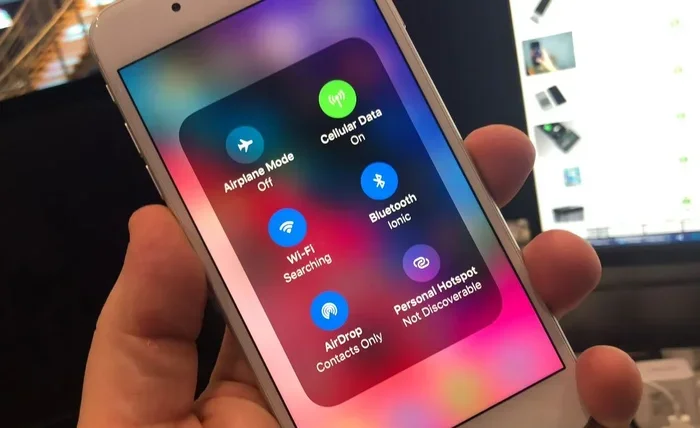
The Personal Hotspot feature is the most popular way to share Wi-Fi connection on iPhone. It turns your cellular data into a Wi-Fi network that others can join. This method works even when there is no existing Wi-Fi network available.
### Setting Up Your Personal Hotspot
Setting up your hotspot takes only a few steps. Here is how to do it:
1. Open the Settings app on your iPhone.
2. Tap on Personal Hotspot or go to Cellular > Personal Hotspot.
3. Toggle on Allow Others to Join.
4. Set a strong Wi-Fi password.
5. Your hotspot name will appear as your iPhone name.
Once you have done this, your friends can find your network in their Wi-Fi settings. They just need to enter the password you created. You can also change the hotspot password anytime from the same settings menu.
### Quick Tips For Using Personal Hotspot
Here are some helpful tips to make your hotspot experience better:
– Check your data usage before turning on the hotspot. Sharing your connection uses your cellular data plan.
– Use a strong password with at least 8 characters. This keeps unauthorized users from joining.
– Turn off the hotspot when you are not using it to save battery life.
– Monitor connected devices in your hotspot settings to see who is using your network.
If you want to learn more about managing your network settings, you can check out our guide on Can I Find My Wi-Fi Password In Settings for helpful tips on password management.
### How Many Devices Can Connect To Your Hotspot
Most iPhones allow up to 5 devices to connect at the same time. However, this can vary depending on your carrier and iPhone model. If too many devices connect, the internet speed may slow down for everyone.
It is a good idea to limit the number of devices you share with at one time. This keeps your connection fast and stable. If you notice slow speeds, try disconnecting devices that are not actively using the internet.
## Sharing Your Wi-Fi Password With AirDrop
AirDrop is a fantastic way to share Wi-Fi connection on iPhone without typing anything. It uses Bluetooth and Wi-Fi to send data between Apple devices instantly. You can use AirDrop to send your Wi-Fi password to a friend’s iPhone or iPad.
### How To Share Your Password Using AirDrop
Follow these simple steps to share your Wi-Fi password via AirDrop:
1. Make sure AirDrop is turned on for both you and your friend. Go to Settings > General > AirDrop and select Everyone.
2. Ask your friend to go to their Wi-Fi settings and tap on your network name.
3. A prompt will appear on your phone asking if you want to share the password.
4. Tap Share Password and your friend will be connected instantly.
This method is very convenient because your friend does not need to type the password manually. It also means you do not have to say the password out loud, which is more secure.
### Important Things To Know About AirDrop Password Sharing
Here are a few things to keep in mind:
– Both devices need to be running iOS 11 or later.
– AirDrop works best when both devices are within 30 feet of each other.
– Make sure Wi-Fi and Bluetooth are turned on for both devices.
– You can also use AirDrop to share passwords with Mac computers.
If you are curious about how Wi-Fi and Bluetooth work together for features like this, check out our article on Are Wi-Fi And Bluetooth The Same Frequency for a deeper look.
## Using QR Codes To Share Wi-Fi Passwords
QR codes offer another easy way to share Wi-Fi connection on iPhone. Instead of typing a long password, your friend simply scans a code with their phone camera. This method is fast, accurate, and very user-friendly.
### How To Generate A Wi-Fi QR Code
You can generate a QR code for your Wi-Fi network in a few ways:
– Use a free QR code generator website on your phone or computer.
– Use a third-party app from the App Store designed for Wi-Fi sharing.
– Some router apps can generate QR codes automatically for your network.
Once you have the QR code, simply show it to your friend. They open their phone camera, point it at the code, and their iPhone will prompt them to join the network. No password typing required.
### Benefits Of Using QR Codes
There are several advantages to using QR codes for sharing your network:
– Speed: Your friend connects in seconds without any typing.
– Accuracy: No risk of typos or misheard passwords.
– Security: You do not need to speak or type the password out loud.
– Convenience: You can save the QR code and reuse it anytime.
This method is especially useful in group settings where multiple people need to connect at once. You can display the QR code on your screen or print it out and place it somewhere visible.
## Bluetooth Tethering As An Alternative Method
If Wi-Fi broadcasting is not an option, you can use Bluetooth tethering to share Wi-Fi connection on iPhone. This method shares your cellular data through a Bluetooth connection instead of creating a Wi-Fi network.
### How To Set Up Bluetooth Tethering
Here is how to turn on Bluetooth tethering:
1. Go to Settings > Personal Hotspot on your iPhone.
2. Toggle on Bluetooth and make sure it is visible to other devices.
3. On your friend’s device, go to Bluetooth settings and pair with your iPhone.
4. Once paired, your friend’s device will have internet access through your cellular data.
Bluetooth tethering uses less battery than Wi-Fi hotspot. It also does not broadcast a network name, which adds a layer of privacy. However, the connection speed is usually slower than Wi-Fi tethering.
### When To Use Bluetooth Tethering
Bluetooth tethering is a good choice when:
– You want a more private connection that is not visible to others.
– You are in an area with too many Wi-Fi networks causing interference.
– You need to conserve battery life on both devices.
– Your friend’s device does not support Wi-Fi hotspot joining.
For more information about using Wi-Fi and Bluetooth together, you might enjoy reading Can I Have Wi-Fi And Bluetooth On At The Same Time.
## Security Best Practices When Sharing Your Wi-Fi
Sharing your internet connection with others comes with some security considerations. You want to make sure your personal data stays safe while still being helpful to your friends.
### Tips To Keep Your Network Safe
Follow these simple security practices when you share Wi-Fi on iPhone:
– Use a strong, unique password for your hotspot. Avoid common words or simple number sequences.
– Change your hotspot password regularly, especially after sharing it with multiple people.
– Monitor connected devices in your Personal Hotspot settings. You can see a list of all devices currently connected.
– Turn off the hotspot immediately after your friends are done using it.
– Do not share your home Wi-Fi password through public channels like social media.
### What To Avoid When Sharing Your Connection
There are a few things you should never do when sharing your network:
– Never leave your hotspot on when you are not around.
– Never share your password with strangers or people you do not trust.
– Never use the same password for your hotspot that you use for other accounts.
– Never ignore unknown devices that appear in your connected list.
If you are ever unsure about someone connecting to your network, you can always change your password. You can learn more about managing network connections in our article on Can I Delete Unwanted Wi-Fi Networks.
## Comparing Different Methods To Share Wi-Fi From iPhone
Choosing the right method depends on your situation. Here is a quick comparison of the main ways to share Wi-Fi connection on iPhone:
| Method | Speed | Ease of Use | Best For |
|——–|——-|————-|———-|
| Personal Hotspot (Wi-Fi) | Fast | Very Easy | Most situations |
| AirDrop Password Sharing | Fast | Very Easy | Nearby Apple users |
| QR Code Sharing | Fast | Easy | Group settings |
| Bluetooth Tethering | Moderate | Moderate | Privacy-focused sharing |
| USB Tethering | Fast | Moderate | Wired, stable connections |
Each method has its strengths. Personal Hotspot is the most versatile and works with any device that supports Wi-Fi. AirDrop is the easiest for sharing between Apple devices. QR codes are great for groups because everyone can scan at once.
## Common Mistakes People Make When Sharing Wi-Fi
Even though sharing Wi-Fi is simple, people sometimes make mistakes that cause problems. Here are the most common errors to avoid:
1. Forgetting to turn on Personal Hotspot. Make sure the toggle is on before asking others to look for your network.
2. Using a weak password. Simple passwords are easy to guess and can lead to unauthorized use.
3. Not checking data usage. Sharing your connection can use a lot of data quickly, especially if others are streaming videos.
4. Leaving the hotspot on permanently. This drains your battery and leaves your connection open to others.
5. Not restarting the hotspot when issues occur. Sometimes simply turning it off and on again fixes connection problems.
If you run into issues with your Wi-Fi settings, you might find our guide on Can I Connect My iPhone To Tesla Wi-Fi helpful for troubleshooting connectivity problems.
## Expert Insights On iPhone Wi-Fi Sharing
Apple has designed iPhone Wi-Fi sharing to be as seamless as possible. The integration between iOS devices makes sending and receiving passwords almost effortless. According to networking experts, the AirDrop password sharing feature is one of the most secure ways to share credentials because it uses end-to-end encryption.
When you use Personal Hotspot, your iPhone creates a separate network that is isolated from your home Wi-Fi. This means your friend connects to your cellular data, not your home network. This separation adds an extra layer of security for your personal files and devices.
Network specialists also recommend using WPA3 encryption whenever possible for your hotspot. This is the latest security standard and provides the strongest protection against unauthorized access. You can check your hotspot security settings in the Personal Hotspot menu under Wi-Fi password options.
## Frequently Asked Questions
Can I Share My Wi-Fi Password With Android Users?
Yes, you can share your Wi-Fi password with Android users. The easiest way is to use a QR code generator. Create a QR code for your network and let the Android user scan it with their phone camera. They will be prompted to join the network automatically.
Does Sharing Wi-Fi Slow Down My iPhone?
Sharing your Wi-Fi connection through Personal Hotspot can slow down your iPhone slightly. The device uses its cellular data and broadcasts a Wi-Fi signal, which consumes battery and processing power. However, for normal browsing and messaging, the impact is minimal.
Is It Safe To Share My Wi-Fi Password With Friends?
It is generally safe to share your Wi-Fi password with trusted friends. Just make sure to use a strong password and turn off the hotspot when you are done. Avoid sharing your home network password through public or unsecured channels.
Can I Share Wi-Fi Without Using Personal Hotspot?
Yes, you can share your Wi-Fi password without turning on a hotspot. You can use AirDrop to send the password directly to another Apple device. You can also generate a QR code that your friend can scan to join the network automatically.
How Do I Know Who Is Connected To My Hotspot?
You can see all connected devices by going to Settings > Personal Hotspot on your iPhone. A list of connected devices will appear below the Wi-Fi password field. If you see any unknown devices, you can change your password immediately.
What Is the Difference Between Wi-Fi Hotspot And Bluetooth Tethering?
Wi-Fi hotspot creates a wireless network that other devices can join. It is faster and supports multiple devices. Bluetooth tethering shares your internet through a Bluetooth connection. It is slower but uses less battery and offers more privacy since it does not broadcast a network name.
## Conclusion
Knowing how to share Wi-Fi connection on iPhone is a valuable skill that makes you helpful and keeps everyone connected. Whether you use Personal Hotspot, AirDrop, QR codes, or Bluetooth tethering, each method has its own advantages. The key is to choose the right method for your situation and always keep security in mind.
Your iPhone makes sharing your internet connection simple and fast. With just a few taps, you can help friends, family, or coworkers get online. Remember to use strong passwords, monitor connected devices, and turn off your hotspot when it is not needed.
Next time someone asks you how to get online, you will know exactly what to do. Share this guide with friends who might need help, and keep everyone connected with ease.
Key Takeaways
- Personal Hotspot: The fastest way to share your iPhone’s cellular data as a Wi-Fi network.
- QR Code Sharing: Let friends scan a code to join your Wi-Fi without typing a password.
- AirDrop: Send your Wi-Fi password securely to nearby Apple devices.
- Bluetooth Tethering: An alternative method for sharing internet without Wi-Fi broadcasting.
- Security Tips: Always monitor connected devices and use strong passwords.
Frequently Asked Questions
Can I Share My Wi-Fi Password With Android Users?
Yes, you can share your Wi-Fi password with Android users. The easiest way is to use a QR code generator. Create a QR code for your network and let the Android user scan it with their phone camera. They will be prompted to join the network automatically.
Does Sharing Wi-Fi Slow Down My iPhone?
Sharing your Wi-Fi connection through Personal Hotspot can slow down your iPhone slightly. The device uses its cellular data and broadcasts a Wi-Fi signal, which consumes battery and processing power. However, for normal browsing and messaging, the impact is minimal.
Is It Safe To Share My Wi-Fi Password With Friends?
It is generally safe to share your Wi-Fi password with trusted friends. Just make sure to use a strong password and turn off the hotspot when you are done. Avoid sharing your home network password through public or unsecured channels.
Can I Share Wi-Fi Without Using Personal Hotspot?
Yes, you can share your Wi-Fi password without turning on a hotspot. You can use AirDrop to send the password directly to another Apple device. You can also generate a QR code that your friend can scan to join the network automatically.
How Do I Know Who Is Connected To My Hotspot?
You can see all connected devices by going to Settings > Personal Hotspot on your iPhone. A list of connected devices will appear below the Wi-Fi password field. If you see any unknown devices, you can change your password immediately.
What Is the Difference Between Wi-Fi Hotspot And Bluetooth Tethering?
Wi-Fi hotspot creates a wireless network that other devices can join. It is faster and supports multiple devices. Bluetooth tethering shares your internet through a Bluetooth connection. It is slower but uses less battery and offers more privacy since it does not broadcast a network name.