How Can I Play Tv Through Bluetooth Easily at Home
Playing your TV through Bluetooth is simpler than you think. You can stream TV audio wirelessly to speakers, headphones, or soundbars using a Bluetooth transmitter or a built-in smart TV feature. This guide walks you through every method, from adapters to native Bluetooth settings, so you can enjoy wireless audio without hassle.
There is nothing quite like settling in for a movie night and hearing crisp, clear sound without wires getting in the way. Playing TV through Bluetooth lets you enjoy your favorite shows and films with wireless freedom. Whether you want to connect wireless headphones, a Bluetooth speaker, or a full soundbar, the process is easier than most people expect.
Many folks assume they need expensive equipment or technical skills to set this up. That is simply not true. With the right approach, you can have your TV audio streaming wirelessly in under ten minutes. This guide covers every method, from using a Bluetooth transmitter to finding built-in settings on your smart TV.
We will walk you through each step in plain language. You will learn how to pair devices, fix common problems, and choose the best option for your setup. By the end, you will be enjoying wireless TV audio like a pro. Let us dive in and get your sound flowing without cables.
Key Takeaways
- Bluetooth transmitters are the easiest way to add wireless audio to any TV with an audio output.
- Many smart TVs have built-in Bluetooth, so you may not need extra equipment at all.
- Pairing your TV with speakers or headphones takes just a few minutes once you know the steps.
- Audio lag is the most common issue and can be fixed with the right settings or adapter.
- Bluetooth codecs like aptX reduce delay and improve wireless sound quality significantly.
- Multiple devices can connect to your TV Bluetooth, including soundbars and wireless headphones.
- Checking your TV audio output first saves time and ensures a smooth setup.
📑 Table of Contents
- Understanding How Bluetooth TV Audio Works
- Method 1: Use a Bluetooth Transmitter for Any TV
- Method 2: Use Built-in Bluetooth on Smart TVs
- Method 3: Connect Bluetooth Speakers and Soundbars
- Method 4: Use Bluetooth Headphones for Private Listening
- Troubleshooting Common Bluetooth TV Problems
- Comparing Bluetooth TV Connection Methods
- Expert Tips for the Best Bluetooth TV Experience
- Final Thoughts
Understanding How Bluetooth TV Audio Works
Before you start setting anything up, it helps to understand the basics of wireless TV audio. Bluetooth is a short-range wireless technology that sends audio signals between devices. Your TV acts as the source, and your speaker or headphones act as the receiving device.
The connection works through something called a Bluetooth profile. The most common one for audio is called A2DP, which handles high-quality stereo sound. Another profile, AVRCP, lets you control playback volume directly from your TV remote.
Here is what you need to know about the key components:
- Bluetooth transmitter: Sends audio from your TV to a wireless device. Most TVs without built-in Bluetooth need one of these.
- Bluetooth receiver: Built into speakers, headphones, and soundbars. It picks up the signal and plays the audio.
- Bluetooth codec: This is the format that compresses and sends audio wirelessly. Better codecs mean less delay and better sound.
- Bluetooth range: Typically around 30 feet. Walls and furniture can reduce this distance.
Once you understand these basics, the setup process makes a lot more sense. You are essentially creating a wireless bridge between your TV and your audio output. The method you choose depends on your TV model and what devices you want to connect.
Method 1: Use a Bluetooth Transmitter for Any TV
If your TV does not have built-in Bluetooth, a Bluetooth transmitter is your best friend. This small device plugs into your TV audio output and sends the signal wirelessly to your speaker or headphones. It is the most universal solution and works with almost any TV.
How to Set Up a Bluetooth Transmitter
Setting up a Bluetooth transmitter is straightforward. Follow these steps and you will be listening in no time:
- Plug the transmitter into your TV. Use the 3.5mm audio jack, optical output, or RCA cables depending on what your TV has.
- Power on the transmitter and put it in pairing mode. Most devices have a button or switch for this.
- Put your Bluetooth speaker or headphones in pairing mode as well.
- Select your audio device from the transmitter’s list. The connection should happen within seconds.
- Test the audio by playing a video and checking the sound quality.
One thing to keep in mind: audio lag can be an issue with cheaper transmitters. If you notice the sound not matching the video, look for a transmitter that supports aptX Low Latency. This codec dramatically reduces delay and makes watching videos much more enjoyable.
Also, check that your TV audio output is set correctly. Some TVs have multiple output options, and selecting the right one ensures the Bluetooth transmitter gets a clean signal. You can find this setting in your TV audio menu under “Digital Output” or “Audio Out.”
Many people ask, can I make my TV have Bluetooth? The answer is yes, and a Bluetooth transmitter is exactly how you do it. It effectively adds Bluetooth capability to any TV, no matter how old or new.
Best Bluetooth Transmitters to Consider
Not all transmitters are created equal. Here are some quick tips for choosing a good one:
- Look for aptX or aptX Low Latency support for the best sound and minimal delay.
- Choose a transmitter with a long battery life if you want portability.
- Check that it supports multiple device connections if you want to switch between speakers.
- Go for a reputable brand with good customer reviews and a solid warranty.
A quality transmitter costs between 20 and 60 dollars. It is a small investment for a big improvement in your viewing experience. You will never want to go back to wired speakers once you feel the freedom of wireless audio streaming.
Method 2: Use Built-in Bluetooth on Smart TVs
Most modern smart TVs come with Bluetooth built right in. This means you can pair wireless devices directly without any extra hardware. Brands like Samsung, LG, Sony, and TCL have included Bluetooth in their TVs for several years now.
How to Find and Use Your TV’s Bluetooth
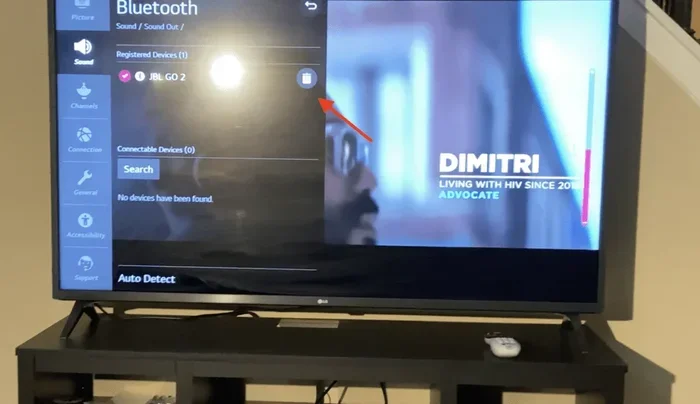
Finding the Bluetooth setting on your smart TV is usually simple. Here is what to do:
- Open your TV settings menu. Look for “Sound,” “Connections,” or “Network” depending on your brand.
- Select Bluetooth. Turn it on and put the TV in pairing mode.
- Put your speaker or headphones in pairing mode.
- Select your device from the list that appears on your TV screen.
- Test the connection by playing audio and checking for any delay.
If you are using an LG TV, you may want to check out our guide on how to pair Bluetooth headphones to your LG TV. The steps are similar across most brands, but there can be small differences in the menu layout.
One advantage of built-in Bluetooth is that you do not need to worry about extra cables or power outlets. Everything runs through your TV’s settings. However, older smart TVs or budget models may not have this feature. In that case, a Bluetooth transmitter is your go-to solution.
Common Smart TV Bluetooth Issues
Even with built-in Bluetooth, you might run into some problems. Here are the most common ones and how to fix them:
- Device not showing up: Make sure Bluetooth is turned on and your device is in pairing mode. Restart both devices if needed.
- Audio lag or delay: Check if your TV supports a low-latency Bluetooth codec. Some brands have a “Bluetooth audio sync” setting.
- Connection drops: Move the speaker closer to the TV. Walls and other electronics can interfere with the signal.
- Poor sound quality: Ensure you are not connected to a low-quality Bluetooth profile. Switch to the highest available codec in your settings.
Most of these issues have simple fixes. A quick restart of both devices solves the problem more often than not. Patience and a little trial and error go a long way with Bluetooth pairing.
Method 3: Connect Bluetooth Speakers and Soundbars
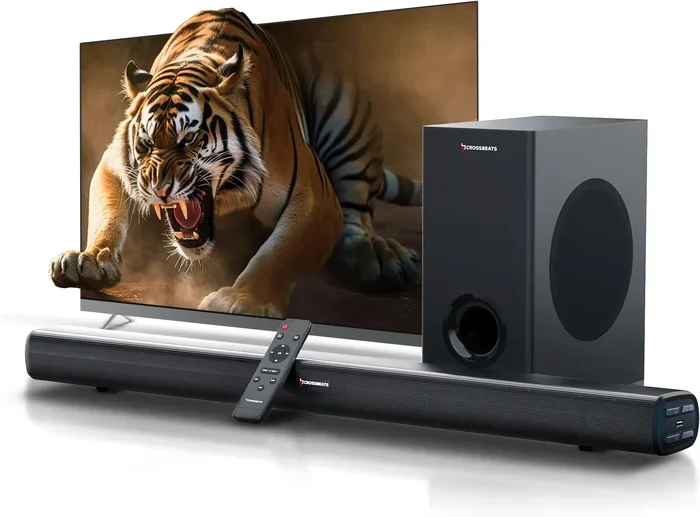
Wireless speakers and soundbars are popular choices for Bluetooth TV audio. They offer better sound quality than built-in TV speakers and give you the freedom to place them anywhere in the room. A soundbar, in particular, can transform your movie-watching experience with rich, immersive audio.
Setting up a Bluetooth speaker or soundbar is similar to the methods above. Put the speaker in pairing mode, find it on your TV’s Bluetooth settings, and connect. That is it. You are listening to wireless audio in minutes.
If you use a device like Alexa, you might wonder if you can use it as a Bluetooth speaker for your TV. The answer is yes. Alexa can work as a Bluetooth speaker for your TV with the right setup. Just enable the Bluetooth option in the Alexa app and pair it with your television.
Here are some quick tips for the best experience with wireless speakers:
- Place the speaker near the TV for the strongest signal and least audio delay.
- Check the speaker’s battery level before a movie night to avoid interruptions.
- Use the speaker’s volume controls or your TV remote to adjust sound.
- Disconnect other Bluetooth devices that might interfere with the connection.
A good wireless soundbar can make a huge difference. You get deep bass, clear dialogue, and a cinema-like feel right in your living room. The best part is that you do not need to run any cables across the room.
Method 4: Use Bluetooth Headphones for Private Listening
One of the best things about playing TV through Bluetooth is the ability to use wireless headphones. This is perfect for late-night viewing when others are sleeping, or for anyone who wants an immersive, personal audio experience.
Most Bluetooth headphones can pair with your TV just like a speaker. The process is the same: put both devices in pairing mode and connect through your TV settings. Some headphones even have a dedicated TV pairing mode that reduces audio lag.
Roku users have a special advantage. Bluetooth headphones work great with Roku devices, and many Roku models support direct headphone pairing through the remote. This is a super convenient option if you already have a Roku streaming stick or Roku TV.
Here are some things to keep in mind when using Bluetooth headphones with your TV:
- Look for headphones with low-latency support to avoid audio-video sync issues.
- Choose headphones with a comfortable fit if you plan to wear them for long viewing sessions.
- Check the battery life and keep the headphones charged for uninterrupted use.
- Use the headphone balance setting in your TV audio menu if you only want sound in one ear.
Wireless headphones give you complete freedom. You can move around the room, make a cup of coffee, or even do household chores while still following your show. The wireless connection keeps things simple and clutter-free.
Troubleshooting Common Bluetooth TV Problems
Even with the best setup, you might encounter some hiccups along the way. Bluetooth TV audio issues are common, but most have easy solutions. Let us look at the most frequent problems and how to fix them.
Audio Lag or Delay
This is the number one complaint with wireless TV audio. You see the lips move, but the sound comes a split second later. It is annoying, but it is fixable.
First, check if your devices support a low-latency codec like aptX LL. If they do, enable it in the settings. Second, reduce the distance between your TV and the Bluetooth device. Third, try restarting both devices. Sometimes a simple reset clears up the delay.
If you are using a Bluetooth transmitter, make sure it supports low latency. Cheap transmitters often use older codecs that cause noticeable delay. Upgrading to a better transmitter can eliminate this problem entirely.
Connection Keeps Dropping
If your Bluetooth connection drops frequently, the issue is usually signal interference or distance. Try moving the devices closer together. Also, keep the Bluetooth device away from other wireless electronics like microwaves, baby monitors, or Wi-Fi routers.
Another fix is to update the firmware on both your TV and the Bluetooth device. Manufacturers often release updates that improve connection stability. Check the manufacturer’s website or app for any available updates.
Poor Sound Quality
Muffled or low-quality audio usually means your devices are using a basic Bluetooth profile. Switching to a higher-quality codec like aptX or AAC can dramatically improve sound. Check your TV and speaker settings to see what codecs are available.
Also, make sure your TV audio settings are optimized. Turn off any audio enhancements or EQ settings that might be compressing the sound. A clean, unprocessed signal gives your Bluetooth device the best input to work with.
If you have tried everything and still have issues, consider whether your TV supports the Bluetooth range you need. Some TVs have weaker Bluetooth antennas, and the signal may not reach across large rooms. Moving the devices closer or using a Bluetooth repeater can help.
Comparing Bluetooth TV Connection Methods
Not sure which method is right for you? Here is a quick comparison of the different ways to connect your TV wirelessly:
| Method | Best For | Cost | Setup Difficulty |
|---|---|---|---|
| Bluetooth Transmitter | Any TV without built-in Bluetooth | $20-$60 | Easy |
| Built-in Smart TV Bluetooth | Modern smart TVs | Free | Very Easy |
| Bluetooth Soundbar | Better sound quality | $50-$300 | Easy |
| Bluetooth Headphones | Private listening | $30-$200 | Easy |
| Alexa as Bluetooth Speaker | Smart home users | Free (if you have Alexa) | Easy |
Each method has its strengths. The best choice depends on your TV, your budget, and what you want from the audio experience. For most people, a Bluetooth transmitter or using built-in TV Bluetooth works perfectly. If you want premium sound, a wireless soundbar is worth the investment.
The beauty of Bluetooth TV audio is that you are not locked into one method. You can try different approaches and switch between them as your needs change. It is all about finding what works best for your home and your lifestyle.
Expert Tips for the Best Bluetooth TV Experience
Here are some pro tips that will help you get the most out of your wireless TV audio setup:
- Keep your devices updated. Firmware updates often include Bluetooth improvements and bug fixes.
- Limit the number of connected devices. Too many paired devices can cause interference and slow down connections.
- Use a dedicated Bluetooth audio adapter if you want the best possible sound quality and lowest latency.
- Position your TV and Bluetooth device in the same room for the strongest signal.
- Restart devices regularly. A quick reboot clears temporary glitches and keeps things running smoothly.
- Check your TV’s audio output settings to make sure it is set to Bluetooth when you want wireless audio.
These small tips can make a big difference. They help you avoid frustration and get the most enjoyment from your wireless setup. Bluetooth TV audio works best when everything is set up with care and attention to detail.
Remember that not every TV and every speaker pair perfectly on the first try. It might take a little experimenting to find the right settings. That is completely normal. Once you get it dialed in, you will wonder how you ever watched TV with wires before.
Final Thoughts
Playing TV through Bluetooth opens up a world of convenience and flexibility. You can place your speakers anywhere, move freely around the room, and enjoy high-quality wireless audio without the clutter of cables. Whether you use a Bluetooth transmitter, built-in smart TV settings, or a wireless soundbar, the setup is straightforward and rewarding.
Start with the method that fits your TV and budget. Follow the steps we outlined, and you will be listening to wireless audio in no time. If you run into any issues, refer back to the troubleshooting tips. Most problems have simple, quick fixes.
The future of home entertainment is wireless, and Bluetooth TV audio is leading the way. Embrace the freedom and enjoy your favorite shows and movies with sound that fills your room without a single cable in sight. Your ears will thank you.
Frequently Asked Questions
Can I connect any Bluetooth speaker to my TV?
Most Bluetooth speakers can connect to any TV that supports Bluetooth or has a Bluetooth transmitter. However, some speakers may have compatibility issues with certain TV brands. Check that both devices support the same Bluetooth profile for the best results.
Why is there a delay between the video and audio when using Bluetooth?
Audio lag happens because Bluetooth takes a moment to process and transmit the signal. Using a low-latency codec like aptX LL or a high-quality Bluetooth transmitter can significantly reduce or eliminate this delay.
Can I use Bluetooth headphones with my TV and speakers at the same time?
Some smart TVs allow multiple Bluetooth connections simultaneously. Check your TV settings for an option to connect more than one audio device. If your TV does not support this, a Bluetooth transmitter with multi-device pairing can help.
Does Bluetooth affect TV picture quality?
No. Bluetooth only transmits audio signals. It has no effect whatsoever on your TV picture quality. You can enjoy wireless sound without any risk to your video display.
What is the best Bluetooth range for TV audio?
Standard Bluetooth has a range of about 30 feet. Walls and obstacles can reduce this. For the best experience, keep your Bluetooth speaker or headphones within the same room as your TV.
Do I need Wi-Fi to play TV through Bluetooth?
No. Bluetooth is a separate wireless technology that does not require Wi-Fi. You can connect your TV to speakers or headphones using Bluetooth even if your home has no internet connection.
=== META DESCRIPTION ===
Learn how to play TV through Bluetooth with our easy step-by-step guide. Discover adapters, pairing tips, and fixes for common Bluetooth TV audio issues at home.
=== QUICK SUMMARY ===
Playing your TV through Bluetooth is simpler than you think. You can stream TV audio wirelessly to speakers, headphones, or soundbars using a Bluetooth transmitter or a built-in smart TV feature. This guide walks you through every method, from adapters to native Bluetooth settings, so you can enjoy wireless audio without hassle.
=== KEY TAKEAWAYS ===
Key Takeaways
- Bluetooth transmitters are the easiest way to add wireless audio to any TV with an audio output.
- Many smart TVs have built-in Bluetooth, so you may not need extra equipment at all.
- Pairing your TV with speakers or headphones takes just a few minutes once you know the steps.
- Audio lag is the most common issue and can be fixed with the right settings or adapter.
- Bluetooth codecs like aptX reduce delay and improve wireless sound quality significantly.
- Multiple devices can connect to your TV Bluetooth, including soundbars and wireless headphones.
- Checking your TV audio output first saves time and ensures a smooth setup.