How Can I Increase My Wifi Speed for Faster Internet
Want to know how can I increase my wifi speed for faster internet? This guide covers everything from simple router tweaks to hardware upgrades that deliver real results. You will learn quick fixes, advanced techniques, and expert tips to transform your slow wireless network into a high-speed connection.
Slow wifi is one of the most frustrating problems in modern life. You are streaming your favorite show, and it keeps buffering. You are in an important video call, and your connection drops. It happens to everyone. The good news is that you do not need to be a tech expert to fix it.
In this guide, we will walk you through every practical step on how can I increase my wifi speed for faster internet. We start with easy fixes you can do right now. Then we move into hardware upgrades and advanced techniques that make a real difference. By the end, you will have a clear plan to speed up your wireless network and enjoy smoother browsing, streaming, and gaming.
Whether you live in a small apartment or a large house with thick walls, these tips will help. Most of them are free. Some involve buying new equipment, but they pay for themselves in better performance. Let us dive in and get your internet running faster today.
Key Takeaways
- Restart your router regularly: A simple reboot can clear glitches and improve your internet speed significantly.
- Update your router firmware: Keeping your firmware current ensures optimal performance and security.
- Switch to the 5GHz band: This frequency offers faster speeds and less interference than the 2.4GHz band.
- Place your router in a central location: Positioning matters a lot for wireless signal strength and speed.
- Consider a mesh wifi system: Mesh networks eliminate dead zones and boost coverage throughout your home.
- Use an ethernet cable for critical devices: Wired connections always outperform wireless ones for speed and stability.
- Check for bandwidth hogs: Background apps and devices can silently slow down your internet connection.
📑 Table of Contents
Understanding Why Your Wifi Speed Drops
Before we fix the problem, it helps to understand what causes slow wifi. Many things affect your internet connection speed. Some are simple to solve. Others need a bit more effort. Let us look at the most common reasons your wireless network slows down.
Distance from the Router
The farther you are from your router, the weaker your signal becomes. Walls, floors, and furniture all block wifi signals. If your router is in the basement and you are on the second floor, you will likely experience slower speeds. This is basic physics. Wireless signals spread out and weaken over distance.
Network Congestion
Too many devices on the same network can slow things down. Every phone, tablet, smart TV, and laptop uses bandwidth. When everyone is streaming, gaming, or video calling at the same time, your network gets crowded. Think of it like a highway during rush hour. The more cars on the road, the slower everything moves.
Interference from Other Devices
Believe it or not, your microwave, baby monitor, and even your neighbor’s wifi router can interfere with your signal. These devices operate on similar frequencies. The 2.4GHz band is especially prone to interference because it is the most commonly used frequency. This is why many people notice their wifi slows down at certain times of day.
Outdated Equipment
Old routers and modems simply cannot keep up with modern internet speeds. If your router is more than five years old, it may not support the latest wifi standards. Upgrading your equipment can make a huge difference in your connection quality.
Software and Settings Issues
Sometimes the problem is not your hardware at all. Outdated firmware, wrong channel settings, or even malware can slow down your network. These issues are often easy to fix once you know what to look for.
How to Test Your Current Wifi Speed
Before you start making changes, you need to know where you stand. Testing your wifi speed is quick and easy. It gives you a baseline to measure your progress against.
Using Speed Test Websites
Visit a site like Speedtest.net or Fast.com on your phone or computer. Make sure you are connected to your wifi. Run the test and write down your results. You want to note three things:
- Download speed: How fast data comes to your device.
- Upload speed: How fast data goes from your device out to the internet.
- Ping or latency: How quickly your device responds to a request.
Testing in Different Locations
Run the same test in several rooms. Test near the router and far away. Test on different floors. This helps you identify where your signal is weak. You might find that your speed is fine in the living room but terrible in the bedroom. That tells you exactly where to focus your efforts.
Testing at Different Times
Run tests at different times of day. Morning speeds might be very different from evening speeds. This is especially true if your internet service provider shares bandwidth in your area. Comparing results helps you understand if congestion is the real problem.
Simple Fixes to Boost Wifi Speed Today
Now let us get to the good stuff. These are quick, free, and easy fixes that can improve your wifi speed right away. Try them in order and see which ones make the biggest difference for your setup.
Restart Your Router
This is the oldest trick in the book, and it works. Unplug your router, wait 30 seconds, and plug it back in. This clears the memory, refreshes connections, and often fixes temporary glitches. Make it a habit to restart your router once a week. You will be surprised how much smoother your internet feels.
Move Your Router to a Better Location
Where you place your router matters a lot. Keep it in a central spot in your home. Avoid hiding it in a closet or behind a TV. Elevate it on a shelf rather than placing it on the floor. The goal is to spread the signal evenly throughout your space. A small change in position can lead to a big improvement in speed.
Switch to the 5GHz Band
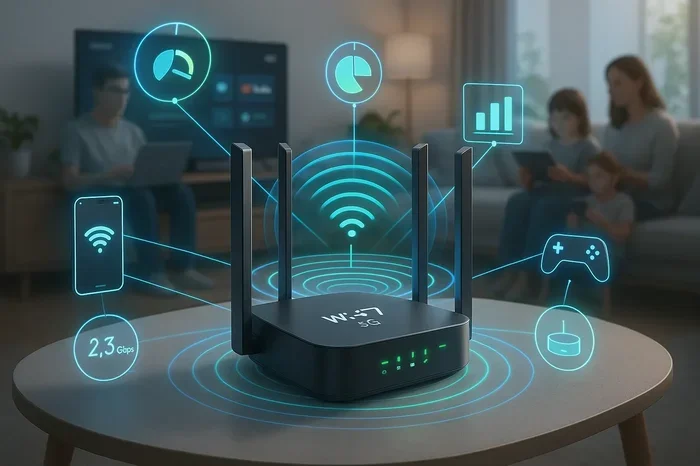
Most modern routers broadcast on two frequencies: 2.4GHz and 5GHz. The 2.4GHz band reaches farther but is slower and more crowded. The 5GHz band is faster but has a shorter range. If you are close to your router, switch to 5GHz for better speeds. You can do this in your router settings or by connecting to a separate network name.
Change Your Wifi Channel
Your wifi router broadcasts on a channel. If your neighbors are on the same channel, you get interference. Use a wifi analyzer app to find the least crowded channel. Then log into your router settings and switch to it. This simple change can noticeably reduce slowdowns, especially in apartment buildings.
Reduce the Number of Connected Devices
Every device connected to your network uses bandwidth. Disconnect devices you are not actively using. Turn off wifi on gadgets that do not need constant access. This frees up capacity for the devices that matter most to you.
Clear Your Browser Cache
Sometimes slow internet feels like a wifi problem when it is actually a browser issue. Clearing your cache and cookies can speed up web browsing. Close tabs you are not using. Heavy browser activity can eat up your available bandwidth without you even noticing.
Upgrade Your Hardware for Better Speed
If the simple fixes above did not solve your problem, it is time to look at your equipment. Better hardware can transform your internet experience. Here are the upgrades worth considering.
Can I Change My Wi Fi Router for Better Performance?
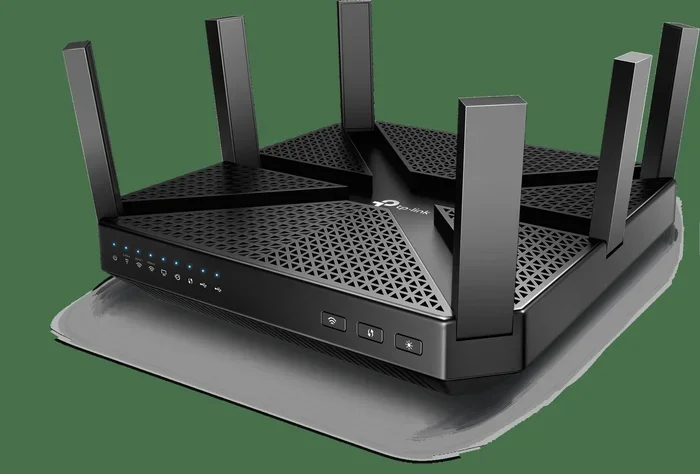
Yes, and it is one of the most impactful upgrades you can make. A newer router supports the latest wifi standards, which means faster speeds and better range. Look for a router that supports wifi 6 or wifi 6E. These standards offer significantly better performance than older models. If your current router is more than a few years old, replacing it could be the single best thing you do for your network.
When shopping for a new router, consider the size of your home and the number of devices you use. A small apartment needs a different router than a large house with smart home devices. Check our guide on Can I Change My Wi Fi Router for tips on choosing the right model.
Can I Add An External Antenna To My Router?
If your router has detachable antennas, you can upgrade them. External antennas with higher gain can boost your signal strength and range. This is especially helpful if you have a large home or thick walls that block signals. A good antenna upgrade is cheaper than buying a whole new router and can make a meaningful difference in your wireless network performance.
Can I Buy My Own Router For Internet?
Absolutely. Many people rent routers from their internet service provider, but these rental routers are often basic models. Buying your own router gives you access to better hardware, faster speeds, and more features. You can also save money in the long run by avoiding monthly rental fees. Visit our guide on Can I Buy My Own Router For Internet to learn more about your options.
Can I Boost My Wi Fi Signal Outside?
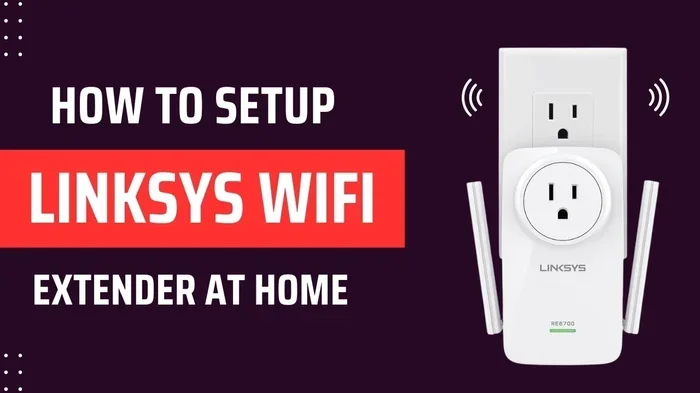
If your slow speeds are caused by weak coverage in certain areas, a signal booster or extender can help. These devices pick up your existing wifi signal and rebroadcast it in areas with poor coverage. They are especially useful for homes with dead zones in the backyard, garage, or upper floors. For more information, check out Can I Boost My Wi Fi Signal Outside.
Can I Connect Wi Fi 6 Mesh To Wifi 5 Router?
If you have an older router but want mesh-like coverage, you may be able to add a mesh system that works with your existing setup. Mesh networks use multiple nodes to spread wifi throughout your home. This eliminates dead zones and keeps your speeds consistent in every room. Learn more about this option in our article on Can I Connect Wi Fi 6 Mesh To Wifi 5 Router.
Use an Ethernet Cable for Critical Devices
Nothing beats a wired connection for speed and reliability. If your gaming console, desktop computer, or smart TV supports ethernet, plug it in directly. You will get the fastest possible speeds with the lowest latency. This is especially important for online gaming and 4K streaming where every millisecond counts.
| Connection Type | Typical Speed | Latency | Best For |
|---|---|---|---|
| Wifi 5GHz | 100-300 Mbps | 10-30ms | General browsing, streaming |
| Wifi 6 | 300-900 Mbps | 5-15ms | Gaming, smart homes |
| Ethernet | 1000 Mbps+ | 1-5ms | Gaming, 4K streaming |
| Powerline Adapter | 100-500 Mbps | 10-40ms | Areas with weak wifi |
Advanced Tips to Maximize Your Wifi Performance
Ready to go deeper? These advanced tips can squeeze every last bit of speed out of your wireless network. They require a bit more effort but deliver impressive results.
Update Your Router Firmware
Router manufacturers release firmware updates to fix bugs, improve performance, and patch security holes. Log into your router admin panel and check for updates. Most modern routers have an auto-update option you can turn on. Keeping your firmware current is one of the simplest ways to maintain peak network performance.
Enable Quality of Service (QoS) Settings
QoS lets you prioritize certain types of traffic on your network. For example, you can tell your router to prioritize video calls and gaming over background downloads. This ensures that your most important activities get the bandwidth they need. You can usually find QoS settings in your router’s admin panel under traffic management or advanced settings.
Disable Unused Features
Many routers come with features you may not need. Disable things like WPS (Wi-Fi Protected Setup) if you are not using it. Turn off guest networks if you do not have visitors. Each active feature uses processing power and can slow things down. Keeping your router lean helps it focus on what matters most.
Use a Powerline Adapter
A powerline adapter sends internet through your home’s electrical wiring. It is a great middle ground between wifi and ethernet. You plug one adapter near your router and another in the room where you need better speed. This works well in homes with thick walls that block wireless signals. It gives you a more stable connection without running cables through your walls.
Limit Bandwidth-Hungry Apps
Some apps use a lot of background data without your knowledge. Cloud backup services, automatic updates, and streaming apps can all eat up your bandwidth. Check your devices for apps that are running when you are not using them. Pausing these can free up significant capacity for the things you care about.
Set Up a Guest Network
If you have visitors who need wifi, set up a guest network. This keeps them separated from your main network. It also prevents their devices from using up your bandwidth. A guest network is easy to set up in most router settings and adds an extra layer of security to your home network.
When to Call a Professional
Most wifi speed issues can be fixed at home with the tips in this guide. But sometimes the problem is bigger than a simple fix. Here are signs that you should call in a professional.
- Your internet speed is slow even when connected directly to the modem: This suggests the problem is with your internet service provider, not your router.
- You have tried multiple fixes and nothing works: A professional can diagnose issues that are not obvious, like wiring problems or signal interference from external sources.
- You are setting up a large home network: If you have a smart home with dozens of devices, a pro can design a setup that delivers consistent coverage everywhere.
- Your internet plan is not delivering advertised speeds: Your provider may need to troubleshoot your line or upgrade your service.
Do not hesitate to reach out if you are stuck. A quick call to your internet provider or a local networking expert can save you hours of frustration. Many providers offer free troubleshooting calls, and some will even send a technician to your home at no charge.
Final Thoughts
Improving your wifi speed does not have to be complicated. You can start with simple, free fixes like restarting your router and moving it to a better spot. Then work your way up to hardware upgrades and advanced settings. Every step you take brings you closer to the fast, reliable internet you deserve.
Remember, your wifi speed depends on many factors. Your router placement, your equipment age, your network settings, and even your internet plan all play a role. The key is to be patient and methodical. Test your speeds after each change. This way you can see what works and what does not.
With the right approach, you can transform your slow, frustrating connection into a fast, reliable wireless network. Start with one or two tips from this guide today. You will be amazed at the difference a few small changes can make. Your internet should work for you, not against you. Take control of your internet connection and enjoy the speed you pay for.
Frequently Asked Questions
Why is my wifi so slow even with a fast internet plan?
Slow wifi often has nothing to do with your internet plan. It is usually caused by router placement, interference, outdated equipment, or too many connected devices. Try moving your router to a central location and switching to the 5GHz band. If the problem persists, your router may need a firmware update or a replacement.
Does restarting my router really improve wifi speed?
Yes, it does. Restarting your router clears its memory, refreshes connections, and resolves temporary glitches. Make it a habit to restart once a week for the best results. You will notice smoother browsing and fewer connection drops.
What is the difference between 2.4GHz and 5GHz wifi bands?
The 2.4GHz band travels farther but is slower and more prone to interference. The 5GHz band is faster and less crowded but has a shorter range. For the best speed, use 5GHz when you are close to your router. Use 2.4GHz for devices that are farther away.
Can too many devices slow down my wifi?
Absolutely. Every device connected to your network uses bandwidth. Streaming, gaming, and video calls all compete for the same pool of data. Disconnect devices you are not using and consider enabling Quality of Service settings to prioritize important traffic.
How often should I update my router firmware?
Check for firmware updates at least once a month. Most modern routers can be set to auto-update, which is the easiest option. Keeping your firmware current ensures you get the latest performance improvements and security patches.
Is a mesh wifi system worth the investment?
Yes, if you have a large home or experience dead zones. A mesh system uses multiple nodes to spread wifi evenly throughout your space. It eliminates weak spots and keeps your speeds consistent in every room. For many households, it is the best solution for whole-home coverage.
=== QUICK SUMMARY ===
Want to know how can I increase my wifi speed for faster internet? This guide covers everything from simple router tweaks to hardware upgrades that deliver real results. You will learn quick fixes, advanced techniques, and expert tips to transform your slow wireless network into a high-speed connection.
=== KEY TAKEAWAYS ===
Key Takeaways
- Restart your router regularly: A simple reboot can clear glitches and improve your internet speed significantly.
- Update your router firmware: Keeping your firmware current ensures optimal performance and security.
- Switch to the 5GHz band: This frequency offers faster speeds and less interference than the 2.4GHz band.
- Place your router in a central location: Positioning matters a lot for wireless signal strength and speed.
- Consider a mesh wifi system: Mesh networks eliminate dead zones and boost coverage throughout your home.
- Use an ethernet cable for critical devices: Wired connections always outperform wireless ones for speed and stability.
- Check for bandwidth hogs: Background apps and devices can silently slow down your internet connection.