How Can I Get Internet Without A WiFi Card Step By Step
You can absolutely get internet without a WiFi card. This guide walks you through every method, from Ethernet and USB tethering to portable hotspots and fixed wireless options. Whether you have an old laptop or a desktop without wireless capabilities, you will find a simple, working solution that fits your needs and budget.
Many people face a frustrating problem. You want to get online, but your computer or laptop does not have a WiFi card. Maybe it is an older desktop. Maybe the wireless adapter broke. Maybe you just do not want to deal with wireless connections. Whatever the reason, the good news is that you have plenty of options. You can absolutely get internet without a WiFi card, and it is easier than you think.
This guide will walk you through every method step by step. We will cover wired connections, mobile hotspots, USB adapters, and more. Each method includes clear instructions so you can get started right away. By the end, you will know exactly which option works best for your situation. Let us dive in and explore how you can stay connected no matter what.
Key Takeaways
- Ethernet Connection: A wired connection via Ethernet cable is the fastest and most reliable way to get internet without a WiFi card.
- USB Tethering: You can share your phone’s cellular data with your computer using a simple USB cable.
- Portable Wi-Fi Devices: Mobile hotspots and portable Wi-Fi gadgets let you go wireless without a built-in WiFi card.
- External USB Wireless Adapters: A cheap and easy fix that adds wireless capability to any computer in minutes.
- Fixed Wireless and Satellite: Great alternatives for home internet that do not require a traditional WiFi card or phone line.
📑 Table of Contents
- Why You Might Not Have a WiFi Card
- Method 1: Connect Straight to Your Modem With an Ethernet Cable
- Method 2: Use USB Tethering With Your Smartphone
- Method 3: Get a Portable Wi-Fi Device or Mobile Hotspot
- Method 4: Add an External USB Wireless Adapter
- Method 5: Explore Alternative Home Internet Options
- Method 6: Share Internet From Another Device
- Which Method Is Right for You?
- Common Mistakes to Avoid
- Expert Tips for Getting the Best Connection
- Final Thoughts
Why You Might Not Have a WiFi Card
Before we get into the solutions, it helps to understand why you might be without a WiFi card in the first place. This knowledge makes it easier to pick the right fix.
Older Desktops and Laptops
Many older computers were built before wireless internet became standard. Desktop towers especially often lack any WiFi hardware. Manufacturers assumed users would connect via Ethernet cable. If you are using a computer from the early 2010s or earlier, there is a good chance it has no built-in wireless adapter.
Broken or Removed Hardware
Sometimes a WiFi card simply stops working. It could be damaged from a surge, a loose connection, or general wear and tear. In laptops, the WiFi card is a small module that can be replaced. In desktops, it is usually a PCIe card or a USB dongle that can be swapped out.
Security or Preference Reasons
Some users prefer a wired connection for security and stability. Others work in environments where wireless signals are weak or restricted. In these cases, not having a WiFi card is a deliberate choice, not a problem.
Method 1: Connect Straight to Your Modem With an Ethernet Cable
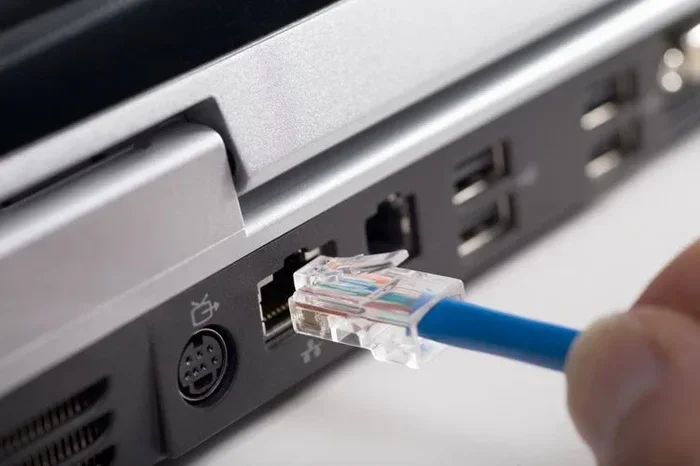
The simplest and most reliable way to get internet without a WiFi card is to use an Ethernet cable. This method gives you a direct, wired connection to your modem or router. It is fast, stable, and works with almost any computer.
What You Need
- An Ethernet cable (Cat5e or Cat6 recommended)
- A modem or router with an available LAN port
- A computer with an Ethernet port
Step by Step Instructions
- Plug one end of the Ethernet cable into your modem or router.
- Plug the other end into your computer’s Ethernet port.
- Wait a few seconds for the connection to establish.
- Open your web browser and test the connection.
If your computer does not have an Ethernet port, you can use a USB-to-Ethernet adapter. These are inexpensive and widely available. This is one of the most common solutions people use when they ask how can I get internet without a WiFi card.
For those wondering about using a modem directly without a router, the answer is yes. You can connect straight to your modem and get internet right away. Just make sure your ISP has activated the modem and it is properly configured.
Pros and Cons of Ethernet
- Pros: Fast speeds, low latency, very stable, no WiFi card needed.
- Cons: Limited mobility, requires a cable, not convenient for mobile devices.
Method 2: Use USB Tethering With Your Smartphone
If you have a smartphone with a cellular data plan, you can share that connection with your computer. This process is called USB tethering. It turns your phone into a modem of sorts, giving your computer internet access through a USB cable.
How USB Tethering Works
USB tethering uses your phone’s cellular data connection and shares it with your computer through a USB cable. Your phone acts as a bridge between the cellular network and your computer. The computer sees the phone as a network device and routes internet traffic through it.
Step by Step Instructions
- Connect your smartphone to your computer using a USB cable.
- On your phone, go to Settings and find the Network or Connections section.
- Look for Hotspot and Tethering or USB Tethering.
- Toggle USB Tethering on.
- Your computer should automatically detect the connection and get online.
This method works with both Android and iPhone devices. On iPhone, you may need to install iTunes or Apple Devices on your PC first for the connection to work properly. USB tethering is one of the quickest ways to get internet on a laptop or desktop that has no WiFi card installed.
Tips for Better USB Tethering
- Use a high-quality USB cable to ensure stable data transfer.
- Keep your phone plugged in, as tethering drains battery quickly.
- Check your data plan limits, as tethering uses a lot of data.
- Close unused apps on your phone to keep speeds fast.
Method 3: Get a Portable Wi-Fi Device or Mobile Hotspot
If you want a wireless internet solution without a WiFi card, a portable Wi-Fi device is a great choice. These small gadgets create your own personal hotspot using a SIM card and cellular data. They are compact, portable, and perfect for people who need internet on the go.
What Is a Portable Wi-Fi Device?
A portable Wi-Fi device, also called a mobile hotspot or MiFi device, is a small box that connects to a cellular network and broadcasts a Wi-Fi signal. You can connect your computer, tablet, or any other device to it just like a regular router. The device itself does not need a WiFi card because it creates its own network.
If you are curious about whether you can get one of these devices, you can learn more about getting portable Wi-Fi options that fit different budgets and needs.
Types of Portable Wi-Fi Devices
- Dedicated Mobile Hotspots: Devices like MiFi or Jetpack that work with SIM cards from major carriers.
- Smartphone Hotspots: Most modern phones can share their data connection wirelessly. This is the free option if you already have a smartphone.
- USB Wi-Fi Dongles: Small USB devices that plug into your computer and connect to cellular networks directly.
How to Set Up a Mobile Hotspot
- Get a mobile hotspot device or use your smartphone’s built-in hotspot feature.
- Insert a SIM card with a data plan (if using a dedicated device).
- Turn on the hotspot and set a password.
- On your computer, scan for available Wi-Fi networks.
- Connect to your hotspot using the password you set.
Keep in mind that while this method gives you a wireless connection, your computer still does not need a WiFi card if you use a USB Wi-Fi dongle or connect via Ethernet from the hotspot device. This is a common point of confusion.
Method 4: Add an External USB Wireless Adapter
If you want your computer to have WiFi capability without opening the case or installing internal hardware, a USB wireless adapter is the answer. These small devices plug right into a USB port and give your computer the ability to connect to wireless networks.
What Is a USB Wireless Adapter?
A USB wireless adapter is a small dongle that plugs into a USB port on your computer. It contains a WiFi radio chip that acts as an external WiFi card. Your computer recognizes it as a network adapter and can connect to wireless networks just like any built-in WiFi card.
How to Choose the Right Adapter
Not all USB adapters are the same. Here are some things to look for when buying one:
- WiFi Standard: Look for WiFi 5 (802.11ac) or WiFi 6 (802.11ax) for the best speeds.
- Band Support: Dual-band or tri-band adapters support both 2.4GHz and 5GHz frequencies.
- USB Version: USB 3.0 adapters offer faster speeds than USB 2.0.
- Antenna Type: External antennas generally provide better range and signal strength.
Setup Process
- Plug the USB adapter into an available port on your computer.
- Wait for Windows or macOS to recognize the device.
- Install any drivers that come with the adapter (or let the OS install them automatically).
- Go to your network settings and scan for available Wi-Fi networks.
- Connect to your network and enter the password.
This is probably the easiest and cheapest solution if you just need basic wireless internet access. Most adapters cost between $10 and $40 and work right out of the box.
Method 5: Explore Alternative Home Internet Options
Sometimes the question is not just about connecting a single device. Sometimes it is about getting home internet without traditional wireless hardware. There are several alternative internet options that work well even if you do not have a WiFi card in your computer.
Fixed Wireless Internet
Fixed wireless internet uses a dish or antenna mounted outside your home to receive a signal from a nearby tower. The signal travels to a modem inside your home. You can then connect to that modem using an Ethernet cable. This is a great option for rural areas where cable or fiber is not available.
If you are interested in getting home internet without relying on traditional methods, you can explore options like getting internet in your home without a phone line, which opens up several wireless and wired alternatives.
Satellite Internet
Satellite internet works almost anywhere. A small dish is installed on your roof or balcony and connects to a satellite in space. The modem inside your home gives you internet access through Ethernet. Companies like Starlink, HughesNet, and Viasat offer satellite internet plans with varying speeds and prices.
Cellular Home Internet
Some carriers offer home internet plans that use cellular networks. You get a modem or router that connects to the cellular network, and you can access the internet through Ethernet or Wi-Fi. This is a solid option if you live in an area with strong cellular coverage but limited other options.
Comparison of Alternative Internet Options
| Option | Speed Range | Availability | Requires WiFi Card? |
|---|---|---|---|
| Fixed Wireless | 10-100 Mbps | Rural and suburban | No (use Ethernet) |
| Satellite Internet | 25-200 Mbps | Almost anywhere | No (use Ethernet) |
| Cellular Home Internet | 25-100 Mbps | Areas with good coverage | No (use Ethernet or built-in Wi-Fi) |
| USB Tethering | Varies by carrier | Anywhere with cell signal | No |
Method 6: Share Internet From Another Device
Another practical way to get internet without a WiFi card is to share a connection from another device. This works well if someone in your household already has a working internet connection.
Bluetooth Tethering
Bluetooth tethering is similar to USB tethering, but it uses Bluetooth instead of a cable. It is slower than USB tethering but offers more freedom of movement. You can pair your phone with your computer and share the internet connection wirelessly. This works even if your computer has no WiFi card, as long as it has Bluetooth.
Internet Connection Sharing (ICS)
If you have a computer that is already connected to the internet, you can share that connection with another computer. This is called Internet Connection Sharing. One computer acts as a gateway and shares its connection through an Ethernet cable or ad-hoc wireless network. This method works well in home offices or small networks.
Which Method Is Right for You?
Choosing the right method depends on your situation. Here is a quick guide to help you decide.
For Speed and Stability
Go with an Ethernet cable connection. Nothing beats a wired connection for speed and reliability. If you are gaming, streaming, or working from home, this is the best choice.
For Mobility and Portability
Use USB tethering or a portable Wi-Fi device. These let you stay connected while moving around. They are perfect for travel, remote work, or use in areas where Ethernet is not available.
For a Permanent Home Setup
Consider fixed wireless, satellite, or cellular home internet. These give you a reliable connection for your whole household without needing a WiFi card on your computer.
For a Quick and Cheap Fix
Buy a USB wireless adapter. It costs very little, plugs in instantly, and gives your computer WiFi capability in seconds.
Each method has its strengths. The key is matching the solution to your specific needs. Many people combine methods too. For example, using Ethernet for their desktop at home and USB tethering for their laptop on the go. There is no single right answer. The best method is the one that works for you.
Common Mistakes to Avoid
When trying to get internet without a WiFi card, people often make a few avoidable mistakes. Here are some to watch out for.
- Forgetting to check data limits: USB tethering and mobile hotspots can use a lot of data quickly. Always check your plan before relying on cellular data.
- Using cheap Ethernet cables: A low-quality cable can cause slow speeds and dropped connections. Invest in a good Cat5e or Cat6 cable.
- Ignoring driver updates: If you use a USB adapter, make sure you install the latest drivers for the best performance.
- Not securing your hotspot: Always set a strong password on any hotspot you create. An open hotspot is a security risk.
- Assuming all methods are equal: USB tethering is not as fast as Ethernet. Bluetooth tethering is slower than both. Know what you are getting into.
Expert Tips for Getting the Best Connection
Here are some extra tips from networking experts to help you get the most out of your internet connection without a WiFi card.
- Use a powered USB hub: If you are using a USB adapter or tethering device, a powered hub ensures stable power and better performance.
- Keep cables short: Shorter Ethernet cables reduce signal loss and improve speeds.
- Update your modem firmware: Keeping your modem or router firmware up to date can improve stability and speed.
- Position your hotspot device wisely: Place it near a window or elevated position for the best cellular signal.
- Monitor your speeds: Use speed test tools regularly to make sure you are getting the speeds you pay for.
Final Thoughts
Getting internet without a WiFi card is completely doable. You have many options, from simple Ethernet cables to portable hotspots and USB adapters. The method you choose depends on your budget, your needs, and your situation. The important thing is that you now have the knowledge to pick the right solution and get started today.
Do not let the lack of a WiFi card keep you from getting online. Try one of the methods in this guide and see how easy it can be. Whether you need a quick fix or a permanent setup, there is an option that works for you. Stay connected, stay productive, and do not let technology limitations slow you down.
If you want to learn more about being independent with your internet setup, check out how you can be your own internet provider. It is a natural next step once you understand all the ways to get connected.
Frequently Asked Questions
Can I get internet without any WiFi hardware at all?
Yes, you can. Ethernet cables, USB tethering, and external USB adapters all work without built-in WiFi hardware. You just need the right equipment and a basic internet source like a modem or cellular data plan.
Is USB tethering as fast as a WiFi connection?
USB tethering is often faster and more stable than a WiFi connection because it uses a direct wired link between your phone and computer. However, your speeds are still limited by your cellular data plan and network coverage.
How much does a USB wireless adapter cost?
Most USB wireless adapters cost between $10 and $40. You can find reliable options at any electronics store or online retailer. More expensive adapters offer faster speeds and better range.
Can I use my phone as a hotspot without a WiFi card on my laptop?
Absolutely. Your phone creates its own hotspot, and your laptop connects to it wirelessly. Your laptop does not need its own WiFi card for this to work because it is receiving the signal, not broadcasting it.
What is the cheapest way to get internet without a WiFi card?
The cheapest method is usually USB tethering with your existing smartphone. You already have the phone and the data plan, so the only cost is the USB cable if you do not have one. A basic Ethernet cable is another low-cost option.
Do I need any special equipment for fixed wireless internet?
You need a fixed wireless antenna or dish and a compatible modem. Many providers supply this equipment when you sign up for a plan. You then connect your computer to the modem using an Ethernet cable, no WiFi card required.