How Can I Connect My TV To The Internet Wirelessly
Connecting your TV to the internet wirelessly is easier than you think. This guide walks you through every method, from built-in smart TV Wi-Fi to wireless streaming devices, so you can start watching your favorite content in minutes. You will learn how to connect TV to Wi-Fi, fix common connection problems, and choose the best wireless option for your setup.
Your TV is sitting there, turned on, but the screen says something about being offline. You want to stream movies, watch YouTube, or cast content from your phone. The first step? Getting that TV online. Connecting your TV to the internet wirelessly does not have to be complicated. Whether you own a brand-new smart TV or an older model, there are simple ways to get it connected to your home network without pulling cables across the room.
In this guide, we walk you through every method you can use. We cover built-in Wi-Fi on smart TVs, wireless streaming devices, and even how to fix common problems when your TV will not connect. By the end, you will know exactly how to connect your TV to Wi-Fi and enjoy seamless streaming. Let us get started.
Key Takeaways
- Built-in Wi-Fi: Most modern smart TVs connect to your home network directly without any extra hardware.
- Wireless streaming devices: Roku, Chromecast, and Fire Stick let you add internet to older TVs easily.
- Wi-Fi signal strength matters: A weak signal causes buffering, so check your Wi-Fi signal strength before troubleshooting.
- Troubleshooting steps: Restarting your router and TV fixes most wireless connection problems.
- Security matters: Always use a strong Wi-Fi password to keep your network safe.
- Alternative connections: If wireless fails, you can still use Ethernet or powerline adapters for a stable link.
📑 Table of Contents
- Why Connect Your TV to the Internet Wirelessly?
- How to Connect a Smart TV to Wi-Fi
- Wireless Streaming Devices: The Best Option for Older TVs
- Common Wireless TV Connection Problems and How to Fix Them
- How to Secure Your TV’s Wireless Connection
- Wireless vs. Wired: Which Is Better for Your TV?
- Quick Tips for a Smooth Wireless TV Experience
- Final Thoughts
Why Connect Your TV to the Internet Wirelessly?
Wireless connections offer freedom. You do not need to run cables through walls or across floors. Your TV stays clean and your furniture stays where it belongs. But beyond convenience, a wireless TV connection opens up a whole world of entertainment.
Here are the main reasons people choose to go wireless:
- Convenience: No cables to manage. Your TV connects to the router without any physical link.
- Flexibility: You can move your TV to any room and still stay connected, as long as the Wi-Fi signal reaches.
- Clean setup: No messy wires means a nicer-looking living room or bedroom.
- Multiple devices: A wireless network lets your TV, phone, and tablet all share the same connection.
- Easy updates: Smart TVs download software updates over Wi-Fi, keeping your apps and features current.
Most people already have a wireless home network. If you can browse the web on your phone, your TV can likely use that same network. The process is straightforward once you know the steps.
How to Connect a Smart TV to Wi-Fi
Almost every smart TV made in the last few years has built-in Wi-Fi. This means the TV itself can connect to your wireless router without any extra equipment. The exact steps vary slightly by brand, but the general process is very similar across Samsung, LG, Sony, TCL, and Vizio models.
Step-by-Step: Connecting Your Smart TV to Your Home Network
Follow these steps to get your TV online:
- Turn on your TV and press the Home or Settings button on your remote.
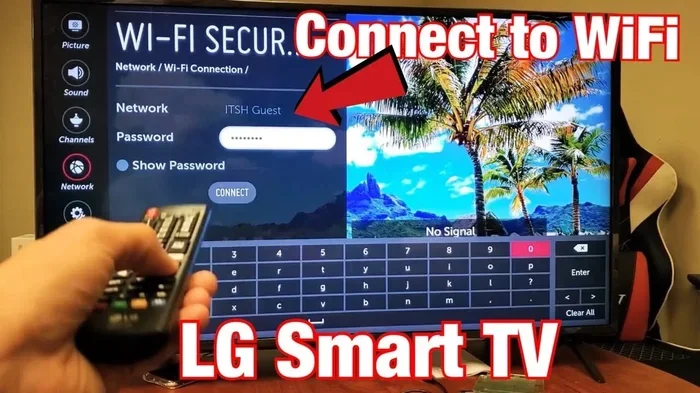
- Navigate to Network Settings. Look for a section called Network, Wi-Fi, or Connections. On most Samsung TVs, this is under General > Network. On LG TVs, it is under All Settings > Network.
- Select your Wi-Fi network name from the list of available networks.
- Enter your Wi-Fi password using the on-screen keyboard. Make sure you type it carefully — passwords are case-sensitive.
- Wait for the connection to complete. Your TV will show a confirmation message or a Wi-Fi icon in the corner of the screen.
- Test the connection by opening a streaming app like Netflix or YouTube.
If this is your first time setting up a smart TV Wi-Fi setup, it helps to know your network name and password beforehand. You can usually find this on a sticker on your router. Keep that information handy before you start.
What If Your TV Does Not Show Any Wi-Fi Networks?
This can happen for a few reasons. First, make sure your router is turned on and working. Try connecting your phone to the same network to confirm it is broadcasting. Second, check if your TV is too far from the router. Walls and floors can block the signal. Third, your TV may need a software update. Go to Settings > Support > Software Update and install any pending updates.
Sometimes the simplest fix works best. Try turning your TV and router off, waiting 30 seconds, and turning them back on. This resets the connection and often solves the problem. If you are still stuck, you might want to explore how you can connect your PC to the internet without Ethernet for additional wireless troubleshooting ideas that also apply to TVs.
Wireless Streaming Devices: The Best Option for Older TVs
Not every TV is a smart TV. If you have an older model that does not have built-in Wi-Fi, you are not out of luck. Wireless streaming devices plug into your TV and give it internet access. These small devices connect to your home network and let you stream content directly to your screen.
Popular Wireless Streaming Devices
Here are the most common options people use to add wireless internet to their TVs:
- Roku Express / Roku Streaming Stick: Affordable and easy to use. Roku devices connect to Wi-Fi and give you access to hundreds of streaming channels. Setup takes about five minutes.
- Amazon Fire TV Stick: Plugs into your TV’s HDMI port and connects to your wireless network. It comes with Alexa built in, so you can use voice commands to find content.
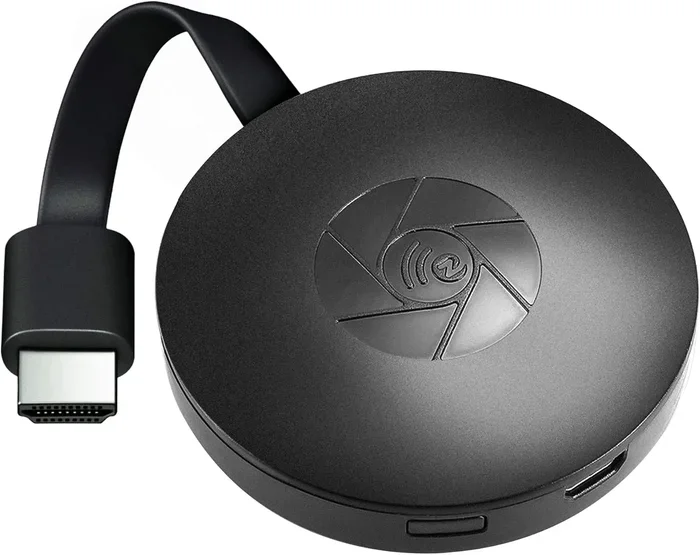
- Google Chromecast: A small dongle that lets you cast content from your phone or laptop to your TV. It works over Wi-Fi and supports most streaming apps.
- Apple TV: A premium option with excellent picture quality and a smooth interface. It connects to Wi-Fi and works seamlessly with iPhones and iPads.
How to Set Up a Streaming Device
Setting up a wireless streaming device is simple. Plug the device into your TV’s HDMI port. Connect the device to power using the USB cable or wall adapter. Switch your TV to the correct HDMI input. Follow the on-screen prompts to connect to your Wi-Fi network. Enter your password, wait for the device to connect, and you are ready to stream.
One thing to keep in mind: the further your streaming device is from the router, the weaker the signal. If your TV is in a distant room, you might experience buffering. In that case, consider extending your Wi-Fi range so the signal reaches your TV without interruption. A strong signal means smoother playback and fewer frustrating pauses.
Common Wireless TV Connection Problems and How to Fix Them
Even when everything seems set up correctly, problems can pop up. Your TV might connect but then drop the signal. Streaming might buffer constantly. The Wi-Fi icon might show connected but nothing loads. These issues are common, and most have simple fixes.
Your TV Connects But Keeps Dropping
If your TV frequently loses its wireless internet connection, the first thing to check is your router. Is it placed in a central location? Routers broadcast signal in all directions, so putting one in a corner of the house weakens the reach. Move your router closer to your TV if possible.
Another common cause is interference from other devices. Microwaves, baby monitors, and even cordless phones can disrupt Wi-Fi signals. Try turning off nearby electronics to see if that helps. Also, check if too many devices are using the network at once. Streaming on multiple devices at the same time can slow things down.
Slow Streaming and Buffering
Buffering happens when your TV cannot download data fast enough. This usually means your internet speed is too slow or your Wi-Fi signal is too weak. Run a speed test on your phone near the TV to check the signal. You can also check your Wi-Fi signal strength using your phone or laptop to see how strong the connection is in your TV room.
If the signal is weak, try these fixes:
- Move your router closer to the TV.
- Remove obstacles between the router and TV, especially thick walls and metal objects.
- Switch your router to a less crowded Wi-Fi channel.
- Use a Wi-Fi range extender to boost the signal to your TV.
The TV Shows Connected But No Internet Access
This is a tricky one. Your TV thinks it is connected to Wi-Fi, but it cannot reach the internet. Try restarting both your TV and your router. Unplug them, wait 30 seconds, and plug them back in. This clears temporary glitches and often resolves the issue.
If restarting does not work, check your network settings on the TV. Make sure the correct network name is selected and the password is entered correctly. Sometimes a simple typo in the password causes this problem. If you recently changed your Wi-Fi password, you will need to update it on your TV as well. You can learn how to manage your network credentials by checking guides on how to change your internet Wi-Fi password.
How to Secure Your TV’s Wireless Connection
Security often gets overlooked when setting up a TV. But your TV is connected to your home network, which means it can be a target for unauthorized access. Taking a few simple steps keeps your network and your data safe.
Use WPA3 or WPA2 Encryption
Make sure your router uses WPA3 or WPA2 encryption. These are the most secure Wi-Fi security protocols available. Older protocols like WEP are outdated and easy to hack. Check your router settings to confirm you are using the latest encryption standard.
Change Default Network Names and Passwords
Many routers come with default network names like “NETGEAR” or “Linksys.” These are easy to guess. Change your network name to something unique and set a strong password. A strong password uses a mix of uppercase letters, lowercase letters, numbers, and symbols. Aim for at least 12 characters.
Keep Your TV Software Updated
Smart TV manufacturers release software updates that patch security vulnerabilities. Check for updates regularly. On most TVs, you can find this under Settings > Support > Software Update. Keeping your TV updated is one of the easiest ways to maintain a secure wireless connection.
Create a Guest Network
If you have many visitors who use your Wi-Fi, consider setting up a guest network. This keeps your main network private while still giving guests internet access. Your TV stays on the primary network, which is more secure.
Wireless vs. Wired: Which Is Better for Your TV?
People often ask whether wireless or wired internet is better for a TV. Both options have pros and cons. The right choice depends on your setup, your home, and what you watch.
| Feature | Wireless (Wi-Fi) | Wired (Ethernet) |
|---|---|---|
| Setup ease | Very easy, no cables needed | Requires running a cable |
| Speed | Good for most streaming | Faster and more stable |
| Reliability | Can fluctuate with interference | Consistent and stable |
| Flexibility | High — place TV anywhere | Low — TV must be near router |
| Best for | Casual streaming, smart TVs | 4K streaming, gaming, heavy use |
For most households, wireless Wi-Fi works perfectly fine. Streaming services like Netflix and Hulu work well over a standard wireless connection. But if you watch a lot of 4K content or play games on your TV, a wired connection gives you the most reliable performance.
If you want the best of both worlds, consider a powerline adapter. This device uses your home’s electrical wiring to carry internet signals. It gives you a wired-like connection without running cables through your walls. You can also look into extending your Wi-Fi range with a wired connection as a hybrid solution that combines the reach of wireless with the stability of a wired link.
Quick Tips for a Smooth Wireless TV Experience
Follow these simple tips to keep your TV’s wireless connection running smoothly:
- Restart your router monthly. This clears memory and keeps your network running fast.
- Place your router in a central location. Avoid closets, cabinets, and corners. The more open the space, the better the signal spreads.
- Keep your TV firmware updated. Check for updates every few weeks to get the latest features and security patches.
- Use the 5 GHz band if available. Most modern routers broadcast on both 2.4 GHz and 5 GHz. The 5 GHz band is faster and less crowded, though it has a shorter range.
- Limit devices on your network. Too many connected devices slow down your internet speed. Disconnect devices you are not using.
- Use a Wi-Fi analyzer app. These free apps show you which channels are least crowded, helping you optimize your router’s settings.
These small habits make a big difference over time. A well-maintained wireless network means fewer buffering moments and a better streaming experience every time you sit down to watch something.
Final Thoughts
Connecting your TV to the internet wirelessly is one of the most rewarding upgrades you can make to your home entertainment setup. Whether your TV has built-in Wi-Fi or you use a streaming device, the process is straightforward and well worth the effort. You gain access to countless streaming services, apps, and content — all without tangled cables.
Start with the basics. Connect your smart TV to your Wi-Fi network using the steps outlined above. If your TV is older, grab a wireless streaming device and plug it in. Troubleshoot any connection issues using the tips in this guide. And always keep your network secure with strong passwords and updated software.
Once your TV is online, you will wonder how you ever lived without it. Streaming, casting, and on-demand content become second nature. You are in control of what you watch, when you watch it, and how you watch it. So go ahead, get your TV connected, and enjoy the experience.
Frequently Asked Questions
Can I connect my TV to Wi-Fi without a password?
In most cases, you need a Wi-Fi password to connect your TV to a secure network. However, some public networks and open home networks do not require a password. If you have forgotten your password, you can check it on your router or on any device already connected to the network.
Why does my smart TV keep disconnecting from Wi-Fi?
This usually happens due to a weak signal, router issues, or outdated TV software. Try moving your router closer to the TV, restarting both devices, and checking for software updates. If the problem persists, your router may need a factory reset.
Can I use a Wi-Fi extender to improve my TV’s connection?
Yes, a Wi-Fi extender boosts your wireless signal and sends it to areas of your home with weak coverage. Place the extender halfway between your router and your TV for the best results. This is especially helpful if your TV is in a far room or basement.
Do I need internet service to connect my TV wirelessly?
Yes, you need an active internet service from an ISP (Internet Service Provider) to connect your TV to the internet wirelessly. The Wi-Fi connection links your TV to your home router, which is connected to the internet through your service plan.
Can I connect my TV to the internet using my phone’s hotspot?
Yes, most smart TVs and streaming devices can connect to a mobile hotspot. Turn on the hotspot feature on your phone, select it from your TV’s Wi-Fi network list, and enter the hotspot password. Keep in mind that this uses your phone’s data allowance, so monitor your usage.
Is it safe to connect my TV to a public Wi-Fi network?
It is generally not recommended. Public Wi-Fi networks are less secure and can expose your device to security risks. If you must use public Wi-Fi, avoid entering personal information and consider using a VPN for added protection.