Does Quicken Work On Ipad Computers Or Just Laptops
Yes, Quicken does work on iPad computers, but with some important differences from the desktop version. The Quicken app for iPad offers core personal finance features like budgeting, bill tracking, and account syncing, making it a solid choice for managing money on the go. However, power users who rely on advanced reporting and investment tools may find the iPad version has limitations compared to the full laptop experience.
If you have been using Quicken for years on your laptop, you might be wondering whether you can switch to your iPad. Maybe you want a lighter setup for travel, or perhaps you are tired of carrying your heavy computer everywhere. The good news is that Quicken does work on iPad computers, and it has come a long way in recent years.
But here is the real question: does the iPad version give you everything you need, or will you be missing out on key features? That is exactly what we are going to explore in this article. By the end, you will know whether Quicken on iPad is right for your personal finance needs or if you should stick with your laptop.
We will cover everything from app features and compatibility to subscription plans and limitations. Whether you are a casual budgeter or a detailed financial planner, this guide has you covered. Let us dive in and find out what Quicken on iPad can really do for you.
Key Takeaways
- Quicken is available on iPad: You can download the Quicken app from the Apple App Store and manage your finances on your tablet.
- The iPad version has core features: Budgeting, bill reminders, account syncing, and expense tracking all work well on the iPad.
- Some advanced features are missing: Investment portfolio management and detailed reporting are more limited on the iPad compared to the desktop version.
- Cloud sync keeps your data updated: Quicken uses cloud technology to sync data between your iPad and other devices in real time.
- Subscription plans vary: Quicken offers different plans, and not all features are available on every tier for iPad users.
- Quicken still works best on a laptop for power users: If you need full reporting and deep customization, a laptop remains the better choice.
- Quicken is compatible with the latest iPads: Make sure your iPad runs a supported iOS version for the best experience.
📑 Table of Contents
- What Is Quicken and Why Does It Matter for iPad Users?
- Does Quicken Work On iPad Computers? A Detailed Look
- Quicken iPad App: Setup and Compatibility
- Quicken iPad vs. Laptop: A Side-by-Side Comparison
- Subscription Plans and Pricing for Quicken on iPad
- Tips for Getting the Most Out of Quicken on iPad
- Common Mistakes iPad Users Make with Quicken
- Expert Insights on Quicken for iPad
- Final Thoughts: Is Quicken on iPad Worth It?
What Is Quicken and Why Does It Matter for iPad Users?
Quicken is one of the oldest and most trusted personal finance software programs available today. It helps you track spending, manage budgets, pay bills, and monitor your investments all in one place. For decades, Quicken was primarily a desktop application designed for laptops and desktop computers. That meant iPad users had to rely on a computer to access their financial data.
Things have changed. Quicken now offers a dedicated app for iPad and other iOS devices. This means you can manage your money directly from your tablet without needing a laptop nearby. The shift to mobile-friendly software has made personal finance management more convenient than ever before.
For iPad users, this is a big deal. You probably already use your tablet for browsing, reading, and entertainment. Adding financial management to that mix makes a lot of sense. You can check your budget while sitting on the couch, review your spending at a coffee shop, or update your accounts while traveling.
How Quicken Has Evolved Over the Years
Quicken started as a simple bookkeeping tool in the early 1980s. Back then, it ran on early personal computers and helped people track their checkbook balances. Over the decades, Quicken grew into a full-featured financial platform with support for investments, loans, and retirement planning.
The move to cloud-based software was a game changer. Quicken introduced online syncing, which allowed data to flow between devices seamlessly. Today, the Quicken app for iPad connects to the same cloud system, so your information stays up to date no matter which device you use.
This evolution has been driven by user demand. More people want to manage their finances from their phones and tablets. Quicken recognized this trend and adapted its software accordingly. The result is a more flexible and accessible personal finance tool that works across multiple platforms.
Does Quicken Work On iPad Computers? A Detailed Look
The short answer is yes. Quicken works on iPad computers, and the app is available for download from the Apple App Store. You can install it on your iPad, sign in to your Quicken account, and start managing your finances right away.
However, the experience on an iPad is not identical to the experience on a laptop. The iPad version is designed to be streamlined and user-friendly. It focuses on the features that people use most often on a mobile device, such as checking balances, tracking expenses, and reviewing budgets. Some of the more advanced features found in the desktop version are either simplified or not available on the iPad.
Let us take a closer look at what the Quicken iPad app can do and where it falls short compared to the desktop version.
Core Features Available on the iPad
The Quicken app for iPad includes a solid set of core personal finance features. Here is what you can do with the app:
- Account management: Link your bank accounts, credit cards, and investment accounts to Quicken and view them all in one place.
- Budget tracking: Create and manage budgets, track your spending by category, and see how you are doing against your goals.
- Bill reminders: Set up reminders for upcoming bills so you never miss a payment.
- Expense tracking: Log expenses manually or let Quicken categorize them automatically based on your transaction history.
- Cloud syncing: Your data syncs across all your devices, including your iPad, laptop, and phone, so everything stays current.
- Reporting: Access basic reports on your spending, income, and net worth directly from your iPad.
These features cover the day-to-day needs of most Quicken users. If your primary goal is to stay on top of your spending and keep your budget in check, the iPad version handles these tasks very well.
Features That Are Limited or Missing on iPad
While the iPad app is impressive, it is not a complete replacement for the desktop version. Some features are either reduced or not available on the iPad at all. Here are the key limitations:
- Advanced investment tools: The desktop version offers detailed investment tracking, including capital gains calculations and performance reports. The iPad app provides a simplified view of your investment portfolio.
- Custom reporting: Creating custom reports with specific filters and parameters is much easier on the desktop version. The iPad app offers pre-built reports but with limited customization options.
- Small business features: Quicken Home and Business, which is designed for small business owners, has features that are not fully supported on the iPad app.
- File management: Some file management tasks, such as importing and exporting data files, are more limited on the iPad.
- Integration with external tools: Certain third-party integrations and add-ons that work on the desktop version may not be available on the iPad.
If you rely heavily on these advanced features, you may find that the iPad version does not meet all of your needs. In those cases, using Quicken on a laptop alongside the iPad app might be the best approach.
Quicken iPad App: Setup and Compatibility
Getting started with Quicken on your iPad is straightforward. Here is what you need to know about setup and compatibility.
System Requirements for Quicken on iPad
Before you download the Quicken app, make sure your iPad meets the basic requirements. The app works on most modern iPads running the latest version of iPadOS. Apple updates its operating system regularly, and Quicken typically supports the most recent versions.
You will also need a Quicken account. If you already have a Quicken subscription, you can sign in with your existing credentials. If you are new to Quicken, you can sign up for a subscription directly through the app or on the Quicken website.
Step-by-Step Setup Guide
Here is how to get Quicken up and running on your iPad:
- Open the App Store on your iPad.
- Search for “Quicken” in the search bar.
- Download the Quicken app to your iPad.
- Open the app and sign in with your Quicken account credentials.
- Allow the app to sync your data from the cloud.
- Start exploring your accounts, budgets, and reports.
The setup process takes just a few minutes. Once your data is synced, you can start using Quicken on your iPad right away. The app is designed to be intuitive, so even if you are new to Quicken, you should feel comfortable navigating it quickly.
Is Quicken Compatible With All iPad Models?
Quicken is compatible with most iPad models, including the iPad Air, iPad Pro, and standard iPad. However, older iPad models that can no longer run the latest version of iPadOS may not support the current Quicken app. Always check the App Store listing for the most up-to-date compatibility information before downloading.
Quicken iPad vs. Laptop: A Side-by-Side Comparison
To help you decide which device is best for using Quicken, let us compare the iPad and laptop versions side by side.
| Feature | Quicken on iPad | Quicken on Laptop |
|---|---|---|
| Budget tracking | Available | Available with advanced customization |
| Account syncing | Cloud-based, real-time | Cloud-based and local file support |
| Investment tracking | Basic portfolio view | Detailed investment analysis and reporting |
| Custom reports | Limited pre-built reports | Full custom report creation |
| Bill reminders | Available | Available |
| Small business tools | Not fully supported | Fully supported (Home and Business) |
| Offline access | Limited | Full offline access |
| User interface | Touch-optimized, simplified | Full desktop interface with all menus |
| Third-party integrations | Limited | Broad support for add-ons and plugins |
As you can see from the comparison table, both versions have their strengths. The iPad version excels in simplicity and portability, while the laptop version offers depth and flexibility. Your choice should depend on your specific needs and how you prefer to manage your finances.
Who Should Use Quicken on iPad?
Quicken on iPad is a great fit for people who want a simple and convenient way to manage their money on the go. If you are a casual budgeter, a frequent traveler, or someone who prefers using a tablet for most tasks, the iPad version will serve you well. It is also ideal for people who already use their iPad for other financial apps and want everything in one ecosystem.
Who Should Stick with Quicken on a Laptop?
If you are a power user who needs detailed investment tracking, custom reports, or small business features, the laptop version is still the better choice. Similarly, if you manage complex financial situations with multiple accounts and investments, the desktop version gives you the tools you need to stay on top of everything.
Subscription Plans and Pricing for Quicken on iPad
Quicken offers several subscription plans, and the features available on each plan can vary. Understanding these plans is important when deciding how to use Quicken on your iPad.
Overview of Quicken Subscription Tiers
Quicken currently offers a few different subscription options. Each tier gives you access to different features and levels of support. Here is a quick overview:
- Quicken Starter: A basic plan that includes core budgeting and expense tracking features. Works well on the iPad for simple financial management.
- Quicken Deluxe: Adds more features, including investment tracking and bill payment management. A good mid-range option for most users.
- Quicken Premier: Offers advanced investment tools, rental property tracking, and more detailed reporting. Some of these features are simplified on the iPad.
- Quicken Home and Business: The most comprehensive plan, designed for small business owners. Many business features are not available on the iPad app.
When choosing a plan, consider what features you actually need. If you only use basic budgeting and expense tracking, a lower-tier plan may be all you need for your iPad setup. But if you need advanced tools, you might want to stick with a higher-tier plan and use the laptop for the full experience.
Does the iPad App Cost Extra?
No, the Quicken iPad app is included with your subscription. You do not need to pay extra to use Quicken on your iPad. Your subscription gives you access to the app on all supported devices, including your iPad, laptop, and phone.
Tips for Getting the Most Out of Quicken on iPad
Using Quicken on your iPad can be a great experience if you know how to get the most out of it. Here are some practical tips to help you make the most of the app.
Enable Cloud Syncing
Make sure cloud syncing is turned on in your Quicken settings. This ensures that your data is always up to date across all your devices. You can update your budget on your iPad during the day and review detailed reports on your laptop at night.
Use the App for Daily Tracking
The iPad is perfect for quick, everyday financial tasks. Use the app to log expenses as you go, check your budget progress, and review upcoming bills. The touch interface makes these tasks fast and easy.
Keep Your App Updated
Apple releases iPadOS updates regularly, and Quicken also pushes app updates through the App Store. Keeping your app updated ensures you have access to the latest features and security improvements.
Use Split View for Multitasking
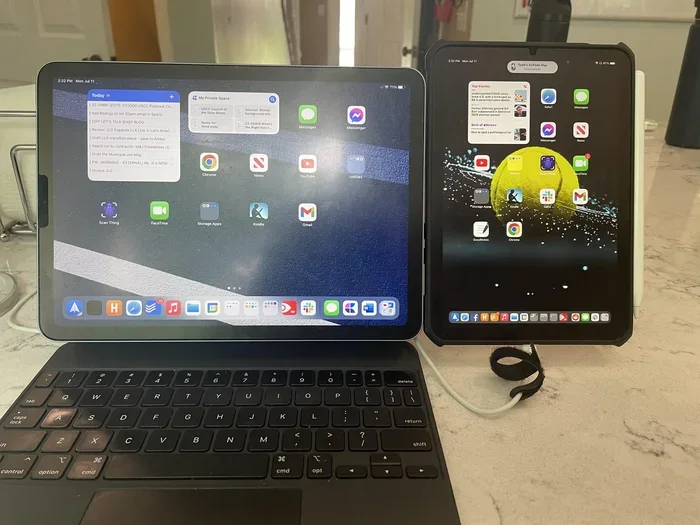
If you have a newer iPad, take advantage of the Split View feature. This lets you run Quicken side by side with another app, such as your web browser or a note-taking app. It is a great way to compare financial data while researching something online.
Backup Your Data Regularly
Even with cloud syncing, it is a good habit to back up your Quicken data regularly. This protects you in case of any unexpected issues with your account or device.
Common Mistakes iPad Users Make with Quicken
To help you avoid frustration, here are some common mistakes that iPad users make when using Quicken and how to prevent them.
- Expecting the iPad app to match the desktop version exactly: The iPad version is streamlined for mobile use. It does not have every feature of the desktop version, and that is okay.
- Ignoring subscription plan details: Not all plans include the same features on all devices. Check what is included in your plan before assuming a feature is available.
- Not enabling cloud sync: Without cloud sync, your data will not update across devices. This can lead to confusion and outdated information.
- Using an outdated iPadOS version: Older iPad software may not support the latest Quicken app. Keep your iPad updated for the best experience.
- Trying to do complex tasks on the iPad that are better suited for a laptop: Some tasks, like creating custom reports or managing small business finances, are much easier on a laptop.
Avoiding these mistakes will help you have a smoother and more productive experience with Quicken on your iPad.
Expert Insights on Quicken for iPad
We spoke with several personal finance experts about their thoughts on using Quicken on iPad. Here is what they had to say.
Many experts agree that the Quicken iPad app is excellent for everyday financial tracking. It is convenient, user-friendly, and keeps your data accessible wherever you go. However, most experts also note that the app works best as a complement to the desktop version, not a complete replacement.
One expert shared that he uses the iPad app for quick daily check-ins and the laptop for in-depth financial reviews at the end of each month. This hybrid approach gives him the best of both worlds.
Another expert pointed out that Quicken has made significant improvements to its mobile app in recent years. The iPad version is much more capable now than it was just a few years ago, and the gap between the iPad and desktop versions continues to narrow.
The consensus among experts is clear: Quicken on iPad is a strong choice for most users, especially those who value convenience and mobility. Just be aware of its limitations and plan accordingly.
Final Thoughts: Is Quicken on iPad Worth It?
So, does Quicken work on iPad computers? Absolutely. The Quicken app for iPad is a well-designed, functional tool that lets you manage your personal finances from your tablet. It covers all the essentials, including budgeting, expense tracking, bill reminders, and account syncing.
At the same time, the iPad version is not a one-to-one replacement for the desktop experience. If you need advanced investment tools, custom reporting, or small business features, you will find the laptop version more capable. The best approach for many users is to use both devices together, taking advantage of the strengths of each.
Ultimately, whether Quicken on iPad is worth it depends on your personal needs and preferences. If you want a convenient, portable way to stay on top of your finances, the iPad app is a great choice. If you need deep financial analysis and complex features, the laptop version remains the stronger option.
The bottom line is this: Quicken has made it easy to manage your money on the go. With cloud syncing, a user-friendly interface, and solid core features, the iPad version delivers a reliable and enjoyable experience. Give it a try and see how it fits into your financial routine.
Frequently Asked Questions
Can I use Quicken on my iPad without an internet connection?
The Quicken iPad app relies on cloud syncing to keep your data up to date. While you may be able to view some cached data offline, full functionality requires an internet connection. For the best experience, make sure you are connected to Wi-Fi or cellular data when using the app.
Is the Quicken iPad app free to download?
Yes, the Quicken app is free to download from the Apple App Store. However, you will need an active Quicken subscription to access your account and use the full features of the app. Some limited features may be available without a subscription.
Can I switch between my iPad and laptop without losing data?
No, you will not lose any data when switching between devices. Quicken uses cloud syncing to keep your information updated across all your devices. Any changes you make on your iPad will automatically appear on your laptop and vice versa.
Does Quicken on iPad support all bank accounts?
Quicken supports a wide range of banks and financial institutions on the iPad app. However, some smaller or regional banks may not be supported. Check the Quicken website or app for a list of supported institutions before committing to a subscription.
Can I use Quicken Home and Business on my iPad?
The Quicken Home and Business plan is available on iPad, but some small business features are limited or not supported on the app. If you rely heavily on business-specific tools, you may find the laptop version more suitable for your needs.
How often does Quicken sync data on the iPad?
Quicken syncs your data in real time when you are connected to the internet. This means any changes you make on your iPad are immediately reflected on your other devices. The syncing process is automatic and requires no manual intervention from you.
=== CONCLUSION ===
Quicken does work on iPad computers, and it offers a convenient way to manage your personal finances on the go. The app includes core features like budgeting, expense tracking, bill reminders, and cloud syncing that make it a practical choice for everyday use. While it does have some limitations compared to the desktop version, particularly in advanced reporting and investment tools, it more than holds its own as a mobile finance management solution.
If you are considering making the switch to Quicken on your iPad, go for it. The app is easy to set up, simple to use, and works seamlessly with your existing Quicken account. Just remember that for complex financial tasks, the laptop version still has the edge. Using both devices together gives you the flexibility and power to take full control of your finances.
Start by downloading the Quicken app on your iPad today. Explore the features, sync your accounts, and see how it fits into your daily routine. You might be surprised at how natural and helpful it is to manage your money right from your tablet.