Does Calling Use A Lot Of Wi Fi On Your Smartphone
Wi-Fi calling uses very little data — typically about 1 MB per minute for voice calls and up to 15 MB per minute for video calls. This means a 30-minute voice call only uses around 30 MB, which is a tiny fraction of most data plans. Understanding your Wi-Fi calling data usage helps you stay connected without worrying about eating through your monthly allowance.
This is a comprehensive guide about Does Calling Use A Lot Of Wi Fi.
Key Takeaways
- Voice calls over Wi-Fi use minimal data: about 1 MB per minute, making it a very efficient way to stay connected.
- Video calls consume significantly more: expect 10–15 MB per minute depending on the app and quality settings.
- Wi-Fi calling does not require a cellular signal: it works as long as you have a stable internet connection and a compatible device.
- Your internet plan matters: even though calls use little data, heavy users should still monitor their bandwidth usage to avoid slowdowns.
- You can reduce data consumption: by lowering video quality, using audio-only calls, and closing background apps during calls.
- Wi-Fi signal strength affects call quality: a weak connection can cause dropped calls or poor audio, so improving signal helps.
- Wi-Fi calling is free over data: no extra charges apply when you make calls using an internet connection instead of your cellular network.
[FEATURED_IMAGE_PLACEHOLDER]
Does Calling Use A Lot Of Wi-Fi On Your Smartphone?
Have you ever wondered whether making a phone call drains your Wi-Fi data? It is a fair question, especially when you rely on wireless internet for everything from browsing to streaming. The short answer is no — Wi-Fi calling does not use a lot of data. Voice calls over an internet connection are surprisingly lightweight. But there is more to the story than just the numbers.
Whether you are using Wi-Fi calling through your carrier or apps like WhatsApp, FaceTime, or Zoom, understanding how much data your calls consume can save you from unexpected surprises. In this guide, we break down everything you need to know about data usage during phone calls, how to minimize consumption, and what you can do to get the best call quality without slowing down your connection.
Wireless calling has become a standard feature on most modern smartphones. It lets you make and receive calls over your home internet instead of relying solely on your cellular tower. This is especially useful in areas with weak cellular coverage or when you want to avoid international roaming charges. But many people still worry that every call will eat up their precious monthly data allowance. Let us put that worry to rest.
How Much Data Does a Wi-Fi Call Actually Use?
The amount of data your calls consume depends on several factors. The type of call, the app you use, and the quality settings all play a role. Here is a clear breakdown of what to expect.
Voice Calls Over Wi-Fi
A standard voice call over Wi-Fi uses roughly 1 MB of data per minute. That means a 10-minute call uses about 10 MB. A 30-minute conversation? Around 30 MB. To put that in perspective, a single high-resolution photo from your phone takes up more space than several minutes of a voice call.
Most carriers that offer Wi-Fi calling use a codec called AMR-WB (Adaptive Multi-Rate Wideband). This codec is designed to deliver clear audio while keeping data usage low. It compresses your voice efficiently without sacrificing too much quality. So even if you chat for an hour, you are looking at around 60 MB — less than a single episode of a show on a streaming platform.
Video Calls Over Wi-Fi
Video calls are a different story entirely. Apps like FaceTime, Zoom, Google Meet, and WhatsApp use significantly more data because they are transmitting both audio and video in real time. Here is a rough estimate:
- Standard quality video: 5–10 MB per minute
- High-definition video: 10–15 MB per minute
- Group video calls: 15–20 MB per minute
A 20-minute video call at HD quality can use up to 300 MB. That is still manageable for most internet plans, but it adds up if you take multiple long calls every day. If you are concerned about data consumption, switching to audio-only mode is an easy fix.
Comparison Table: Voice vs. Video Call Data Usage
| Call Type | Data Per Minute | 30-Min Call Total | 1-Hour Call Total |
|---|---|---|---|
| Wi-Fi Voice Call | ~1 MB | ~30 MB | ~60 MB |
| Standard Video Call | ~7 MB | ~210 MB | ~420 MB |
| HD Video Call | ~15 MB | ~450 MB | ~900 MB |
| Group Video Call | ~20 MB | ~600 MB | ~1,200 MB |
As you can see, voice calls are extremely light on data. Even video calls are modest compared to streaming movies or downloading large files. But if you are on a limited plan, every megabyte counts.
What Affects Wi-Fi Call Data Usage?
Not all calls use the same amount of data. Several factors influence how much bandwidth your calls consume. Understanding these variables helps you make smarter choices about when and how to call.
Call Quality Settings
Most calling apps let you choose between standard and high-definition quality. HD calls sound better, but they also use more data. If you are on a tight bandwidth plan, switching to standard quality can cut your data usage in half without a noticeable difference in most cases.
Background Apps and Services
Here is something many people overlook. When you are on a call, other apps on your phone may continue using data in the background. Social media apps, email sync, and cloud backups all consume internet connection resources. Closing unnecessary apps before a call can reduce overall data usage and improve call stability.
Wi-Fi Signal Strength
A weak Wi-Fi signal forces your phone to use more data to maintain the connection. When the signal drops, your device may increase power to the antenna, which can cause buffering and retransmission of data packets. This means your call uses more data than it normally would. If you notice your calls using more data than expected, checking your Wi-Fi signal strength is a good first step.
You can improve your signal by moving closer to your Wi-Fi router, removing physical obstructions, or reducing interference from other devices. For tips on boosting your signal across your home, check out our guide on boosting your Wi-Fi signal outside — the same principles apply indoors.
Network Congestion
If multiple devices share the same network, your call quality may suffer. Each device competing for bandwidth can cause your call to buffer or drop, leading to retransmissions that waste data. Network congestion is especially common in households with many smart devices, streaming TVs, and users all online at once.
Wi-Fi Calling vs. Cellular Calling: What Is the Difference?
It helps to understand how traditional cellular calls differ from Wi-Fi calling. Both let you make phone calls, but they use very different technologies to get your voice to the other person.
Cellular calls travel through radio waves to nearby cell towers and then route to the recipient. They do not use your internet data at all — unless you are roaming internationally. Wi-Fi calling, on the other hand, converts your voice into data packets and sends them over your wireless internet connection.
This distinction matters because it affects both cost and quality. Wi-Fi calling is essentially free when you are using your home internet — no extra charges from your carrier. It also works well in dead zones where cellular signals struggle. However, if your internet goes down, your calls go down too.
When Wi-Fi Calling Shines
- Weak cellular coverage areas: Basements, rural homes, and buildings with thick walls often have poor cell reception but strong Wi-Fi signals.
- International travel: Wi-Fi calling lets you call home without paying expensive roaming fees, as long as you have internet access.
- Emergency situations: Some carriers allow emergency calls over Wi-Fi even when cellular service is unavailable.
When Cellular Calling Is Better
- No internet access: If you are somewhere without Wi-Fi, cellular calls are your only option (unless you have portable Wi-Fi).
- Unstable internet: A choppy Wi-Fi connection can make calls worse than a steady cellular signal.
- Battery conservation: Cellular calls sometimes use less battery than Wi-Fi calling because your phone does not have to maintain a data connection.
Tips to Reduce Data Usage During Calls
Want to keep your data usage as low as possible while still staying connected? These practical tips can help.
1. Use Audio-Only Calls When Possible
Switching from video to voice-only calls is the single easiest way to cut data usage. You can still see the person through your front camera or share your screen without streaming video the entire time. Many apps let you toggle video off mid-call with a single tap.
2. Lower Video Quality
If you must use video calls, reduce the resolution. Most apps default to HD, but standard definition uses far less data. In Zoom, for example, you can go to Settings > Video and uncheck HD video. In FaceTime, standard quality is the default, but turning off camera for one participant helps significantly.
3. Close Background Apps
Before starting a call, close any apps that are syncing or downloading content. This frees up bandwidth for your call and prevents unexpected data spikes. Your phone’s settings menu is the best place to check which apps are using data in the background.
4. Connect to 5 GHz Wi-Fi
Most modern routers broadcast two bands: 2.4 GHz and 5 GHz. The 5 GHz band offers faster speeds and more stable connections, which means fewer dropped packets and less wasted data. If your router supports it, connect your phone to the 5 GHz network for better call performance.
5. Monitor Your Data Usage Regularly
Both iPhone and Android offer built-in tools to track how much data each app uses. Check these settings weekly to spot any unusual spikes. If Wi-Fi calling or a particular app is using more data than expected, you can adjust settings or switch to a lighter alternative.
Common Mistakes People Make With Wi-Fi Calling
Even though Wi-Fi calling is straightforward, some common mistakes can cause frustration. Avoid these pitfalls to get the best experience.
Assuming All Calls Use the Same Data
Not all calls are created equal. A 10-minute voice call uses about 10 MB, but a 10-minute group video call can use over 200 MB. Always consider the type of call you are making when estimating your data consumption.
Ignoring Wi-Fi Password Issues
If your phone keeps disconnecting from Wi-Fi during calls, your password or connection settings might be the culprit. You can check your saved networks and passwords in your phone’s Wi-Fi settings. For help finding your password, see our article on finding your Wi-Fi password in settings.
Using Wi-Fi Calling on a Crowded Network
Public Wi-Fi networks at coffee shops, airports, and hotels are often overloaded. This means your call quality suffers and data usage can spike due to retransmissions. Whenever possible, use your home network or a trusted private connection for important calls.
Forgetting to Enable Wi-Fi Calling
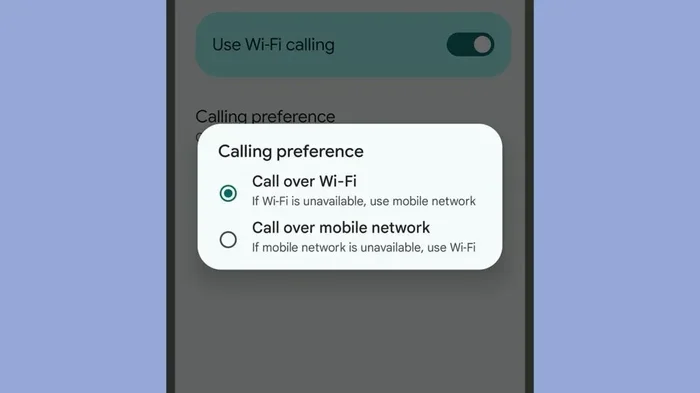
Some people assume their phone automatically uses Wi-Fi for calls. In reality, you often need to enable the feature manually. On iPhone, go to Settings > Phone > Wi-Fi Calling. On Android, go to Settings > Network & Internet > Wi-Fi Calling. Once enabled, your phone will seamlessly switch to Wi-Fi when your cellular signal is weak.
Expert Insights on Wi-Fi Calling and Data Usage
Networking professionals agree that Wi-Fi calling is one of the most efficient ways to stay connected. The technology has matured significantly over the past few years, and modern codecs deliver excellent voice quality at very low bitrates.
According to network engineers, a typical Wi-Fi voice call operates at a bitrate of 12–24 kbps (kilobits per second). Compare that to a music streaming service that uses 128 kbps or a Netflix video that uses 3,000–5,000 kbps. The difference is enormous. This is why voice calls barely make a dent in your monthly data allowance.
One expert tip: if you are concerned about data usage but still want to make regular calls, consider using your Wi-Fi router at home as a dedicated calling hub. Your phone connects to the local network, and all calls stay within your home internet — no cellular data involved at all. This is especially helpful for people who have internet service without a phone line and rely entirely on their smartphone for communication.
Frequently Asked Questions
Does Wi-Fi calling count against my cellular data limit?
No. Wi-Fi calling uses your wireless internet data, not your cellular data plan. As long as you are connected to Wi-Fi, your calls do not count toward your mobile data allowance. This makes it a great option for staying connected without worrying about your carrier’s data caps.
Can I make Wi-Fi calls without a SIM card?
In most cases, yes. Many Wi-Fi calling apps like WhatsApp, Skype, and Google Voice work without a physical SIM card. You only need a valid internet connection and the app installed on your device. However, carrier-provided Wi-Fi calling typically requires an active SIM and phone number.
Is Wi-Fi calling free?
Wi-Fi calling is free over your data connection — there are no per-minute charges. However, if you are using a third-party app, that app may have its own pricing for certain features like international calls. Standard voice calls through your carrier’s Wi-Fi calling feature are typically included at no extra cost.
Does Wi-Fi calling work when the internet is slow?
It can, but quality may suffer. Slow connections can cause audio delays, robotic voices, or dropped calls. If your Wi-Fi signal is weak, consider moving closer to your router or reducing the number of devices using the network simultaneously during your call.
How can I check how much data my calls are using?
Both iPhone and Android phones have built-in data usage trackers. On iPhone, go to Settings > Cellular to see app-by-app usage. On Android, go to Settings > Network & Internet > Data Usage. Look for your calling app in the list to see how much data it has consumed over your billing period.
Can I use Wi-Fi calling while traveling internationally?
Yes, and it is one of the biggest advantages of wireless calling. As long as you have access to Wi-Fi, you can call your home country without paying international roaming fees. Just make sure your carrier supports international Wi-Fi calling and that it is enabled in your settings before you travel.
Conclusion
Does calling use a lot of Wi-Fi? The answer is a clear no. Voice calls over Wi-Fi are incredibly data-efficient, using only about 1 MB per minute. Even video calls, which consume more data, are manageable on most modern internet plans. Wi-Fi calling is a powerful tool that lets you stay connected without draining your data or paying extra charges.
By following the tips in this guide — using audio-only mode when you can, lowering video quality, and monitoring your data usage — you can make the most of your internet connection without any worries. Whether you are at home, traveling, or in an area with weak cellular coverage, Wi-Fi calling keeps you in touch with the people who matter most.
Take a few minutes today to enable Wi-Fi calling on your smartphone and check your settings. You might be surprised at how easy and efficient it is to make calls over your wireless internet. Stay connected, stay informed, and enjoy the peace of mind that comes with knowing your calls are not eating up your data.
Frequently Asked Questions
What is Does Calling Use A Lot Of Wi Fi?
Does Calling Use A Lot Of Wi Fi is an important topic with many practical applications.