Do You Have To Reconnect Devices When You Change Wi Fi Name
Changing your Wi-Fi name doesn’t always mean you have to reconnect every device. Many modern devices remember network credentials and will reconnect automatically once they detect the new name. However, some older gadgets and smart home devices may need manual reconnection. This guide walks you through exactly what happens, which devices are affected, and how to make the transition seamless.
You just changed your Wi-Fi name, and now your phone, laptop, and smart TV are all acting strange. Maybe they can’t find the network, or they keep trying to connect to the old one. It’s frustrating, right? You’re not alone. This is one of the most common questions people ask after tweaking their wireless router settings.
The short answer is: it depends. Most of your everyday devices will handle the change just fine. But some devices, especially older ones and smart home gadgets, might need a little extra attention. In this article, we’ll walk through everything you need to know about changing your Wi-Fi name and how it affects your connected devices.
Whether you’re renaming your network for security reasons, personal preference, or just to make it easier to identify, understanding what happens behind the scenes saves you a lot of headaches. Let’s dive in.
Key Takeaways
- Most modern devices auto-reconnect: Smartphones, laptops, and tablets usually reconnect without help after a Wi-Fi name change.
- Older devices may need manual help: Smart home gadgets, older printers, and legacy tech might not recognize the new name automatically.
- Your password stays the same: Changing the network name (SSID) doesn’t affect your Wi-Fi password or security settings.
- Smart home hubs are most affected: Devices like Google Home, smart bulbs, and security cameras often need to be re-paired after a name change.
- You can change it back anytime: Switching the name back to the original will usually restore connections instantly.
- Keep your password handy: Even though it doesn’t change, you’ll need it for devices that require manual reconnection.
📑 Table of Contents
- What Happens When You Change Your Wi-Fi Name
- Which Devices Automatically Reconnect?
- Which Devices Need Manual Reconnection?
- How to Reconnect Devices After a Wi-Fi Name Change
- Pro Tips for a Smooth Transition
- Common Mistakes People Make When Changing Wi-Fi Names
- When You Might Want to Change Your Router Instead
- Final Thoughts
What Happens When You Change Your Wi-Fi Name
Your Wi-Fi name, also known as the SSID (Service Set Identifier), is basically the label your router broadcasts so devices can find it. When you change this name, you’re only changing the label. Everything else stays the same.
Here’s what doesn’t change when you rename your network:
- Your Wi-Fi password stays exactly the same
- Your network security type (WPA2, WPA3, etc.) remains untouched
- Your internet connection continues working normally
- Your router settings and configurations stay intact
- Your ISP connection is completely unaffected
Think of it like renaming a file on your computer. The file is still there. It still works the same way. You just gave it a new label. That’s all a network name change really is.
Why Do People Change Their Wi-Fi Name?
There are plenty of good reasons to rename your wireless network. Some people want to make it easier to identify in a list of available networks. Others change it for privacy reasons, so neighbors can’t easily guess what router they have. A few folks just want a fun or personalized name.
No matter the reason, the process is simple. You log into your router’s admin panel, find the wireless settings, and type in the new name. But the real question is: what happens to all the devices that were connected before?
Which Devices Automatically Reconnect?
Most modern devices are smart enough to handle a Wi-Fi name change without any intervention from you. Here’s a breakdown of what typically reconnects on its own:
Smartphones and Tablets
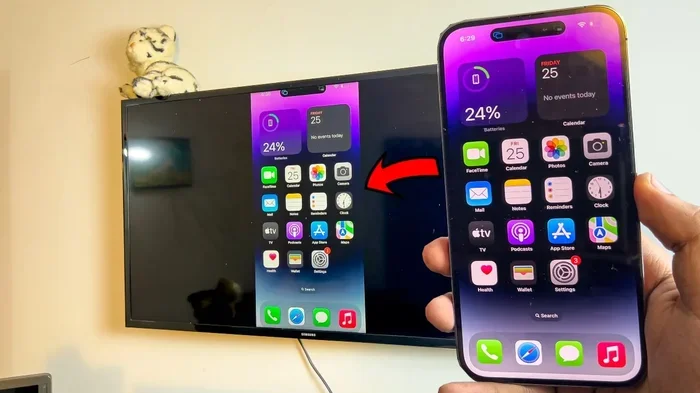
Both iPhones and Android phones usually reconnect automatically after a name change. Your device stores the Wi-Fi credentials (that’s the password and network details), so when it sees the network come back with a new name, it recognizes the credentials and reconnects.
The same goes for tablets like iPads and Android tablets. They remember your network settings and handle the transition smoothly.
Laptops and Computers
Windows laptops, MacBooks, and Chromebooks also tend to reconnect without issue. Your operating system stores the network configuration including the password. When the network reappears with a new name, the device matches the stored credentials and connects automatically.
If your laptop doesn’t reconnect right away, try toggling the Wi-Fi off and back on. That usually forces the device to rescan and find the new name.
Smart TVs and Streaming Devices
Most modern smart TVs and streaming sticks like Roku or Chromecast handle name changes well. They’ll typically reconnect within a few minutes of the name change. However, some older smart TV models might need a manual reconnection.
For streaming devices, it’s a good idea to check the Wi-Fi settings after the change to make sure everything is still linked up correctly.
Which Devices Need Manual Reconnection?
Not all devices are created equal when it comes to handling a network name change. Some older or more basic devices simply can’t recognize the new name automatically. Here are the types of devices that usually need your help:
Smart Home Devices
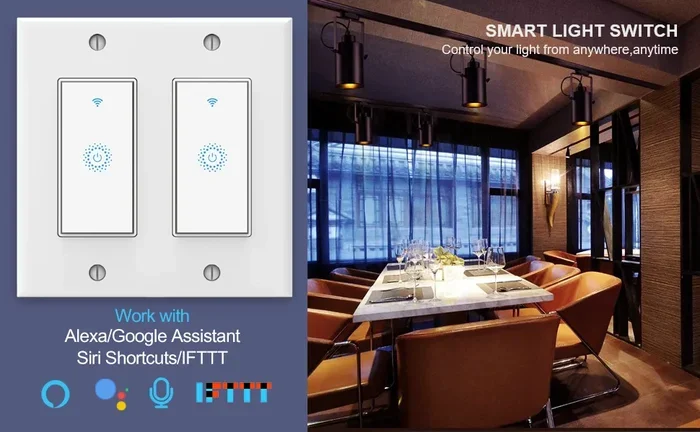
This is the biggest category of devices that struggle with name changes. Smart bulbs, smart plugs, smart locks, and security cameras often store the network name as part of their setup configuration. When the name changes, they can’t find the old network anymore.
For example, if you have smart bulbs connected to your Wi-Fi, you’ll likely need to go through the setup process again in the companion app. The same applies to smart speakers, smart plugs, and home automation hubs.
Printers and Scanners
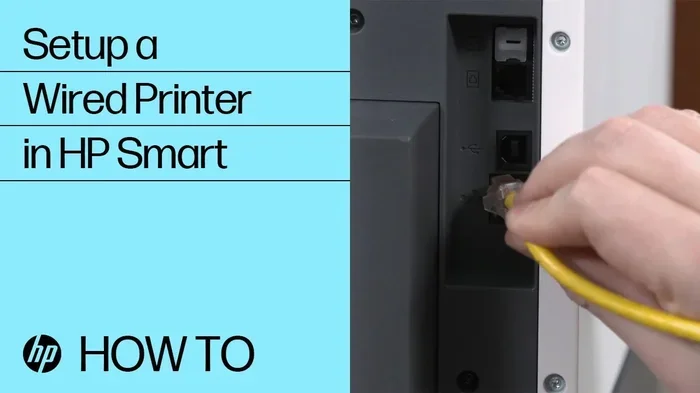
Wireless printers are notorious for needing manual reconnection after a Wi-Fi name change. Whether it’s an HP printer, a Canon model, or any brand, the printer’s network settings are tied to the old SSID. You’ll need to re-enter the network name and password through the printer’s control panel or software.
If your printer is too old, it might not even support newer Wi-Fi standards, which can complicate things further.
Gaming Consoles
Older gaming consoles like the PS3 or Wii U may need manual reconnection. Newer consoles like the PS5 and Xbox Series X usually handle it fine, but it doesn’t hurt to double-check the network settings after the change.
IoT and Legacy Devices
Any Internet of Things device that was set up a while ago might not handle a name change gracefully. This includes older security cameras, baby monitors, and smart appliances. These devices often have limited memory and can’t easily update their stored network information.
How to Reconnect Devices After a Wi-Fi Name Change
If some of your devices didn’t reconnect automatically, don’t worry. The process is straightforward. Here’s how to get everything back online:
Step 1: Find Your Wi-Fi Password
Before you start reconnecting, make sure you have your Wi-Fi password handy. You can usually find this in your router’s admin panel, or you can check your saved networks on a device that’s already connected. If you’ve forgotten it, you can always look it up in your router settings.
It’s also worth noting that you can find your Wi-Fi password in settings on most devices without having to log into the router directly.
Step 2: Delete the Old Network Name
On most devices, you should first remove the old network name from the saved networks list. This prevents the device from trying to connect to a network that no longer exists. On phones and laptops, you can usually forget the network through the Wi-Fi settings menu.
Once you’ve forgotten the old name, rescan for available networks. Your new name should appear in the list.
Step 3: Reconnect Using the New Name
Select the new network name from the list and enter your password. That’s it. The device should connect and remember the new name for future use.
For smart home devices, you’ll typically need to open the companion app and go through the setup wizard again. The app will guide you through selecting the new network and entering the password.
Step 4: Test Everything
After reconnecting, make sure each device is actually working. Try loading a webpage on your phone, printing a test page from your computer, or checking if your smart camera is streaming properly. This catches any issues early.
Pro Tips for a Smooth Transition
Changing your Wi-Fi name doesn’t have to be a hassle. Follow these tips to make the process as painless as possible:
- Change the name during a slow period. Don’t rename your network right before a big Zoom call or movie night. Do it when you have time to troubleshoot if something goes wrong.
- Write down the new name and password. Even though the password doesn’t change, having it written down saves time when you’re reconnecting multiple devices.
- Update your router’s admin password too. If you’re already in the router settings, consider updating the admin login credentials as well. This boosts your network security.
- Check for firmware updates. Before making any changes, ensure your router’s firmware is up to date. This helps prevent compatibility issues with your devices.
- Keep the old name temporarily. If you’re unsure about the change, you can always switch back. Your devices will reconnect to the original name instantly.
Common Mistakes People Make When Changing Wi-Fi Names
Avoid these common pitfalls to save yourself time and frustration:
- Forgetting to update smart home devices. Smart bulbs, locks, and cameras that are tied to the old name will stop working. Go through each one and reconfigure them.
- Using a name that’s too long. Some devices have character limits for network names. Keep it under 32 characters to avoid compatibility issues.
- Using special characters in the name. Certain characters can cause problems with older devices. Stick to letters, numbers, and basic punctuation.
- Not checking all connected devices. It’s easy to forget about the printer, the smart speaker, or the garage door opener. Make a quick list of all Wi-Fi-connected devices and check each one.
- Changing the name and password at the same time. This doubles the work. If you only need to change the name, leave the password alone.
When You Might Want to Change Your Router Instead
Sometimes, renaming your network isn’t enough. If you’re dealing with persistent connectivity issues, slow speeds, or an outdated router, it might be time to consider getting a new one. You can buy a Wi-Fi router and not pay monthly in most cases, which gives you full control over your network.
If you’re thinking about upgrading, you might also want to explore mesh systems that extend coverage throughout your home. You can even extend your Wi-Fi to your shed or other outbuildings with the right equipment.
Before making any hardware changes, you can also try boosting your Wi-Fi signal outside or adding an external antenna to your existing router. These simple tweaks can improve coverage without the cost of a new device.
Final Thoughts
Changing your Wi-Fi name is a simple process, and for most devices, it’s a seamless one. The majority of your phones, laptops, and modern gadgets will reconnect automatically without you lifting a finger. The real work comes from managing older devices, smart home gadgets, and anything that doesn’t handle network name changes gracefully.
The key takeaway? You don’t have to reconnect every device manually. But you should be prepared to spend a few minutes reconfiguring the ones that need it. Keep your password handy, follow the steps we outlined, and you’ll have everything back online in no time.
Remember, your network name is just a label. It doesn’t affect your internet speed, security, or connection quality. So change it whenever you want, and don’t stress too much about the reconnection process. With a little planning, it’s a quick and easy job.
Frequently Asked Questions
Do I need to change my Wi-Fi password when I change the network name?
No, your password stays the same. Changing the network name (SSID) only affects the label your router broadcasts. Your security settings, password, and internet connection remain completely unchanged.
Will my smart home devices stop working after I rename my Wi-Fi?
They might temporarily. Smart bulbs, smart locks, and other IoT devices often store the old network name in their settings. You’ll likely need to reconfigure them through their companion app to connect to the new name.
How long does it take for devices to reconnect after a Wi-Fi name change?
Most modern devices reconnect within a few minutes automatically. Older devices or smart home gadgets might need a few extra minutes and some manual intervention to find and connect to the new name.
Can I change my Wi-Fi name without turning off the router?
Yes, you can change the name while the router is running. The change takes effect immediately. However, it’s a good idea to save your work on any active connections before making the change, just in case.
What should I do if a device won’t reconnect after I changed the Wi-Fi name?
First, make sure the device has forgotten the old network name. Then rescan for available networks, select the new name, and enter your password. If it still won’t connect, restart the device and try again. You can also check if the device has any firmware updates available.
Is it safe to change my Wi-Fi name to something personal or identifiable?
It’s generally safe, but avoid including personal information like your full name or address in the network name. A unique but neutral name works best for both identification and privacy. You can also check your router settings to ensure your network security type is set to WPA2 or WPA3 for the best protection.