Can You Use Airplay Without Internet Everything You Need
Yes, you can use AirPlay without internet in certain situations. AirPlay supports peer-to-peer connections, local Wi-Fi networks, and even wired alternatives. You can mirror your screen, stream media, and cast content to compatible devices even when the internet is down. This guide covers every method, device, and tip you need to know about using AirPlay without an active internet connection.
Key Takeaways
- AirPlay works offline via peer-to-peer mode: You don’t always need Wi-Fi to cast content between Apple devices.
- Local networks are enough: A router without internet access can still support AirPlay streaming between devices.
- Wired alternatives exist: HDMI adapters and cable connections offer reliable offline streaming options.
- Not all features work offline: Some streaming apps require internet to fetch content, even if AirPlay itself functions.
- Device compatibility matters: Older devices may not support peer-to-peer AirPlay or offline features.
- Hotspots can bridge the gap: Creating a personal hotspot lets AirPlay work when no Wi-Fi is available.
📑 Table of Contents
- Can You Use AirPlay Without Internet? The Short Answer Is Yes
- How AirPlay Works: The Basics You Should Know
- Method 1: Peer-to-Peer AirPlay (No Router Needed)
- Method 2: Local Wi-Fi Network Without Internet
- Method 3: Using a Personal Hotspot
- Method 4: Wired Connections as an Offline Alternative
- Common Mistakes That Break Offline AirPlay
- Expert Tips for the Best Offline AirPlay Experience
- What About Non-Apple Devices? Can They Use AirPlay Offline?
- Quick Tips Summary
- Final Thoughts on Using AirPlay Without Internet
Can You Use AirPlay Without Internet? The Short Answer Is Yes
Here is the good news. Can you use AirPlay without internet? Yes, you can. But it depends on how you set things up and what you want to do. Many people assume AirPlay needs a constant internet connection. That is not entirely true.
AirPlay is Apple’s wireless streaming technology. It lets you send audio, video, and screen images from one device to another. You can mirror your iPhone to a TV. You can stream music to a speaker. You can share photos from your iPad to a display. Most of the time, this happens over a Wi-Fi network. But Wi-Fi and the internet are not the same thing.
A Wi-Fi network can work without internet access. Your router can create a local network all by itself. Devices on that network can talk to each other. This is the key to using AirPlay without internet. The devices do not need to reach the wider web. They just need to communicate with each other.
In this guide, we will walk through every way you can use AirPlay offline. We will cover peer-to-peer mode, local networks, wired options, and common mistakes. By the end, you will know exactly what works and what does not. Let us get into it.
How AirPlay Works: The Basics You Should Know
Before we dive into offline methods, let us understand how AirPlay actually works. This makes the rest much easier to follow.
What Is AirPlay?
AirPlay is Apple’s proprietary wireless protocol. It was first introduced in 2010 with the original AirPlay receiver support. It lets Apple devices share content seamlessly. You tap the AirPlay icon. You pick a target device. Your content starts streaming. It feels like magic, but there is real technology behind it.
AirPlay uses a combination of Wi-Fi and Bluetooth for discovery. Once devices find each other, they establish a direct connection. This connection can be local or peer-to-peer. The type of connection determines whether you need internet.
AirPlay vs. Screen Mirroring
People often use these terms interchangeably. But they are slightly different. AirPlay is the broader technology. It can stream audio, video, and screen content. Screen mirroring is one specific use case. It duplicates your device screen on a larger display.
Both can work without internet. But screen mirroring uses more data on the local network. It sends every pixel in real time. Audio streaming is lighter and easier to manage offline.
AirPlay 2 and Its Improvements
AirPlay 2 launched in 2018 with iOS 11. It brought major upgrades. Multi-room audio support became available. You could control speakers from different rooms. Stereo pairing was introduced. AirPlay 2 also improved offline performance. It handles local network streaming more efficiently than the original version.
If your devices support AirPlay 2, you have a better offline experience. Older devices may struggle with peer-to-peer connections. Always check your device compatibility before trying offline AirPlay.
Method 1: Peer-to-Peer AirPlay (No Router Needed)
This is the most popular way to use AirPlay without internet. Peer-to-peer AirPlay lets devices connect directly. No router is required. No Wi-Fi network is needed. The devices communicate using Bluetooth for discovery and Wi-Fi Direct for data transfer.
How Peer-to-Peer AirPlay Works
When you open the AirPlay menu, your device searches for nearby receivers. If no Wi-Fi network is available, it switches to peer-to-peer mode. Your iPhone or iPad creates a temporary Wi-Fi network. The receiving device connects to it. Data flows directly between the two devices.
Bluetooth helps the devices find each other first. Then Wi-Fi Direct takes over for the heavy lifting. This is why you see the AirPlay icon even when you are not connected to any network.
Devices That Support Peer-to-Peer AirPlay
Not all devices can do this. Here is a quick list of what works:
- iPhone running iOS 8 or later
- iPad running iPadOS 13 or later
- Mac running macOS 10.10 or later
- Apple TV (2nd generation and newer)
- Third-party AirPlay receivers that support peer-to-peer mode
Older devices may not support this feature. If your device is too old, you might need a different method. Always check Apple’s official compatibility list for your specific model.
Setting Up Peer-to-Peer AirPlay
Setting this up is simple. Follow these steps:
- Make sure Bluetooth is turned on.
- Make sure Wi-Fi is turned on (even if not connected to a network).
- Open the app or content you want to share.
- Tap the AirPlay icon.
- Select your target device from the list.
- If it is the first time, you may see a code. Enter it on the source device.
That is it. Your content should start streaming within seconds. No internet required. No router needed.
Limitations of Peer-to-Peer Mode
Peer-to-peer AirPlay works well for most tasks. But it has limits. The range is shorter than a traditional Wi-Fi network. You typically need devices within 30 feet of each other. Speed is also lower. High-resolution video may stutter or lag. Audio streaming works great. 4K video might not be smooth.
Also, peer-to-peer mode uses your device’s battery faster. Creating a temporary network takes extra power. Keep your devices charged if you plan a long session.
Method 2: Local Wi-Fi Network Without Internet
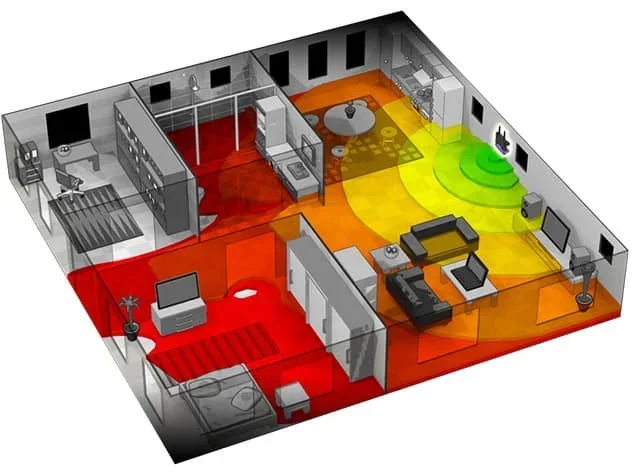
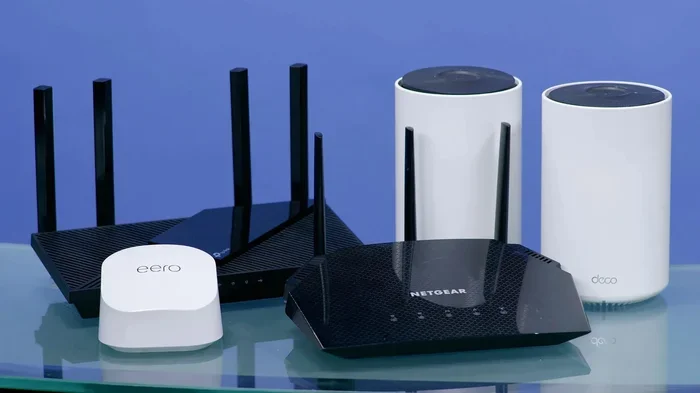
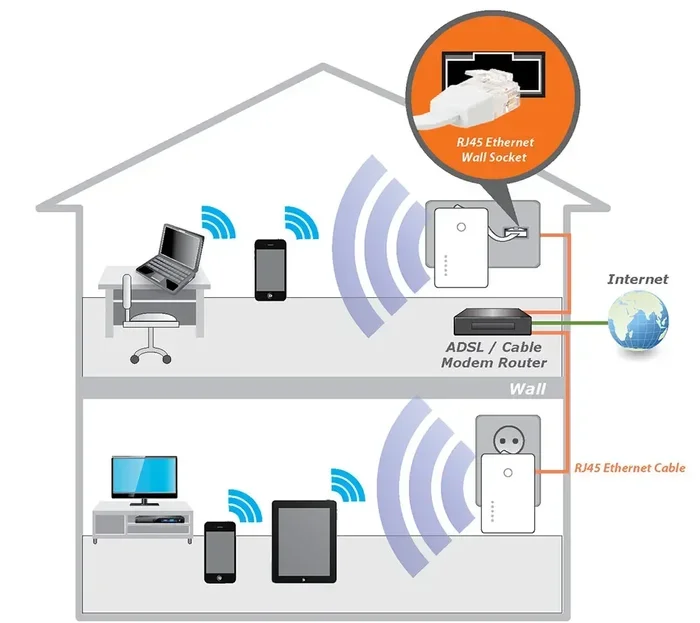
This is the second most common method. You set up a Wi-Fi router without an active internet connection. Devices on that local network can still communicate with each other. AirPlay works perfectly on this kind of network.
Why a Local Network Works for AirPlay
AirPlay does not need to reach the internet. It only needs devices to find each other on the same network. A router creates a local network. Devices connect to it. They share data locally. The router does not need to forward traffic to the outside world.
This is great for situations like:
– Traveling to a cabin with no internet
– Attending a event with no Wi-Fi
– Working in a space where internet is down
– Setting up a presentation in a remote location
How to Set Up a Router Without Internet
You do not need a special router. Any standard Wi-Fi router works. Here is what to do:
- Plug in your router and turn it on.
- Connect your Apple device to the router’s Wi-Fi network.
- Make sure the receiving device (like Apple TV) is on the same network.
- Open the AirPlay menu and select the target device.
That is all there is to it. Your devices will see each other. Streaming will work. The only thing missing is access to online content.
What You Can and Cannot Do on a Local Network
Here is where it gets important. On a local network without internet, AirPlay itself works fine. But the content you want to stream might not. If you try to open a Netflix show, the app needs internet to fetch the video. You will get an error. But if you have the content already downloaded, AirPlay will stream it perfectly.
So the rule is simple. AirPlay works offline. The content source must also be available offline. Download your videos, music, and photos before you go offline. Then you can enjoy them on a big screen without any issues.
Method 3: Using a Personal Hotspot
A personal hotspot is another clever way to use AirPlay without traditional internet. Your iPhone or iPad creates a Wi-Fi hotspot. Other devices connect to it. This creates a local network. AirPlay works on that network.
Setting Up a Hotspot for AirPlay
Follow these steps to get started:
- On your iPhone, go to Settings > Personal Hotspot.
- Turn on Allow Others to Join.
- Set a Wi-Fi password.
- On your receiving device, connect to the hotspot network.
- On your source device, connect to the same hotspot.
- Open the AirPlay menu and start streaming.
Your devices now form a closed network. They can talk to each other. AirPlay streams content between them. No external internet is needed.
When a Hotspot Works Best
Hotspots are perfect for quick setups. You are at a friend’s house. The Wi-Fi is down. You want to show photos on the TV. You fire up your hotspot. Everyone connects. You start AirPlay. Done.
Hotspots also work well in hotel rooms. You do not want to pay for hotel Wi-Fi just to mirror your screen. A hotspot solves that problem easily.
One thing to watch out for: hotspots use your cellular data. If you have a limited data plan, be careful. Streaming video uses a lot of data. Stick to lower resolutions if you are concerned about data usage.
Method 4: Wired Connections as an Offline Alternative
Sometimes wireless is not the best option. Wired connections give you a reliable offline streaming experience. No Wi-Fi needed. No network setup. Just plug in and go.
Using an HDMI Adapter
Apple sells Lightning to HDMI and USB-C to HDMI adapters. These let you connect your iPhone or iPad directly to a TV. Your screen appears on the big display instantly.
Here is what you need:
- An Apple Lightning or USB-C to Digital AV Adapter
- An HDMI cable
- A TV or display with an HDMI port
Plug the adapter into your device. Connect the HDMI cable. Plug it into the TV. Switch the TV to the right input. Your screen is now mirrored. No internet. No Wi-Fi. No AirPlay needed. It just works.
Advantages of Wired Over Wireless
Wired connections have clear benefits. They are more stable. There is no lag or stutter. The connection is always reliable. You do not have to worry about range or interference. For presentations or important demos, wired is often the better choice.
The downside is convenience. You are tethered to the TV. You cannot walk around freely. For casual use, wireless AirPlay is usually more convenient.
Audio-Only Wired Options
You can also stream audio without internet. Use a Lightning to 3.5mm headphone jack adapter. Connect it to a speaker or stereo system. Your music plays through the wired speaker. No network needed. This works great for offline music listening.
Common Mistakes That Break Offline AirPlay
Even when you know how to use AirPlay offline, mistakes happen. Here are the most common ones and how to avoid them.
Assuming All Apps Work Offline
This is the number one mistake. Many apps need internet to load content. Spotify, Netflix, YouTube, and similar apps all require a connection. If you try to AirPlay from these apps without internet, you will fail.
The fix is simple. Download content beforehand. Use offline mode in your apps. Save videos and music to your device. Then AirPlay those local files. They will stream without any issues.
Forgetting to Enable Bluetooth and Wi-Fi
Peer-to-peer AirPlay needs both Bluetooth and Wi-Fi turned on. Many people turn off Wi-Fi to save battery. This breaks the connection. Keep Wi-Fi on even if you are not connected to a network. The device will create a local connection when needed.
Using Incompatible Devices
Not every device supports offline AirPlay. Some third-party AirPlay receivers are limited. They may only work with an active internet connection. Always check the specs of your receiving device before assuming offline support.
Ignoring Software Updates
Old software can cause AirPlay problems. Apple regularly improves AirPlay performance through updates. Keep your devices updated to the latest iOS, iPadOS, or macOS version. This ensures the best offline experience.
Expert Tips for the Best Offline AirPlay Experience
Want to get the most out of offline AirPlay? Here are some tips from experienced users.
Download Content Before You Go Offline
This cannot be stressed enough. Before you lose internet access, download everything you plan to stream. Movies, music, podcasts, photos. Store them on your device. When it is time to share, AirPlay will work flawlessly.
Keep Devices Close Together
In peer-to-peer mode, range is limited. Keep your source device and receiver within 30 feet. Walls and obstacles reduce the range further. For the best experience, keep them in the same room.
Use AirPlay for Audio When in Doubt
If you are unsure whether offline streaming will work, start with audio. Music and podcasts are lighter. They stream more reliably than video. Once you confirm audio works, you can try video.
Restart Devices If Things Act Up
A simple restart fixes most AirPlay issues. Turn off your source device and the receiver. Wait 10 seconds. Turn them back on. Try connecting again. This clears temporary glitches and refreshes the connection.
Consider a Dedicated Offline Streaming Setup
If you frequently need offline AirPlay, set up a dedicated system. Keep an Apple TV connected to your TV. Download a library of content to your devices. Use peer-to-peer AirPlay to stream. This setup works anywhere, anytime, with no internet required.
What About Non-Apple Devices? Can They Use AirPlay Offline?
AirPlay is an Apple technology. But many third-party devices now support it. Smart TVs from Samsung, LG, and Sony often have built-in AirPlay. Speakers from brands like Bose and Sonos also support it.
Can these non-Apple devices use AirPlay offline? Yes, if they support peer-to-peer mode. Most modern AirPlay-enabled devices do. But older models or budget options may require a Wi-Fi network with internet access. Always check the device manual or manufacturer website for offline support details.
If you own a third-party AirPlay receiver, test it before you need it. Set it up at home on your local network. Make sure it connects without internet. This way, you are prepared when you actually need it offline.
Quick Tips Summary
- Keep Bluetooth and Wi-Fi on even without internet.
- Download content to your device before going offline.
- Use peer-to-peer AirPlay for direct device connections.
- Set up a local Wi-Fi network if you have a router available.
- Use a personal hotspot as a quick alternative.
- Consider wired HDMI adapters for the most reliable connection.
- Restart devices if you experience connection issues.
- Always check device compatibility for offline AirPlay support.
Final Thoughts on Using AirPlay Without Internet
Can you use AirPlay without internet? Absolutely. You have multiple options. Peer-to-peer mode is the most convenient. Local networks work well for setups at home or in offices. Hotspots offer a quick fix when you are on the go. Wired connections provide the most reliable experience.
The key is preparation. Download your content. Check your devices. Set up your network before you need it. When you do these things, AirPlay without internet becomes second nature.
You do not need to be stuck when the internet goes down. Your Apple devices have you covered. Screen mirroring, music streaming, photo sharing, and more all work offline. You just need to know how to make it happen.
Now you have all the knowledge. Try these methods today. Test them at home. Be ready for your next offline situation. AirPlay without internet is not just possible. It is easy.
Frequently Asked Questions
Can I use AirPlay without Wi-Fi at all?
Yes, you can. Peer-to-peer AirPlay uses Bluetooth and Wi-Fi Direct to connect devices directly. You do not need a Wi-Fi network or internet connection. Just make sure Bluetooth and Wi-Fi are turned on. Your devices will find each other and stream content.
Does AirPlay work offline on Apple TV?
Apple TV supports AirPlay in offline mode when connected to the same local network or peer-to-peer connection. You can mirror your screen and stream downloaded content. However, apps on Apple TV that require internet will not load online content. Download what you need before going offline.
Can I AirPlay from an iPhone to a TV without internet?
Yes, you can. Use peer-to-peer AirPlay if both devices support it. Alternatively, connect your iPhone to the TV using a Lightning to HDMI adapter. Both methods work without internet. The HDMI method is more reliable for video streaming.
Why does my AirPlay keep failing when there is no internet?
Most often, this happens because Wi-Fi or Bluetooth is turned off. Peer-to-peer AirPlay needs both enabled. Another common reason is that the content you are trying to stream requires an internet connection. Download the content first, then try again.
Can I use AirPlay on a non-Apple device without internet?
Many third-party devices support AirPlay offline if they have peer-to-peer capability. Check your device specifications. Smart TVs and speakers from brands like Samsung, LG, Bose, and Sonos often support offline AirPlay. Older or budget models may need an active Wi-Fi network.
What is the best method for offline AirPlay?
It depends on your situation. For quick sharing between devices, peer-to-peer AirPlay is the best option. For home setups, a local Wi-Fi network works great. For presentations, a wired HDMI adapter is the most reliable. For on-the-go use, a personal hotspot is a solid choice.
=== CONCLUSION ===
Can you use AirPlay without internet? Yes, and now you know exactly how. You have peer-to-peer mode, local networks, hotspots, and wired connections at your disposal. Each method has its strengths. Use them based on your situation and needs.
The most important takeaway is this: offline AirPlay works when you prepare ahead of time. Download your content. Keep your settings right. Know your device compatibility. With these steps, you will never be stuck without a way to share your screen or stream your media.
Try these methods today. Share this guide with friends who still think AirPlay needs the internet. You now know better. And that makes all the difference.