Can You Get Wifi From A Tesla Here Is How To Connect
Yes, you can get WiFi from a Tesla. Your Tesla comes with built-in WiFi and a mobile hotspot that lets you stay connected on the road. In this guide, we will show you how to connect to WiFi in your Tesla, set up a hotspot, and fix common connection issues. Whether you are at home, a Supercharger, or on the go, staying online in your Tesla is easier than you think.
Can you get WiFi from a Tesla? The short answer is absolutely yes. Your Tesla is more connected than most people realize. It has built-in WiFi, a web browser, and even the ability to create a mobile hotspot. In this guide, we will walk you through everything you need to know about Tesla internet. You will learn how to connect, how to troubleshoot problems, and how to get the most out of your Tesla’s wireless features.
Whether you are new to Tesla or have been driving one for years, understanding your WiFi options makes a big difference. A connected Tesla gives you live traffic updates, streaming music, web browsing, and much more. Let us dive into how Tesla WiFi works and how you can use it every day.
Key Takeaways
- Tesla vehicles have built-in WiFi: Every Tesla comes with WiFi capability that lets you connect to wireless networks.
- You can create a mobile hotspot: Use your Tesla’s LTE connection to share internet with other devices.
- Connecting is simple: Just go to Controls > WiFi and select a network.
- Premium Connectivity adds more features: It gives you live traffic, streaming, and web browsing.
- Common issues are easy to fix: Most WiFi problems can be solved with a simple restart or software update.
- WiFi range matters: Your Tesla connects to available networks within range, just like a phone.
📑 Table of Contents
- What Is Tesla WiFi and How Does It Work
- How to Connect to WiFi on a Tesla
- Tesla WiFi vs Mobile Hotspot: What Is the Difference
- Common WiFi Issues and How to Fix Them
- Tips for Getting the Best WiFi Experience in Your Tesla
- Tesla Premium Connectivity and WiFi
- Can You Use Tesla WiFi While Driving
- Tesla WiFi Range and Signal Strength
- How to Share Tesla WiFi With Other Devices
- Tesla WiFi for Software Updates
- Final Thoughts
What Is Tesla WiFi and How Does It Work
Every Tesla vehicle comes with a built-in WiFi modem. This modem lets your car connect to wireless networks just like your phone or laptop. When you are at home or at a café, your Tesla can pick up the WiFi signal and go online. The car uses this connection for software updates, streaming, browsing, and more.
Tesla WiFi works through a built-in antenna and modem. The system supports both 2.4 GHz and 5 GHz WiFi bands. This means your Tesla can connect to most standard home and public networks. The WiFi connection also powers Tesla’s browser, so you can surf the web right from your center screen.
How Tesla WiFi Connects to the Internet
When you connect to a WiFi network, your Tesla uses that network’s internet service. The car then sends and receives data just like any other device on the network. Here is what happens behind the scenes:
- Your Tesla scans for available networks within range.
- You select a network and enter the password if needed.
- The car establishes a secure connection using WPA2 encryption.
- Data flows between the Tesla and the internet through the WiFi router.
Tesla also uses a built-in LTE connection for when WiFi is not available. This LTE modem acts as a backup so you can still access basic features like navigation and live traffic. The LTE connection is part of Tesla’s connectivity package and keeps you online even on the road.
How to Connect to WiFi on a Tesla
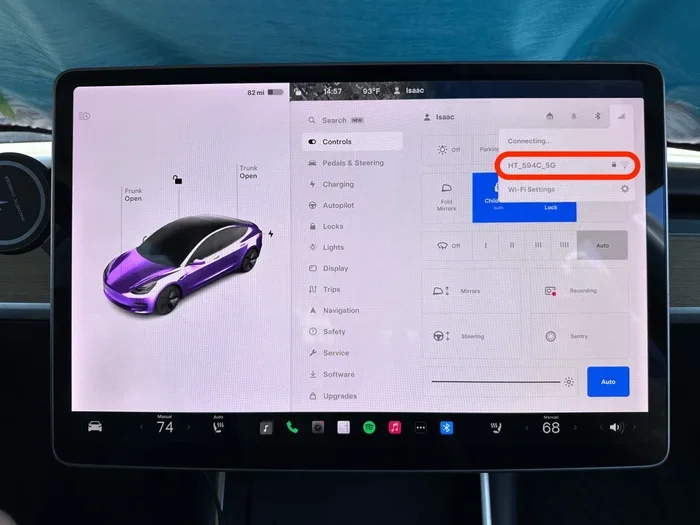
Connecting to WiFi in a Tesla is straightforward. The process takes just a few taps on the touchscreen. Here is how to do it step by step.
Step-by-Step WiFi Setup
- Tap the Controls icon on the bottom left of your touchscreen.
- Select WiFi. You will see a list of available networks.
- Tap on your network name (SSID) from the list.
- Enter your WiFi password if prompted.
- Tap Connect. Your Tesla will join the network.
Once connected, you will see a WiFi icon at the top of the screen. This confirms your Tesla is online. The car will remember networks you have used before, so reconnecting is even faster next time.
Connecting to a Tesla Mobile Hotspot
Your Tesla can also act as a WiFi hotspot. This is useful when you have passengers who need internet access. Here is how to set it up:
- Go to Controls > WiFi > Mobile Hotspot.
- Toggle the hotspot on.
- Set a hotspot name and password.
- Other devices can now find and connect to your Tesla’s hotspot.
The mobile hotspot uses your Tesla’s LTE data connection. Keep in mind that this will consume data from your Tesla’s data plan. If you have Premium Connectivity, you get a generous data allowance for hotspot use.
Tesla WiFi vs Mobile Hotspot: What Is the Difference
It is easy to confuse Tesla WiFi with the mobile hotspot feature. They are related but serve different purposes. Understanding the difference helps you use each one more effectively.
| Feature | Tesla WiFi | Mobile Hotspot |
|---|---|---|
| Internet Source | External WiFi network | Tesla LTE data connection |
| Requires Password | Yes, if the network is secured | Yes, you set the password |
| Data Usage | Uses the network’s data plan | Uses Tesla’s data plan |
| Best For | Home, office, public WiFi | On the road, sharing with passengers |
| Range | Depends on WiFi router range | Limited to vehicle range |
In simple terms, Tesla WiFi connects your car to an existing network. The mobile hotspot lets your car share its own internet connection with other devices. Both are powerful tools for staying connected.
Common WiFi Issues and How to Fix Them
Like any wireless device, your Tesla can sometimes have WiFi connection problems. Most issues are easy to fix. Here are the most common problems and their solutions.
Tesla WiFi Won’t Connect
If your Tesla refuses to connect to a WiFi network, try these steps:
- Check your password. A simple typo is the most common cause.
- Restart the Tesla’s WiFi. Go to Controls > WiFi and toggle it off, then back on.
- Restart the car. A full reboot clears temporary glitches.
- Move closer to the router. Signal strength matters a lot for WiFi.
- Check if the router is working. Try connecting another device to the same network.
Slow WiFi Speed in Tesla
Slow internet in your Tesla can be frustrating. Here is what you can do to improve speed:
- Switch to the 5 GHz band if your router supports it. It is faster than 2.4 GHz.
- Move your Tesla closer to the router. Walls and distance reduce signal strength.
- Reduce the number of connected devices. Too many devices slow down the network.
- Check for software updates. Tesla often releases updates that improve WiFi performance.
Tesla Forgets Saved WiFi Networks
Sometimes your Tesla will forget a previously saved network. This usually happens after a software update. To fix it:
- Go to Controls > WiFi.
- Select the network from the list.
- Re-enter the password and connect again.
This is a minor inconvenience and does not affect your car’s functionality. Tesla does this to keep the WiFi connection list fresh and up to date.
Tips for Getting the Best WiFi Experience in Your Tesla
Want to make the most of Tesla WiFi? Follow these practical tips to improve your connection every time.
Use a Strong WiFi Router
The quality of your home router matters. A modern router with dual-band support gives your Tesla the best possible connection. Look for routers that support WiFi 5 or WiFi 6 standards. These offer faster speeds and better range.
Keep Your Tesla Software Updated
Tesla regularly releases over-the-air updates that improve WiFi performance. These updates fix bugs and add new features. Make sure your car is connected to WiFi so it can download updates automatically.
Position Your Tesla Strategically
Where you park affects your WiFi signal. If possible, park close to your router. Avoid parking in garages with thick walls, as they block WiFi signals. A clear line of sight between your Tesla and the router gives the strongest connection.
Use Tesla’s Built-In Browser Wisely
Tesla has a web browser that works over WiFi. You can visit websites, check email, and read news. The browser is based on a Chromium engine, so it works like a standard web browser. Just keep in mind that heavy browsing uses more data.
Set Up Auto-Connect for Home WiFi
Your Tesla can automatically connect to your home WiFi. Once you enter the password, the car remembers it and connects every time you arrive home. This saves you time and ensures you are always online when parked.
Tesla Premium Connectivity and WiFi
Tesla offers a Premium Connectivity package that enhances your WiFi and internet experience. This package includes features that go beyond basic connectivity. Let us look at what Premium Connectivity adds.
With Premium Connectivity, you get:
- Live traffic visualization for better route planning.
- Streaming music and video services like Netflix and YouTube.
- Web browsing with full internet access.
- Cloud-based camera and Sentry Mode footage access.
- More data for the mobile hotspot.
Premium Connectivity costs a monthly fee, but it greatly improves the Tesla experience. Even without Premium Connectivity, your Tesla can connect to WiFi for basic functions like software updates and browsing. The WiFi connection itself is always free to use.
Does Tesla WiFi Work Without Premium Connectivity?
Yes, Tesla WiFi works without Premium Connectivity. You can connect to any WiFi network and use the internet. The difference is that Premium Connectivity unlocks additional features that rely on the Tesla LTE connection, not WiFi. For example, streaming services use LTE data, not WiFi. So your WiFi connection remains useful regardless of your connectivity plan.
Can You Use Tesla WiFi While Driving
Tesla WiFi is primarily designed for when the car is parked. The system is not meant for use while driving. This is a safety feature that keeps you focused on the road. However, you can still use basic navigation and audio features while driving through the LTE connection.
If you need internet access while on the road, your Tesla’s LTE connection handles most tasks. The car can download map data, provide live traffic updates, and stream music through the LTE network. WiFi becomes fully available when you park and connect to a wireless network.
Tesla WiFi Range and Signal Strength
Your Tesla’s WiFi range depends on the network it is connecting to. The car’s built-in antenna is designed for everyday use. It works well within the range of a typical home or office WiFi router.
Here are some tips to improve signal strength:
- Stay within 50 feet of the router for the best signal.
- Avoid physical barriers like concrete walls and metal structures.
- Use a WiFi extender if your parking spot is far from the router.
- Check the signal strength indicator on your Tesla’s WiFi screen.
A strong signal means faster speeds and a more stable connection. If you notice weak signals, moving closer to the router usually solves the problem.
How to Share Tesla WiFi With Other Devices
Sharing your Tesla’s internet with other devices is simple. You can use the mobile hotspot feature to let phones, tablets, and laptops connect. This is especially handy during road trips when passengers need internet access.
Here is how to share Tesla WiFi:
- Enable the mobile hotspot from Controls > WiFi.
- Set a unique network name and password.
- On other devices, find the Tesla hotspot in the WiFi settings.
- Enter the password and connect.
Keep an eye on your data usage when sharing a hotspot. Streaming video and large downloads can quickly use up your data allowance. If you have Premium Connectivity, you have a higher data limit, which helps.
Tesla WiFi for Software Updates
One of the most important uses of Tesla WiFi is downloading software updates. Tesla releases updates regularly that add new features, fix bugs, and improve performance. These updates can be large, sometimes several gigabytes in size.
Connecting to WiFi for updates is highly recommended. It saves your LTE data and ensures a faster, more stable download. Your Tesla will notify you when an update is available. You can choose to download it immediately or schedule it for a later time.
To make sure your Tesla stays updated:
- Connect to WiFi whenever parked.
- Set updates to download automatically.
- Keep your car plugged in during updates to avoid battery drain.
Final Thoughts
Can you get WiFi from a Tesla? Without a doubt, yes. Your Tesla is a connected vehicle that keeps you online through built-in WiFi and LTE. Whether you are at home, at a Supercharger, or parked at a café, you can stay connected and productive.
Connecting to WiFi in your Tesla is easy. The process is simple, and the car remembers your favorite networks. If you run into issues, most can be fixed quickly with a restart or a software update. And with features like the mobile hotspot and Premium Connectivity, your Tesla offers more ways to stay connected than ever before.
Take advantage of your Tesla’s WiFi features today. Set up your home network, try the mobile hotspot, and explore everything a connected Tesla has to offer. A little time spent setting up your WiFi pays off in a much better driving experience.
Frequently Asked Questions
Can I use WiFi on my Tesla while it is parked?
Yes, you can use WiFi on your Tesla while it is parked. The car connects to available WiFi networks just like a phone or laptop. You can browse the web, stream content, and download updates. WiFi is fully available whenever the vehicle is stationary and connected to a network.
Does Tesla WiFi cost money to use?
Tesla WiFi itself is free to use. You connect to an existing WiFi network, and the data comes from that network’s plan. However, if you use the Tesla mobile hotspot, it uses your Tesla’s LTE data, which may require a Premium Connectivity subscription for extended use.
Can I connect my phone to Tesla WiFi?
Yes, you can connect your phone to Tesla WiFi through the mobile hotspot feature. Your Tesla creates a WiFi network that other devices can join. Just go to Controls > WiFi, enable the hotspot, and connect your phone using the password you set.
Why does my Tesla keep disconnecting from WiFi?
Your Tesla may disconnect from WiFi if the signal is weak or if the router is unstable. Other causes include software bugs or outdated Tesla software. Try restarting the car, moving closer to the router, or checking for a software update to resolve the issue.
Can I use Tesla WiFi for streaming video?
Yes, you can use Tesla WiFi for streaming video. When connected to a WiFi network, you can access streaming services through the Tesla browser or apps. However, streaming uses a lot of data, so make sure you have a strong connection and sufficient data allowance if using the mobile hotspot.
How do I forget a saved WiFi network on my Tesla?
To forget a saved WiFi network, go to Controls > WiFi. Tap on the network name and select the option to forget it. The car will remove the saved password and will not auto-connect to that network again unless you manually reconnect.
=== CONCLUSION ===
Can you get WiFi from a Tesla? Yes, and it is one of the best features of owning a Tesla. Your car stays connected through built-in WiFi, LTE, and a mobile hotspot. You can browse the web, stream music, download updates, and share internet with passengers. Setting up WiFi is simple, and troubleshooting common issues takes just a few minutes. Take full advantage of your Tesla’s connectivity and enjoy a smarter, more connected driving experience every day.