Can You Connect Printer Without Wi Fi On Any Device
Yes, you can connect a printer without Wi-Fi using several simple methods like USB cables, Bluetooth, Ethernet, and WiFi Direct. Connecting printer without WiFi is possible on Windows, Mac, Android, and iPhone devices with just a few steps. This guide covers every method so you can print without a wireless network no matter what device you own.
Have you ever needed to print something urgently, only to realize your WiFi is down? Or maybe you bought a new printer and do not have a wireless network set up yet. The good news is that you can connect printer without WiFi on almost any device. There is no need to panic or buy expensive new equipment.
Connecting printer without WiFi is easier than most people think. Whether you have a laptop, a desktop computer, a smartphone, or a tablet, there is a method that will work for you. You do not need an internet connection either. Printing works perfectly fine offline once the printer and your device are linked together.
In this guide, we will walk through every possible way to connect a printer without WiFi. We will cover USB cables, Bluetooth, Ethernet, WiFi Direct, and even using your phone as a hotspot. By the end, you will know exactly which method fits your setup best. Let us get started.
Key Takeaways
- USB Connection: The most reliable way to connect a printer without WiFi using a simple cable.
- Bluetooth Printing: Works wirelessly over short distances without needing a router or internet.
- WiFi Direct: Lets your printer create its own network so devices can connect directly.
- Ethernet Cable: A wired alternative that provides a stable connection without WiFi.
- Mobile Hotspot: Turn your phone into a router and connect your printer through a shared network.
- Offline Printing: You do not need internet access to print documents from any device.
- Multiple Devices Supported: Every major platform — Windows, Mac, Android, and iPhone — supports at least one WiFi-free connection method.
📑 Table of Contents
Why Would You Need to Connect a Printer Without WiFi?
Many people assume that a printer must have WiFi to work. That is simply not true. There are plenty of real-world situations where you need a wired or non-WiFi printer connection.
Maybe you just moved into a new place and the internet is not set up yet. Perhaps you are working in a remote location where WiFi does not exist. Some offices prefer wired connections for security reasons. And sometimes, your WiFi router just stops working at the worst possible moment.
Here are some common reasons people need to print without a wireless network:
- No internet access: You are in a cabin, a hotel room, or a location with no router.
- WiFi router is broken: Your internet is down but the printer still works fine on its own.
- Security concerns: Some businesses avoid wireless connections for sensitive documents.
- Older devices: You have an older computer or device that does not support modern WiFi standards.
- New setup: You just unboxed a printer and have not configured the WiFi yet.
- Temporary needs: You need one quick print job and do not want to deal with network settings.
No matter the reason, knowing how to set up a printer without WiFi gives you flexibility. You are never stuck waiting for an internet connection just to print a document.
Methods to Connect a Printer Without WiFi
There are several tried-and-true ways to connect printer without WiFi. Each method has its own strengths. Let us go through them one by one.
Method 1: USB Cable Connection
The USB cable method is the simplest and most reliable way to connect a printer without wireless network. Almost every printer made in the last 20 years has a USB port. You just need a standard USB cable.
Here is how it works:
- Plug one end of the USB cable into your printer.
- Plug the other end into your computer or laptop.
- Turn on the printer and wait for your device to recognize it.
- Install the printer driver if your system asks you to.
- Go to your device settings and add the printer.
That is it. You are now printing without WiFi. USB connections are fast, stable, and do not drop out. They work great for home offices and temporary setups.
Quick Tip: If your computer does not recognize the printer, try a different USB port or a different cable. Sometimes the cable that came with the printer is not the best quality.
Method 2: Bluetooth Printing
Bluetooth is another excellent option for wireless printer setup without WiFi. Many modern printers come with built-in Bluetooth. You can pair your phone, tablet, or computer directly with the printer.
Here is what you need to do:
- Turn on Bluetooth on both your printer and your device.
- Put the printer in pairing mode (check your printer manual for specific steps).
- Go to your device Bluetooth settings and search for new devices.
- Select your printer from the list and tap pair.
- Once connected, you can send print jobs directly.
Bluetooth has a range of about 30 feet, so you need to stay relatively close to the printer. It is perfect for small offices or home use where you do not want to deal with cables.
Quick Tip: Bluetooth printing works best for small print jobs. For large documents, a USB or Ethernet connection will be faster and more reliable.
Method 3: Ethernet Cable Connection
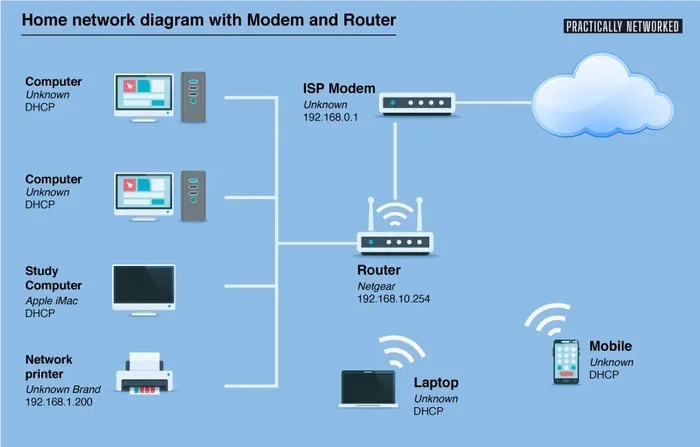
If your printer has an Ethernet port, you can use a wired network connection without WiFi. This method is very common in offices and businesses. An Ethernet cable connects your printer directly to your router or modem using a standard cable.
The steps are straightforward:
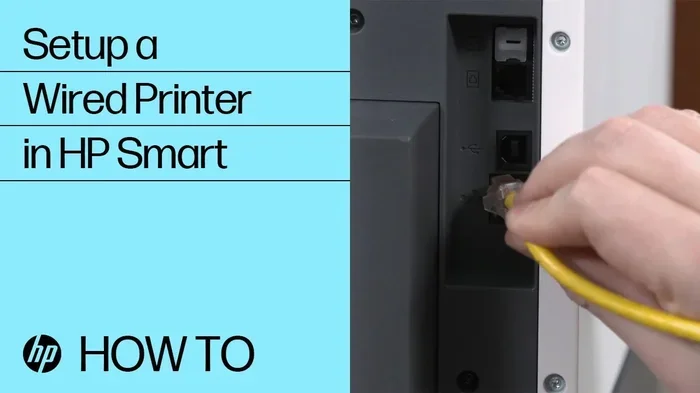
- Connect one end of the Ethernet cable to your printer.
- Connect the other end to an available port on your router.
- Wait for the printer to establish a connection.
- Install the printer driver on your computer.
- Add the printer through your device settings.
Ethernet gives you a stable, fast connection. It is not affected by WiFi interference or signal drops. This is one of the best methods for wired printer connection in a busy office environment.
Quick Tip: Use a Cat5e or Cat6 Ethernet cable for the best performance. These cables are inexpensive and widely available.
Method 4: WiFi Direct
WiFi Direct is a feature built into many modern printers. It lets your printer create its own small wireless network. Your device connects directly to the printer, and no router is needed.
Here is how to use WiFi Direct:
- Find the WiFi Direct option on your printer’s control panel or display screen.
- Turn it on and note the network name and password it displays.
- On your device, go to WiFi settings and find the printer’s network.
- Connect to it using the password shown on the printer screen.
- Once connected, you can print as normal.
WiFi Direct is a great middle ground between USB and Bluetooth. It offers wireless freedom without needing an actual WiFi network. Many HP, Canon, Epson, and Brother printers support this feature.
Quick Tip: WiFi Direct connections can sometimes be slower than USB. If speed matters, consider using a cable instead.
Method 5: Mobile Hotspot
You can turn your smartphone into a temporary router and connect your printer through it. This is called a mobile hotspot, and it works well when you need a quick printer setup without WiFi router.
Here is how to do it:
- Turn on the mobile hotspot feature on your phone.
- Set a network name and password.
- Connect your printer to the phone’s hotspot network (check your printer settings).
- On your computer or other device, connect to the same hotspot.
- Now all three devices are on the same network and can communicate.
This method is especially useful when you are traveling or working from a location without WiFi. Your phone essentially becomes the bridge between your device and your printer.
Quick Tip: Keep an eye on your phone’s data usage when using this method. Large print jobs with graphics can use more data than you might expect.
How to Connect a Printer Without WiFi on Different Devices
Different devices have different ways of connecting to a printer offline. Let us look at how to do it on the most common platforms.
Connecting on Windows PC
Windows makes it easy to connect printer without WiFi using a USB cable. Simply plug the cable in, and Windows will usually detect the printer automatically. If it does not, you can go to Settings > Devices > Printers & Scanners and click Add a Printer. Choose the option for a local or USB printer.
For Bluetooth connections, go to Settings > Devices > Bluetooth & Other Devices and turn on Bluetooth. Make sure your printer is in pairing mode, then select it from the list.
If you are using an Ethernet connection, Windows will typically detect the printer once it is plugged into the router. You may need to download the latest driver from the printer manufacturer’s website.
Connecting on Mac
Mac users can also connect printers without WiFi. For USB connections, plug the cable in and your Mac should recognize the printer. Go to System Settings > Printers & Scanners and click the plus button to add it.
Bluetooth pairing works similarly on Mac. Go to System Settings > Bluetooth, find your printer, and click Connect.
For Ethernet connections, Macs use the Bonjour protocol to detect printers on a wired network. This usually happens automatically once the cable is connected.
Connecting on Android Phones
Android phones offer several ways to print without WiFi. The most common method is through a USB OTG (On-The-Go) adapter. You plug the USB cable into the adapter, then connect it to your phone and the printer.
Many Android phones also support Bluetooth printing. Go to Settings > Connected Devices > Connection Preferences > Bluetooth and pair with your printer.
Some Android phones have built-in printing features through the Google Cloud Print service or the manufacturer’s own printing app. Check your phone’s settings for a Print option.
Connecting on iPhone and iPad
Apple devices support AirPrint, which works with many printers over WiFi. But what if you do not have WiFi? You can use a Lightning to USB adapter to connect your iPhone directly to a printer.
Bluetooth printing is also supported on iOS devices. Go to Settings > Bluetooth and pair your printer. Once connected, you can print from any app using the Share button.
Some third-party apps like Printer Pro or HP Smart allow you to connect printers through USB or Bluetooth on iOS devices. These apps give you more control and options than the built-in tools.
Setting Up a Printer Without a Router
You do not need a router to use a printer. A router is only needed when you want wireless printing through a home network. Without a router, you can still print using direct connections.
Here is a quick comparison of methods that work without a router:
- USB Cable: Direct connection between your device and the printer. Fast and reliable.
- Bluetooth: Wireless direct connection. Good for short-range printing.
- WiFi Direct: Printer creates its own network. No router needed.
- Ethernet to Device: Some printers support direct Ethernet connections to a single computer.
- Mobile Hotspot: Phone acts as a mini router for the printer and your device.
Each of these methods bypasses the need for a router entirely. You are connecting the printer directly to your device or creating a tiny local network between devices.
Expert Insight: According to networking professionals, direct connections like USB and Ethernet are more secure than wireless methods. If you are printing sensitive documents, a wired connection is the safest choice.
Common Problems When Connecting a Printer Without WiFi
Even with simple methods, things can go wrong sometimes. Here are the most common issues and how to fix them.
Printer Not Detected by Computer
If your computer does not recognize the printer, try these steps:
- Check that the USB cable is firmly plugged into both devices.
- Try a different USB port on your computer.
- Make sure the printer is turned on and in ready mode.
- Restart both the printer and your computer.
- Download the latest driver from the printer manufacturer’s website.
Bluetooth Pairing Fails
Bluetooth connections can sometimes fail to pair. Here is what to do:
- Make sure Bluetooth is turned on for both devices.
- Put the printer in pairing mode (usually held by pressing and holding a button).
- Move closer to the printer. Bluetooth range is limited.
- Remove old pairings and try connecting again.
- Restart both devices and attempt pairing again.
Print Jobs Stuck in Queue
If your print jobs are not going through, try clearing the print queue:
- Open the printer queue on your computer.
- Cancel all pending print jobs.
- Restart the printer and the computer.
- Try sending a new print job.
Common Mistake: Many people forget to install the printer driver before trying to print. Always install the driver first, then connect the printer. This one step solves most connection issues.
Expert Tips for Offline Printing Success
Here are some practical tips from experienced users and IT professionals to make your offline printing experience smooth and hassle-free.
Keep Your Drivers Updated
Printer drivers are the software that helps your device communicate with the printer. Outdated drivers can cause connection problems. Visit your printer manufacturer’s website regularly and download the latest drivers for your model.
Use Quality Cables
Cheap USB or Ethernet cables can cause connection drops and slow printing speeds. Invest in a good quality cable from a reputable brand. A $10 cable can make a huge difference compared to a $2 one.
Keep Your Printer Clean
Dust and debris can affect USB ports and Bluetooth signals. Keep your printer clean and make sure the ports are free of dust. A quick wipe-down every few weeks goes a long way.
Know Your Printer’s Capabilities
Not all printers support every connection method. Before you buy or try a method, check your printer’s specifications. Look at the back of the printer or check the product manual online. This saves you time and frustration.
Save Your Settings
Once you have a working connection, save your printer settings. On Windows, you can set a printer as the default so it always connects automatically. On Mac, you can save printer presets for different printing needs.
Key Takeaway: Offline printing is not just a backup plan. It is a practical solution for many everyday situations. Whether you are at home, in the office, or on the go, knowing how to connect printer without WiFi gives you confidence that you can always get your documents printed.
Conclusion
Connecting printer without WiFi is simple, practical, and often the better choice for many situations. You have USB cables, Bluetooth, Ethernet, WiFi Direct, and mobile hotspots at your disposal. Each method works on different devices and for different needs.
The USB cable method remains the most reliable and fastest option for most users. Bluetooth is great for quick, short-range jobs. Ethernet provides stability for larger print tasks. WiFi Direct gives you wireless freedom without a router. And mobile hotspots save the day when you are away from home.
No matter what device you use — Windows PC, Mac, Android phone, or iPhone — there is a way to connect a printer without WiFi that will work for you. The key is knowing your options and picking the right method for your situation.
Now that you know all the methods, try one out today. You will be surprised at how easy it is to print without ever touching a WiFi network. Keep this guide handy for the next time your internet goes down or you need to print somewhere without a wireless connection.
Frequently Asked Questions
Can I connect a printer to my phone without WiFi?
Yes, you can. The most common methods are USB OTG adapters for Android phones and Lightning to USB adapters for iPhones. Bluetooth printing is also supported on most phones. You do not need WiFi to print from your mobile device.
Do I need internet to print with a USB cable?
No, you do not need internet at all. A USB cable creates a direct connection between your computer and the printer. The printer driver handles all the communication. As long as both devices are powered on, you can print offline.
Can WiFi Direct work without an actual WiFi network?
Yes, WiFi Direct works independently of your home WiFi network. It creates a direct wireless connection between your device and the printer. No router or internet connection is required. The printer acts as its own small network.
Is Bluetooth printing as fast as USB printing?
No, Bluetooth is generally slower than USB. USB connections offer faster data transfer speeds, which means quicker printing. Bluetooth works well for small documents and quick print jobs but is not ideal for large files with lots of graphics.
Can I use a printer without WiFi if I only have a tablet?
Yes, you can. Many tablets support USB OTG connections and Bluetooth printing. You can also use WiFi Direct if your tablet and printer both support it. Some tablets work with specific printing apps that enable offline printing through various connection methods.
Why does my printer not show up when I try to connect without WiFi?
This usually happens because the printer driver is not installed or is outdated. Try installing the latest driver from the manufacturer’s website. Also make sure the cable is properly connected, the printer is turned on, and Bluetooth is enabled if you are using a wireless method.