Do Smart Tvs Have Bluetooth For Headphones Explained
Do smart TVs have Bluetooth for headphones? Many modern smart TVs come with built-in Bluetooth, but not all of them. You can connect wireless headphones to your TV using Bluetooth, a Bluetooth adapter, or alternative audio outputs. This guide covers everything you need to know about smart TV Bluetooth connectivity for private listening.
Do you love watching your favorite shows late at night but worry about waking up the family? Or maybe you just want a more immersive experience without disturbing anyone in the room. The question on many people’s minds is simple: do smart TVs have Bluetooth for headphones?
The answer is not as straightforward as you might think. Some smart TVs come with built-in Bluetooth right out of the box. Others don’t. And then there are workarounds that make almost any TV capable of wireless audio. In this guide, we’ll break it all down for you.
You’ll learn how to check if your TV supports Bluetooth connectivity, how to pair your wireless headphones, and what to do if your TV doesn’t have Bluetooth. We’ll also cover common problems like audio latency and Bluetooth range. By the end, you’ll know exactly how to set up private listening with your smart TV.
## How Do Smart TVs Handle Bluetooth?
Not all smart TVs are created equal when it comes to Bluetooth connectivity. The way your TV handles wireless audio depends on the brand, model, and price point. Let’s explore how different smart TVs approach Bluetooth for headphones.
### Built-In Bluetooth vs. No Bluetooth
Most mid-range and premium smart TVs from 2020 and newer include built-in Bluetooth. Brands like Samsung, LG, Sony, and TCL often feature this in their mid-tier and above models. But budget TVs and older models frequently skip this feature entirely.
Here’s how to tell if your TV has Bluetooth:
- Check the settings menu for a “Bluetooth” or “Connections” option.
- Look for a Bluetooth logo on the box or manual.
- Search your TV model number online for specs.
- Go to your TV’s support page and check the connectivity features.
If your TV doesn’t list Bluetooth in its settings, don’t worry. There are still plenty of ways to get wireless audio working.
### How Bluetooth Audio Works on Smart TVs
When your smart TV supports Bluetooth, it acts as a Bluetooth transmitter. It sends audio signals to your wireless headphones using radio waves. The Bluetooth version matters here. Newer versions like Bluetooth 5.0 offer better range and less audio latency.
Most TVs use Bluetooth stereo for audio. This means you can connect one or two pairs of headphones at a time, depending on your TV’s capabilities. Some models even let you adjust the audio output settings to balance TV speakers and headphone volume.
## How to Connect Wireless Headphones to Your Smart TV
Connecting wireless headphones to a smart TV is usually pretty simple. But the exact steps depend on your TV brand and whether it has built-in Bluetooth. Let’s walk through the process.
### Step-by-Step Pairing Guide
Follow these steps to pair Bluetooth headphones with your smart TV:
- Turn on Bluetooth on your TV. Go to Settings, then Connections or Sound, and select Bluetooth.
- Put your headphones in pairing mode. Usually, you hold down the power button or a dedicated Bluetooth button until a light flashes.
- Search for devices on your TV. Your TV will scan for nearby Bluetooth devices.
- Select your headphones from the list of available devices.
- Wait for the connection to establish. You should hear a confirmation sound or see a message on screen.
That’s it! You’re now listening to your TV through wireless headphones.
### Tips for a Smooth Connection
Bluetooth pairing doesn’t always go perfectly the first time. Here are some tips to make it easier:
- Keep your headphones within Bluetooth range (about 30 feet) during pairing.
- Make sure your headphones aren’t already connected to another device.
- Restart both your TV and headphones if the connection fails.
- Update your TV’s firmware for the best Bluetooth compatibility.
If you’re using a Roku TV, the process is slightly different. You can learn more about using Bluetooth headphones with Roku in our dedicated guide on Can I Use Bluetooth Headphones With Roku.
## What If Your Smart TV Doesn’t Have Bluetooth?
Not every smart TV has Bluetooth built in. But that doesn’t mean you’re stuck with wired headphones forever. There are several easy solutions to add wireless audio to any TV.
### Option 1: Use a Bluetooth Transmitter
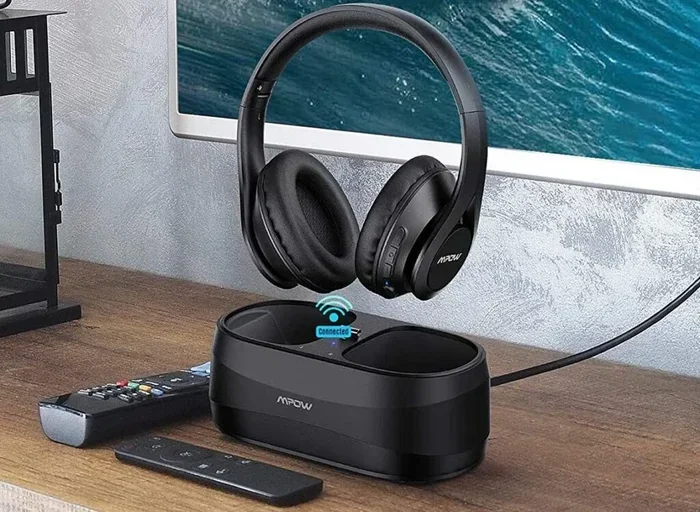
A Bluetooth transmitter is a small device that plugs into your TV’s audio output. It sends audio wirelessly to your headphones. These transmitors are affordable and work with almost any TV.
Here’s what to look for in a Bluetooth adapter:
- Low audio latency for synced video and sound.
- Support for Bluetooth 5.0 or higher.
- Compatibility with your headphone type (over-ear, in-ear, etc.).
- Easy plug-and-play setup.
You can plug a Bluetooth transmitter into a 3.5mm headphone jack, RCA output, or optical port. This makes it one of the most flexible solutions for adding wireless listening to your setup.
### Option 2: Use an HDMI Audio Extractor
An HDMI audio extractor splits the audio from your HDMI cable and sends it to a Bluetooth transmitter. This works great if your TV doesn’t have a headphone jack or optical output.
The setup looks like this:
- Connect your streaming device to the HDMI extractor.
- Run the HDMI cable from the extractor to your TV.
- Connect the audio output from the extractor to a Bluetooth transmitter.
- Pair your headphones with the transmitter.
This method gives you wireless audio without needing Bluetooth on the TV itself.
### Option 3: Check If Your TV Can Be Updated
Some older smart TVs don’t have Bluetooth but can gain the feature through a software update. Check your TV manufacturer’s website or support page. If an update is available, install it and check if Bluetooth options appear in your settings.
## Common Problems and How to Fix Them
Even when everything is set up correctly, you might run into issues with Bluetooth headphones and your smart TV. Here are the most common problems and how to solve them.
### Audio Latency (Lip Sync Issues)
Audio latency happens when the sound doesn’t match the video. You see lips move, but the words come a split second later. This is one of the most annoying Bluetooth audio issues.
To fix audio latency:
- Use a Bluetooth transmitter with low-latency codecs like aptX or aptX LL.
- Check your TV’s audio settings for any delay adjustments.
- Move closer to the TV to strengthen the Bluetooth signal.
- Avoid Wi-Fi interference by keeping your router away from the TV setup.
### Connection Drops
If your wireless headphones keep disconnecting, try these fixes:
- Stay within Bluetooth range of your TV.
- Remove obstacles between your TV and headphones.
- Update your TV’s firmware and your headphones’ firmware.
- Unpair and re-pair the devices.
### Only One Headphone Connects
Some TVs only support connecting to one Bluetooth audio device at a time. If you want two pairs of headphones, look for a TV that supports dual Bluetooth audio or use a transmitter that allows multiple connections.
## Can You Use Any Bluetooth Headphones with a Smart TV?
Most Bluetooth headphones work with smart TVs. But there are a few things to keep in mind.
### Compatibility Matters
Bluetooth headphones use standard Bluetooth profiles like A2DP (for audio streaming) and HFP (for hands-free calls). Almost all modern headphones support these profiles. So compatibility is rarely an issue.
However, some smart TV Bluetooth implementations have limitations. For example, certain TVs only work with specific headphone brands or models. Always check your TV’s manual or support page for a list of compatible devices.
### Hearing Aid Compatibility
If you use hearing aids with Bluetooth, you’ll be glad to know many smart TVs support direct streaming to hearing devices. Check your TV’s accessibility settings for options like Bluetooth hearing aid mode.
### Best Headphones for Smart TV Use
When choosing wireless headphones for TV watching, consider these features:
- Low latency for synced audio and video.
- Long battery life for extended viewing sessions.
- Comfortable fit for long periods of use.
- Good range so you can move around the room.
- Volume limiters for safe listening.
Some popular options include over-ear wireless headphones with Bluetooth 5.0 and in-ear true wireless earbuds. For a more budget-friendly option, a simple Bluetooth transmitter paired with any wired headphones works great too.
## Expert Insights on Smart TV Bluetooth
Bluetooth technology has improved a lot in recent years. The latest Bluetooth 5.0 and 5.2 standards offer better range, faster data transfer, and lower audio latency. This makes wireless headphones a much better option for TV watching than just a few years ago.
Experts recommend looking for TVs with at least Bluetooth 5.0 for the best experience. If you’re buying a new smart TV and Bluetooth audio matters to you, always check the specifications before purchasing.
Also, keep in mind that Bluetooth range typically tops out at about 30 feet in open space. Walls and furniture can reduce this. If you like to wander around while watching TV, make sure your setup can handle the distance.
## Key Takeaways
Key Takeaways
- Built-in Bluetooth: Many newer smart TVs include Bluetooth, but older or budget models may not.
- Bluetooth Adapters: A USB or audio Bluetooth adapter can add wireless capability to any TV.
- Pairing Process: Connecting wireless headphones to a smart TV is simple and takes just a few minutes.
- Audio Latency: Some setups may experience a slight delay between video and audio.
- Multiple Options: You can also use wireless headphones via RCA, optical, or HDMI audio extractors.
- Brand Differences: Samsung, LG, Sony, and Roku TVs handle Bluetooth differently.
Key Takeaways
- Many smart TVs have Bluetooth: Most mid-range and premium models from 2020 onward include built-in Bluetooth for headphones.
- Check your TV settings: Look for a Bluetooth option in your TV’s sound or connections menu to confirm support.
- Bluetooth adapters work for any TV: A USB or audio Bluetooth transmitter can add wireless capability to older or budget TVs.
- Pairing is simple: Turn on Bluetooth, put headphones in pairing mode, and select them from your TV’s device list.
- Watch for audio latency: Use low-latency Bluetooth codecs and keep devices close to minimize sync issues.
- Most headphones work: Nearly all wireless headphones with standard Bluetooth profiles are compatible with smart TVs.
- Multiple solutions exist: HDMI audio extractors, RCA adapters, and dedicated transmitors all enable wireless listening on TVs without Bluetooth.
## Frequently Asked Questions
Can I Use Any Bluetooth Headphones with My Smart TV?
Most Bluetooth headphones work with smart TVs that support Bluetooth audio streaming. Look for headphones that use the A2DP profile, which is the standard for audio streaming. If your TV has built-in Bluetooth, you should be able to pair almost any wireless headphones without issues.
Why Is There a Delay Between the Video and Audio When Using Bluetooth Headphones?
This delay, called audio latency, happens because Bluetooth takes a moment to transmit audio data. Newer Bluetooth versions like 5.0 and above reduce this significantly. Using a low-latency Bluetooth transmitter with aptX or aptX LL codecs can also help eliminate the sync problem.
Can I Connect Two Pairs of Bluetooth Headphones to One Smart TV?
Some smart TVs support dual Bluetooth audio, which lets you connect two pairs of headphones at once. If your TV doesn’t support this, you can use a Bluetooth transmitter that allows multiple connections. Check your TV’s manual or settings to see if this feature is available.
How Do I Know If My TV Has Bluetooth?
Go to your TV’s settings menu and look for a “Bluetooth” or “Connections” section. You can also search your TV model number online for its specifications. If your TV was made before 2018 and is a budget model, it may not have Bluetooth. In that case, a Bluetooth adapter is your best option.
Can I Make My Old TV Bluetooth Compatible?
Absolutely! You can add Bluetooth capability to any TV using a Bluetooth transmitter. These small devices plug into your TV’s audio output and send audio wirelessly to your headphones. They’re affordable and work with almost any television, even older models without any smart features.
Is Bluetooth Audio Quality Good Enough for TV Watching?
Yes, modern Bluetooth audio quality is more than sufficient for TV watching. With Bluetooth 5.0 and codecs like aptX, you get clear, rich sound with minimal loss. For the best experience, choose wireless headphones with good drivers and noise cancellation. Most people won’t notice a difference between Bluetooth audio and wired connections for casual viewing.
## Conclusion
So, do smart TVs have Bluetooth for headphones? The short answer is: many do, but not all. If you have a newer mid-range or premium smart TV, there’s a good chance Bluetooth is already built in. You can simply go to your settings, pair your wireless headphones, and enjoy private listening in minutes.
If your TV doesn’t support Bluetooth, don’t fret. A Bluetooth transmitter or HDMI audio extractor can bring wireless audio to any setup. These solutions are affordable, easy to set up, and work with virtually any TV.
The key takeaway is that wireless listening with a smart TV is more accessible than ever. Whether you’re watching late-night shows, movies, or gaming, Bluetooth headphones give you the freedom to enjoy audio without disturbing anyone. Take a few minutes to check your TV’s capabilities, pick the right solution, and start enjoying private, wireless TV audio today.
Frequently Asked Questions
What is Do Smart Tvs Have Bluetooth For Headphones?
Do Smart Tvs Have Bluetooth For Headphones is an important topic with many practical applications.