Do Any Projectors Support Airplay And How To Connect
Do any projectors support AirPlay? Yes, many modern projectors now come with built-in AirPlay support, making it easy to wirelessly mirror your screen from Apple devices. You can also use an Apple TV or a compatible HDMI adapter to add AirPlay functionality to older projectors. This guide covers everything you need to know about AirPlay projector setup, compatibility, and troubleshooting.
Have you ever wanted to show something on a big screen straight from your iPhone or iPad? Maybe you are planning a movie night with friends or need to present slides at work. The question do any projectors support AirPlay comes up a lot, and the answer might surprise you. Many projectors today do support AirPlay, and setting it up is easier than you might think.
In this guide, we will walk you through everything you need to know. We will cover which projectors support AirPlay natively, how to connect your Apple devices, and what to do if your projector does not have built-in AirPlay. Whether you are a tech beginner or a seasoned user, you will find practical tips that actually work.
Key Takeaways
- Built-in AirPlay projectors exist: Several brands like Epson, BenQ, and LG offer projectors with native AirPlay support for seamless wireless streaming.
- Older projectors can still use AirPlay: You can add AirPlay to any projector using an Apple TV box or a compatible HDMI adapter.
- Setup is simple: Connecting your Apple device to a projector takes just a few taps when both devices are on the same WiFi network.
- Watch out for latency: Wireless projection can have slight delays, so consider a wired connection for fast-paced content like gaming or presentations.
- Resolution matters: Make sure your projector supports at least 1080p for the best AirPlay streaming experience.
- Not all projectors are equal: Check for AirPlay compatibility before buying to avoid frustration and extra accessories.
📑 Table of Contents
- What Is AirPlay and Why Does It Matter for Projectors?
- Do Any Projectors Support AirPlay Natively?
- How To Connect AirPlay to a Projector
- Common AirPlay Connection Problems and How To Fix Them
- AirPlay vs Other Wireless Projection Options
- Can You Use AirPlay with Any Projector?
- Best Practices for a Great AirPlay Projector Experience
- Final Thoughts
What Is AirPlay and Why Does It Matter for Projectors?
AirPlay is Apple’s wireless streaming technology. It lets you send audio, video, and screens from your iPhone, iPad, or Mac to another device. You have probably used AirPlay to stream music to an Apple TV or AirPods. But did you know you can also use it to project content onto a big screen?
The beauty of wireless projection is convenience. You do not need cables, adapters, or extra software. As long as your devices are on the same WiFi network, you can mirror your screen instantly. This makes presentations, movie nights, and sharing photos much more flexible and fun.
How AirPlay Works with Projectors
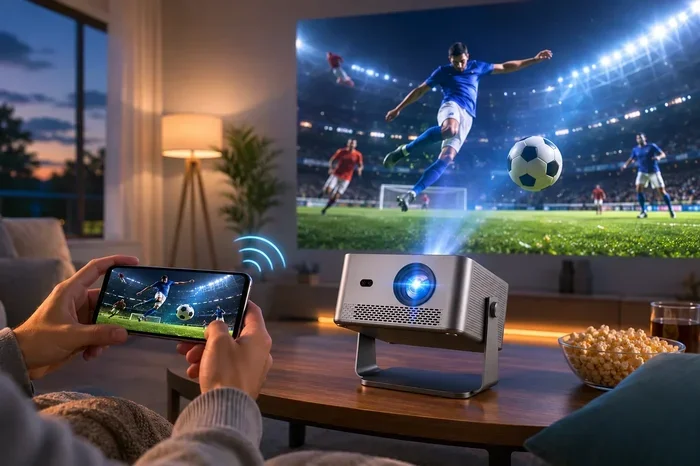
When you use AirPlay with a projector, your Apple device sends a video signal over WiFi. The projector receives that signal and displays it on the screen. Some projectors handle this directly, while others need a helper device like an Apple TV. The process is called screen mirroring, and it works with most apps you already use.
One thing to keep in mind is that wireless display technology can sometimes have a slight delay. For most uses like watching movies or showing photos, this delay is barely noticeable. But if you are gaming or doing live presentations, you might want to use a wired connection instead.
Do Any Projectors Support AirPlay Natively?
The short answer is yes. Several projector brands now offer models with built-in AirPlay support. These projectors come with smart features already installed, so you do not need any extra hardware. They act almost like a smart TV but on a much bigger scale.
If you are wondering which projectors support AirPlay, here are some popular options:
- Epson Home Cinema series: Many Epson models include built-in wireless streaming and AirPlay compatibility. These are great for home theater setups.
- BenQ TK and HT series: BenQ offers several projectors with smart features and AirPlay support. They are popular for both home and office use.
- LG HU series: LG projectors often come with webOS built in, which supports AirPlay natively.
- Anker Nebula series: These portable projectors run Android TV and support AirPlay, making them very versatile.
- XGIMI Halo series: XGIMI projectors include smart operating systems that support wireless screen mirroring from Apple devices.
When shopping for a projector, always check the product specs for AirPlay compatibility. The term might be listed as “AirPlay supported,” “screen mirroring,” or “wireless display.” If you are also considering using your projector near a window, check out our guide on can I use any projector for a window setup for helpful tips.
What to Look For When Buying an AirPlay Projector
Not every projector that claims “smart” features supports AirPlay. Here are some key things to check before you buy:
- Operating system: Look for projectors running tvOS, Android TV, or a similar smart platform. These are more likely to support AirPlay.
- WiFi connectivity: Your projector needs a strong WiFi connection for smooth AirPlay streaming. Dual-band WiFi is ideal.
- Resolution: At least 1080p is recommended for crisp AirPlay content. 4K projectors offer the best experience.
- Built-in apps: Some AirPlay projectors also come with streaming apps like Netflix and YouTube, which adds more value.
How To Connect AirPlay to a Projector
Connecting your Apple device to a projector via AirPlay is a straightforward process. Whether your projector has built-in AirPlay or you are using an Apple TV, the steps are similar. Here is a detailed walkthrough.
Step-by-Step Connection Guide
Follow these steps to get your AirPlay projector connection up and running:
- Make sure both devices are on the same WiFi network. This is the most important step. If your iPhone and projector are on different networks, AirPlay will not work.
- Turn on your projector and switch to the AirPlay input. Many smart projectors have a dedicated AirPlay or screen mirroring mode in their menu.
- On your iPhone or iPad, open Control Center. Swipe down from the top-right corner of your screen (or swipe up from the bottom on older models).
- Tap the Screen Mirroring icon. It looks like two overlapping rectangles. Your device will search for available AirPlay receivers.
- Select your projector from the list. If prompted, enter the AirPlay code displayed on the projector screen.
- Your screen is now mirrored. Everything you do on your iPhone or iPad will appear on the projector.
Using Apple TV as a Bridge
If your projector does not have built-in AirPlay, you can still use it. Connect an Apple TV box to your projector using an HDMI cable. Apple TV acts as an AirPlay receiver and handles the wireless connection. This setup works with almost any projector that has an HDMI port.
This is a great option if you already own an Apple TV or are willing to invest in one. It also future-proofs your projector, since you can update Apple TV software over time. If you are repurposing older tech, you might also want to check out our article on what you can do with an old laptop for creative ideas.
Connecting a Mac to a Projector via AirPlay
AirPlay is not just for iPhones and iPads. You can also mirror your Mac screen to a compatible projector. Here is how:
- Make sure your Mac and the projector (or Apple TV) are on the same WiFi network.
- Click the AirPlay icon in the menu bar at the top of your Mac screen.
- Select your projector from the dropdown list.
- Choose whether to mirror your screen or use it as a separate display.
Using AirPlay with a Mac is especially useful for presentations. You can move freely around the room while controlling your slides or content from your laptop.
Common AirPlay Connection Problems and How To Fix Them
Even with the best setup, you might run into issues now and then. AirPlay projector problems are common, but most have simple fixes. Here are the most frequent issues and how to solve them.
AirPlay Not Showing Up on Projector
If your projector does not appear in the AirPlay menu, try these steps:
- Check that both devices are on the same WiFi network. This is the number one cause of AirPlay issues.
- Restart your projector and your Apple device.
- Make sure AirPlay is enabled in your projector settings.
- Check if your router has a guest network setting that might be blocking device discovery.
Lag or Delay During Screen Mirroring
A slight delay is normal with wireless projection. But if the lag is distracting, try these fixes:
- Move closer to your WiFi router for a stronger signal.
- Reduce the resolution of your mirrored content if possible.
- Close other apps on your Apple device that might be using bandwidth.
- Consider using a 5GHz WiFi band instead of 2.4GHz for faster speeds.
Audio and Video Are Out of Sync
Sometimes the audio and video do not match up perfectly. This usually happens because of network latency. Try switching to a wired HDMI connection if the delay bothers you. For most casual uses like watching movies, the sync issue is minor and not very noticeable.
Black Screen or Flickering
A black screen or flickering can be frustrating. Here is what to do:
- Check your HDMI cable if you are using one. A damaged cable can cause display issues.
- Make sure your projector firmware is up to date.
- Restart both your Apple device and the projector.
- Try disconnecting and reconnecting the AirPlay session.
AirPlay vs Other Wireless Projection Options
AirPlay is not the only way to project wirelessly. There are several alternatives, and each has its strengths. Here is a quick comparison to help you decide which option works best for you.
| Feature | AirPlay | Chromecast | Miracast | HDMI Cable |
|---|---|---|---|---|
| Works with Apple Devices | Yes | No | No | Yes |
| Works with Android Devices | No | Yes | Yes | Yes |
| Wireless | Yes | Yes | Yes | No |
| Setup Difficulty | Easy | Easy | Medium | Very Easy |
| Latency | Low to Medium | Low | Medium | None |
| Extra Hardware Needed | Sometimes | Yes (Chromecast) | Sometimes | No |
AirPlay is the best choice if you are fully in the Apple ecosystem. If your team uses a mix of devices, you might want to look into projectors that support multiple wireless protocols. For the simplest, most reliable connection, a good old HDMI cable still wins in many situations.
Can You Use AirPlay with Any Projector?
Here is an important distinction. Not every projector supports AirPlay out of the box. Older projectors and basic models usually do not have smart features. But that does not mean you are out of luck. You can add AirPlay capability to almost any projector with the right accessory.
The most popular way to add AirPlay to a non-smart projector is by using an Apple TV or a compatible streaming stick. You simply plug the device into your projector’s HDMI port, connect it to WiFi, and you are good to go. This turns any projector into an AirPlay-compatible display.
Another option is using an HDMI adapter that supports wireless streaming. Some adapters connect to your Apple device via Lightning or USB-C and send a wireless signal to the projector. These adapters are affordable and work well for basic screen mirroring.
If you are looking for a projector that works well in different environments, you might also want to read our article on do I need an iPad if I have an iPhone to understand which Apple devices pair best with projectors for AirPlay streaming.
Best Practices for a Great AirPlay Projector Experience
To get the most out of your AirPlay projector setup, follow these practical tips:
- Use a strong WiFi network: A quality router with good range makes a huge difference. Consider a mesh WiFi system if your projector is far from the router.
- Keep devices updated: Make sure your projector firmware, iOS, and any streaming devices are all running the latest software.
- Close unused apps: Background apps on your Apple device can slow down screen mirroring and use up bandwidth.
- Use a dedicated WiFi network: If possible, set up a separate WiFi network for your projector to avoid interference from other devices.
- Control brightness and ambient light: For the best viewing experience, dim the room lights and adjust your projector brightness settings.
- Test before your event: Always do a test run before a presentation or movie night to make sure everything connects smoothly.
These small steps can save you a lot of headaches. A little preparation goes a long way toward a smooth and enjoyable wireless projection experience.
Final Thoughts
The short answer to do any projectors support AirPlay is a clear yes. Many modern projectors come with built-in AirPlay, and you can always add it to older models with an Apple TV or adapter. The wireless projection experience has improved dramatically in recent years, making it easier than ever to share content on a big screen.
Whether you are setting up a home theater, giving a business presentation, or hosting a movie night, AirPlay offers a convenient and cable-free way to project your content. Just remember to check compatibility before you buy, keep your devices on the same WiFi network, and troubleshoot any issues with the tips we shared above.
AirPlay projectors are a great investment if you value simplicity and wireless convenience. With the right setup, you can enjoy a big-screen experience without the hassle of cables and adapters. So go ahead, connect your devices, and enjoy the show.
Frequently Asked Questions
Can I use AirPlay with any projector?
No, not every projector supports AirPlay natively. However, you can add AirPlay to almost any projector by using an Apple TV or a compatible HDMI adapter. Just make sure your projector has an HDMI input to use these accessories.
Do I need an Apple TV to use AirPlay with a projector?
Only if your projector does not have built-in AirPlay support. Many modern smart projectors include AirPlay directly. If yours does not, an Apple TV box connected via HDMI is the easiest way to add wireless streaming capability.
Is there a delay when using AirPlay with a projector?
Yes, there is usually a slight delay with wireless projection. For most uses like watching movies or showing photos, the delay is barely noticeable. For gaming or live presentations, a wired HDMI connection will give you better sync and no lag.
What is the best WiFi setup for AirPlay projection?
A strong, stable WiFi connection is essential. Use a dual-band router and connect both your Apple device and projector to the 5GHz band for the fastest speeds. If your projector is far from the router, consider a mesh WiFi system for better coverage.
Can I use AirPlay to project from a Mac?
Yes, you can mirror your Mac screen to an AirPlay-compatible projector. Simply click the AirPlay icon in your Mac menu bar, select your projector, and choose whether to mirror or extend your display.
Why does my AirPlay connection keep disconnecting?
Frequent disconnections are usually caused by WiFi interference or an unstable network connection. Try moving closer to your router, switching to the 5GHz band, or restarting both your projector and Apple device. Also check that no other devices are heavily using your network.
=== CONCLUSION ===
Do any projectors support AirPlay? Absolutely. Many projectors today come with built-in AirPlay, and you can add it to almost any model with the right accessories. The key is to check compatibility before you buy and follow the simple setup steps we covered in this guide.
Wireless projection with AirPlay offers a level of convenience that cables simply cannot match. Whether you are at home, in the office, or on the go, the ability to mirror your Apple device to a big screen opens up a world of possibilities. Start with the tips in this article, experiment with your setup, and enjoy the seamless experience that AirPlay projector technology has to offer.