Do Airpods Work With Ps5 Heres Everything You Need To Know
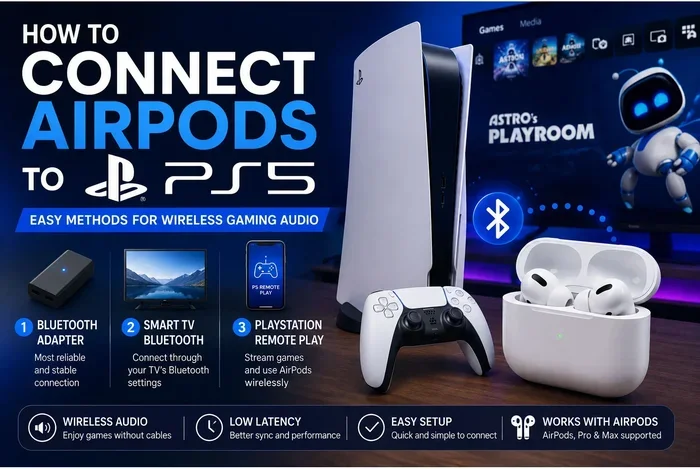
Do AirPods work with PS5? The short answer is yes, but not directly through the consoles native Bluetooth. You can connect your AirPods to a PlayStation 5 using a USB Bluetooth adapter, through your TV, or with a 3.5mm aux cable. This guide covers every method, limitation, and workaround to help you get the best wireless audio from your AirPods on the PS5.
Do Airpods Work With Ps5? This is one of the most common questions among gamers who want to enjoy their favorite titles with wireless audio. The good news is that you can connect your AirPods to a PlayStation 5, but the process is not as straightforward as you might hope. Sony’s console does not support native Bluetooth audio streaming, which means you cannot simply pair your AirPods directly from the PS5 settings menu. However, there are several reliable workarounds that let you use your favorite wireless earbuds while you game.
Whether you are using the standard AirPods, the AirPods Pro, or the premium AirPods Max, this guide covers everything you need to know. We will also discuss audio latency, in-game chat, and how your experience compares to using a dedicated gaming headset. By the end, you will have a clear picture of what to expect and how to get the best sound quality from your wireless earbuds on the PS5.
Gaming audio matters a lot. The right sound can give you a competitive edge, make immersive worlds feel more real, and turn a good game into a great one. Many players prefer the freedom of wireless earbuds over bulky over-ear headsets. If you own a pair of AirPods and a PlayStation 5, you might be wondering if you can use them together. The answer is yes, but with some important caveats. Sony designed the PS5 with a specific approach to audio output, and it does not include built-in support for Bluetooth audio devices like AirPods. This means you need to use alternative methods to get your AirPods working with the console. Let us dive into the details and explore every option available to you.
Key Takeaways
- AirPods can connect to PS5 but not through native Bluetooth audio streaming on the console
- You need a workaround such as a USB Bluetooth adapter, TV Bluetooth connection, or 3.5mm aux cable
- Audio latency can be an issue when using wireless earbuds for gaming on PS5
- The 3.5mm aux cable method works reliably and provides the lowest latency for competitive gaming
- AirPods Pro and AirPods Max offer better features like noise cancellation and superior audio quality on PS5
- In-game chat microphone support requires a separate solution since PS5 does not route chat audio to Bluetooth earbuds
📑 Table of Contents
Can You Connect AirPods to PS5?
The short answer is yes, you can connect AirPods to a PS5, but not directly through the console’s built-in Bluetooth. PlayStation 5 supports Bluetooth for its DualSense controller and accessories like the Pulse 3D wireless headset, but it does not allow general Bluetooth audio devices to connect for streaming game audio or chat. This is a deliberate design choice by Sony, and it can be frustrating for players who want the convenience of wireless earbuds.
So if you cannot pair them directly, how do you get your AirPods working with the PS5? There are three main methods that players use. Each has its own advantages and trade-offs. Let us look at each one in detail.
Why Native Bluetooth Audio Does Not Work on PS5
Sony restricted Bluetooth audio on the PS5 to maintain a consistent and reliable wireless experience. The console uses Bluetooth specifically for the DualSense controller and officially licensed wireless headsets like the Pulse 3D. By limiting Bluetooth connectivity to these devices, Sony ensures that the wireless experience remains stable and does not interfere with other signals.
This also means that your AirPods cannot simply be discovered and paired through the PS5 settings. You will need a workaround to bridge the gap between your wireless earbuds and the console. The good news is that these workarounds are effective and do not require expensive equipment. If you want to learn more about connecting Bluetooth headphones to consoles, check out Can I Use Any Bluetooth Headphones With Ps5 for additional tips and methods that work across different gaming setups.
Methods to Use AirPods With PS5
There are three practical ways to get your AirPods connected to your PlayStation 5. Each method works differently and suits different setups. Let us break them down so you can choose the one that fits your situation best.
Method 1: Using a USB Bluetooth Adapter
A USB Bluetooth adapter is one of the most popular ways to connect AirPods to a PS5. This small device plugs into one of the console’s USB ports and adds Bluetooth capability that the PS5 does not natively support for audio devices.
Here is how it works. You plug the adapter into a USB port on your PS5. Then you put your AirPods into pairing mode. The adapter detects the AirPods and creates a Bluetooth connection. This method gives you wireless freedom without needing extra cables running across your room.
However, there is a catch. Not all USB Bluetooth adapters work well with the PS5. You need an adapter that supports low-latency audio codecs. Cheap adapters can introduce audio delay and make your gaming experience frustrating. Look for adapters that support aptX or aptX Low Latency for the best results in wireless gaming. Also, keep in mind that this method may not support in-game chat through your AirPods microphone. You might need a separate microphone or chat setup for online multiplayer games.
Method 2: Connecting Through Your TV
Another popular method is to connect your AirPods to your TV instead of the PS5 directly. Most modern smart TVs support Bluetooth audio output, and this can be a convenient workaround for players who want a simple setup.
Here is the process. First, connect your PS5 to your TV using an HDMI cable as you normally would. Then, go to your TV’s settings and look for Bluetooth audio output options. Put your AirPods in pairing mode and connect them to your TV. The TV will then receive audio from the PS5 and stream it wirelessly to your earbuds.
This method works well for single-player games and movies. The audio sync is usually good because your TV handles the Bluetooth connection. However, there can be a slight delay depending on your TV model. Some TVs have better Bluetooth implementations than others, so your mileage may vary. One downside is that this method might not work for party chat in games like Fortnite or Call of Duty. The chat audio usually routes through the PS5 controller, and your TV may not capture that signal. If you want to explore how AirPods work with other devices beyond gaming, you can read about Can I Use Airpods With Cardo to understand cross-device compatibility better.
Method 3: Using the 3.5mm Aux Cable
The simplest and most reliable method is the old-school approach. You use a 3.5mm aux cable to connect your audio output directly to your AirPods case, which acts as a Bluetooth transmitter. This method avoids the latency issues that some USB adapters introduce.
To use this method, you need a 3.5mm cable that connects from your TV or controller audio output to your AirPods case. You plug one end into the audio source and the other into the AirPods case. Then your AirPods receive the audio signal wirelessly. This method gives you very low latency and reliable wireless audio for gaming. The trade-off is that you have a cable running from your setup to your AirPods case. It is not as clean as a fully wireless setup, but it works exceptionally well for gaming audio without any noticeable delay. The 3.5mm jack approach is also the most consistent across different TV and console models.
Audio Latency and Gaming Performance
Audio latency is one of the biggest concerns when using wireless earbuds for gaming on the PS5. Latency is the delay between when something happens in the game and when you hear the sound through your AirPods. Even a small delay can affect your gameplay, especially in fast-paced competitive titles like shooters and fighting games.
When you use a USB Bluetooth adapter, the latency depends on the adapter quality and the Bluetooth codec it supports. Basic adapters using the SBC codec can have delays of 150 to 200 milliseconds. That is noticeable and can throw off your timing in competitive matches. Better adapters that support aptX Low Latency can reduce this delay to around 40 to 60 milliseconds. For most casual gamers, this is perfectly fine. Competitive players might still notice a slight lag, but it is much better than the standard Bluetooth connection.
When you connect through your TV, the latency depends entirely on your television’s Bluetooth implementation. Some high-end TVs have excellent Bluetooth with minimal delay. Budget TVs might introduce more latency. If you are serious about competitive gaming, the 3.5mm aux cable method is your best bet for wireless gaming with virtually no audio delay. For general gaming, watching movies, and casual play, any of the three methods will work fine. The key is to test your setup and see if the audio delay bothers you. If it does, try a different method or invest in a better Bluetooth adapter.
Here is a quick comparison of the three methods and their expected latency:
- USB Bluetooth Adapter (aptX Low Latency): 40 to 60 milliseconds of delay. Great for most gaming scenarios and provides a clean wireless setup.
- TV Bluetooth Connection: 60 to 150 milliseconds depending on your TV model. Good for casual gaming and media consumption.
- 3.5mm Aux Cable to AirPods Case: Less than 20 milliseconds of delay. The best option for competitive and fast-paced gaming.
AirPods Models and PS5 Compatibility
Not all AirPods are the same, and their compatibility with the PS5 can vary slightly depending on the model. Let us look at how each AirPods model works with the PlayStation 5 and what you can expect from each option.
Standard AirPods
The standard AirPods (first generation, second generation, and the third generation) work with the PS5 using all three methods described above. They support Bluetooth 5.0 or later, which provides a solid connection range and stable audio quality. These wireless earbuds do not have a microphone on the earpieces for phone calls, but they do have a microphone on the stem for voice assistants and Siri.
For PS5 gaming, you can use the standard AirPods for game audio. However, for in-game chat, you will need a separate microphone or a headset with a boom mic. The standard AirPods are great for immersive single-player experiences and watching Blu-rays or streaming content on your PS5. They are also lightweight and comfortable for long gaming sessions. The battery life of standard AirPods is around five hours per charge, which is plenty for most gaming sessions.
AirPods Pro
The AirPods Pro offer additional features that make them a great choice for PS5 gaming. They have active noise cancellation, which can block out background noise and help you focus on your game audio. They also have transparency mode, which lets you hear ambient sounds when you need to be aware of your surroundings. This is useful if you have children or family members nearby while you game.
The AirPods Pro support Bluetooth 5.0 and work with all three connection methods. They also have a slightly better microphone system than the standard AirPods, which can help with voice chat if you use a workaround for the mic input. The adaptive EQ feature automatically tunes music to your ear shape, which also enhances gaming audio. If you are looking for premium wireless audio on the PS5, the AirPods Pro are an excellent option. They also have a customizable fit with silicone tips that stay secure during intense gaming moments.
Many players also use AirPods Pro as earplugs during flights or in loud environments. To learn more about this, check out Can I Use Airpods As Earplugs for tips on using your AirPods in different scenarios beyond gaming.
AirPods Max
The AirPods Max are the premium over-ear option from Apple. They feature high-fidelity audio, spatial audio with dynamic head tracking, and excellent build quality with an aluminum design. These wireless earbuds (technically over-ear headphones) work with the PS5 using the same three methods we discussed.
The AirPods Max have a digital crown for volume control, which is a nice feature when gaming. You can adjust volume without reaching for your controller. They also have the best microphone quality among all AirPods models. However, they are heavy at 384 grams and can be uncomfortable for long gaming sessions. If you prioritize audio quality and do not mind the weight, the AirPods Max are a fantastic choice for PS5 gaming. The spatial audio feature also adds an immersive dimension to supported PS5 games.
One thing to note is that the AirPods Max use a Lightning cable for charging, which means you cannot use them while charging unless you have a long cable. Plan your charging schedule around your gaming sessions to avoid interruptions. The battery life is around 20 hours, which is excellent for extended gaming marathons.
Common Problems and How to Fix Them
Using AirPods with a PS5 is not always smooth sailing. Here are the most common issues players encounter and practical solutions to fix them.
Problem 1: AirPods Keep Disconnecting. This is the most common complaint. Bluetooth connections can be unstable, especially if your console or adapter is far from your earbuds. To fix this, move closer to your PS5 or TV. Make sure nothing is blocking the signal between your adapter and your AirPods. Also, check that your AirPods are fully charged, as low battery can cause connection drops. Restarting both your PS5 and AirPods can also help reset the Bluetooth pairing connection.
Problem 2: Audio and Video Are Out of Sync. This happens when audio latency is high. The dialogue and lip movements do not match. To fix this, try a different connection method. The 3.5mm aux cable method usually eliminates this problem entirely. If you are using a USB adapter, try a different adapter that supports low-latency codecs like aptX. You can also adjust the audio delay settings on your TV if it supports that feature.
Problem 3: No Sound From AirPods. Sometimes the connection works but you hear no audio. Check that your PS5 audio output is set correctly. Go to Settings, then Sound, then Audio Output. Make sure your output device is set to your TV or the appropriate source. Also verify that your AirPods are connected to the right device. Your phone might be connected to the AirPods instead of your TV or adapter, which would redirect the audio away from your PS5.
Problem 4: Microphone Does Not Work for Chat. Most AirPods models do not support microphone input through Bluetooth when connected to a PS5. You will need a separate microphone for in-game chat. Consider using the DualSense controller’s built-in microphone for basic communication, or invest in a standalone microphone that connects to your TV or adapter. Some USB Bluetooth adapters also include a microphone input that can solve this problem.
Problem 5: Poor Audio Quality. If your gaming audio sounds muffled or distorted, try adjusting the PS5 audio settings. Go to Settings, then Sound, then Audio Format (Priority). Set it to Bitstream (Dolby) for the best audio quality. Also check that your TV or adapter is not compressing the audio signal. Keeping your AirPods firmware updated through your iPhone can also improve audio performance and fix minor bugs.
Alternatives to AirPods for PS5 Gaming
While AirPods are a great option, they are not the only choice for wireless audio on the PS5. If you find that the workarounds are too complicated or do not meet your needs, consider these alternatives.
The Sony Pulse 3D wireless headset is the official wireless headset for PlayStation 5. It connects directly to the PS5 via USB and provides 3D audio that is optimized for the console. It has a built-in microphone for chat and a comfortable design for long gaming sessions. If you want a seamless wireless experience without any workarounds, the Pulse 3D is the best choice. It is designed specifically for the PS5 and takes full advantage of the console’s 3D audio technology.
Other Bluetooth headphones that support the PS5 through the same workarounds include the SteelSeries Arctis Nova, the HyperX Cloud Flight, and the JBL Quantum 100. These headsets are designed specifically for gaming and often have better microphones and lower latency than general-purpose wireless earbuds. They also tend to be more comfortable for extended gaming sessions with adjustable headbands and cushioned ear cups.
If you want to learn more about which Bluetooth headphones work best with the PS5, check out Can I Use Any Bluetooth Headphones With Ps5 for a comprehensive guide to all compatible options. Ultimately, the best choice depends on your budget, your gaming style, and how much you value wireless freedom versus audio quality. AirPods are a solid choice if you already own them and want to use them across multiple devices including your PS5.
Remember that the PS5 continues to receive software updates that may improve Bluetooth audio support in the future. Sony has been gradually expanding the console’s audio capabilities, and native Bluetooth audio support could be added in a future firmware update. For now, the workarounds described in this guide are the best ways to enjoy wireless audio from your AirPods while gaming on PlayStation 5.
Now that you know exactly how to make your AirPods work with your PS5, you can get started right away. Try each method, find what works best for you, and enjoy your gaming sessions with premium wireless sound. Whether you are exploring open-world adventures or competing in fast-paced shooters, the right audio setup can make a real difference. Happy gaming!
Frequently Asked Questions
Can I Use AirPods for Chat on PS5?
Using AirPods for in-game chat on PS5 is tricky because the console does not support microphone input through Bluetooth audio devices. You can use the DualSense controller’s built-in microphone for basic communication. For better chat quality, consider using a separate microphone or a headset that supports both audio output and microphone input through the PS5.
Do AirPods Work Wirelessly With PS5 Without Any Extra Equipment?
No, AirPods cannot connect wirelessly to a PS5 without extra equipment. The PS5 does not support general Bluetooth audio streaming natively. You will need either a USB Bluetooth adapter, a TV with Bluetooth output, or a 3.5mm aux cable to bridge the connection between your AirPods and the console.
Which AirPods Model Is Best for PS5 Gaming?
The AirPods Pro and AirPods Max are the best choices for PS5 gaming because they offer active noise cancellation, better microphones, and higher audio quality. The standard AirPods work fine for casual gaming but lack noise cancellation and have a less premium audio experience. Choose based on your budget and how important audio quality is to you.
Is There Audio Delay When Using AirPods With PS5?
Audio delay can occur depending on the connection method you use. USB Bluetooth adapters with low-latency codecs like aptX produce minimal delay. Connecting through your TV may introduce slight latency depending on your TV model. The 3.5mm aux cable method provides the lowest latency and is the best choice for competitive gaming where timing matters.
Can I Use AirPods for Both PS5 and My Phone?
Yes, one of the biggest advantages of AirPods is their versatility. You can easily switch your AirPods between your PS5, phone, tablet, and computer. Just make sure to disconnect them from one device before connecting to another to avoid audio routing issues. This makes AirPods a great all-in-one wireless audio solution for multiple devices in your daily life.
Do I Need a Special Adapter to Use AirPods With PS5?
You do not necessarily need a special adapter, but you do need some form of Bluetooth bridge. A standard USB Bluetooth adapter from a reputable brand works well. Look for one that supports aptX or aptX Low Latency for the best wireless audio experience on your PS5. Avoid cheap, no-name adapters as they tend to have higher latency and frequent connection issues that will ruin your gaming experience.