USB Port vs USB Hub The Key Differences You Should Know
A USB port is a single connection point on your computer, while a USB hub expands that one port into multiple ports. Understanding the difference helps you avoid connectivity problems, slow data transfer, and power issues. Whether you are a casual user or a tech enthusiast, knowing when to use each makes a big difference.
You plug in a flash drive. Then a printer. Then your phone for a quick charge. Suddenly, your computer has no free USB port left. This is a problem almost everyone faces. The simple solution? A USB hub. But what exactly is the difference between a USB port and a USB hub? And why does it matter?
In this guide, we break down everything you need to know. We compare how each one works, when to use them, and how to pick the right one for your setup. By the end, you will never confuse a USB port with a USB hub again.
Technology has come a long way. Just as we have seen major shifts in computing, like the differences explored in 10 Differences Between Analog and Digital Computers, the way we connect devices has evolved dramatically too. From slow USB 1.0 to blazing-fast USB 3.2 and USB-C, connectivity keeps improving. But the basic concept remains the same: you need a place to plug things in.
Key Takeaways
- A USB port is a built-in connection on your device: It is the physical slot where you plug in a single cable at a time.
- A USB hub multiplies your ports: It takes one USB port and creates several additional connection points for your devices.
- Powered hubs provide their own electricity: They are ideal for charging multiple devices or running power-hungry peripherals.
- Unpowered hubs rely on your computer: They work fine for low-power devices like keyboards and flash drives.
- Not all hubs are equal: Your choice depends on the devices you need to connect, your data speed needs, and your power requirements.
- USB-C hubs are the modern standard: They offer faster speeds and more versatility than older USB-A hubs.
- Using the wrong hub causes problems: Overloading an unpowered hub can lead to data loss, slow transfers, and device disconnections.
📑 Table of Contents
What Is a USB Port?
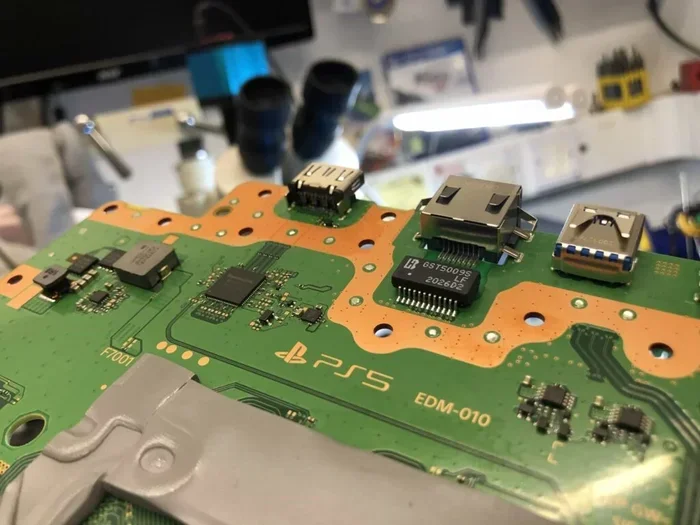
A USB port is a physical slot built into your computer, laptop, tablet, or other device. It is the endpoint where a single USB cable connects. Think of it like a wall outlet in your home. Each outlet powers one appliance at a time. Similarly, each USB port connects one device at a time.
Types of USB Ports
Not all USB ports look the same. Over the years, different shapes and sizes have been introduced. Here are the most common types you will encounter:
- USB-A: The classic rectangular port found on almost every desktop computer and laptop. It is the most recognizable USB port design.
- USB-B: A square-shaped port often used for printers and scanners. It is larger than USB-A and less common on personal computers.
- USB-C: The modern, reversible port found on newer laptops, phones, and tablets. It supports faster data transfer and higher power delivery.
- USB Mini and Micro: Smaller ports used on older phones, cameras, and portable gadgets. These are becoming less common as USB-C takes over.
Each type of USB port supports different versions of the USB standard. USB 2.0 is the oldest and slowest. USB 3.0 and 3.1 offer much faster data transfer speeds. USB 3.2 and Thunderbolt push speeds even higher. The port type determines how fast your USB connectivity can be.
How a USB Port Works
When you plug a device into a USB port, your computer recognizes it immediately. The operating system loads the necessary driver. Then, data flows between the device and your computer through the USB connectivity link. The bandwidth of the port determines how much data can move at once.
A single USB port has one upstream connection to your computer. It provides power to the connected device and handles data exchange. But here is the limitation: one port equals one device. If you want to connect more, you need another port or a different solution.
What Is a USB Hub?
A USB hub is a device that expands a single USB port into multiple ports. It acts like a power strip for your USB connections. You plug the hub into your computer, and then you can connect several devices at once.
How a USB Hub Works
A USB hub connects to your computer through one upstream port. From the hub, multiple downstream ports branch out. Each downstream port can connect to a separate device. The hub manages the traffic between all connected devices and your computer.
Think of it like a train station. One track comes in from your computer. The hub splits that into several tracks leading to different destinations. All devices share the same bandwidth from the original USB port. This sharing is important to understand.
Powered vs Unpowered USB Hubs
Not all USB hubs are created equal. There are two main types:
- Powered USB Hub: This hub has its own power source, usually an AC adapter. It provides full power to every connected device. A powered hub is ideal for external hard drives, monitors, and devices that need lots of energy.
- Unpowered USB Hub: This hub draws power from your computer’s USB port. It works well for low-power devices like keyboards, mice, and flash drives. But it cannot handle power-hungry peripherals.
Choosing between a powered hub and an unpowered one is one of the most important decisions you will make. If you plug too many devices into an unpowered hub, you risk signal degradation and unreliable connections.
USB Hub Speeds and Standards
Just like USB ports, hubs come in different speed standards. A USB 2.0 hub limits your data transfer speed to 480 Mbps. A USB 3.0 hub supports up to 5 Gbps. A USB 3.1 or 3.2 hub goes even faster. If you want the best USB connectivity, always match your hub speed to your port speed.
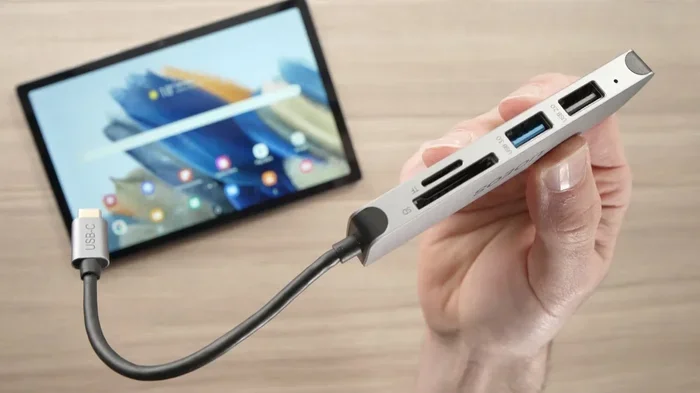
Many modern USB hubs now support USB-C. These compact hubs are popular with laptop users. They often include additional features like HDMI outputs, SD card readers, and Ethernet jacks. A USB-C hub can turn a thin laptop into a full workstation.
Key Differences Between a USB Port and a USB Hub
Now that we have covered the basics, let us compare them side by side. Understanding these differences helps you make smarter choices about your setup.
| Feature | USB Port | USB Hub |
|---|---|---|
| Number of Connections | One device at a time | Multiple devices simultaneously |
| Power Source | Draws power from the computer | Powered hubs have their own source; unpowered draw from the computer |
| Port Availability | Fixed and built into the device | Expandable and portable |
| Data Bandwidth | Full bandwidth dedicated to one device | Shared among all connected devices |
| Size and Portability | Part of the device, no extra space needed | Requires extra desk space and cables |
| Cost | Included with your device | Costs extra, from $10 to $100+ |
| Signal Quality | Direct connection, no signal loss | Potential for signal degradation with long cable chains |
| Device Compatibility | Works with all USB devices | Depends on hub quality and standard |
The table above highlights the most important differences. A USB port gives you a direct, reliable connection. A USB hub gives you flexibility and more ports. Both have their place in any tech setup.
One thing to keep in mind is daisy chaining. This means connecting multiple hubs together to create even more ports. While it works, it can reduce data transfer speed and increase the risk of connection problems. Keep daisy chaining to a minimum for the best performance.
When Should You Use a USB Hub?
A USB hub is not always necessary. Sometimes a single USB port is all you need. But there are clear situations where a hub makes life much easier.
You Have Too Many Devices
If you work at a desk with a printer, external hard drive, webcam, keyboard, and mouse, you quickly run out of ports. A USB hub solves this problem instantly. You connect all your peripheral devices without constantly unplugging and replugging cables.
You Want a Clean, Organized Setup
Instead of reaching behind your computer to swap cables, a hub keeps everything connected. Your devices stay plugged in at all times. This is especially helpful for home office setups and home entertainment configurations where you might also explore alternatives to Dish Network and DirectTV for your streaming and connectivity needs.
You Need to Charge Multiple Devices
A powered USB hub is perfect for charging phones, tablets, and earbuds simultaneously. You do not need to fight over wall outlets or computer ports. A charging hub keeps all your devices powered up and ready to go.
You Are Traveling or Working Remotely
Laptop users benefit greatly from compact USB hubs. A small USB-C hub fits in your bag and expands your connectivity on the go. You can connect an external monitor, a mouse, and a flash drive with one plug. It turns any hotel room or coffee shop into a productive workspace.
How to Choose the Right USB Hub
Not all USB hubs are the same. Choosing the wrong one can lead to frustration. Here is what to look for when shopping.
Check the USB Standard
Make sure your hub supports the same USB standard as your port. If you have a USB 3.0 port, get a USB 3.0 hub. Mixing standards can slow down your data transfer speeds. Always check the specifications before buying.
Count Your Ports
Think about how many devices you need to connect. A 4-port hub works for most people. If you have more devices, consider a 7-port or 10-port hub. But remember: more ports do not always mean better performance.
Decide Between Powered and Unpowered
If you are connecting only low-power devices like keyboards and flash drives, an unpowered hub is fine. But if you need to connect external hard drives or charge tablets, invest in a powered hub. The extra cost is worth the reliability.
Consider Port Types
Look for hubs that match your devices. If your laptop has only USB-C ports, get a USB-C hub. If you need to connect older USB-A devices, make sure the hub includes USB-A ports. Some hubs even offer USB-C and USB-A ports on the same unit for maximum flexibility.
Look for Build Quality
Cheap hubs often use poor materials and weak circuitry. They may cause signal degradation or fail after a few months. Invest in a reputable brand with good reviews. A quality hub lasts longer and performs better.
Quick Tips for Using a USB Hub
- Always plug a powered hub into a wall outlet for the best results.
- Do not connect more devices than the hub can handle.
- Use short USB cables to reduce signal degradation.
- Avoid daisy chaining more than one hub together.
- Keep your hub away from heat sources to prevent overheating.
- Update your device drivers regularly for the best USB connectivity.
Common Mistakes People Make with USB Ports and Hubs
Even tech-savvy users make mistakes with USB ports and hubs. Here are the most common ones to avoid.
Overloading an Unpowered Hub
This is the number one mistake. Plugging an external hard drive and a printer into an unpowered hub will cause problems. The hub cannot supply enough power. Your devices may disconnect, files may corrupt, and data transfer speeds will drop.
Ignoring USB Standards
Buying a USB 2.0 hub for a USB 3.0 port wastes your speed potential. Always match the standards. A USB hub is only as fast as its lowest-speed connection.
Using Low-Quality Cables
The cable matters just as much as the hub. Cheap cables can limit data transfer speeds and cause intermittent connections. Invest in good quality USB cables from reputable brands.
Forgetting About Power Delivery
Some modern USB-C hubs support power delivery, which charges your laptop while connected to the hub. If you need this feature, check the hub specifications carefully. Not all hubs pass through power.
Assuming All Ports Are Equal
Not every port on a hub delivers the same speed or power. Some hubs have a mix of USB 2.0 and USB 3.0 ports. Always check which ports are which and connect your fastest devices to the fastest ports.
Expert Insights on USB Connectivity
Technology experts agree that USB hubs have become essential tools. With the rise of thin laptops and minimal port designs, hubs fill the gap. They let you connect everything from external monitors to professional audio interfaces.
According to industry standards, USB port multiplier technology allows a single port to communicate with multiple devices more efficiently. This is different from a traditional hub and is found in some advanced storage solutions. For most users, however, a standard USB hub is all you need.
When setting up your workspace, think about your daily workflow. What devices do you use every day? What do you use occasionally? A USB hub should match your habits. Keep your most-used devices on the hub and leave less frequent ones connected directly to the USB port.
One thing technology has in common with other fields is the constant evolution of standards. Just as the differences between analog and digital computing shaped the industry, the evolution from USB-A to USB-C continues to reshape how we connect devices. Staying informed about these changes helps you make better purchasing decisions.
Conclusion
The difference between a USB port and a USB hub is simple but important. A USB port is a single connection point built into your device. A USB hub expands that one connection into many. Both serve essential roles in your tech setup.
Understanding when to use each one saves you time, money, and frustration. If you have few devices, your built-in USB ports are fine. If you have many devices or need more flexibility, a USB hub is the way to go.
Remember to choose the right type of hub. Match the USB standard, count your ports, and decide between powered and unpowered. Avoid common mistakes like overloading hubs or ignoring cable quality. With the right setup, your USB connectivity will be fast, reliable, and hassle-free.
Take a look at your current setup today. Count your connected devices. Do you need a hub? If the answer is yes, invest in a quality one. Your future self will thank you. Better USB connectivity means less frustration and more productivity every single day.
Frequently Asked Questions
Can I connect a USB hub to another USB hub?
Yes, you can daisy chain hubs together. However, this practice can reduce your data transfer speed and increase the risk of connection issues. Each hub in the chain shares the same bandwidth from the original USB port. For best results, limit daisy chaining to one or two hubs at most.
Do USB hubs slow down data transfer speeds?
They can, especially if the hub is USB 2.0 and your port is USB 3.0 or higher. All devices connected to a hub share the same bandwidth. A powered hub with the same USB standard as your port will minimize speed loss. Always match your hub speed to your port speed for optimal performance.
Can I use a USB hub to charge my phone and laptop at the same time?
Yes, but only if you use a powered hub with sufficient power delivery. An unpowered hub may not provide enough current to charge larger devices like laptops. Look for a hub that supports USB Power Delivery or has its own AC adapter for reliable charging of multiple devices.
What is the difference between a USB port and a USB-C port?
A USB port refers to the connection standard and shape of the slot. USB-C is a specific type of USB port that is smaller, reversible, and supports faster speeds and higher power delivery. USB-A is the traditional rectangular port most people are familiar with. Both are USB ports but differ in design and capabilities.
How many devices can I connect to a USB hub?
Most USB hubs come with 4 to 10 ports. The USB standard allows up to 127 devices to be connected through a single host controller, but practical limits depend on your hub’s power supply and bandwidth. For everyday use, a 4-port or 7-port hub covers most needs comfortably.
Do I need a powered USB hub for an external hard drive?
Yes, external hard drives especially 3.5-inch desktop drives require more power than an unpowered hub can provide. Connecting them to an unpowered hub often results in disconnections or recognition failures. A powered USB hub ensures your external drive gets the stable power it needs for reliable operation.