Difference Between Virtual Memory and Main Memory Explained
The difference between virtual memory and main memory comes down to their roles in your computer system. Main memory is the physical RAM that your processor accesses directly, while virtual memory uses your hard drive as an extension when RAM fills up. Understanding this distinction helps you troubleshoot slow performance and optimize your system.
Have you ever wondered what happens inside your computer when you open dozens of browser tabs, run a heavy application, or play a resource-intensive game? Your machine seems to juggle everything effortlessly. But behind the scenes, two critical types of memory are working together to make that happen. The difference between virtual memory and main memory is one of the most important concepts in computer science, and understanding it can completely change the way you think about your device.
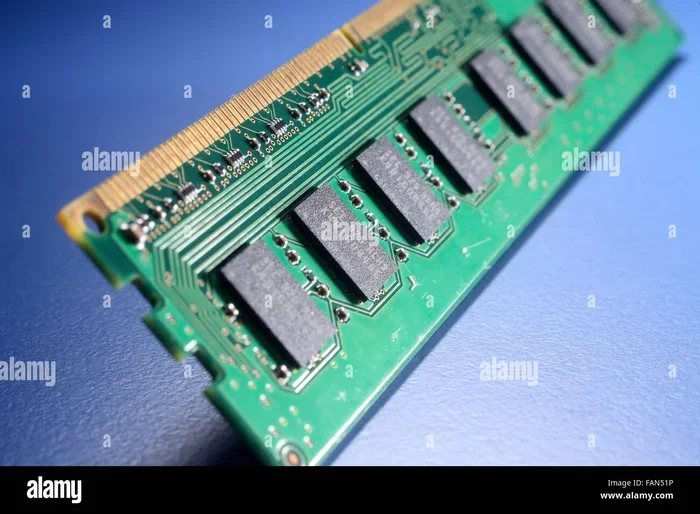
Main memory, also known as RAM (Random Access Memory), is the physical hardware inside your computer that stores data your processor needs right now. It is fast, direct, and essential for everyday computing. Virtual memory, on the other hand, is a clever software technique that tricks your computer into using your hard drive or SSD as if it were additional RAM. Together, these two memory types form the backbone of your system’s memory management system.
In this article, we will break down everything you need to know. You will learn what each type of memory does, how they differ, how they work together, and what you can do to keep your system running smoothly. Whether you are a student, a casual user, or a tech enthusiast, this guide will give you clear, practical insights. Let us dive in.
Key Takeaways
- Main memory is physical RAM: It stores data your CPU needs right now and works at lightning speed.
- Virtual memory extends your RAM: It uses your hard drive or SSD as temporary storage when physical memory runs low.
- They work together: Your operating system constantly swaps data between main memory and virtual memory to keep things running.
- Virtual memory is slower: Hard drives and SSDs cannot match the speed of physical RAM, so relying too much on virtual memory hurts performance.
- Both are essential: Without main memory, your computer cannot function. Without virtual memory, you would hit memory limits constantly.
- Knowing the difference helps you troubleshoot: If your PC is slow, understanding whether the issue is with RAM or virtual memory can guide your fix.
- Paging and swapping are key processes: These are the mechanisms your OS uses to manage the flow between virtual and main memory.
📑 Table of Contents
What Is Main Memory?
Main memory is the physical component inside your computer that holds data and instructions your CPU needs while performing tasks. When you open an app, your operating system loads its data into main memory so the processor can access it quickly. Without main memory, your computer would have to fetch every piece of data directly from your storage drive, which would be painfully slow.
Think of main memory as your desk. It is the workspace where you place the documents, tools, and items you need right now. The bigger the desk, the more things you can work on simultaneously. Similarly, the more RAM your system has, the more applications you can run at the same time without slowdowns.
Types of Main Memory
Main memory comes in a few different forms. The most common type is DRAM (Dynamic Random Access Memory), which stores each bit of data in a separate capacitor inside an integrated circuit. DRAM needs to be refreshed thousands of times per second, which is why it is fast but also power-hungry.
Another type is SRAM (Static Random Access Memory), which is faster than DRAM and does not need constant refreshing. However, SRAM is much more expensive and is typically used only in cache memory inside the processor itself. You also have ROM (Read-Only Memory), which stores firmware and critical boot instructions. ROM retains its data even when the computer is turned off, unlike regular RAM.
How Main Memory Works
When you launch a program, the operating system allocates a portion of your physical RAM to that program. The CPU then reads and writes data directly to this RAM using memory addresses. This process happens at incredible speeds, often measured in nanoseconds. The speed advantage is what makes main memory so crucial for smooth performance.
Each program running on your system gets its own block of memory space. The operating system keeps track of which blocks belong to which programs. If your RAM fills up, the system struggles to allocate space for new tasks, which leads to slowdowns, freezing, or crashes. This is where the difference between virtual memory and main memory becomes especially important.
What Is Virtual Memory?
Virtual memory is a memory management technique that gives your computer the illusion of having more RAM than it physically does. When your physical RAM is full, the operating system moves less-used data from RAM to a reserved space on your hard drive or SSD. This reserved space is called a page file on Windows or a swap file on macOS and Linux.
Imagine you are working on a large project at your desk, but the desk runs out of space. You move some older, less important documents into a filing cabinet across the room. The cabinet is much farther away, so retrieving those documents takes more time. But now you have room on your desk to keep working on the documents that matter right now. That is exactly how virtual memory works.
How Virtual Memory Works
Virtual memory divides your program’s memory into small blocks called pages. When a page in RAM has not been accessed for a while, the operating system moves it to the page file on your storage drive. This process is called paging or swapping. When the CPU needs that data again, it is swapped back into RAM from the storage drive.
The system uses a page table to keep track of which pages are in RAM and which ones are stored on the disk. Every time a program tries to access data that has been moved to disk, a page fault occurs. The operating system then handles the page fault by retrieving the needed page from storage and loading it back into RAM. This whole process adds overhead, which is why virtual memory is slower than physical RAM.
Why Virtual Memory Matters
Virtual memory allows you to run applications that require more memory than what is physically installed in your system. It also provides memory isolation, meaning each program operates in its own virtual address space. This prevents one program from accidentally overwriting the memory used by another program, which improves system stability and security.
Without virtual memory, your operating system would be limited to the physical RAM capacity. For users who run heavy workloads like video editing, virtual machines, or large databases, virtual memory can be the difference between getting work done and hitting a wall.
Key Differences Between Virtual Memory and Main Memory
Now that you understand what each type of memory does, let us look at the core differences. The difference between virtual memory and main memory is not just about speed or capacity. It touches on how data is stored, accessed, and managed by your system.
Comparison Table
| Feature | Main Memory | Virtual Memory |
|---|---|---|
| Type | Physical hardware (RAM) | Software-based technique |
| Speed | Very fast (nanoseconds) | Slower (depends on storage speed) |
| Capacity | Limited by physical RAM size | Larger, uses disk space |
| Volatility | Volatile (data lost on power off) | Non-volatile (stored on disk) |
| Cost | Expensive per GB | Cheap (uses existing storage) |
| Access | Direct CPU access | Indirect access via page file |
| Role | Active workspace for CPU | Overflow storage when RAM is full |
| Management | Managed by hardware and OS | Managed entirely by the operating system |
Speed Comparison
Speed is the biggest differentiator. Main memory operates at speeds measured in nanoseconds, meaning the CPU can read and write data almost instantly. Virtual memory relies on your storage drive, which is orders of magnitude slower. Even a fast NVMe SSD is significantly slower than RAM. Traditional hard disk drives (HDDs) are even slower, which is why relying heavily on virtual memory causes noticeable lag.
Capacity Comparison
Your main memory capacity is fixed by how much RAM you have installed. Most consumer computers come with 8GB, 16GB, or 32GB of RAM. Virtual memory, however, can be much larger because it uses your storage drive. A system with 16GB of RAM can have a page file of 32GB or more, giving it a much larger effective memory pool.
Volatility
Main memory is volatile, meaning all data stored in RAM disappears when you turn off your computer. Virtual memory is non-volatile because it stores data on your hard drive or SSD. This means the data in your page file persists even after a reboot, which can be useful for certain system operations and debugging.
How Virtual Memory and Main Memory Work Together
These two types of memory are not competitors. They are partners. Your operating system constantly manages the flow of data between main memory and virtual memory to ensure your programs run as smoothly as possible. This process is called memory management, and it happens behind the scenes every single second you use your computer.
When you open a program, the OS loads its essential data into RAM. As you work, the system monitors which parts of that data are actively being used. Data that has not been accessed recently gets moved to the page file on your storage drive. This frees up space in RAM for new, active data. When you switch back to a program that was moved to virtual memory, the OS brings its data back into RAM.
This seamless swapping is what allows you to have dozens of applications open simultaneously, even if your physical RAM cannot hold all of them at once. However, if your system constantly swaps data between RAM and disk, you will notice a significant drop in performance. This condition is sometimes called thrashing, and it is a clear sign that you need more physical RAM.
The Role of the Memory Management Unit (MMU)
Your computer’s Memory Management Unit (MMU) is the hardware component responsible for translating virtual addresses into physical addresses. When a program requests data, the MMU checks the page table to find out whether that data is in RAM or on disk. If it is on disk, a page fault is triggered, and the data is retrieved from the storage drive. This translation happens transparently, so you never notice it happening.
The MMU also enforces memory protection. It ensures that one program cannot access the memory space of another program. This isolation is critical for system security and stability. A bug in one application cannot corrupt the memory used by your operating system or another application, thanks to this virtual memory protection mechanism.
Benefits and Drawbacks of Each Memory Type
Both main memory and virtual memory bring unique advantages and limitations to the table. Understanding these helps you make informed decisions about your system setup and troubleshooting.
Benefits of Main Memory
- Blazing fast access speeds: RAM delivers data to the CPU in nanoseconds, making it ideal for active tasks.
- Direct processor communication: The CPU reads and writes to RAM without any intermediate steps.
- Low latency: There is virtually no delay when accessing data in main memory.
- Essential for multitasking: More RAM means you can run more applications simultaneously without slowdowns.
Drawbacks of Main Memory
- Limited capacity: Physical RAM is expensive, and there is a practical limit to how much you can install.
- Volatile storage: All data in RAM is lost when the computer powers off.
- Fixed size: You cannot dynamically expand your RAM without physically installing more modules.
Benefits of Virtual Memory
- Effectively increases available memory: Your system can handle larger workloads than physical RAM alone would allow.
- Cost-effective: It uses your existing storage drive, so there is no additional hardware cost.
- Memory isolation and protection: Each program runs in its own virtual address space, improving security.
- Simplifies programming: Developers do not need to worry about the physical memory layout of the system.
Drawbacks of Virtual Memory
- Slower than RAM: Disk access is significantly slower than memory access, which can cause performance hits.
- Increased wear on storage drives: Constant swapping can reduce the lifespan of SSDs due to write cycles.
- Not a true replacement for RAM: Relying too heavily on virtual memory leads to a sluggish experience.
- Consumes disk space: Large page files take up valuable storage capacity on your drive.
Common Mistakes and Quick Tips
Many users misunderstand how virtual memory and main memory interact, which leads to common mistakes. Here are some pitfalls to avoid and tips to follow.
Common Mistakes
- Assuming virtual memory is just as good as RAM: Virtual memory cannot match the speed of physical memory. It is a fallback, not an equivalent.
- Disabling the page file: Some advanced users disable virtual memory to save disk space. This can cause crashes and instability when RAM is full.
- Ignoring RAM upgrade opportunities: If your system constantly uses virtual memory, adding more physical RAM is a far better solution than expanding the page file.
- Setting the page file too small: An undersized page file can prevent your system from handling memory spikes gracefully.
- Confusing virtual memory with storage: Virtual memory is not the same as your hard drive or SSD. It is a memory management technique that uses storage as a temporary extension of RAM.
Quick Tips for Better Memory Management
- Monitor your RAM usage: Use Task Manager on Windows or Activity Monitor on macOS to check how much RAM is being used. If you consistently use more than 80% of your RAM, consider an upgrade.
- Keep your page file at a reasonable size: Let Windows manage the page file automatically, or set it to a fixed size of 1.5 to 3 times your physical RAM for optimal performance.
- Use an SSD for your page file: If you must rely on virtual memory, placing the page file on an SSD instead of an HDD dramatically improves swap speeds.
- Close unused applications: Freeing up RAM by closing background apps reduces the need for swapping and keeps your system responsive.
- Upgrade your RAM when needed: If you regularly run memory-intensive applications, adding more physical RAM is the single best investment you can make for performance.
Expert Insights on Memory Management
Understanding the difference between virtual memory and main memory is not just academic. It has real-world implications for how you use, troubleshoot, and upgrade your computer. Memory management is one of the most important functions of any modern operating system, and it has evolved significantly over the decades.
Modern operating systems like Windows 11, macOS, and Linux distributions use sophisticated algorithms to decide which pages of memory to keep in RAM and which to move to disk. These algorithms, often called page replacement algorithms, aim to minimize the number of page faults and keep the most frequently used data in fast physical memory.
One interesting insight from systems engineers is that the memory hierarchy in a computer is designed with a trade-off between speed and capacity. Cache memory is the fastest but smallest. Main memory (RAM) is faster but larger. Virtual memory is the largest but slowest. Each level serves a specific purpose, and together they create a seamless experience for the user.
Another important consideration is the rise of compressed memory in modern operating systems. Windows 10 and 11, for example, use a feature called Memory Compression, which compresses inactive pages in RAM instead of immediately moving them to the page file. This reduces the need for disk access and improves overall responsiveness. It is a great example of how operating systems continue to evolve to bridge the gap between the speed of main memory and the capacity of virtual memory.
If you are building or upgrading a system, always prioritize physical RAM first. Use virtual memory as a safety net, not as your primary workspace. The difference between virtual memory and main memory is not just a technical detail. It is a practical guideline for making smart decisions about your computing setup.
Conclusion
The difference between virtual memory and main memory is fundamental to how your computer operates every single day. Main memory, or RAM, is the fast, physical workspace where your CPU stores and retrieves active data. Virtual memory is a software-based technique that extends your memory capacity using your storage drive, allowing you to run more applications than physical RAM alone would permit.
While virtual memory is incredibly useful, it is not a replacement for sufficient physical RAM. The speed gap between RAM and disk storage is too large to ignore. When your system relies too heavily on virtual memory, performance suffers, and you experience slowdowns, stuttering, and delays.
The best approach is to have enough physical RAM for your typical workload and let virtual memory serve as a backup for those occasional memory spikes. Monitor your system’s memory usage, keep your page file at a sensible size, and upgrade your RAM when you start feeling the limits. By understanding how these two memory types work together, you can keep your computer running at its best and troubleshoot issues with confidence.
Take what you have learned here and apply it. Check your current RAM usage, evaluate whether your system could benefit from more memory, and make adjustments where needed. A well-configured memory setup makes a world of difference in your daily computing experience.
Frequently Asked Questions
What is the main difference between virtual memory and main memory?
Main memory is the physical RAM installed in your computer, which provides fast, direct access to data your CPU needs. Virtual memory is a software technique that uses your hard drive or SSD as an extension of RAM when physical memory runs out. The key difference is that main memory is fast and physical, while virtual memory is slower and uses storage space on your disk.
Can I use virtual memory without main memory?
No, virtual memory cannot function without main memory. Virtual memory works as an extension of your physical RAM, not as a standalone replacement. Your system always needs some physical RAM to operate. The operating system uses virtual memory only when the main memory is full or to manage memory more efficiently across running programs.
Does increasing virtual memory improve performance?
Increasing virtual memory prevents crashes when your RAM is full, but it does not improve performance. Virtual memory is significantly slower than physical RAM because it relies on your storage drive. If your system is slow due to low RAM, adding more physical memory will deliver a much bigger performance boost than expanding the page file ever could.
How much virtual memory should I allocate?
The general recommendation is to set your virtual memory (page file) to 1.5 to 3 times the amount of your physical RAM. For example, if you have 16GB of RAM, a page file size of 24GB to 48GB is a good starting point. However, letting Windows or your operating system manage the page file automatically is usually the best approach for most users.
What happens when main memory is full?
When your main memory fills up, the operating system starts moving less-used data from RAM to the page file on your storage drive through a process called paging or swapping. This frees up space in RAM for new data. However, because disk access is much slower than RAM access, your system performance will noticeably decline when heavy swapping occurs.
Is virtual memory the same as storage or hard drive space?
No, virtual memory is not the same as regular storage. While virtual memory uses space on your hard drive or SSD, it is specifically reserved for memory management purposes. Your operating system treats this space as an extension of RAM, not as a place to save files. Regular storage holds your documents, apps, and media, while virtual memory holds temporary data pages that your CPU needs active access to.