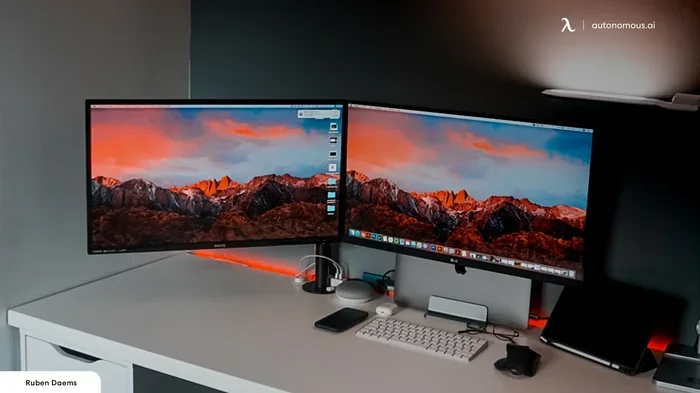
Can You Plug A Monitor Into Another Monitor Here Is How
Yes, you can plug a monitor into another monitor, but the method depends on your ports and setup goals. You can daisy chain displays, use a KVM switch, or connect a second screen to extend your workspace. This guide walks you through every option so you can choose the best one for your needs.
Have you ever looked at your desk and thought, “I need more screen space”? Maybe you are working on a spreadsheet while referencing a document. Or perhaps you are editing photos and need to see your timeline at the same time. Whatever the reason, adding a second monitor can change the way you work.
But what if you do not have an extra port on your computer? What if all your outputs are taken? This is where the question comes up: can you plug a monitor into another monitor? The short answer is yes. But the full answer depends on your setup, your cables, and your goals.
In this guide, we will walk through every method step by step. You will learn about daisy chaining, KVM switches, adapters, and more. By the end, you will know exactly how to connect two monitors together and get the most out of your workspace.
Key Takeaways
- Daisy chaining works with DisplayPort and USB-C: You can link monitors in a chain using the right ports and cables.
- HDMI and VGA do not support daisy chaining: You need a different approach like a KVM switch or splitter for these connections.
- Your graphics card matters: Make sure your GPU has enough outputs to support multiple monitors.
- Adapter cables solve compatibility issues: They let you connect mismatched ports easily.
- Display settings control your setup: You can choose between extended display, mirrored screen, or second screen modes.
- A dual monitor setup boosts productivity: More screen space means better multitasking and workflow efficiency.
📑 Table of Contents
- What Does It Mean to Plug a Monitor Into Another Monitor?
- How Daisy Chaining Works
- Using a KVM Switch for Multiple Monitors
- HDMI Splitters and Adapters
- Checking Monitor Compatibility
- Setting Up Your Display on Windows and Mac
- Common Mistakes to Avoid
- Expert Tips for the Best Dual Monitor Experience
- Quick Tips Summary
- Conclusion
What Does It Mean to Plug a Monitor Into Another Monitor?
When you plug a monitor into another monitor, you are using the first monitor as a bridge. The second monitor receives its signal through the first one. This is different from connecting both monitors directly to your computer.
Think of it like a chain. Your computer sends a signal to Monitor A. Monitor A then passes that signal to Monitor B. This is called daisy chaining. It is a clever way to expand your screen setup without needing extra ports on your PC.
Not all monitors support this. The ability depends on the type of ports your monitor has. Older monitors with only VGA or HDMI in usually cannot daisy chain. Newer monitors with DisplayPort or USB-C often can.
Why Would You Want to Do This?
There are several reasons you might want to connect a second monitor to another monitor instead of your computer:
- Limited ports on your computer: Your laptop or desktop might not have enough video outputs.
- Cleaner cable management: Fewer cables running from your PC means a tidier desk.
- Portable setups: If you travel for work, daisy chaining keeps things simple.
- Budget constraints: You might not have a second graphics card or docking station.
- KVM switch setups: You want to control multiple computers with one set of monitors.
How Daisy Chaining Works
Daisy chaining is the most common way to plug one monitor into another. It uses a feature called DisplayPort Multi-Stream Transport, or MST for short. This lets you send video signals through a chain of monitors.
Here is how it works in simple terms. Your computer sends a signal to the first monitor. That monitor has a special output port that passes the signal along. The second monitor receives it and displays the image. You can even chain three or more monitors this way.
What You Need for Daisy Chaining
Not every monitor can daisy chain. You need the right equipment and the right ports. Here is a quick checklist:
- Monitor A (the first monitor): Must have a DisplayPort In and a DisplayPort Out. Or a USB-C port that supports video output.
- Monitor B (the second monitor): Must have a DisplayPort In or USB-C In.
- The right cables: DisplayPort cables or USB-C cables that support video.
- MST support enabled: Some monitors need you to turn on daisy chain mode in their settings.
If your monitor has both DisplayPort In and DisplayPort Out, you are in luck. If it only has HDMI in and HDMI out, daisy chaining will not work. HDMI does not support MST technology.
Step-by-Step Daisy Chain Setup
Setting up a daisy chain is straightforward. Follow these steps carefully:
- Check your monitor specifications. Look for DisplayPort Out or USB-C Out on the first monitor.
- Connect your computer to Monitor A. Use a DisplayPort or USB-C cable from your PC to the DisplayPort In on Monitor A.
- Connect Monitor A to Monitor B. Use another DisplayPort cable from the DisplayPort Out on Monitor A to the DisplayPort In on Monitor B.
- Power on both monitors. Turn them on in order, starting with Monitor A.
- Open your display settings. On Windows, go to Settings > System > Display. On Mac, go to System Settings > Displays.
- Set the display mode. Choose “Extend these displays” for more screen space.
- Arrange the monitors. Drag the monitor icons to match their physical positions on your desk.
Once you complete these steps, both monitors should display different content. You now have a dual monitor setup running through daisy chaining.
Using a KVM Switch for Multiple Monitors
A KVM switch stands for Keyboard, Video, Mouse switch. It lets you control multiple computers using one set of peripherals. Many KVM switches also support multiple monitors.
This is different from daisy chaining. With a KVM switch, you are not passing a signal from one monitor to the next. Instead, the switch routes signals from multiple computers to your monitors. This is great for people who work with two or more PCs.
When Should You Use a KVM Switch?
A KVM switch makes sense in these situations:
- You have a work PC and a personal PC: You want to switch between them using one monitor and keyboard.
- You need two monitors per computer: Some KVM switches support dual monitors for each connected PC.
- Your computer lacks enough ports: The KVM switch adds the ports you need.
- You want clean desk setup: One set of cables instead of two.
KVM switches come in different sizes and price ranges. Basic models cost around 30 to 50 dollars. Advanced models with 4K support and USB-C connectivity can run 200 dollars or more. Choose one that matches your needs and budget.
HDMI Splitters and Adapters
What if your monitor only has HDMI ports? You cannot daisy chain with HDMI alone. But you have other options. HDMI splitters and adapter cables can help you connect a second monitor.
An HDMI splitter takes one video signal and duplicates it across two screens. This is called screen mirroring. Both monitors show the same image. It is not the same as an extended display, but it works for presentations and sharing content.
Adapter Solutions for Different Port Types
Adapters are lifesavers when your ports do not match. Here are some common scenarios:
- DisplayPort to HDMI adapter: Connects a DisplayPort output to an HDMI monitor.
- USB-C to HDMI adapter: Turns a USB-C port into an HDMI output.
- VGA to HDMI converter: Lets you connect older VGA monitors to modern HDMI outputs.
- DVI to HDMI cable: Bridges the gap between DVI and HDMI ports.
These adapters do not enable daisy chaining. They let you connect a monitor directly to your computer. If your computer has enough outputs, this is often the simplest solution.
Checking Monitor Compatibility
Before you buy any cables or adapters, check your monitor’s specs. Not every monitor supports every connection type. Look for these terms in your monitor manual or on the manufacturer’s website.
DisplayPort 1.2 or higher is needed for MST daisy chaining. USB-C with DisplayPort Alt Mode also works. If your monitor only lists “HDMI In” and “HDMI Out,” it likely does not support daisy chaining.
Here is a quick comparison table to help you understand which connection types support daisy chaining:
| Connection Type | Supports Daisy Chaining | Max Resolution (Typical) | Notes |
|---|---|---|---|
| DisplayPort 1.2+ | Yes | 4K at 60Hz | Best option for daisy chaining |
| USB-C (with DP Alt Mode) | Yes | 4K at 60Hz | Works well with modern laptops |
| HDMI | No | 4K at 30Hz or 1080p at 60Hz | Only supports mirroring with splitters |
| VGA | No | 1080p max | Older standard, analog signal |
| DVI | No | 1080p max | No audio support |
This table shows that DisplayPort and USB-C are your best friends when setting up a multi-monitor workstation. If your monitors have these ports, you are in great shape.
Setting Up Your Display on Windows and Mac
Once your monitors are connected, you need to configure your display settings. This step is crucial. Without it, your second monitor might not work correctly.
Windows Display Settings
On Windows 10 or 11, right-click your desktop and select “Display settings.” You will see a diagram of your monitors. Here you can:
- Choose your main display: Click the monitor you want as your primary screen.
- Select display mode: Choose “Extend these displays” for more space or “Duplicate these displays” to mirror.
- Adjust resolution: Set each monitor to its native resolution for the sharpest image.
- Change display orientation: Switch between landscape and portrait mode.
macOS Display Settings
On a Mac, go to System Settings and click “Displays.” macOS handles multi-monitor setups very well. You can:
- Drag the menu bar between screens: Choose which monitor shows your top bar.
- Set different resolutions: Each monitor can have its own resolution.
- Arrange displays: Drag the rectangles to match your physical setup.
- Enable Night Shift per display: Set different night mode settings for each screen.
Both Windows and Mac make it easy to manage a second screen setup. Take a few minutes to explore these settings and find what works best for you.
Common Mistakes to Avoid
Setting up a dual monitor setup can be tricky. Here are some common mistakes people make:
- Using the wrong cable: Not all DisplayPort cables support MST. Look for cables rated for DisplayPort 1.2 or higher.
- Forgetting to enable MST mode: Some monitors need you to switch from “PC mode” to “Daisy Chain mode” in the monitor’s menu.
- Plugging into the wrong port: Always connect the chain from the output port of one monitor to the input port of the next.
- Ignoring your graphics card limits: Your GPU can only handle so many displays. Check its specifications before buying extra monitors.
- Using a cheap adapter: Poor quality adapters can cause signal loss, flickering, or no signal at all.
- Not updating your GPU drivers: Outdated drivers can cause display detection issues. Always keep them up to date.
Avoiding these mistakes will save you time and frustration. A little preparation goes a long way.
Expert Tips for the Best Dual Monitor Experience
Once you have your dual monitor setup running, you can optimize it further. Here are some expert tips:
- Match your monitors: Use two monitors of the same size and resolution for a seamless experience.
- Use a monitor arm: A monitor stand or arm frees up desk space and lets you adjust height and angle.
- Calibrate your displays: Use built-in calibration tools or a hardware calibrator for accurate colors.
- Use keyboard shortcuts: Windows key plus Shift plus Left or Right arrow moves windows between monitors instantly.
- Consider a USB-C docking station: If you are using a laptop, a docking station adds ports and charges your device at the same time.
- Manage your cables: Use cable ties or a cable management tray to keep your desk clean.
These small touches make a big difference in your daily workflow. A well-organized multi-monitor workstation feels professional and keeps you focused.
Quick Tips Summary
- Check your monitor ports before buying any cables or adapters.
- DisplayPort and USB-C are the best options for daisy chaining.
- Always extend your displays instead of mirroring for productivity.
- Update your graphics card drivers regularly.
- Use high-quality cables to avoid signal issues.
- Match your monitor resolutions for the best visual experience.
Conclusion
So, can you plug a monitor into another monitor? Absolutely. Whether you use daisy chaining, a KVM switch, or adapter cables, there is a solution for almost every setup. The key is understanding your ports, choosing the right method, and configuring your display settings correctly.
A dual monitor setup is one of the simplest upgrades you can make to your workspace. It boosts productivity, reduces window switching, and makes multitasking feel natural. With the right approach, you can set up two or even three screens without buying extra hardware.
Start by checking what ports your monitors and computer have. Then pick the method that fits your situation. Follow the steps in this guide, and you will be up and running in no time. Your new multi-monitor workstation is waiting for you.
Frequently Asked Questions
Can you plug a monitor into another monitor without a computer?
Yes, but only for screen mirroring. You can use an HDMI splitter to send the same signal to two monitors. Without a computer source, neither monitor will display anything. The splitter needs a device like a laptop or media player to generate the signal.
Does daisy chaining reduce display quality?
Not significantly. Daisy chaining through DisplayPort or USB-C maintains the same resolution and refresh rate. However, adding too many monitors in a chain can slightly reduce performance. Keep your chain to two or three monitors for the best experience.
Can I daisy chain monitors with HDMI?
No, HDMI does not support MST daisy chaining. HDMI only supports one output per port. If you want to connect multiple monitors and only have HDMI, use a KVM switch or connect each monitor directly to your computer.
What is the difference between screen mirroring and extended display?
Screen mirroring shows the same image on all connected monitors. Extended display gives each monitor its own separate workspace. For productivity, extended display is almost always the better choice. Mirroring is best for presentations and sharing content with a group.
Do I need a special graphics card for two monitors?
Not necessarily. Most modern graphics cards have at least two or three video outputs. Check the back of your PC or your graphics card specifications. If you are short on ports, daisy chaining or a KVM switch can help you add more monitors without upgrading your GPU.
Can I connect a laptop to a monitor that is already connected to another laptop?
Yes, you can daisy chain a third monitor from the second laptop if the first monitor supports it. However, this gets complicated quickly. It is usually better to connect each laptop directly to its own monitor or use a KVM switch to share monitors between computers.