Can a USB Keyboard Be Used With Your Laptop Easily
Yes, a USB keyboard can be used with your laptop easily and instantly. Most laptops recognize a USB keyboard the moment you plug it in, thanks to plug-and-play support. This guide covers connection steps, troubleshooting tips, and the best keyboards for your setup.
Have you ever plugged in a USB keyboard to your laptop and wondered if it would actually work? The short answer is yes. A USB keyboard can be used with your laptop easily, and in most cases, it works right out of the box. Whether your laptop keyboard is broken, your keys feel too small, or you just want a better typing setup, an external keyboard solves the problem fast.
Many people don’t realize how much better their workflow can be with an external USB keyboard. Laptops come with built-in keyboards, but they are often cramped and uncomfortable for long typing sessions. A full-size USB keyboard gives you more space, better key travel, and a much more comfortable feel. In this article, we will walk you through everything you need to know about using a USB keyboard with your laptop.
We will cover how to connect one, what to do when things go wrong, and how to pick the best USB keyboard for your needs. Whether you are a student, a remote worker, or a casual user, this guide has you covered. Let us dive in and make your laptop setup better today.
Key Takeaways
- Plug and Play: A USB keyboard works with almost any laptop without extra software or drivers.
- Instant Setup: You can connect a USB keyboard in seconds and start typing right away.
- Better Typing Experience: External USB keyboards offer more comfort, better keys, and extra features.
- Easy Troubleshooting: Most issues can be fixed quickly by checking the port, restarting, or updating drivers.
- Wide Compatibility: USB keyboards work with Windows, Mac, and Chrome OS laptops.
- Multiple Options: You can choose from wireless, wired, full-size, compact, or ergonomic USB keyboards.
📑 Table of Contents
- What Is a USB Keyboard and Why Use It With a Laptop?
- How to Connect a USB Keyboard to Your Laptop
- Benefits of Using a USB Keyboard With Your Laptop
- Common Problems and How to Fix Them
- Choosing the Right USB Keyboard for Your Laptop
- Expert Tips for Getting the Most From Your USB Keyboard
- Frequently Asked Questions
- Conclusion
What Is a USB Keyboard and Why Use It With a Laptop?
A USB keyboard is an external keyboard that connects to your laptop through a USB port. USB stands for Universal Serial Bus, and it is one of the most common connection types in computing. Almost every laptop made in the last 15 years has at least one USB port. This means a USB keyboard is one of the most universal accessories you can own.
People use a USB keyboard with their laptop for many reasons. Some have a broken laptop keyboard and need a replacement. Others want a more comfortable setup for work or gaming. A USB keyboard can also make typing faster and more accurate. Let us look at some of the top reasons people choose an external USB keyboard.
Better Comfort and Ergonomics
Laptop keyboards are small by design. The keys are close together, and the typing angle is often awkward. A full-size USB keyboard gives you proper spacing between keys and a more natural hand position. This reduces strain on your wrists and fingers during long typing sessions. If you type for work or school, an ergonomic USB keyboard can make a big difference.
Improved Typing Speed and Accuracy
When you use a USB keyboard with a larger key layout, your typing speed often improves. The keys are bigger and easier to press. You get a clear tactile feel for each key, which helps you type more accurately. Many people find that their productivity goes up once they switch from a laptop keyboard to a USB keyboard.
Extra Features
A USB keyboard often comes with extra keys and features. You might get dedicated media controls, a number pad, or programmable shortcut keys. Some USB keyboards even have backlit keys for typing in low light. These extras can make your daily computer use much more convenient.
How to Connect a USB Keyboard to Your Laptop
Connecting a USB keyboard to your laptop is one of the easiest things you will do. There is no special software or complicated setup required. The process is the same for almost all laptops, whether you use Windows, Mac, or Chrome OS. Here is how to do it step by step.
Step-by-Step Connection Guide
Follow these simple steps to get your USB keyboard up and running:
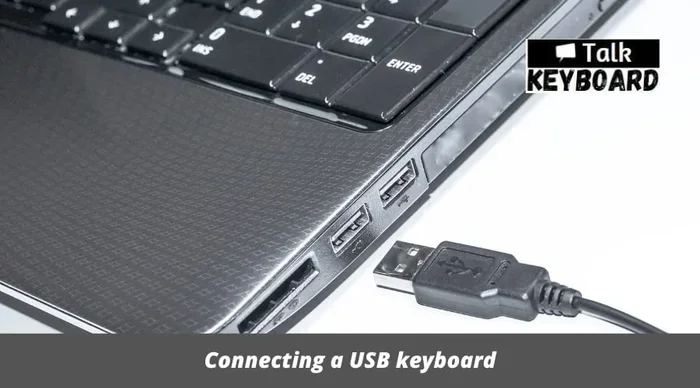
- Find an available USB port on your laptop. Most laptops have at least one USB-A port or a USB-C port.
- Plug the USB connector of the keyboard into the port. Push it in gently until it fits snugly.
- Wait a few seconds. Your laptop should recognize the USB keyboard automatically.
- Start typing. Open any text editor or search bar and test the keys. If the letters appear on screen, you are all set.
That is it. No downloads, no driver CDs, no complicated setup. A good USB keyboard uses plug-and-play technology, which means your operating system detects it and installs the basic drivers on its own. This is one of the biggest advantages of using a USB keyboard with a laptop.
What If Your Laptop Only Has USB-C Ports?
Some newer laptops only have USB-C ports. If your USB keyboard has a standard USB-A plug, you will need a simple USB-C adapter. These adapters are cheap and easy to find. Just plug the adapter into your laptop, then connect the USB keyboard to the adapter. It works just as well as a direct connection.
Some modern USB keyboards come with a USB-C cable built in. These keyboards connect directly to USB-C laptops without any adapter needed. When shopping for a USB keyboard, check the cable type to make sure it matches your laptop ports.
Wireless USB Keyboards
Not all USB keyboards are fully wired. Some wireless keyboards use a small USB receiver that you plug into your laptop. The keyboard connects to the receiver through Bluetooth or a proprietary wireless signal. You get the freedom of a wireless setup while still using a USB port on your laptop. These are great if you want a clean desk setup without cables everywhere.
Benefits of Using a USB Keyboard With Your Laptop
Switching from a built-in laptop keyboard to an external USB keyboard brings many benefits. Let us explore why so many people make this simple switch.
1. Comfort During Long Work Sessions
If you work from home or spend hours typing every day, a USB keyboard makes a huge difference. The keys are more spaced out, the travel distance is better, and the overall feel is more comfortable. Your hands and wrists will thank you after a long day of work.
2. Easy to Switch Between Devices
A USB keyboard is portable and easy to move between laptops or even desktop computers. You can unplug it from one device and plug it into another in seconds. This makes it perfect for people who use multiple machines or travel frequently.
3. Better for Gaming and Productivity
Many USB keyboards are designed specifically for gaming or productivity. Gaming keyboards offer faster response times, customizable keys, and RGB lighting. Productivity keyboards may have a dedicated number pad and media controls. A USB keyboard lets you choose the layout that fits your work style best.
4. Cost-Effective Upgrade
Buying a new USB keyboard is much cheaper than replacing an entire laptop. A good external keyboard costs between $20 and $100. For a small investment, you get a much better typing experience and can save your laptop from further wear and tear.
Common Problems and How to Fix Them
While connecting a USB keyboard is usually easy, sometimes things do not work right away. Do not worry. Most issues are simple to fix. Here are the common problems and their solutions.
Keyboard Not Recognized
If your laptop does not recognize the USB keyboard, try these steps:
- Unplug the keyboard and plug it into a different USB port.
- Try a different USB cable if your keyboard uses one.
- Restart your laptop and plug the keyboard back in after the reboot.
- Check if the keyboard works on another computer to rule out a hardware issue.
Keys Not Typing the Right Characters
Sometimes the keys on your USB keyboard type different characters than expected. This usually happens when the keyboard layout does not match your operating system settings. Go to your laptop’s language and keyboard settings and make sure the layout matches your USB keyboard. For example, a US layout should be selected if you bought a US keyboard.
Laptop Keyboard Stops Working When USB Keyboard Is Connected
On some laptops, connecting an external USB keyboard disables the built-in keyboard temporarily. This is normal behavior on many systems. If you want both keyboards to work, go into your device manager or system settings and enable the internal keyboard. On Windows, you can do this by going to Device Manager, expanding Keyboards, and enabling the internal device if it is disabled.
Delayed or Lagging Keystrokes
If your USB keyboard feels slow or laggy, the issue is often a loose connection. Try a different USB port or a shorter cable. Wireless USB keyboards may lag if the battery is low or if there is interference from other wireless devices. Replace the batteries or move the USB receiver closer to the keyboard.
USB Port Not Working
If the USB port itself seems dead, try these quick fixes:
- Restart your laptop.
- Check the port for dust or debris and clean it gently.
- Update your USB drivers through Device Manager on Windows or System Preferences on Mac.
- Try a USB hub to see if the port can still supply power.
Choosing the Right USB Keyboard for Your Laptop
Not all USB keyboards are the same. Choosing the right one depends on your needs, budget, and how you use your laptop. Here are some factors to consider when picking a USB keyboard.
Full-Size vs. Compact
A full-size USB keyboard includes a number pad and all the standard keys. It is great for data entry, office work, and general use. A compact or tenkeyless keyboard leaves out the number pad, making it smaller and more portable. Choose based on how much desk space you have and what you type most often.
Wired vs. Wireless
A wired USB keyboard connects directly through a cable. It never needs charging and has virtually zero input lag. A wireless USB keyboard uses Bluetooth or a USB receiver. It keeps your desk tidy but needs batteries or regular charging. Both types work great with laptops.
Keyboard Switch Type
If you are choosing a mechanical USB keyboard, the switch type matters. Membrane keyboards are quiet and affordable. Mechanical keyboards offer a satisfying feel and better durability. Some people prefer quiet switches for office use, while others like loud, responsive switches for gaming. Try different switch types to find what feels best for you.
Build Quality and Durability
Look for a USB keyboard with solid build quality. Keyboards with metal frames or spill-resistant designs last longer. Check the manufacturer’s warranty and read reviews before buying. A good USB keyboard should last several years of daily use without any issues.
Compatibility With Your Operating System
Most USB keyboards work with all major operating systems. However, some keyboards are designed specifically for Windows or Mac. Mac-compatible keyboards have special keys for macOS functions. Before buying, make sure the USB keyboard you choose works well with your laptop’s operating system.
Expert Tips for Getting the Most From Your USB Keyboard
Once you have your USB keyboard connected and working, there are a few tips that can help you get even more out of it. These small changes can improve your experience significantly.
Keep Your Drivers Updated
Even though most USB keyboards work without extra drivers, keeping your system updated ensures the best performance. Operating system updates often include improvements for peripheral support. Check for updates regularly, especially if you notice any issues with your USB keyboard.
Use a USB Hub If You Run Out of Ports
If your laptop has limited USB ports, a simple USB hub solves the problem. A hub lets you connect multiple devices, including your USB keyboard, mouse, and external drive, all at once. Choose a powered USB hub for the best results, especially if you use multiple peripherals.
Clean Your Keyboard Regularly
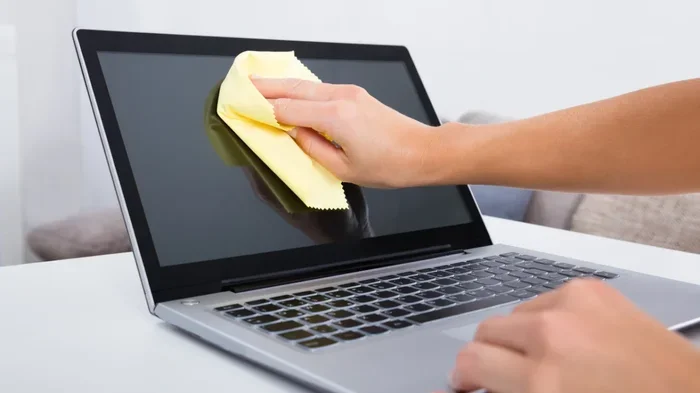
Dust and crumbs can build up under the keys of your USB keyboard over time. Use compressed air to blow out debris, and wipe the keys with a damp cloth. A clean keyboard lasts longer and feels better to type on. This simple habit keeps your USB keyboard working like new for years.
Customize Your Keyboard Shortcuts
Many USB keyboards come with programmable keys or macro support. Take a few minutes to set up shortcuts for your most-used actions. This can speed up your workflow and make your laptop setup feel truly personalized. Most operating systems and third-party software let you customize keyboard shortcuts easily.
Pair It With a Good Mouse
For the best productivity setup, pair your USB keyboard with a compatible mouse. A wireless mouse and a wired or wireless USB keyboard create a clean, efficient workspace. You will type and navigate faster when both devices work together seamlessly.
Frequently Asked Questions
Can I use any USB keyboard with any laptop?
Yes, most USB keyboards work with any laptop that has a USB port. The plug-and-play standard means your laptop will recognize the USB keyboard automatically. Whether you use Windows, Mac, or Chrome OS, a standard USB keyboard should work without extra setup. Just plug it in and start typing.
Do I need to install drivers for a USB keyboard?
In most cases, no. Modern operating systems detect a USB keyboard instantly and install the basic drivers automatically. However, some advanced features like programmable keys or backlighting may require a driver or software download from the manufacturer. Check the product manual if you want to unlock extra features.
Will using a USB keyboard disable my laptop’s built-in keyboard?
On some laptops, connecting an external USB keyboard causes the built-in keyboard to disable temporarily. This is normal behavior on many systems. You can usually re-enable it through Device Manager on Windows or System Preferences on Mac. Both keyboards can work at the same time with a simple settings change.
Can I use a USB keyboard with a laptop that only has USB-C ports?
Yes, you can. If your USB keyboard has a standard USB-A connector, you will need a USB-C to USB-A adapter. Some newer USB keyboards come with USB-C cables that connect directly. Check the keyboard’s cable type before buying to make sure it is compatible with your laptop.
Is a wireless USB keyboard better than a wired one?
It depends on your needs. A wired USB keyboard never needs charging and has zero input lag, making it great for gaming and precision work. A wireless USB keyboard keeps your desk tidy and offers more flexibility. Both types work excellently with laptops. Choose based on your preference for convenience or performance.
How do I fix a USB keyboard that is not working on my laptop?
Start by trying a different USB port and restarting your laptop. Check if the keyboard works on another computer to rule out a hardware problem. Update your USB drivers through Device Manager on Windows. Also make sure the keyboard layout in your system settings matches the physical keyboard you are using. Most issues resolve with these simple steps.
Conclusion
Using a USB keyboard with your laptop is simple, practical, and incredibly rewarding. The connection process takes seconds, and the benefits are immediate. You get a more comfortable typing experience, better accuracy, and a setup that feels tailored to your needs. Whether you replace a broken laptop keyboard or simply want an upgrade, a USB keyboard is one of the best investments you can make.
Now that you know how easy it is to set up and use a USB keyboard, there is no reason not to try one. Pick a keyboard that fits your lifestyle, connect it to your laptop, and enjoy the difference. Your fingers will notice the improvement right away. Start exploring your options today and take your laptop setup to the next level.