Are There Animated Desktop Backgrounds You Need To Try
Animated desktop backgrounds bring your screen to life with motion, color, and creativity. You can turn any static monitor into a dynamic visual experience using free and paid tools. This guide covers everything from setup to performance impact, so you can make an informed choice. Animated desktop backgrounds are more accessible than ever, and we will show you exactly how to get started.
Have you ever looked at your desktop and wished it could do more than just sit there? Animated desktop backgrounds offer a simple way to bring your screen to life. Whether you love flowing nature scenes, cosmic space visuals, or abstract art in motion, there is a solution for everyone. In this guide, we will walk you through everything you need to know about animated desktop backgrounds. You will learn what they are, which tools work best, and how to set them up without slowing down your computer.
The idea of a moving desktop might sound like something from a sci-fi movie. But today, animated desktop backgrounds are completely real and surprisingly easy to use. People use them for personal expression, productivity inspiration, or just because they look amazing. Live wallpaper technology has come a long way, and modern computers can handle it with ease. Let us dive into the world of animated desktop backgrounds and find out what all the excitement is about.
Key Takeaways
- Animated desktop backgrounds are widely available: Multiple tools and apps support live and video wallpapers on both Windows and Mac.
- Performance matters: Animated wallpapers can use GPU and CPU resources, so choosing the right tool is essential.
- Free options exist: You do not need to spend money to enjoy a dynamic desktop experience.
- Setup is simple: Most software makes it easy to apply and customize animated backgrounds in minutes.
- Battery and system impact vary: Lighter tools and optimized files keep your computer running smoothly.
- Customization is key: You can adjust video quality, frame rate, and audio to balance visuals and performance.
📑 Table of Contents
What Are Animated Desktop Backgrounds?
How They Work
Animated desktop backgrounds are images or videos that move on your computer screen instead of staying still. Think of them like a living screensaver that runs right behind your icons and taskbar. These backgrounds use software to render video files, GIFs, or real-time 3D scenes as your desktop wallpaper. The software keeps the animation running in the background while you work.
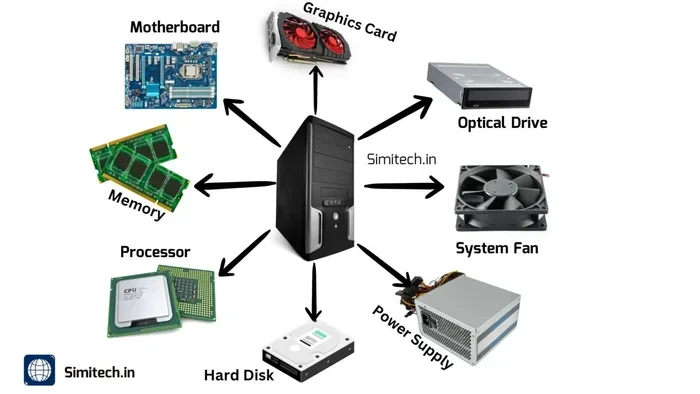
Most animated desktop backgrounds rely on your computer’s graphics card to render smooth motion. A basic GPU can handle simple loops, while more powerful cards support high-resolution videos and complex 3D environments. The key is finding the right balance between visual quality and system performance. Desktop customization has never been easier, and animated options are at the forefront of this trend.
Types of Animated Wallpapers
Not all animated desktop backgrounds are the same. Here are the most common types you will encounter:
- Video wallpapers: These use standard video files like MP4 or MOV. They are simple to set up and offer high visual quality.
- GIF-based wallpapers: Graphics Interchange Format files create short, looping animations. They work well for subtle motion effects.
- Live 3D wallpapers: These use real-time rendering to create interactive scenes. You can sometimes mouse over them and see the animation respond.
- Dynamic wallpapers: Popular on Mac, these change based on time of day or system events. A sunset wallpaper might shift to a night scene automatically.
- Interactive wallpapers: Some tools let your cursor or mouse movements affect the background animation directly.
Best Tools and Software for Animated Desktop Backgrounds
Wallpaper Engine for Windows
Wallpaper Engine is the most popular tool for animated desktop backgrounds on Windows. It offers thousands of community-created wallpapers across every genre imaginable. You can find animated nature wallpaper scenes, abstract art, gaming themes, and much more. The software runs in your system tray and uses very little resources when you are in full-screen applications.
One of the best things about Wallpaper Engine is its Steam Workshop integration. You can browse, subscribe to, and download new wallpapers without leaving the app. The price is very reasonable, and the community is massive. If you want animated desktop backgrounds on Windows, this is the go-to choice for most users.
Dynamic Wallpaper for Mac
Mac users have fewer native options, but Dynamic Wallpaper tools have filled the gap. Apple’s macOS supports dynamic wallpaper changes based on time, and third-party apps extend this capability. Apps like Plash and Wallpaper Wizard let you use video files as your Mac desktop wallpaper. These tools convert video into a format macOS can display behind your icons.
Setting up animated desktop backgrounds on a Mac requires a bit more work than on Windows. But the results are worth it. Many Mac users love the sleek, polished look of a moving desktop wallpaper behind their clean interface. Just make sure you pick a lightweight app to avoid draining your battery.
Free Options Worth Trying
You do not need to spend money to enjoy animated desktop backgrounds. Several free tools offer great functionality. Lively Wallpaper is a free open-source option for Windows that supports video, GIF, and web-based wallpapers. Rainmeter is another free tool that combines desktop widgets with animated backgrounds. Both are excellent starting points if you want to test the waters.
For those who prefer web-based solutions, DesktopHut lets you download and run animated wallpapers directly from your browser. These free wallpaper apps prove that animated desktop backgrounds do not have to cost a thing. You can explore different styles before committing to a paid tool.
Comparison Table: Top Animated Wallpaper Tools
| Tool | Platform | Price | Video Support | |||
|---|---|---|---|---|---|---|
| Wallpaper Engine | Windows | Paid | Yes | Yes | Yes | Low to Medium |
| Lively Wallpaper | Windows | Free | Yes | Yes | Limited | Low |
| Plash | Mac | Paid | Yes | No | No | Medium |
| Rainmeter | Windows | Free | Limited | Yes | Yes | Low |
| DesktopHut | Windows | Free | Yes | Yes | No | Low |
Performance Impact and System Requirements
GPU and CPU Usage
One of the biggest concerns people have about animated desktop backgrounds is performance. After all, running a video on your desktop uses resources. The good news is that modern wallpaper software is designed to be efficient. Most tools pause the animation when you are in a full-screen game or application.
When your wallpaper is visible, it will use some GPU and CPU power. A simple 4K animated wallpaper might use 2 to 5 percent of your graphics card. This is a small price to pay for a stunning visual experience. If you have a dedicated graphics card, the impact is barely noticeable. Even integrated graphics can handle animated desktop backgrounds with ease for most standard videos.
Battery Life Considerations
Laptop users should pay extra attention to battery drain. Animated desktop backgrounds on a portable device will use more power than a static image. The video playback keeps your GPU active, which reduces battery life. If you are working unplugged, consider switching to a static wallpaper or choosing a low-resolution file.
Some wallpaper apps offer battery-saving modes that lower the frame rate or pause the animation when running on battery. This is a smart feature that lets you enjoy animated desktop backgrounds without killing your laptop’s charge. Always check the settings of your chosen tool for power management options.
System Requirements at a Glance
Most computers from the last five years can handle animated desktop backgrounds without any issues. Here is a quick look at what you need:
- Minimum CPU: Any dual-core processor from the last 5 years
- Minimum GPU: Integrated graphics like Intel HD 4000 or better
- RAM: At least 4 GB (8 GB recommended)
- Storage: Enough space for your wallpaper files (typically 50 MB to 500 MB per video)
- OS: Windows 10 or later, macOS 10.14 or later
How to Set Up Animated Desktop Backgrounds
Step-by-Step Guide
Setting up animated desktop backgrounds is simpler than you might think. Follow these steps to get started:
- Choose your tool: Pick a wallpaper engine that matches your operating system and budget.
- Install the software: Download from the official website or app store to avoid malware.
- Find a wallpaper: Browse the built-in library or download a video file from a trusted source.
- Apply the wallpaper: Open the tool, select your file, and click “Set as Wallpaper.”
- Adjust settings: Tweak the quality, frame rate, and audio settings to your preference.
- Test it out: Open a few applications to make sure the animation pauses correctly when needed.
Quick Tips for the Best Experience
- Use optimized files: Compress your videos to reduce file size without losing too much quality.
- Start simple: Try a gentle animated nature wallpaper before diving into complex 3D scenes.
- Check for updates: Keep your wallpaper software updated for the best performance and bug fixes.
- Monitor resources: Use your task manager to check how much your animated wallpaper is using.
- Disable audio: If you do not need sound, turn it off to save system resources.
Common Mistakes to Avoid
Choosing the Wrong File Format
Not every video file works well as an animated desktop background. Some wallpaper apps only support specific formats like MP4 or WebM. Using an unsupported file will lead to errors or poor performance. Always check the tool’s documentation before downloading or converting your files.
Another common mistake is using extremely large video files. A 4K animated wallpaper at 60 frames per second can eat up storage and system resources fast. Stick to 1080p or 1440p for most setups, and you will get smooth performance without the bloat.
Ignoring System Resources
Some users set up a heavy animated desktop background and wonder why their computer feels slow. The truth is, not all wallpaper software is created equal. Cheap or poorly optimized tools can drain your CPU and GPU even when you are not actively using them.
Always choose reputable wallpaper apps from trusted developers. Read reviews and check the resource usage before committing. If your computer is older or low-spec, stick to lightweight options like Lively Wallpaper or simple GIF-based wallpapers. Your desktop aesthetics should enhance your experience, not hinder it.
Overlooking Compatibility
Before you download anything, make sure the tool is compatible with your operating system. Wallpaper Engine only works on Windows, for example. Mac users need different solutions. Double-checking compatibility saves you time and frustration down the road.
Expert Insights and Final Thoughts
Why Animated Desktop Backgrounds Are Worth It
After testing dozens of animated desktop backgrounds across different platforms, the consensus is clear: they make a noticeable difference. A moving desktop wallpaper adds personality and style to your workspace. It turns a plain monitor into something that feels alive and engaging.
From a productivity standpoint, animated desktop backgrounds can also help. A calm animated nature wallpaper with gentle flowing water or swaying trees creates a relaxing environment. This can reduce stress during long work sessions. Many users report feeling more inspired and focused with a dynamic desktop background instead of a static one.
The technology behind animated desktop backgrounds has matured significantly. Tools like Wallpaper Engine and Lively Wallpaper make the process seamless. Even if you are not tech-savvy, you can have a stunning live wallpaper running in minutes. The key is to choose the right tool, optimize your settings, and enjoy the experience.
As desktop customization continues to evolve, we can expect even more impressive options in the future. Interactive desktop backgrounds that respond to music, weather, or your activity are already on the horizon. For now, the tools available today offer more than enough to transform your screen into something truly special.
Final Recommendation
If you have been curious about animated desktop backgrounds, now is the perfect time to try them. Start with a free tool like Lively Wallpaper or DesktopHut to see how you like the experience. If you want more features and a massive library, Wallpaper Engine is worth every penny. Either way, you will wonder how you ever lived with a static desktop wallpaper. Give animated desktop backgrounds a try and bring your screen to life today.
Frequently Asked Questions
Are animated desktop backgrounds safe to use?
Yes, animated desktop backgrounds are safe as long as you download tools from official sources. Stick to trusted platforms like Steam, the Microsoft Store, or the developer’s official website. Avoid sketchy download sites that might bundle malware with their wallpaper software. Always read reviews and check file permissions before installing anything new.
Do animated desktop backgrounds slow down your computer?
The impact depends on the tool and your hardware. Most modern wallpaper engines are optimized to use minimal resources. They pause when you are in full-screen apps and use low power during normal use. Older computers or laptops on battery might notice a slight slowdown, but lightweight options like Lively Wallpaper keep the impact very small.
Can I use any video as an animated desktop background?
Most wallpaper apps support common formats like MP4, MOV, and WebM. However, some tools have limitations on resolution, frame rate, or file size. It is best to check your chosen software’s requirements before converting your videos. Using a compressed 1080p MP4 file is the safest choice for animated desktop backgrounds.
Are animated desktop backgrounds available for Mac?
Yes, Mac users can enjoy animated desktop backgrounds through apps like Plash, Wallpaper Wizard, and Lively Wallpaper. Apple’s macOS has built-in support for dynamic wallpaper changes, and third-party tools extend this with video and GIF support. The setup process is slightly different from Windows, but the results are just as stunning.
Do animated desktop backgrounds drain laptop battery?
They can, but the drain is usually minimal. A well-optimized animated nature wallpaper at 1080p will use very little power. To maximize battery life, lower the resolution, disable audio, or use a tool with a battery-saving mode. If you are working unplugged, consider switching to a static wallpaper to conserve charge.
Can I make my own animated desktop backgrounds?
Absolutely. Many wallpaper engines let you upload your own video or GIF files. You can create custom animated desktop backgrounds using free video editing tools like DaVinci Resolve or even online converters. This is a great way to personalize your desktop customization and make your setup truly unique.
=== CONCLUSION ===
Animated desktop backgrounds are no longer a futuristic concept. They are a fun, accessible way to personalize your computer and make your workspace feel more alive. From Wallpaper Engine on Windows to Dynamic Wallpaper tools on Mac, there is a solution for every user and every budget. The best part is that you can start with free options and upgrade later if you want more features.
Keep performance in mind, choose the right file formats, and pick tools that respect your system resources. With the right setup, your animated desktop backgrounds will look incredible without slowing you down. Whether you choose a calming animated nature wallpaper or a vibrant abstract design, your desktop will never look the same again. Start exploring animated desktop backgrounds today and give your screen the upgrade it deserves.