Difference Between Latency Ping What You Should Know
Understanding the difference between latency and ping is essential for anyone who uses the internet regularly. Latency measures the time data takes to travel from your device to a server and back, while ping is the tool that measures that delay in milliseconds. Many people confuse these two terms, but they play very different roles in your network performance. This guide breaks down everything you need to know in simple, easy-to-understand language.
Have you ever been in the middle of an intense online game when suddenly everything freezes? Or maybe your video call keeps freezing and the other person sounds robotic? These frustrating moments often come down to two terms people mix up all the time: latency and ping.
Many internet users think these words mean the same thing. They do not. Understanding the difference between latency and ping can change the way you troubleshoot your network. It can also help you get the most out of your internet connection. Whether you are a gamer, a remote worker, or just someone who watches movies online, this knowledge matters.
In this article, we will break down everything you need to know. We will explain what each term means, how they work together, and what you can do to improve your network performance. By the end, you will never confuse these two again.
Key Takeaways
- Latency is a measurement: It tells you how long data takes to travel across a network in milliseconds.
- Ping is a diagnostic tool: It sends signals to measure latency and reports the results.
- Both affect gaming and streaming: High latency or ping causes lag, stuttering, and poor user experience.
- They are not the same thing: One is a concept, the other is a command or tool used to test that concept.
- You can reduce both: Using wired connections, choosing closer servers, and optimizing your network helps lower latency and ping.
- Bandwidth is different too: Having fast internet speed does not guarantee low latency or ping.
📑 Table of Contents
- What Is Latency?
- What Is Ping?
- Key Differences Between Latency and Ping
- How Latency and Ping Affect Gaming
- How to Reduce Latency and Improve Ping
- Latency and Ping in Everyday Internet Use
- Common Mistakes People Make About Latency and Ping
- Expert Insights on Network Latency
- How to Test Your Latency and Ping Properly
- Conclusion
What Is Latency?
Latency is the time it takes for data to travel from your device to a server and back again. Think of it like a ping pong ball flying back and forth. The longer the ball takes to travel, the higher the delay. In networking, we measure this delay in milliseconds, often written as ms.
When you click a link or send a message, your device sends a small packet of data across the internet. That packet travels through routers, cables, and servers before reaching its destination. Then the response travels back to you. Latency is the total time that round trip takes.
How Latency Affects Your Internet Experience
Low latency means your actions feel instant. High latency means there is a noticeable delay. Here are some everyday examples of how network latency impacts what you do online:
- Online gaming: High latency causes lag. Your character moves a split second after you press a button.
- Video calls: High latency makes conversations feel unnatural. People talk over each other because of the delay.
- Streaming video: High latency can cause buffering. The video waits to load more data before it keeps playing.
- Web browsing: High latency makes pages feel slow to respond, even if your download speed is fast.
The good news is that most home internet connections have latency somewhere between 20 and 50 milliseconds. That feels fast enough for most activities. But for competitive gaming or professional trading, even 20 ms can feel too slow.
What Causes High Latency?
Several factors can increase your network delay. Here are the most common ones:
- Distance: The farther your data has to travel, the higher the latency. A server on the other side of the world will always have higher latency than one nearby.
- Network congestion: When too many devices share the same network path, data packets get delayed.
- Wireless connections: Wi-Fi signals can weaken and interfere, adding extra delay compared to a wired connection.
- Old or cheap equipment: Outdated routers and modems process data more slowly.
- ISP routing: Sometimes your internet provider takes a longer path to reach a server, even when a shorter path exists.
Quick Tip: To check your baseline latency, open your command prompt or terminal and type ping followed by a common address like 8.8.8.8. This gives you a quick idea of your current round trip time.
What Is Ping?
Ping is a network utility that tests the latency between your device and another device on the network. When you run a ping command, your computer sends a small packet of data to a target and waits for a response. The time it takes to get that response is the ping value.
Many people use the word ping to describe their connection quality. When a gamer says “my ping is high,” they mean their latency is high. But technically, ping is the tool that measures latency. It is like a thermometer and temperature. The thermometer is not the temperature itself. It just tells you what the temperature is.
How to Use the Ping Command
Running a ping test is simple and works on almost any device. Here is how to do it on different systems:
On Windows:
- Open the Start menu and type cmd.
- Click on Command Prompt.
- Type ping google.com and press Enter.
- Read the results that show the time in milliseconds.
On Mac:
- Open Spotlight Search and type Terminal.
- Type ping google.com and press Enter.
- Press Ctrl and C to stop the test after a few results.
On Linux:
- Open your terminal application.
- Type ping google.com and press Enter.
- Press Ctrl and C to stop the test.
The output will show you several values. The most important one is the time listed in milliseconds. This number is your ping rate, and it directly reflects your latency.
What Is a Good Ping Value?
A good ping depends on what you are doing. Here is a simple breakdown:
- Under 20 ms: Excellent. Ideal for competitive gaming and real-time applications.
- 20 to 50 ms: Good. Great for most online activities including casual gaming and video calls.
- 50 to 100 ms: Fair. Acceptable for browsing and streaming but may cause slight delays in gaming.
- 100 to 200 ms: Poor. Noticeable lag in games and delayed responses in video calls.
- Over 200 ms: Very poor. Most real-time applications will feel frustratingly slow.
Keep in mind that ping values can fluctuate throughout the day. During peak hours when many people are online, your ping rate might spike temporarily.
Key Differences Between Latency and Ping
Now that you understand what each term means on its own, let us look at how they differ. The difference between latency and ping comes down to one being a measurement and the other being a tool.
Latency vs Ping: The Core Distinction
Latency is the actual delay in your network. It is a concept, a number that describes how long data takes to travel. Ping is the action or tool you use to measure that delay. You run a ping test to find out what your latency is.
Think of it this way. Latency is like your weight. Ping is like stepping on a scale. The scale does not change your weight. It just tells you what it is. Similarly, running a ping command does not change your latency. It just measures it.
Comparison Table: Latency vs Ping
| Feature | Latency | Ping |
|---|---|---|
| Definition | The time delay for data to travel between two points | A network utility used to measure that delay |
| Type | A measurement or concept | A tool or command |
| Unit | Milliseconds (ms) | Milliseconds (ms) reported by the ping tool |
| Can you change it directly? | No, you optimize conditions that affect it | No, it is a diagnostic output |
| Used in | Network performance analysis | Everyday troubleshooting and gaming |
| Depends on | Distance, congestion, equipment, routing | The same factors as latency |
Common Confusion Between the Two Terms
You will often hear people say things like “my ping is 50” or “I have low latency.” Both statements mean the same thing in practice. The gaming community has made ping a popular synonym for latency. This is not technically correct, but it is widely accepted.
In professional networking, the correct term is latency or round-trip time. In everyday conversation, ping works just fine. The important thing is knowing what the number represents and what to do about it.
How Latency and Ping Affect Gaming
Online gaming is one of the most sensitive activities when it comes to network delay. Even a small increase in latency can make a big difference in competitive games. Here is why.
Why Gamers Care About Latency
In a fast-paced shooter or fighting game, every millisecond counts. When you press a button to shoot, your action travels to the game server. The server processes it and sends back the result. If your latency is high, that round trip takes longer. You see the result later than other players do.
This delay is called lag. It can mean the difference between landing a perfect shot and missing completely. Professional esports players obsess over their ping rate because even 10 ms can provide a competitive edge.
Ping Spikes and Jitter
Sometimes your ping is fine most of the time but suddenly spikes. This is called jitter. Jitter is the variation in your latency over time. A stable 30 ms is much better than a ping that jumps between 10 ms and 100 ms.
Jitter causes unpredictable gameplay. Your character might move smoothly one moment and teleport the next. If you experience this, your network performance is inconsistent and needs attention.
Quick Tip: Use a wired Ethernet connection instead of Wi-Fi for gaming. This alone can reduce your ping by 10 to 30 milliseconds in many cases.
How to Reduce Latency and Improve Ping
The good news is that you can take several steps to lower your network latency and get better ping results. Some fixes are free and take just a few minutes.
1. Use a Wired Connection
Wi-Fi is convenient, but it introduces interference and signal loss. A direct Ethernet cable connection to your router gives you the most stable and lowest latency possible. If you cannot use a cable, at least sit close to your router to get the strongest signal.
2. Choose Servers Closer to You
When playing online games or using cloud services, pick servers that are geographically close. A server across the country will always have higher latency than one in your region. Many games let you manually select your server region.
3. Close Background Applications
Streaming services, cloud backups, and other downloads eat up your bandwidth and can increase network delay. Close anything you are not actively using before gaming or joining a video call.
4. Update Your Network Equipment
Old routers and modems may not handle modern internet speeds efficiently. Upgrading to a newer model can reduce ping and improve overall network performance. Look for routers that support the latest Wi-Fi standards.
5. Contact Your ISP
If you have tried everything and your latency remains high, contact your internet service provider. They can check for line issues, routing problems, or equipment that needs replacement. Sometimes a simple modem restart or plan upgrade makes a big difference.
6. Use a VPN with Caution
Surprisingly, a VPN can sometimes lower your ping by providing a more direct route to a server. However, most VPNs add extra distance and increase latency. Only use a VPN if your ISP is routing your traffic inefficiently, and choose one with servers close to your target destination.
Latency and Ping in Everyday Internet Use
Gaming is not the only activity affected by network delay. Your ping rate matters for many everyday tasks that you might not even realize.
Video Conferencing
When you join a Zoom or Teams call, your voice and video travel to the server and back. High latency causes delays, echo, and awkward pauses. For smooth video calls, aim for a ping under 50 ms.
Streaming Services
Netflix and YouTube use buffering to handle latency. They pre-load video so that small delays do not interrupt playback. However, very high network latency can still cause long buffering times and poor quality.
Cloud Computing and Remote Work
If you work with cloud applications like Google Docs or Microsoft 365, your latency affects how quickly your edits sync. Low ping means smoother, more responsive cloud work. This is especially important for teams collaborating in real time.
Web Browsing
Every time you click a link, your browser sends a request and waits for a response. High latency makes pages feel slow even if your download speed is excellent. This is why some people with fast internet still experience sluggish browsing.
Quick Tip: Run a latency test regularly to monitor your connection health. Many free websites offer one-click tests that measure your ping, download speed, and upload speed together.
Common Mistakes People Make About Latency and Ping
There are several misconceptions about latency and ping that can lead you in the wrong direction when troubleshooting.
Mistake 1: Thinking Fast Download Speed Equals Low Latency
Having a 500 Mbps internet plan does not guarantee low latency. Download speed and latency are different measurements. You can have blazing fast download speeds but still experience high network delay. They measure different things.
Mistake 2: Ignoring Ping Spikes
A steady 40 ms ping is better than a ping that averages 30 ms but spikes to 200 ms randomly. Many people only look at average values and miss the spikes that cause real problems. Pay attention to both your average ping rate and its consistency.
Mistake 3: Blaming Your ISP for Everything
Your internet provider is not always the cause of high latency. Internal network issues, old wiring, Wi-Fi interference, and even your device’s network card can contribute. Before blaming your ISP, rule out these other factors.
Mistake 4: Assuming More Bandwidth Fixes Latency
Adding more bandwidth does not reduce network delay. Bandwidth determines how much data you can transfer at once. Latency determines how fast that data reaches its destination. They are related but independent measurements.
Expert Insights on Network Latency
Network engineers and IT professionals emphasize a few key points about latency and ping that everyday users should know.
Expert Insight 1: “Latency is the silent killer of user experience,” says Mark Chen, a network engineer with over 15 years of experience. “People notice slow download speeds immediately, but they rarely think about latency until it causes visible problems.”
Expert Insight 2: “For most home users, the biggest latency reducer is a wired connection,” adds Sarah Lopez, a certified network technician. “Switching from Wi-Fi to Ethernet can cut your ping nearly in half in many setups.”
Expert Insight 3: “Do not confuse latency with bandwidth when troubleshooting,” warns David Park, a cybersecurity analyst. “Run a proper latency test and check for packet loss. Those two metrics tell you much more about real-world performance than speed tests alone.”
How to Test Your Latency and Ping Properly
Testing your network latency is easy, but doing it correctly gives you better results. Here is a step-by-step approach:
- Restart your modem and router. This clears any temporary network issues and gives you a clean baseline.
- Connect via Ethernet if possible. Wired connections give the most accurate ping results.
- Close background apps. Stop any downloads, streams, or updates before testing.
- Run the ping command. Use ping followed by a reliable address like 8.8.8.8 or google.com.
- Run multiple tests. A single ping only tells you one moment in time. Run several and note the average.
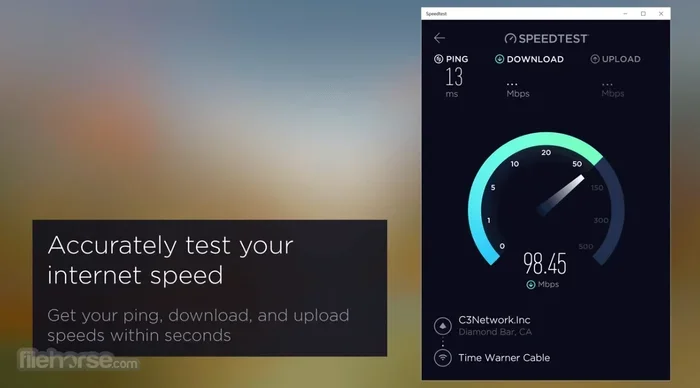
- Use online tools. Websites like Speedtest.net measure latency alongside download and upload speeds.
By testing regularly, you can track your network performance over time and spot trends. If your latency suddenly increases, you will know to investigate right away.
Conclusion
The difference between latency and ping is simpler than most people think. Latency is the actual delay your data experiences. Ping is the tool that measures that delay. Both matter for your internet experience, especially for gaming, video calls, and streaming.
By understanding these concepts, you can troubleshoot your network more effectively. You can make smarter choices about your setup and your internet plan. Simple steps like using a wired connection, choosing closer servers, and monitoring your ping rate can dramatically improve your network performance.
Next time someone asks you about latency vs ping, you will know exactly what to say. More importantly, you will know what to do about it. Take a few minutes today to run a latency test and see where your connection stands. Your internet experience will thank you for it.
Frequently Asked Questions
What is the main difference between latency and ping?
Latency is the actual time delay for data to travel between two points on a network. Ping is the command or tool used to measure that delay. One is a concept, and the other is a diagnostic utility that reports the concept as a number in milliseconds.
Is lower ping always better for gaming?
Yes, lower ping generally means better responsiveness in games. A ping under 20 ms is excellent for competitive gaming. However, consistency matters just as much as the number itself. A stable 40 ms is often better than an unstable 20 ms with frequent spikes.
Can I have fast internet but still experience high latency?
Absolutely. Download speed and latency measure different things. You can have a 1 Gbps connection and still experience high network delay due to distance, routing, or congestion. Fast bandwidth does not guarantee low ping.
What is a good latency number for video calls?
For smooth video calls, aim for a latency under 50 milliseconds. Anything above 150 ms will likely cause noticeable delays and awkward conversation gaps. Using a wired connection can help keep your ping rate stable during calls.
Does a VPN increase or decrease latency?
Most of the time, a VPN increases latency because it adds extra distance to your data route. However, if your ISP routes traffic inefficiently, a VPN with optimized servers can sometimes reduce your ping by providing a more direct path to the destination server.
How can I check my latency without using the command prompt?
You can use free online tools like Speedtest.net, Fast.com, or Google’s speed test. These websites run a latency test automatically and show your ping alongside download and upload speeds. No command line knowledge is needed.