Can You Use A Tablet As A Portable Monitor For Work
Can you use a tablet as a portable monitor for work? The answer is yes, and it is easier than you think. You can turn any modern tablet into a portable monitor and gain a second screen for your laptop or desktop. This guide covers every method, app, and tablet that makes tablet productivity possible. You will learn wired and wireless setups, the best apps, and which tablets deliver the best results. Start boosting your portable workstation today with these simple steps.
So you want to know if you can use a tablet as a portable monitor for work? Great question. More people are asking this every day, and the answer is a clear yes. Whether you travel for work or just need extra screen space, your tablet can do the job.
Using a tablet as a second screen changes how you work. You get more room for apps, windows, and documents. It makes multitasking easier and keeps you focused. Many professionals already use this trick to stay productive on the go.
In this guide, we walk you through everything you need to know. You will learn how to connect your tablet, which apps work best, and which tablets make the cut. We also share tips to avoid common pitfalls. By the end, you will be ready to set up your own tablet monitor setup in minutes.
Key Takeaways
- Yes, you can: A tablet works as a portable monitor with the right cable or app.
- Multiple methods: Use USB-C, HDMI, or wireless apps like Duet Display for a tablet monitor setup.
- Best tablets: iPads and Android tablets with USB-C support deliver the best display extension experience.
- Quick setup: Most setups take under 10 minutes and require no technical skills.
- Boost productivity: A second screen helps with multitasking, remote work, and creative tasks.
- Watch for pitfalls: Avoid wrong cables, low resolution, and ignoring latency for the best experience.
📑 Table of Contents
What Is a Tablet Portable Monitor Setup?
A tablet portable monitor setup means using your tablet as an external display for your laptop or desktop. Instead of buying a separate monitor, you repurpose your tablet screen. This works with iPads, Android tablets, and even some Windows tablets.
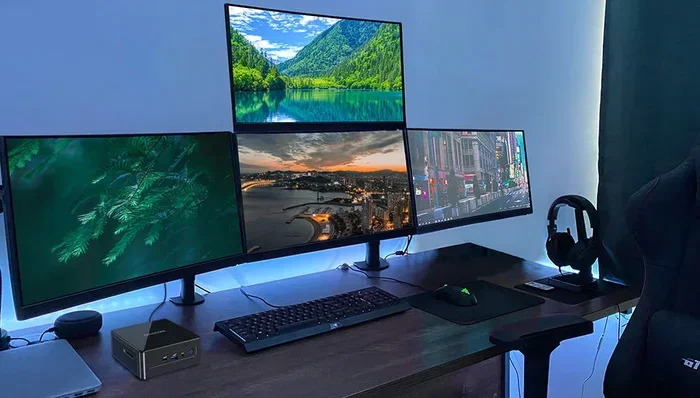
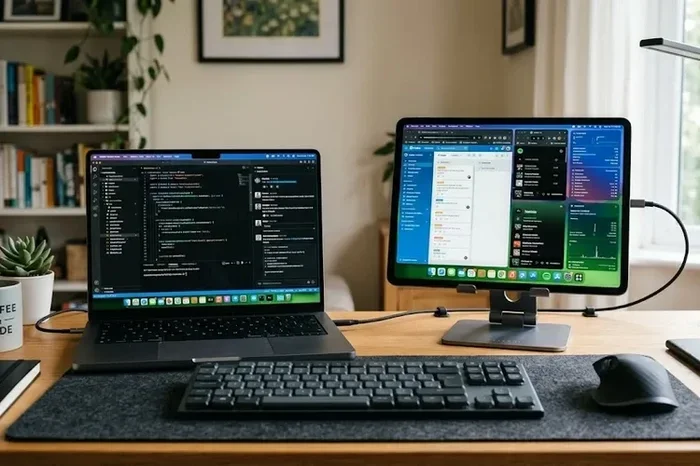
The concept is simple. Your tablet becomes a display extension for your computer. You can drag windows, spread out spreadsheets, or extend your gaming screen. It is like having a portable workstation that fits in your bag.
There are three main ways to make this work. You can use a wired connection with a cable. You can use a wireless app. Or you can use a tablet docking station for a clean setup. Each method has its pros and cons. We will cover all of them below.
Why Use a Tablet Instead of a Traditional Portable Monitor?
Traditional portable monitors can cost $150 to $300. A tablet you already own works for free or very little cost. You also get a touchscreen, which adds flexibility. Plus, your tablet doubles as a reading device, note-taker, and media player.
Another big plus is portability. Most tablets are thinner and lighter than standalone monitors. They fit easily into a backpack or even a large pocket. For tablet for remote work and travel, this is a huge advantage. You get a full tablet productivity setup without the extra bulk.
How to Connect Your Tablet as a Second Screen
Connecting your tablet to your computer is easier than you think. The method you choose depends on your devices and needs. Here are the three main ways to get it done.
Method 1: Wired USB-C Connection
If your tablet has a USB-C port, this is the best option. You need a USB-C display cable or a USB-C hub. Plug one end into your computer and the other into your tablet. Your tablet should show up as a second display instantly.
Most modern tablets support this. iPads with USB-C (like the iPad Pro and iPad Air) work great. Many Android tablets from Samsung and Lenovo also support USB-C video output. Check your tablet specs to confirm.
Quick Tips for USB-C Setup:
- Use a high-quality display cable to avoid signal issues.
- Make sure your tablet supports video input, not just output.
- Keep cables short (under 6 feet) for best performance.
- A USB-C hub with power delivery keeps your tablet charged.
Method 2: Wireless Apps and Screen Mirroring
Wireless options are perfect if you do not want cables. Apps like Duet Display, Splashtop Wired XDisplay, and SpaceDesk let you mirror your screen over Wi-Fi. You just install the app on both devices and connect.
Wireless setup gives you freedom of movement. You can place your tablet anywhere in the room. The trade-off is a slight delay, or latency, which can matter for fast tasks like gaming or video editing.
For general office work, wireless is more than enough. Spreadsheets, emails, and documents work smoothly. Just make sure both devices are on the same Wi-Fi network for the best wireless streaming experience.
Method 3: HDMI Connection
Some tablets have full-size HDMI ports or support HDMI adapters. This method works well for tablets that do not have USB-C. You simply plug an HDMI tablet cable from your computer to your tablet.
HDMI gives you a stable, lag-free connection. It is great for presentations or watching videos on your tablet screen. The downside is that it ties you to one spot since the cable limits movement.
Best Apps for Using a Tablet as a Monitor
The right app makes all the difference. Not all tablet monitor apps are created equal. Here are the top choices that actually work well for work.
| App Name | Connection Type | Price | Best For |
|---|---|---|---|
| Duet Display | Wired (USB-C/Lightning) | $9.99 one-time | Low latency, smooth performance |
| SpaceDesk | Wireless (Wi-Fi) | Free | Budget-friendly wireless setup |
| Splashtop Wired XDisplay | Wired (USB) | Free | Simple plug-and-play |
| Twomon USB | Wired (USB) | $9.99 | Android tablet users |
| Laptop Mode | Wireless (Wi-Fi) | Free trial | iPad users wanting flexibility |
Duet Display is the most popular choice. It offers smooth performance and low latency. It works with both iPads and Android tablets. The wired connection means no lag during work. Many professionals call it the gold standard for tablet monitor setup.
SpaceDesk is a great free option. It works over your home Wi-Fi network. You do not need any extra hardware. It is perfect for people who want to test the concept before spending money. The screen mirroring for work capability is solid for everyday tasks.
Each app has its strengths. Choose based on your tablet model, budget, and whether you prefer wired or wireless. Most apps offer free trials so you can test before committing to a purchase.
Which Tablets Work Best as Portable Monitors?
Not all tablets are created equal for this use. Screen size, resolution, and port options matter a lot. Here are the best tablets for a portable monitor setup.
iPad Pro and iPad Air
Apple tablets are top performers for this use. The iPad Pro has a stunning Liquid Retina display with great color accuracy. The USB-C port supports video input, making setup straightforward. These tablets are ideal for iPad as monitor use with your Mac or PC.
The iPad Air is a more affordable option. It shares many of the same features but at a lower price. Both models offer excellent build quality and smooth performance. The tablet screen size of 11 or 12.9 inches gives you plenty of workspace.
Samsung Galaxy Tab Series
Samsung tablets are excellent for Android tablet monitor setups. The Galaxy Tab S8 and S9 series have vibrant AMOLED screens and USB-C ports. They support most tablet monitor apps available on the market.
Samsung tablets also offer great multitasking features. The DeX mode turns your tablet into a desktop-like interface. This makes it even more useful as a second screen for work. The tablet resolution on these models is sharp and clear for detailed work.
Budget Tablets
You do not need an expensive tablet. Budget options like the Lenovo Tab and Amazon Fire tablets can work for basic tasks. They may have lower resolution and slower performance. But for email, documents, and light multitasking, they get the job done.
When choosing a budget tablet, look for at least a 10-inch screen and 1080p resolution. Anything smaller may feel cramped for work tasks. A good tablet stand for work also makes a big difference on a budget setup.
Benefits of Using a Tablet as a Portable Monitor for Work
Using a tablet as a portable monitor for work comes with many real advantages. Here is why this setup is gaining popularity fast.
Extra Screen Space Without the Bulk
A second screen helps you work faster. You can keep your email open on one screen while writing on the other. No more switching between windows constantly. This display extension boosts your efficiency significantly.
Tablets are much lighter than traditional monitors. You can carry one in your laptop bag without adding much weight. For people who work from coffee shops or co-working spaces, this is a game changer. Your portable workstation becomes lighter and more flexible.
Touchscreen Functionality
Unlike most portable monitors, tablets have touchscreens. You can tap, swipe, and pinch to zoom directly on your extended display. This adds a whole new level of interaction. It is especially useful for design work, photo editing, and presentations.
The touchscreen monitor feature also helps with navigation. You can scroll through long documents or browse websites on your second screen with ease. This is something traditional portable monitors cannot offer.
Cost Savings
Why buy a $200 portable monitor when your tablet already works? You save money by repurposing a device you already own. You also save space since you do not need to carry an extra monitor.
For freelancers and small business owners, this cost savings adds up. You invest in one versatile device instead of two separate ones. The tablet docking station can further enhance this setup without breaking the bank.
Battery and Power Efficiency
Tablets are designed to run on battery power. This means you can work untethered from wall outlets for hours. A portable workstation powered by a tablet battery gives you true freedom to work anywhere.
Just keep in mind that extended use will drain your tablet battery faster. Consider keeping a portable charger handy for long work sessions. Using a USB-C hub with power delivery can help keep your tablet charged while working.
Common Mistakes to Avoid and Expert Tips
Setting up your tablet as a monitor is usually smooth. But a few common mistakes can cause frustration. Here is what to watch out for and how to fix it.
Common Mistakes
- Using the wrong cable: Not all cables support video input. Check that your cable and tablet model are compatible before buying.
- Ignoring screen resolution: A low-resolution tablet will look blurry as a monitor. Aim for at least 1080p for a crisp display.
- Overlooking latency: Wireless apps can have a slight delay. If you need real-time responsiveness, go with a wired connection.
- Forgetting about a tablet stand: Without a proper tablet stand for work, you will strain your neck. Invest in a good adjustable stand.
- Not checking app compatibility: Some apps only work with specific tablet models. Always verify before purchasing.
- Skipping the test run: Always test your full setup before an important meeting or presentation.
Expert Insights
According to tech reviewers, wired connections provide the most reliable experience for tablet productivity. They recommend starting with Duet Display or Splashtop for the best results. These apps have been tested across thousands of setups and deliver consistent performance.
Experts also suggest adjusting your tablet display settings. Match the tablet resolution to your laptop screen for a seamless experience. This prevents scaling issues and makes windows feel natural on both displays. A proper display cable also reduces signal problems that cause flickering.
Another pro tip is to close unnecessary apps on your tablet. This frees up memory and reduces lag. A clean tablet runs smoother as a secondary display. Keep your tablet firmware and apps updated for the best compatibility.
Quick Tips for Best Performance
- Keep your tablet and computer software updated for best compatibility.
- Use a USB-C hub with power delivery to charge your tablet while working.
- Place your tablet at eye level with a stand to avoid neck strain.
- Test your setup in your actual work environment before important meetings.
- Use a dark theme on your tablet to reduce eye strain during long sessions.
- Match the tablet screen size to your primary screen for balanced scaling.
- Use a wired connection for tasks that demand zero latency.
Final Thoughts
Using a tablet as a portable monitor for work is one of the smartest productivity moves you can make. It saves money, reduces clutter, and gives you the flexibility to work from anywhere. Whether you choose a wired USB-C connection or a wireless app, the setup is simple and rewarding.
The best part is that you probably already own the device you need. Your iPad, Samsung tablet, or any modern tablet can become a powerful second screen. With the right app and cable, you are up and running in minutes.
Start with the free apps like SpaceDesk to test the concept. If you love it, invest in a quality display cable or tablet docking station for a permanent setup. Your portable workstation will never be the same again.
Give it a try today. You might wonder how you ever worked without a second screen. The tablet as second screen trend is here to stay, and it is changing how we work. Your tablet productivity will thank you.
Frequently Asked Questions
Can any tablet be used as a portable monitor?
Most modern tablets can work as a portable monitor. You need a tablet with a USB-C port or HDMI support. iPads from 2018 onward and most Android tablets from 2020 work well. Check your tablet’s specs to confirm video input support before buying any cables or apps.
Is it better to use a wired or wireless connection?
A wired connection offers the best performance with no lag or delay. It is ideal for tasks that need real-time responsiveness. Wireless connections are more convenient and free from cables. They work great for office tasks like email, documents, and browsing.
Does using a tablet as a monitor drain the battery?
Yes, using your tablet as a display extension will drain the battery faster than normal use. The screen and processing demands use more power. To extend battery life, keep your tablet plugged in during work sessions. A good USB-C hub with power delivery can charge your tablet while it works as a monitor.
What screen size is best for a tablet portable monitor?
A screen size between 10 and 13 inches works best for most work tasks. Smaller tablets under 10 inches may feel cramped. Larger tablets over 13 inches offer more space but are less portable. Match the size to your workflow and how often you travel.
Can I use an iPad as a monitor for a Windows PC?
Yes, you can use an iPad as monitor for a Windows PC. Apps like Duet Display and Splashtop support this setup. You just need a compatible cable or Wi-Fi connection. The iPad works as a seamless second screen for your Windows computer.
Do I need special software to use a tablet as a monitor?
Yes, you need a tablet monitor app to enable the connection. Free options like SpaceDesk work well for basic needs. Paid apps like Duet Display offer better performance and lower latency. Most apps are compatible with both iPad and Android tablets.