Does Factory Reset Delete Everything You Need to Know
A factory reset wipes your device back to its original state, but what exactly gets removed? You will lose all apps, photos, accounts, and personal settings. However, some data like cloud-stored files or SIM information may survive the process. This guide explains exactly what a factory reset does and does not delete so you can protect what matters most.
Have you ever wondered what happens when you hit that scary “Factory Reset” button? Maybe your phone is acting up, or you are selling your old laptop. Either way, you need to know the truth about what a reset really does.
The short answer is yes, a factory reset delete almost everything on your device. But the full story is more complicated than that. Some data lingers behind, and some things you might not expect stay put. In this guide, we walk through every detail so you know exactly what to expect. You will learn what gets erased, what survives, and how to protect your important files before you reset.
Whether you use an iPhone, Android phone, Windows laptop, or Chromebook, this guide covers all the bases. We keep things simple and practical. No tech jargon, no confusion. Just clear answers to help you make the right call.
Key Takeaways
- A factory reset removes all personal data: Photos, messages, apps, and saved passwords are erased from the device storage.
- Cloud backups may survive: Data stored in iCloud, Google Drive, or other cloud services stays safe after a reset.
- You must sign out of accounts first: Failing to log out can cause issues with activation locks and device tracking.
- Some hardware data persists: SIM card info and certain firmware files remain untouched by a reset.
- Data recovery is sometimes possible: Specialized tools can recover deleted files before new data overwrites them.
- Always back up before resetting: A simple backup saves you from losing irreplaceable photos and documents.
📑 Table of Contents
- What Exactly Is a Factory Reset?
- What Does a Factory Reset Delete?
- What Survives a Factory Reset?
- Why People Factory Reset Their Devices
- How to Safely Factory Reset Any Device
- Can You Recover Data After a Factory Reset?
- Factory Reset and Device Security
- Common Mistakes People Make When Factory Resetting
- Frequently Asked Questions
- Final Thoughts
What Exactly Is a Factory Reset?
A factory reset takes your device back to the state it was in when you first opened the box. Think of it like hitting a giant undo button. All the changes you made over time get wiped away. The operating system stays intact, but everything personal gets removed.
During a factory reset delete process, the device erases user data from its internal storage. This includes your apps, photos, messages, and account logins. The system then reinstalls a clean copy of the operating software. Afterward, your device looks and feels brand new.
People reset devices for many reasons. Maybe you are troubleshooting a stubborn software bug. Perhaps you are selling or giving away your gadget. Or maybe you just want a fresh start. Whatever the reason, understanding what happens during the reset is essential.
Factory Reset vs. Soft Reset
People often confuse a factory reset with a soft reset. A soft reset simply restarts your device. It does not touch your data at all. You might do a soft reset when your phone freezes or runs slow.
A factory reset, on the other hand, goes much deeper. It targets the storage where your personal files live. Here is a quick comparison:
- Soft Reset: Restarts the device. No data is lost. Takes just a few seconds.
- Factory Reset: Wipes all personal data. The device returns to its original state. Takes several minutes.
Always make sure you mean to do a factory reset before you start. There is no going back once the process begins.
What Does a Factory Reset Delete?
This is the big question. When you factory reset a device, a lot gets removed. Here is a detailed look at what disappears and what stays behind.
Personal Files and Media
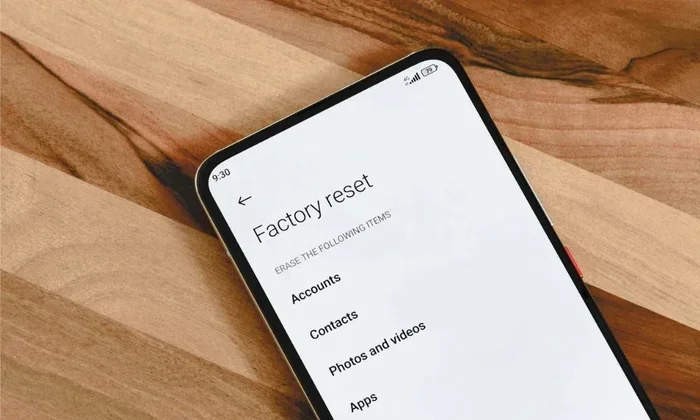
Your photos, videos, music, and documents get erased during a reset. If you saved pictures directly to your device storage, they are gone. The same goes for downloaded files, PDFs, and any other documents you created or saved locally.
However, if you use a cloud service like Google Photos or iCloud, those files remain safe. They live on remote servers, not on your device. That is why backing up before a reset is so important.
Apps and App Data
All apps you downloaded get removed from your device. This includes both free and paid apps. App data like game progress, saved settings, and cached files also gets wiped.
After the reset, you will need to redownload every app from your app store. Some apps may restore your data if they sync to the cloud. But many apps start fresh, and you lose your local progress.
Account Information and Logins
A factory reset delete all saved account logins. Your Google account, Apple ID, email passwords, and social media sessions all get cleared. The device signs you out of every service.
This is actually a good thing for security. If you are selling your device, you want all your accounts removed. But it also means you will need to log back into everything after the reset.
Settings and Preferences
All your custom settings go away too. Your home screen layout, wallpaper, sound preferences, and notification settings all reset to default. Wi-Fi networks you saved get removed from the list.
If you connected to smart home devices like Alexa or Google Home, those connections break. You will need to set them up again from scratch. This is something many people forget to prepare for.
What Survives a Factory Reset?
Here is where things get interesting. Not everything disappears after a reset. Some data persists, sometimes in ways you might not expect.
Cloud-Stored Data
Any data stored in the cloud stays untouched. Your photos in iCloud, files in Google Drive, and messages backed up to the cloud all remain safe. A factory reset only affects local device storage, not cloud accounts.
This is exactly why you should always check your cloud backup before resetting. If you have not backed up recently, now is the time. You can check your Apple Wi-Fi password and other saved credentials through your cloud account settings after you sign back in.
SIM Card and SD Card Data
A factory reset does not touch your SIM card. Your phone number, carrier information, and SIM-based contacts stay intact. If you use an SD card for extra storage, the files on it usually survive too.
However, some devices give you the option to format the SD card during the reset process. Always check the reset menu carefully. You do not want to accidentally erase an SD card full of important files.
System Firmware and Operating Software
The operating system itself does not get deleted. Instead, it gets restored to its original version. The firmware and base software stay in place. This is why your device still works after a reset, even though all your personal data is gone.
Keep in mind that some devices may update the operating system during the reset process. This is normal and nothing to worry about.
Why People Factory Reset Their Devices
There are many valid reasons to perform a factory reset. Let us look at the most common ones and why this process matters for each situation.
Selling or Donating Your Device
If you are giving away or selling your phone or laptop, a factory reset is essential. You do not want the next person accessing your personal photos, messages, or accounts. A reset ensures your data is removed from the device.
However, a simple reset is not always enough for complete data security. We will cover how to properly wipe your device in the next section.
Fixing Software Problems
A factory reset can solve many software issues. If your device is running slow, freezing, or showing strange errors, a reset often fixes the problem. It removes any corrupt files or problematic settings that might be causing issues.
Think of it as a fresh start for your device. Just like restarting a computer can fix minor glitches, a factory reset handles bigger problems.
Preparing for a New Device
Some people reset their old device before switching to a new one. This clears out all the clutter and gives them a clean slate. It also ensures a smooth transition when setting up the new device.
How to Safely Factory Reset Any Device
Resetting your device safely requires a few important steps. Follow this checklist to make sure you do not lose anything important.
Step 1: Back Up Everything
Before you do anything, create a full backup. Use your device’s built-in backup tool or a cloud service. Make sure your photos, contacts, messages, and important documents are all saved.
For iPhone users, iCloud backup is the easiest option. For Android, Google Drive handles backups seamlessly. Windows users should use OneDrive or an external hard drive.
Step 2: Sign Out of All Accounts
Log out of your Google account, Apple ID, and any other services. This prevents activation locks and makes the reset process smoother. It also protects your accounts from being linked to the device after you sell it.
If you use smart home devices, note that you will need to re-pair them after the reset. Devices like Google Wifi and smart speakers will lose their connection and require setup again.
Step 3: Remove External Storage
Take out any SD cards or USB drives connected to your device. You do not want to accidentally format external storage during the reset process.
Step 4: Start the Reset
Go to your device settings and find the reset option. The path varies by device:
- iPhone: Settings > General > Transfer or Reset iPhone > Erase All Content and Settings
- Android: Settings > System > Reset Options > Erase All Data
- Windows: Settings > System > Recovery > Reset This PC
Follow the on-screen prompts. The process can take anywhere from 15 minutes to over an hour depending on your device.
Can You Recover Data After a Factory Reset?
This is one of the most common questions people ask. The answer is maybe, but it is not guaranteed.
When you factory reset a device, the system marks the storage space as available. The old data is not immediately overwritten. This means specialized recovery tools might be able to retrieve some files. However, success depends on several factors.
Here is what affects data recovery after a reset:
- Time since reset: The longer you wait, the more likely new data overwrites the old files.
- Device usage after reset: If you start using the device right away, recovery chances drop.
- Type of reset performed: A quick reset leaves more recoverable data than a full overwrite.
- Storage type: Modern devices use encryption, which makes recovery much harder even if data is technically still there.
For most people, the best approach is prevention. Back up your data before resetting. Do not rely on recovery tools after the fact.
Factory Reset and Device Security
A factory reset plays an important role in device security. When you sell or dispose of a device, you want to make sure no one can access your personal information. A reset helps with this, but there are extra steps you should take.
Encryption and Secure Wipe
Modern devices encrypt data by default. This means that even if someone tries to recover files after a reset, the encryption key gets destroyed. The data becomes unreadable without the key.
Before resetting, make sure encryption is enabled on your device. Most newer phones and laptops have this turned on by default. You can check in your security settings.
Remote Wipe Options
If your device is lost or stolen, you can use remote wipe features. Apple’s Find My and Google’s Find My Device let you erase a device from anywhere. This is a powerful security tool that works alongside a factory reset.
These remote wipe options also trigger a factory reset. They clear your data and often sign you out of all accounts automatically.
Common Mistakes People Make When Factory Resetting
Avoid these common pitfalls to make sure your factory reset goes smoothly and safely.
Forgetting to Back Up
This is the number one mistake people make. They reset their device without saving anything first. Then they realize they lost irreplaceable photos or important documents. Always back up before you reset. It takes a little time but saves you from heartbreak.
Not Signing Out of Accounts
If you do not sign out of your accounts before resetting, you may run into activation locks. Your device might still be tied to your account, which can cause problems for the next user. It also creates security risks if the device falls into the wrong hands.
Ignoring SIM and SD Cards
People sometimes forget to remove their SIM card or SD card before resetting. While a reset usually does not erase these, it is better to be safe. Remove them and keep them in a secure place.
Assuming a Reset Fixes Everything
A factory reset solves many problems, but not all of them. If you have a hardware issue, a reset will not help. If your device has a physical defect, you need professional repair. Understand what a reset can and cannot do before you start.
Frequently Asked Questions
Does a factory reset delete everything on my phone?
Yes, a factory reset delete almost all personal data from your phone. This includes photos, apps, messages, contacts, and saved settings. However, data stored in the cloud like iCloud or Google Drive remains safe and accessible after you sign back in.
Can someone recover my data after a factory reset?
It is very difficult but not impossible. Modern devices use encryption that destroys the data key during a reset. Specialized recovery tools might retrieve some files, but success is rare. The longer you use the device after the reset, the harder recovery becomes.
How long does a factory reset take?
A factory reset usually takes between 15 minutes and one hour. The time depends on your device type, storage amount, and the amount of data being erased. Do not interrupt the process once it starts.
Will I lose my Wi-Fi passwords after a factory reset?
Yes, all saved Wi-Fi passwords get erased from your device during a reset. You will need to reconnect to your networks and re-enter passwords after the reset is complete. If you use a password manager or have cloud backups, you can recover them easily.
Do I need internet to perform a factory reset?
No, you do not need internet to start a factory reset. The process happens locally on your device. However, you will need internet access afterward to set up your device, download apps, and restore any cloud backups.
Is it safe to factory reset a stolen device?
If your device is stolen, use a remote wipe feature through Find My iPhone or Find My Device. This acts like a factory reset and protects your data. However, contact law enforcement first and do not attempt to reset a stolen device yourself unless it is a last resort for data protection.
Final Thoughts
A factory reset is a powerful tool. It can fix problems, clean up your device, and protect your privacy when you sell or donate your gadget. But it also comes with real consequences. You will lose all your personal data, settings, and apps.
The key is preparation. Back up everything, sign out of your accounts, and remove external storage before you reset. Take these few extra minutes and you will save yourself a lot of trouble later.
Remember that a factory reset delete everything stored locally on your device. Cloud data survives, but local files do not. If you have not backed up recently, this is your sign to do so now.
Whether you are troubleshooting a stubborn issue or preparing to pass your device to someone new, you now know exactly what to expect. A factory reset does not have to be scary. With the right preparation, it is a simple and safe process that gives your device a fresh start.
Take action today. Check your backups, sign out of your accounts, and make sure your important files are safe. Then, if and when you decide to reset, you can do it with confidence and peace of mind.