Can I Use Mobile Camera For Laptop Instead Of Webcam
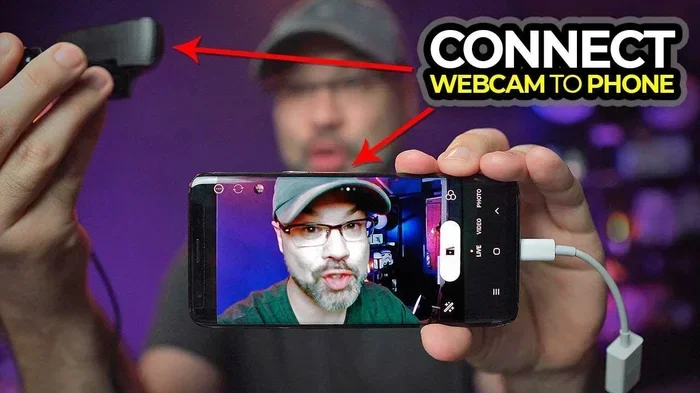
Yes, you can use your mobile camera for laptop video calls, streaming, and conferencing instead of a webcam. With free apps like DroidCam and IP Webcam, your phone becomes a high-quality webcam replacement. This guide shows you every step, from wired to wireless setups, so you can boost your video quality today.
Have you ever sat down for an important video call and realized your laptop camera looks terrible? Blurry faces, poor lighting, and awkward angles can make any meeting feel unprofessional. You may have wondered if there is a better way to get a clear, sharp image without spending money on a new webcam.
The good news is that your smartphone already has a powerful camera built in. You can use that mobile camera for laptop video calls, streaming sessions, and online meetings. It is simpler than you think, and it costs little to nothing at all. This guide walks you through everything you need to know about using your phone as a webcam replacement.
Whether you work from home, attend virtual classes, or stream content online, your phone can deliver far better video quality than most built-in laptop cameras. Let us dive into how this works and how you can set it up right now.
Key Takeaways
- Easy Setup: You can connect your phone to your laptop using USB or Wi-Fi in minutes.
- Better Quality: Mobile cameras often outperform built-in laptop webcams in resolution and clarity.
- Free Apps: Apps like DroidCam, IP Webcam, and Camo offer reliable free options.
- Versatile Use: Works for video calls, streaming, recording, and online classes.
- No Extra Hardware Needed: You likely already own everything required.
- Quick Tips: Use a tripod, good lighting, and close background apps for best results.
📑 Table of Contents
- Can I Use Mobile Camera For Laptop Instead Of Webcam?
- How to Connect Your Phone Camera to Your Laptop
- Best Apps to Use Your Phone as a Laptop Webcam
- Setting Up Your Phone Camera for Video Calls
- Using Your Phone Camera for Streaming and Recording
- Common Mistakes to Avoid
- Quick Tips for Best Results
- Comparison: Mobile Camera vs. Built-in Webcam vs. External Webcam
- Expert Insights on Phone-as-Webcam Setup
- Is It Safe to Use Your Phone Camera for Laptop Streaming?
- Final Thoughts
Can I Use Mobile Camera For Laptop Instead Of Webcam?
The short answer is absolutely yes. Your mobile phone has a high-resolution camera, advanced sensors, and better processing power than most laptop webcams. By connecting it to your laptop, you turn it into a powerful laptop webcam alternative that delivers stunning video quality.
People have been doing this for years, and the process has only gotten easier. With the right software and a simple connection method, your phone camera can handle video conferencing, live streaming, and even professional recordings. You do not need to be a tech expert to make it work.
There are several reasons why this approach makes sense. First, most people already carry a smartphone with a great camera everywhere they go. Second, buying a standalone webcam costs money, while using your phone costs nothing extra. Third, phone cameras continue to improve every year, meaning you get better quality without any additional purchase.
Why Phone Cameras Beat Laptop Webcams
Most laptop webcams have small sensors and fixed lenses. They struggle in low light and produce grainy images. Phone cameras, on the other hand, feature large sensors, optical image stabilization, and advanced software processing. This means sharper images, better colors, and smoother video even in dim rooms.
Here are some key advantages of using your phone camera instead of a laptop webcam:
- Higher Resolution: Phone cameras typically shoot at 1080p or 4K, while most laptop webcams max out at 720p or 1080p with lower quality.
- Better Low-Light Performance: Phone cameras handle dim lighting far better than built-in laptop cameras.
- Autofocus and Exposure: Phones adjust focus and lighting automatically for a clearer picture.
- Wide-Angle Options: You can switch between lenses on your phone for different viewing angles.
- Portability: You can position your phone anywhere for the perfect shot.
How to Connect Your Phone Camera to Your Laptop
Connecting your phone to your laptop is the first step. There are two main methods: wired and wireless. Each has its own benefits, and I will walk you through both so you can pick what works best for you.
Method 1: USB Connection
A USB connection provides the most stable and reliable link between your phone and laptop. It does not depend on Wi-Fi, so you avoid lag, buffering, and dropped frames. This method works great for video calls and streaming where consistency matters.
Here is how to set up a USB connection:
- Download a compatible app on your phone. Popular choices include DroidCam, IP Webcam, or Camo.
- Install the corresponding desktop software on your laptop.
- Connect your phone to your laptop using a USB cable.
- Enable USB debugging on your phone if prompted.
- Open the app on both devices and select the USB option.
- Your laptop should now recognize the phone camera as a webcam.
The USB method works on both Windows and Mac laptops. You may need to install drivers on Windows, but most apps guide you through this process step by step. Once set up, your phone camera will appear as a regular camera source in Zoom, Skype, Google Meet, and other apps.
Method 2: Wi-Fi Connection
Wireless setup is convenient because you do not need a cable. You and your laptop just need to be on the same Wi-Fi network. This method gives you more freedom to move around during calls.
Follow these steps for a Wi-Fi connection:
- Download the camera app on your phone.
- Make sure both your phone and laptop are connected to the same Wi-Fi network.
- Open the app on your phone and note the IP address it displays.
- Open the desktop software on your laptop and enter the IP address.
- The laptop will detect your phone camera and display the live feed.
Wi-Fi connections can sometimes experience slight delays or drops depending on your network speed. If you have a strong, stable Wi-Fi connection, this method works very well. For best results, use a 5GHz network rather than a 2.4GHz one.
Best Apps to Use Your Phone as a Laptop Webcam
Not all apps are created equal. Some offer free basic features, while others charge for premium upgrades. Here are the top apps that make it easy to use your mobile camera for laptop video calls and streaming.
DroidCam
DroidCam is one of the most popular free options available. It supports both USB and Wi-Fi connections and works on Android and iOS devices. The free version offers 720p video quality, which is more than enough for most video calls and meetings.
Key features of DroidCam include:
- Free version with 720p resolution
- USB and Wi-Fi connectivity options
- Works with Zoom, Skype, Teams, and most video apps
- Low latency for real-time video
- Desktop app available for Windows and Linux
The paid version unlocks 1080p resolution and removes watermarks. For most users, the free version is more than sufficient.
IP Webcam
IP Webcam is a free Android app that turns your phone into a network camera. It does not require a desktop app, which makes it lightweight and easy to use. You simply open the app, start the server, and access the camera feed through your laptop browser.
IP Webcam is great for quick setups. However, it does not integrate directly with video conferencing apps the way DroidCam does. You may need to use it with additional software like OBS Studio for streaming or recording.
Camo
Camo is a premium option that supports both Android and iOS. It offers excellent video quality, multiple camera support, and advanced features like background replacement and filters. The free tier provides basic functionality, while the paid plan unlocks pro features.
Camo works well for users who want a polished, professional setup without the hassle of configuring network settings. It is especially popular among content creators and streamers.
EpocCam
EpocCam is designed primarily for iPhone users who want to use their phone as a Mac or PC webcam. It offers a simple setup and delivers good video quality over Wi-Fi or USB. The free version has a resolution limit, but the paid version removes it.
Setting Up Your Phone Camera for Video Calls
Once you have connected your phone to your laptop, a few adjustments can make a big difference in video quality. Proper setup ensures you look professional and clear during every call.
Positioning Your Phone
Where you place your phone matters a lot. You want the camera at eye level for a natural, flattering angle. Use a phone tripod or mount to hold your device steady. Avoid placing it on a wobbly stack of books or leaning it against something that might fall.
Position the phone about one to two feet from your face. This distance captures your full head and shoulders while keeping your features sharp and clear. If you are using a wide-angle lens, step back a bit to avoid distortion at the edges of the frame.
Lighting Your Setup
Good lighting makes a massive difference in how you look on camera. Natural light from a window is your best free option. Face the window so the light falls on your face evenly. Avoid placing the window behind you, as this creates a silhouette effect.
If natural light is not available, use a desk lamp or a ring light positioned in front of you. Avoid harsh overhead lights that create shadows under your eyes. Soft, diffused lighting always looks the most flattering on video calls.
Background and Framing
Choose a clean, uncluttered background for your video calls. A plain wall, a bookshelf, or a plant works well. Avoid busy patterns or distracting elements behind you. Most video conferencing apps also offer virtual backgrounds, but a real clean background always looks more professional.
Frame yourself so your face sits in the center of the shot with a small amount of headroom above you. This creates a balanced, pleasing composition that looks natural to other participants.
Audio Considerations
Video quality gets all the attention, but audio matters just as much. Your phone’s microphone may pick up background noise or echo. Consider using a dedicated microphone or earbuds with a built-in mic for clearer sound. Many people focus only on the visual setup and forget that poor audio can ruin an otherwise great video call.
Using Your Phone Camera for Streaming and Recording
Beyond video calls, you can also use your phone camera for live streaming and recording content. This is especially useful for content creators, educators, and anyone who produces video regularly.
Streaming with OBS Studio
OBS Studio is a free, powerful streaming and recording application. It supports adding your phone camera as a video source through DroidCam or IP Webcam. Here is a quick overview of the process:
- Set up your phone camera using DroidCam or IP Webcam.
- Open OBS Studio on your laptop.
- Click the “+” button under Sources and select “Video Capture Device.”
- Choose your phone camera from the dropdown menu.
- Adjust the settings for resolution and frame rate.
- Start streaming or recording.
This setup gives you access to high-quality video input for platforms like Twitch, YouTube, and Facebook Live. The phone camera delivers better image quality than most capture cards in this price range.
Recording Tutorials and Presentations
If you create educational content or record presentations, your phone camera can serve as an excellent secondary camera. Position it to capture a document, a whiteboard, or a product demonstration while your laptop handles the main recording. Apps like Camo and DroidCam make switching between cameras easy during recording.
Common Mistakes to Avoid
Using your phone as a webcam is straightforward, but a few common mistakes can cause frustration. Watch out for these pitfalls to ensure a smooth experience.
- Forgetting to charge your phone: Using your camera for hours drains battery fast. Keep your phone plugged in during long calls or streaming sessions.
- Using a weak Wi-Fi network: A poor connection causes lag, freezing, and dropped frames. Use a strong, stable network for wireless setups.
- Ignoring app permissions: Your phone app needs camera and microphone permissions. Check your phone settings if the feed does not appear.
- Not closing background apps: Running too many apps on your phone can slow down the camera feed. Close unnecessary apps before starting a call.
- Skipping software updates: Keep both your phone app and laptop software updated for the best performance and compatibility.
- Using a tangled cable: A messy USB cable can disconnect during a call. Use a quality cable that is long enough to reach comfortably.
Quick Tips for Best Results
Follow these simple tips to get the most out of your phone-as-webcam setup:
- Use a phone tripod: A small tripod or mount keeps your phone steady and at the right angle.
- Clean your camera lens: A smudgy lens ruins image quality. Wipe it with a soft cloth before each call.
- Turn off notifications: Disable phone notifications to avoid interruptions during calls.
- Use airplane mode for stability: If Wi-Fi is causing issues, use the USB method instead for a more stable connection.
- Test before important calls: Always do a quick test call before an important meeting to check video and audio quality.
- Adjust exposure manually: Many camera apps let you tap to adjust exposure. Use this to brighten or darken your shot as needed.
Comparison: Mobile Camera vs. Built-in Webcam vs. External Webcam
How does using your phone camera stack up against other options? Here is a quick comparison to help you decide what works best for your needs.
| Feature | Phone Camera | Laptop Built-in Webcam | External Webcam |
|---|---|---|---|
| Resolution | Up to 4K | 720p to 1080p | 1080p to 4K |
| Price | Free (already owned) | Free (built in) | $30 to $200+ |
| Low Light Performance | Excellent | Poor | Good to Excellent |
| Setup Complexity | Easy | None | Plug and play |
| Portability | Highly portable | Built in | Bulky |
| Frame Rate | 30 to 60 fps | 15 to 30 fps | 30 to 60 fps |
| Versatility | Very high | Low | Moderate |
As you can see, using your phone camera offers the best value for most users. It delivers superior quality compared to built-in laptop webcams and costs nothing extra. External webcams are still a solid choice, but they require an additional purchase and take up desk space.
Expert Insights on Phone-as-Webcam Setup
Many professionals and content creators have switched to using their phone cameras for all their video needs. The trend has grown significantly, especially since remote work became more common. Experts agree that phone cameras offer quality that rivals or exceeds dedicated webcams in the same price range.
According to tech reviewers, the key to a great phone-as-webcam setup is not just the camera itself but also the software and your environment. Good lighting, a stable connection, and a clean background matter just as much as the camera hardware. Investing a few minutes in setup pays off with noticeably better video quality on every call.
Is It Safe to Use Your Phone Camera for Laptop Streaming?
Security is a valid concern when using your phone as a webcam. Most reputable apps like DroidCam and Camo use encrypted connections and do not store your video data on external servers. However, you should still take basic precautions. Only download apps from official app stores, keep your software updated, and avoid using public Wi-Fi for sensitive calls.
USB connections are generally more secure than Wi-Fi because they do not transmit data over a network. If you handle sensitive or confidential information, consider using the USB method for added security.
Final Thoughts
Using your mobile camera for laptop video calls is one of the simplest and most effective upgrades you can make to your home office setup. It costs nothing, requires minimal setup, and delivers video quality that surpasses most built-in laptop webcams and even some external models.
Whether you are joining a team meeting, attending an online class, streaming a gaming session, or recording a tutorial, your phone camera can handle it all. The apps are free, the setup takes minutes, and the results speak for themselves.
Try it out for your next video call and see the difference for yourself. Once you experience the clarity and sharpness of a phone camera on your laptop, going back to a standard webcam will feel like a step backward. Can I use mobile camera for laptop? The answer is a definitive yes, and now you have everything you need to get started.
Take a few minutes today to set up your phone as a webcam. You will wonder why you did not try it sooner. Your video calls, streams, and recordings will never look the same again.
Frequently Asked Questions
Can I use mobile camera for laptop on a Mac?
Yes, you can use your phone camera on a Mac with apps like Camo, EpocCam, or DroidCam. Most of these apps offer Mac-compatible desktop software. The setup process is similar to Windows, using either USB or Wi-Fi to connect your phone to your Mac.
Do I need any special equipment to use my phone as a laptop webcam?
No special equipment is required. You need your phone, a USB cable or Wi-Fi connection, and a free app. A phone tripod or mount is helpful but not essential. Many people get great results with just their phone and a free app.
Will using my phone as a webcam drain the battery quickly?
Yes, extended use can drain your phone battery, especially over Wi-Fi. To prevent this, keep your phone plugged into a charger during long calls or streaming sessions. USB connections also charge your phone while using it as a webcam.
Can I use my phone camera for laptop streaming on YouTube or Twitch?
Absolutely. Apps like DroidCam and OBS Studio make it easy to use your phone camera as a streaming source. Connect via USB for the most stable feed, or use Wi-Fi if you prefer wireless freedom. Many streamers use this setup successfully.
Is the video quality really better than a laptop webcam?
In most cases, yes. Phone cameras have larger sensors, better lenses, and more advanced processing than built-in laptop webcams. You will notice a significant improvement in sharpness, color accuracy, and low-light performance.
Which is better: USB or Wi-Fi connection for phone webcam?
USB connections are more stable and have lower latency, making them ideal for important video calls and live streaming. Wi-Fi is more convenient and cable-free, but it depends on your network quality. For best results, use USB when possible and Wi-Fi when you need freedom of movement.