Can I Clean My Laptop Fan Myself Here Is Everything
Yes, you can clean your laptop fan yourself with the right tools and a little patience. This guide walks you through every step, from gathering supplies to reassembling your laptop. You will learn how to clean a laptop fan safely, avoid common mistakes, and keep your laptop cooling system running smoothly for years to come.
Can I clean my laptop fan myself? The short answer is yes. You do not need to be a tech expert to handle this job. In fact, most people can do it at home with just a few basic tools and about 30 minutes of time.
Over time, dust and dirt build up inside your laptop. This gunk collects on the fan blades, clogs the vents, and makes your laptop work harder. The result? A hot, loud machine that runs slow and may even shut down unexpectedly. Cleaning your laptop fan is one of the easiest ways to bring your device back to life.
In this guide, we will walk you through everything you need to know. We will cover why laptop fans get dirty, what tools you need, and how to clean a laptop fan step by step. We will also share common mistakes to avoid and tips to keep your laptop cool for longer. Whether you are a student, a professional, or just someone who uses a laptop every day, this guide has you covered.
Key Takeaways
- Yes, you can clean your laptop fan yourself: Most people can do it at home with basic tools and a little care.
- Overheating is a major sign: If your laptop runs hot or loud, dust buildup is likely the culprit.
- Gather the right tools first: Compressed air, a screwdriver, and a soft brush are all you need to start.
- Follow the disassembly steps carefully: Skipping steps or forcing parts can damage your laptop.
- Avoid common mistakes: Using a vacuum cleaner or too much moisture can ruin your device.
- Know when to seek help: Some laptops are hard to open, and warranty issues may require professional service.
📑 Table of Contents
Why Your Laptop Fan Gets Dirty
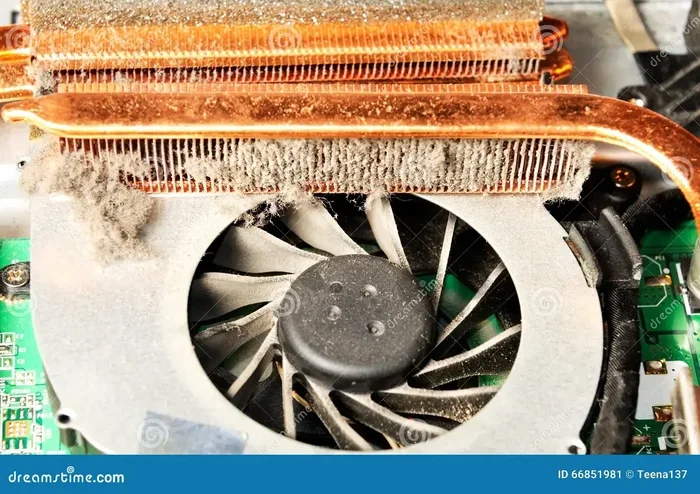
Understanding why your laptop fan gets dirty helps you appreciate the cleaning process. Fans pull air into the laptop to keep things cool. That air carries dust, pet hair, and tiny particles with it. Over weeks and months, this buildup creates a thick layer of grime inside your device.
How Dust Affects Laptop Cooling
Your laptop relies on airflow to stay at a safe temperature. When dust blocks the vents and coats the fan, airflow drops significantly. This means the laptop cooling system has to work much harder. A hard-working fan gets louder and wears out faster. In serious cases, the laptop overheats and slows down to protect its internal parts.
Here are some common signs your laptop fan needs cleaning:
- The fan runs loudly all the time
- The laptop feels hot to the touch
- The fan stops and starts randomly
- Your laptop shuts down without warning
- Performance drops during heavy tasks
These laptop overheating symptoms are your body’s way of saying something is wrong. Ignoring them can lead to long-term damage to your hardware. Regular laptop maintenance can prevent most of these issues.
Who Is Most at Risk?
Some people deal with dirtier laptop fans than others. If you work on your laptop in a dusty room, you will notice buildup faster. Pet owners often find fur inside their devices. People who use their laptops on beds or couches also pull in more lint and debris. Even in a clean home, dust slowly creeps in over time.
The good news is that cleaning laptop fan issues are easy to fix. You do not need expensive tools or special skills. A little regular care goes a long way in keeping your device running well.
What You Need Before You Start
Before you dive into the cleaning process, gather everything you need. Having the right tools makes the job faster, safer, and more effective. You do not need much, but a few key items make a big difference.
Essential Tools for Cleaning Your Laptop Fan
Here is a simple list of what you will need:
- Compressed air canister or an electric air blower
- Small Phillips-head screwdriver for opening the laptop
- Soft-bristle brush or a clean, soft toothbrush
- Isopropyl alcohol (90% or higher) for sticky grime
- Cotton swabs for hard-to-reach spots
- Microfiber cloth for wiping surfaces
- A flat, clean workspace with good lighting
You can find most of these items at any office supply or electronics store. A canned air compressor for electronics is a popular choice because it is safe and easy to use. Just make sure the canister stays upright while you spray to avoid moisture coming out.
Optional but Helpful Extras
Some tools are not strictly necessary, but they make the job easier:
- Anti-static wrist strap to protect sensitive parts
- Tweezers for pulling out stubborn debris
- A phone or camera to take photos during disassembly
- Thermal paste if you plan to replace the old paste on your CPU
Taking photos as you disassemble your laptop is a pro tip. When it is time to put everything back together, the photos will save you a lot of confusion. Trust us, this small step makes a huge difference.
Step-by-Step Guide to Cleaning Your Laptop Fan
Now that you have your tools ready, let us get into the actual cleaning process. This is the part where can I clean my laptop fan myself turns from a question into a done deal. Follow each step carefully, and you will have a clean, cool laptop in no time.
Step 1: Power Down and Unplug
Start by turning off your laptop completely. Do not just close the lid. Shut it down from the operating system. Then unplug the power cable and disconnect any USB devices or peripherals. If your laptop has a removable battery, take it out. This is the most important safety step in the entire process.
Working on a powered-off laptop prevents electrical damage and keeps you safe from any residual charge. Even when a laptop is off, some components can hold a small charge. Removing the battery eliminates this risk entirely.
Step 2: Open the Back Panel
Flip your laptop over and look for screws along the bottom edge. Use your small screwdriver to remove them. Keep the screws in a small bowl or container so they do not get lost. Some laptops have clips instead of screws. Gently pry these open with a plastic spudger or a guitar pick.
Every laptop model is different. If you are not sure how to open yours, search for a disassembly guide specific to your model. Many websites and YouTube channels offer free, detailed walkthroughs. Laptop disassembly videos are especially helpful for beginners.
Step 3: Locate the Fan and Vents
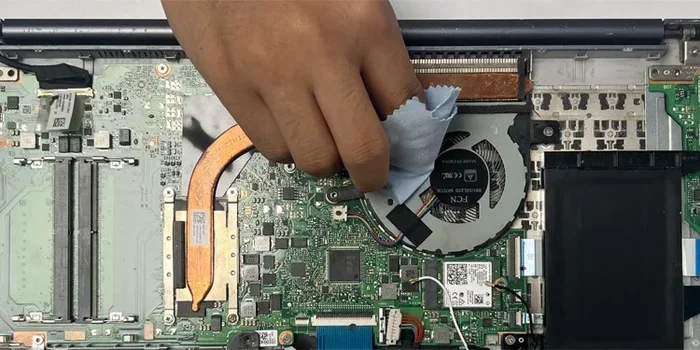
Once the back panel is off, you will see the inside of your laptop. Look for the fan, which is usually near the center or side of the device. You will also see the metal heat sink and the vents that let hot air escape. The fan is attached to the heat sink with a small cable or clip.
Take a photo of this area before you do anything else. This photo will be your reference when you need to put everything back.
Step 4: Clean the Fan Blades
Hold the fan blade gently with your finger to keep it from spinning. Use compressed air to blow dust off the blades. Spray in short bursts and hold the canister upright. Do not let the fan spin freely while you blow air into it. Spinning the fan can generate a small electrical current that may damage the motherboard.
After using compressed air, use your soft-bristle brush to gently sweep away any remaining dust. Work slowly and carefully. You do not want to force any parts or bend the fan blades.
Step 5: Clean the Heat Sink and Vents
The heat sink is the metal block with fins attached to the fan. Dust loves to collect between these fins. Use short bursts of compressed air to clean between each fin. A soft brush helps dislodge stubborn particles.
Also check the intake and exhaust vents on the outside of the laptop. Use a cotton swab or a brush to clean out any dust that has built up around the vent openings. This improves airflow and helps your laptop cooling system work more efficiently.
Step 6: Replace Thermal Paste (Optional)
If your laptop is several years old, the thermal paste between the CPU and the heat sink may have dried out. Thermal paste helps transfer heat away from the processor. When it dries up, your laptop heats up faster even with a clean fan.
To replace the paste, remove the heat sink carefully. Clean off the old paste with a microfiber cloth dampened with isopropyl alcohol. Apply a small dot of new thermal paste in the center of the CPU. Then reattach the heat sink and secure it with screws. This step is optional but highly recommended for older laptops.
Step 7: Reassemble Your Laptop
Once everything is clean and dry, it is time to put your laptop back together. Refer to the photos you took earlier to guide you. Reconnect any cables you detached, place the fan and heat sink back in position, and snap or screw the back panel on. Replace all the screws and make sure everything is snug but not forced.
Plug in the power cable and turn on your laptop. Listen to the fan. It should spin more quietly than before. Your laptop should also feel cooler to the touch after just a few minutes of use.
Common Mistakes to Avoid
Cleaning your laptop fan is not difficult, but it is easy to make mistakes. Here are some errors to watch out for.
Using a Vacuum Cleaner
Some people grab a household vacuum cleaner to suck out the dust. This is a bad idea. Vacuum cleaners create static electricity, which can fry sensitive laptop components. Stick to compressed air or a soft brush. These tools are safe for electronics.
Using Too Much Moisture
Never spray liquid directly onto your laptop. If you use isopropyl alcohol, apply it to a cloth or cotton swab first. Never pour it or spray it directly onto components. Moisture can cause short circuits and permanent damage.
Forcing Parts During Disassembly
If a screw or panel does not come loose easily, stop and figure out why. Forcing things can break clips, strip screws, or crack the chassis. Take your time and be gentle. Laptop maintenance should never involve brute force.
Skipping the Fan Spin Prevention
When you blow compressed air onto the fan, always hold the blade in place. If the fan spins freely, it acts as a tiny generator and can send voltage back into the circuit board. This can damage your laptop. Keep your finger gently on the blade while you spray.
Not Grounding Yourself
Static electricity from your body can harm laptop components. Before you start working inside the laptop, touch a metal surface like a doorknob or a radiator. This discharges any static buildup. Some people also use an anti-static wrist strap for extra protection.
When to Call a Professional Instead
Not every laptop is easy to open and clean at home. Some models are designed to be user-friendly, while others are nearly impossible to disassemble without specialized tools. Knowing when to call a professional saves you time, money, and the risk of accidental damage.
Laptops Under Warranty
Check your laptop warranty before you start opening the case. Many manufacturers consider unauthorized disassembly a void of the warranty. If your laptop is still under warranty, it is usually best to contact the manufacturer or an authorized service center. They can often clean the fan for free or at a low cost.
Ultra-Thin or Sealed Laptops
Some modern laptops, like certain ultrabooks and MacBooks, are sealed with special screws and glued-in components. These devices require specialized tools and techniques to open. If you are not comfortable with this, a professional technician is the safer choice.
Persistent Overheating After Cleaning
If you clean your fan and vents but your laptop still overheats, there may be a deeper issue. The fan itself could be failing, or the thermal paste may need more than a simple replacement. In these cases, a professional can diagnose the problem and recommend the right fix.
When You Lack Confidence
There is no shame in not wanting to open your laptop. If you feel unsure about any step, it is perfectly fine to seek help. Many local repair shops offer laptop fan cleaning services for a reasonable price. A quick search for “laptop repair near me” can connect you with trusted professionals in your area.
Keeping Your Laptop Cool for Longer
Cleaning your fan is a great first step, but ongoing care keeps your laptop in top shape. Here are some habits that support laptop cooling and overall performance.
Use a Cooling Pad
A laptop cooling pad raises your laptop off the surface and adds extra fans. This improves airflow and helps keep temperatures down. Cooling pads are especially useful for gaming laptops or any device that runs heavy tasks for long periods.
Keep Vents Clear
Always use your laptop on a hard, flat surface. Beds, pillows, and blankets block the vents and trap heat. A simple laptop stand can also elevate the back of the device and improve airflow. This is one of the easiest laptop maintenance habits you can build.
Clean Regularly
Make cleaning laptop fan a regular habit. Every three to six months, give your laptop a quick check. Use compressed air to blow out the vents even without opening the back panel. This simple routine prevents heavy buildup and keeps your laptop running smoothly.
Monitor Your Temperatures
You can use free software like HWMonitor or Core Temp to check your laptop’s internal temperatures. If you notice temperatures climbing, it may be time for another cleaning session. Catching overheating early prevents long-term damage to your laptop hardware.
Update Your Drivers and BIOS
Sometimes overheating is not about dust at all. Outdated drivers or BIOS firmware can cause your fan to run inefficiently. Check your laptop manufacturer’s website regularly for updates. Keeping your software current is a simple part of laptop troubleshooting that many people overlook.
Conclusion
Can I clean my laptop fan myself? Absolutely. With the right tools, a little patience, and the steps in this guide, you can handle this job at home. Cleaning your laptop fan is one of the most impactful things you can do for your device. It reduces heat, lowers noise, improves performance, and extends the life of your laptop.
Remember to take your time, avoid common mistakes, and know when to call a professional. Regular laptop maintenance like this small cleaning task keeps your device running at its best for years. You will save money on repairs, enjoy a quieter machine, and gain confidence in handling your own tech.
So go ahead and give it a try. Your laptop will thank you with cooler temperatures, better performance, and a longer lifespan. Cleaning your laptop fan is one of the best investments you can make in your device, and now you have everything you need to do it right.
Frequently Asked Questions
Is it safe to clean a laptop fan myself?
Yes, it is safe as long as you follow the right steps. Always power off the laptop and remove the battery before you start. Use only compressed air and soft brushes, never household vacuums or liquids. If you feel unsure at any point, it is okay to ask a professional for help.
How often should I clean my laptop fan?
Every three to six months is a good routine. However, if you work in a dusty environment or have pets, you may need to clean more often. Regular cleaning prevents heavy buildup and keeps your laptop cooling system working efficiently.
Can I use a hair dryer instead of compressed air?
It is not recommended. Hair dryers blow warm air, which can push dust deeper into the laptop. They also create static electricity that can harm components. A can of compressed air designed for electronics is the safest and most effective option.
Will cleaning my laptop fan improve performance?
Yes, it can. When dust blocks the fan and vents, your laptop overheats. This causes the processor to slow down to protect itself, which reduces performance. A clean fan allows better airflow, keeping temperatures low and performance high.
Do I need to replace the thermal paste when cleaning the fan?
It is not required every time, but it is a good idea for older laptops. Thermal paste dries out over time and loses its effectiveness. If your laptop is more than two to three years old, replacing the paste during a fan cleaning can noticeably improve laptop cooling.
What should I do if my laptop still overheats after cleaning?
If cleaning the fan and vents does not solve the problem, the fan itself may be failing or the thermal paste may need a fresh application. In some cases, a hardware issue like a blocked heat pipe could be the cause. Contact a professional technician to diagnose the issue properly.