Can You Find Wifi Passwords On Any Device Or Network
Can You Find Wifi Passwords on almost any device you own? Yes, you can! Whether you forgot your wireless network key or need to connect a new gadget, there are simple ways to recover saved wifi passwords on Windows, Mac, Android, and iPhone. This guide walks you through every method step by step, so you never get stuck without internet access again.
Have you ever walked into a friend’s house and needed to connect your phone to their wifi network? Or maybe you set up a router months ago and now the network security key is stuck somewhere in the back of your mind. Whatever the reason, finding wifi passwords is something almost everyone needs to do at some point.
The good news is that you can find wifi passwords on nearly any device you own. Whether it’s a Windows laptop, a Mac, an Android phone, or an iPhone, there are built-in tools and simple tricks that make this process easy. You don’t need to be a tech expert. You just need to know where to look.
In this guide, we will walk you through every method for finding wifi passwords on different devices and networks. We will also cover how to use router settings, password recovery apps, and safe sharing options. By the end, you will have all the knowledge you need to access any saved wifi password in seconds.
Key Takeaways
- Find Wifi Passwords on Any Device: You can view saved wifi passwords on Windows, Mac, Android, and iPhone using built-in settings and tools.
- Router Admin Panel Works Too: Logging into your router settings page is one of the most reliable ways to find your network security key.
- Use Password Finder Apps Safely: Several trusted apps can help you recover wifi passwords, but always download from official sources.
- Share Passwords Easily: Both Android and iPhone offer native options to share wifi passwords securely with friends and family.
- Change Your Password Regularly: Keeping your wireless network password updated improves your home network security.
- Avoid Common Mistakes: Don’t rely on shady apps or sketchy websites that promise to hack wifi passwords — they often do more harm than good.
📑 Table of Contents
- How Wifi Passwords Work
- Finding Wifi Passwords On Different Devices
- How To Find Wifi Passwords On Any Network
- Wifi Password Finder Apps And Tools
- How To View A Saved Wifi Password
- Common Mistakes And How To Avoid Them
- Expert Insights On Network Security
- Key Takeaways
- Frequently Asked Questions
- Conclusion
How Wifi Passwords Work
What Is A Wifi Password
A wifi password is more than just a string of letters and numbers. It is your network security key — the code that keeps strangers from using your wireless connection. When you set up a router, it creates a wireless network password that encrypts the data flowing between your devices and the internet.
Most home networks use one of two types of security. WPA2 is the most common and offers solid protection. WPA3 is newer and even more secure. Both types require a password to connect. Without the correct network security key, no device can join the network.
How Devices Store Saved Passwords
Here is something many people do not realize. Every time you connect a device to a wifi network, that device saves the password. It stores the saved wifi password in a secure section of its memory. This is why your phone or laptop reconnects to your home network automatically every time you come home.
The way devices store this information varies by operating system. Windows uses a network profile system. Mac uses its Keychain tool. Android and iPhone each have their own secure storage methods. Knowing where to look on each platform is the first step to finding wifi passwords whenever you need them.
Finding Wifi Passwords On Different Devices
Each device has its own way of storing and displaying wifi passwords. Below, we break down the exact steps for the most common devices.
Finding Passwords On Windows
If you are using a Windows PC, finding your saved wifi password is straightforward. Here is how to do it:
- Right-click the wifi icon in your taskbar.
- Select Open Network and Sharing Center.
- Click on the name of your active wifi network.
- In the window that pops up, click Wireless Properties.
- Go to the Security tab.
- Check the box that says Show characters.
Your wireless network password will now be visible. This method works for any network security key that your Windows device has saved in the past.
Finding Passwords On Mac
Mac computers use the Keychain Access tool to store saved wifi passwords. Here is how to retrieve them:
- Open Spotlight by pressing Command and Spacebar.
- Type Keychain Access and press Enter.
- In the search bar, type the name of your wifi network.
- Double-click the network name in the results.
- Check the box that says Show password.
- Enter your Mac login password when prompted.
Your wifi password will appear in plain text. This is one of the easiest and most reliable methods for Mac users who need to find wifi passwords quickly.
Finding Passwords On Android
Android phones make it easy to view saved wifi passwords, but the exact steps depend on your version. Here is the general method:
- Open Settings on your phone.
- Tap Network and Internet or Connections.
- Select Wifi.
- Tap on the name of the connected or saved network.
- Tap Share or View Password.
- You may need to authenticate with your fingerprint or PIN.
After authentication, your wireless network password will be displayed. On many Android phones, you can also scan a QR code to share the password with another device instantly.
Finding Passwords On iPhone
iPhone users can find saved wifi passwords through iCloud Keychain or directly on the device:
- Open Settings.
- Go to Wifi.
- Tap the info icon (the blue “i”) next to your network.
- Tap Share Password on a nearby Apple device.
- Or, on iOS 16 and later, you can view the password directly if your device is locked with Face ID or Touch ID.
Apple makes it simple to find wifi passwords and share them with family members who are also signed into the same Apple ID.
How To Find Wifi Passwords On Any Network
Sometimes you need to find the password for a network you are not currently connected to. Maybe you are trying to help a guest connect, or you want to add a new smart home device. Here are the best ways to find wifi passwords for any network.
Using Router Settings
Your router is the source of every network security key. If you have physical access to the router, you can find the password directly on the device. Most routers have a sticker on the bottom or back that lists the default wifi password and network name.
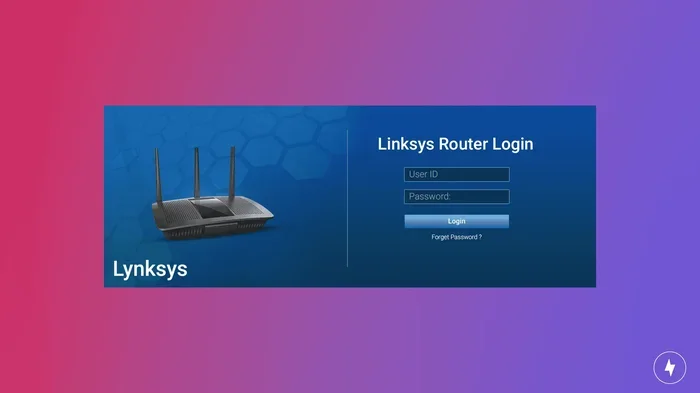
If you have changed the password before and forgot it, you can log into the router settings page. Here is how:
- Connect a device to the router using an ethernet cable.
- Open a web browser and type 192.168.1.1 or 192.168.0.1 in the address bar.
- Log in with the router admin username and password.
- Navigate to Wireless Settings or Security.
- Your wireless network password will be displayed on screen.
This method works for nearly every router brand, including Netgear, TP-Link, ASUS, and Linksys. It is the most reliable way to find wifi passwords when other methods fail.
Checking Your ISP Documentation
Your Internet Service Provider often provides a router admin password and wifi password on a setup card or in the welcome email. If you still have these documents, they are a great place to look for your network security key.
You can also call your ISP’s support line. They can help you reset the wireless network password if needed. This is especially helpful if you bought a router through your ISP and never changed the default settings.
Wifi Password Finder Apps And Tools
The app stores are full of tools that claim to help you find wifi passwords. But not all of them are trustworthy. Let us look at what works and what to avoid.
Best Apps For Password Recovery
Some apps can scan your device and show you all the saved wifi passwords stored on it. Here are a few reliable options:
- WiFi Password Show (Android) — A simple app that displays all saved wifi network passwords on your phone.
- Wifi Password Viewer (Windows) — A lightweight desktop tool that shows stored network security keys.
- iBackupBot (Mac/Windows) — Useful for viewing saved wifi passwords backed up to iTunes.
Always download these apps from official sources like the Google Play Store or Apple App Store. Avoid any app that asks for unnecessary permissions or seems suspicious.
Are Password Finder Tools Safe
This is an important question. Many websites and apps promise to hack wifi passwords or recover passwords for networks you do not own. These are almost always scams. They can install malware on your device or steal your personal data.
Legitimate password recovery tools only work on networks and devices you own or have permission to access. If a tool claims it can break into any wifi network, stay away from it. It is not safe, and it is likely illegal in many places.
Quick Tip: Stick to built-in device features and trusted, well-reviewed apps. They are the safest way to find wifi passwords without risking your security.
How To View A Saved Wifi Password
Once you know where to look, viewing a saved wifi password takes only a few seconds. But it is important to do so safely and responsibly.
Steps To Access Saved Passwords
Whether you are on a phone, tablet, or computer, the process follows a similar pattern:
- Go to your device’s Settings or Control Panel.
- Navigate to the Network or Wifi section.
- Select the network you want to check.
- Look for an option like View Password, Share, or Show Characters.
- Authenticate if required using your PIN, fingerprint, or login password.
That is all it takes. Your wireless network password will be displayed on screen. Write it down somewhere safe or share it only with people you trust.
Sharing Your Wifi Password Safely
Sharing your wifi password is often necessary. Guests need it. Family members need it. But you should always share it carefully. Here are some best practices:
- Use native sharing features on Android or iPhone when possible.
- Never share your password through unsecured public channels.
- Change your wifi password regularly if you share it with many people.
- Consider setting up a guest network so visitors do not access your main network.
Most modern routers let you create a separate guest network. This gives visitors internet access without exposing your main network security key or personal devices.
Common Mistakes And How To Avoid Them
Mistakes People Make When Finding Wifi Passwords
Even though finding wifi passwords is simple, people still make avoidable mistakes. Here are the most common ones:
- Using sketchy websites: Many free “wifi password finder” websites are actually phishing traps. They try to steal your information.
- Ignoring the router sticker: People forget that the original wifi password is often printed right on the router itself.
- Not updating after a reset: If you reset your router, the default network security key comes back. Make sure you change it afterward.
- Sharing passwords carelessly: Posting your wireless network password on social media is a bad idea. Keep it private.
Tips For Better Password Management
Managing your wifi passwords does not have to be complicated. A few good habits go a long way:
- Write down your wifi password and keep it in a safe place at home.
- Use a password manager app to store network keys securely.
- Change your wifi password every few months.
- Use a strong mix of letters, numbers, and symbols for your network security key.
- Enable WPA3 encryption if your router supports it.
These simple steps keep your network secure and make it easy to find wifi passwords whenever you need them.
Expert Insights On Network Security
Cybersecurity experts agree that your wireless network password is the first line of defense for your home internet. A weak or reused password can leave your network vulnerable to attacks. Here is what the pros recommend:
- Never use common words or personal information in your network security key.
- Change the default router admin password as soon as you set up your device.
- Regularly check which devices are connected to your wifi network.
- Update your router firmware to patch security vulnerabilities.
- Disable WPS (Wi-Fi Protected Setup) if it is not needed, as it can be exploited.
Following these expert tips not only helps you find wifi passwords more confidently but also keeps your entire home network safe from intruders.
Key Takeaways
- Find Wifi Passwords on Any Device: You can view saved wifi passwords on Windows, Mac, Android, and iPhone using built-in settings and tools.
- Router Admin Panel Works Too: Logging into your router settings page is one of the most reliable ways to find your network security key.
- Use Password Finder Apps Safely: Several trusted apps can help you recover wifi passwords, but always download from official sources.
- Share Passwords Easily: Both Android and iPhone offer native options to share wifi passwords securely with friends and family.
- Change Your Password Regularly: Keeping your wireless network password updated improves your home network security.
- Avoid Common Mistakes: Do not rely on shady apps or websites that promise to hack wifi passwords — they often do more harm than good.
Frequently Asked Questions
Can I Find Wifi Passwords On Any Device?
Yes, you can find wifi passwords on virtually any device that has connected to a network before. Windows, Mac, Android, and iPhone all have built-in tools that store and display saved wifi passwords. The exact steps vary by device, but the process is always simple and straightforward.
Is It Legal To Find Someone Else’s Wifi Password?
Finding a wifi password on a device you own or have access to is perfectly legal. However, accessing someone else’s wireless network without their permission is illegal in most places. Always make sure you have the owner’s consent before connecting to a network that is not yours.
What Should I Do If I Forgot My Wifi Password?
If you forgot your network security key, you can reset it through your router settings page. You can also find the default password on the router itself if it has never been changed. Another option is to connect a device directly to the router using an ethernet cable and access the admin panel to set a new wifi password.
Are Wifi Password Finder Apps Safe To Use?
Most password finder apps are safe when downloaded from official app stores. However, you should always check reviews and permissions before installing any app. Avoid apps that ask for unnecessary access or seem unverified. Stick to well-known tools like WiFi Password Show for Android or built-in device features for the safest experience.
Can I Recover A Wifi Password Without Root Or Admin Access?
On most devices, you can view saved wifi passwords without root or admin access. For example, Android lets you share a password with a QR code without rooting. iPhone users can share passwords through iCloud Keychain. Windows and Mac both offer built-in ways to show network security keys through their standard settings menus.
How Often Should I Change My Wifi Password?
Experts recommend changing your wireless network password every three to six months. You should also change it immediately if you suspect someone unauthorized is using your network. Regular password changes keep your home network secure and help prevent unauthorized access to your personal data.
Conclusion
Can You Find Wifi Passwords on any device or network? Absolutely. Whether you need to recover a forgotten wifi password, view a saved wifi password, or share your wireless network password with someone new, the methods in this guide cover all the bases. From built-in device tools to router settings and trusted apps, you now have everything you need.
The key is to use safe, legitimate methods. Avoid sketchy websites and apps that promise the impossible. Stick to the built-in features on your devices, and always keep your network security key in a safe place. With these tools and tips, you will never be stuck without a wifi password again.
Take a few minutes today to check your saved wifi passwords on each of your devices. Share this guide with friends and family who might also need help finding wifi passwords on their own devices. A little knowledge goes a long way toward keeping your home network secure and connected.