Can You Connect HDMI to an iPad for Movies and Shows
Yes, you can connect HDMI to an iPad using the right adapter or cable. Whether you want to stream movies on a bigger screen or share presentations, an HDMI connection makes it simple. This guide walks you through everything you need to know about connecting HDMI to an iPad, including compatible models, adapter types, and step-by-step setup.
Have you ever wanted to watch your favorite movies or shows on a bigger screen? Maybe you are traveling and need to connect your iPad to a hotel TV. Or perhaps you want to share photos with family on a large display. The good news is that connecting HDMI to an iPad is totally possible. You just need the right adapter and a little know-how.
This guide covers everything you need to know. We will talk about which iPads support HDMI output, the best adapters to buy, and how to set things up in minutes. By the end, you will feel confident making your own iPad HDMI connection at home or on the go.
Key Takeaways
- You Need the Right Adapter: A Lightning to HDMI or USB-C to HDMI adapter is essential depending on your iPad model.
- Not All iPads Are the Same: Newer iPads with USB-C ports offer more flexibility than older Lightning models.
- Setup Is Simple: Connecting HDMI to an iPad takes just a few minutes with the correct cable and adapter.
- Wireless Alternatives Exist: AirPlay and screen mirroring are great options if you prefer going cable-free.
- Quality Matters: Choosing a high-quality HDMI adapter ensures stable video and audio output every time.
- Check Compatibility First: Always confirm your iPad model supports video output before buying an adapter.
📑 Table of Contents
Why Connect HDMI to an iPad?
There are many reasons people want to hook their iPad up to a TV or monitor. The most common one is simple: bigger is better. Watching a movie on a 55-inch screen beats staring at a 10-inch display any day. But there are other practical reasons too.
Presenters use iPad HDMI output to share slides and videos during meetings. Teachers connect their iPads to classroom projectors for lessons. Gamers enjoy playing mobile games on a large TV screen. No matter your reason, the HDMI to iPad setup opens up a world of possibilities.
Here are some of the top benefits of using a wired HDMI connection:
- Better picture quality compared to wireless mirroring in many cases.
- No lag or delay, which matters for gaming and video calls.
- Reliable connection that does not drop or buffer like Wi-Fi sometimes does.
- Simple setup that works without needing a network or internet connection.
- Audio and video in one cable, so you get both sound and picture at once.
While wireless options like AirPlay are convenient, a wired iPad to HDMI cable gives you a stable, high-quality experience every time. If you care about performance, a direct connection is hard to beat.
Which iPad Models Support HDMI Output?
Before you buy an adapter, you need to know which iPad you own. Not every iPad handles video output the same way. The port type on your iPad determines the kind of adapter you need.
iPad Models with Lightning Port
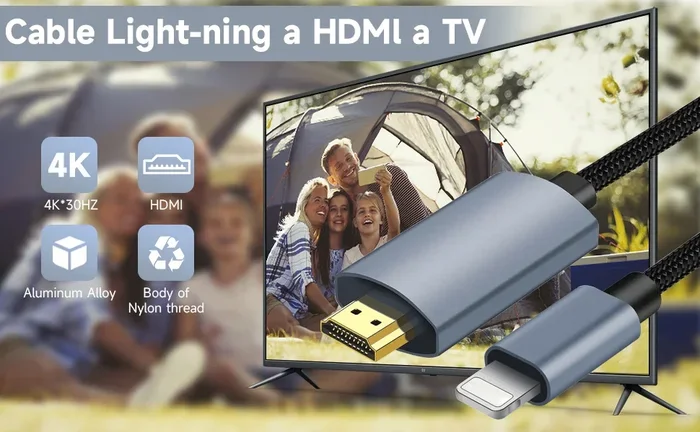
Older iPad models use Apple’s Lightning connector. These include the iPad (5th through 9th generation), iPad Air 2, iPad Air (3rd gen), iPad mini 4, and iPad mini (5th gen). For these devices, you need a Lightning to HDMI adapter to make the connection work.
Apple made its own official adapter called the Lightning Digital AV Adapter. It costs around $49 and works reliably with most TVs and monitors. Third-party options are cheaper, but quality can vary. Stick with trusted brands to avoid flickering or no-signal issues.
iPad Models with USB-C Port
Newer iPads use USB-C, which makes things much easier. The iPad Pro (all models from 2018 onward), iPad Air (4th gen and later), iPad mini (6th gen), and the base iPad (10th gen) all have USB-C ports.
With USB-C, you can use a simple USB-C to HDMI cable or adapter. Many of these cables are all-in-one, meaning you do not need a separate dongle. Just plug one end into your iPad and the other into your TV. It is that easy.
The USB-C approach also supports higher resolutions on newer iPads. Some models can output 4K video at 60Hz, which looks incredibly sharp on compatible displays.
Quick Compatibility Check
Still not sure which port your iPad has? Here is a fast way to check. Look at the charging port on the bottom of your iPad. If it is a small, flat rectangular port, you have Lightning. If it is a slightly larger oval-shaped port, you have USB-C. Once you know this, picking the right HDMI adapter for iPad becomes a breeze.
How to Set Up Your HDMI Connection to iPad
Setting up a wired connection between your iPad and a TV is straightforward. Follow these steps and you will be watching your favorite content on the big screen in no time.
Step 1: Gather Your Equipment
You need three things for a basic setup:
- Your iPad
- The correct adapter or cable (Lightning to HDMI or USB-C to HDMI)
- An HDMI cable (sometimes included with the adapter)
If your adapter does not come with a cable, buy a standard HDMI cable separately. They are inexpensive and widely available. A good quality cable costs between $5 and $15.
Step 2: Plug Everything In
Start by connecting the adapter to your iPad. If you have a Lightning model, plug the adapter into the charging port gently. For USB-C iPads, the connection is firm but should not require force.
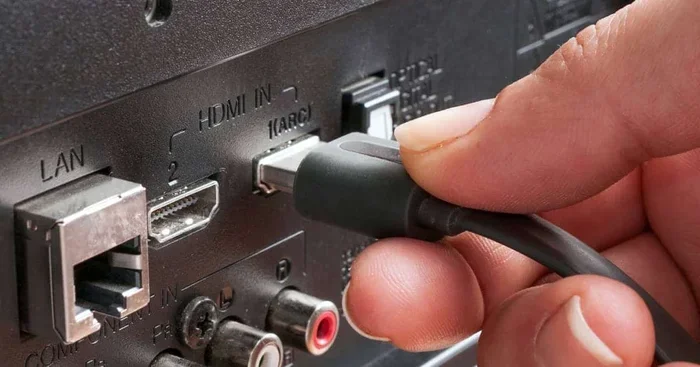
Next, plug one end of the HDMI cable into the adapter. Then plug the other end into an open HDMI port on your TV or monitor. Make sure the TV is powered on.
Step 3: Switch Your TV Input
This is the step people forget most often. Your TV needs to be set to the correct HDMI input. Use your TV remote to press the “Input” or “Source” button. Scroll through the options until you find the HDMI port you plugged into.
Once you select the right input, your iPad screen should appear on the TV. If it does not, try unplugging and replugging the connections.
Step 4: Adjust Display Settings
On your iPad, go to Settings > Display & Brightness. Here you can adjust the screen mirroring settings. Some iPads let you choose between mirroring your entire screen or extending your display. For watching movies, mirroring is the way to go.
You can also adjust the resolution and refresh rate on newer models. Higher resolution means sharper images, but it uses more processing power. Find the balance that works best for your setup.
Quick Setup Tips
- Keep your iPad plugged into power during long viewing sessions to prevent battery drain.
- Use a high-speed HDMI cable rated for 4K if your iPad supports it.
- Turn off notifications on your iPad to avoid pop-ups appearing on the TV screen.
- Place your iPad in a sturdy stand so it stays upright and stable while connected.
Best HDMI Adapters for iPad
Not all adapters are created equal. Some work perfectly, while others cause frustration. Here are the top options for making your HDMI to iPad connection reliable and high-quality.
Apple Lightning Digital AV Adapter
Apple’s own adapter is the safest choice for Lightning-equipped iPads. It supports up to 1080p video output and carries both audio and video through a single cable. The build quality is excellent, and it works with virtually every TV and monitor on the market.
The downside is the price. At around $49, it is one of the pricier options. But it rarely causes compatibility issues, which makes it worth it for many users.
USB-C to HDMI Cables and Adapters
For USB-C iPad users, the options are plentiful. Brands like Anker, Belkin, and Cable Matters offer high-quality USB-C to HDMI cables. These cables are compact and easy to carry, making them perfect for travel.
Look for cables that support 4K resolution and HDR if your iPad model can output those signals. A good cable costs between $10 and $25, which is much more affordable than Apple’s Lightning adapter.
Third-Party Lightning Adapters
If you want to save money on a Lightning model, several third-party adapters work well. Brands like Amazon Basics and UGREEN offer solid alternatives at lower prices. Just read reviews carefully before buying, and avoid the cheapest options you find online.
Cheap adapters often have audio sync issues or fail to output video altogether. Spending a little extra on a reputable brand saves you headaches in the long run.
Comparison Table
| Adapter Type | Best For | Price Range | Max Resolution |
|---|---|---|---|
| Apple Lightning Digital AV Adapter | Lightning iPads, reliable output | $40-$50 | 1080p |
| USB-C to HDMI Cable | USB-C iPads, simple setup | $10-$25 | 4K (varies by cable) |
| Third-Party Lightning Adapter | Budget-friendly Lightning option | $15-$30 | 1080p |
| USB-C to HDMI Adapter + Cable | Flexible USB-C setups | $15-$35 | 4K |
Choosing the right adapter depends on your iPad model and budget. The table above should help you narrow down your options quickly.
HDMI vs. Wireless: Which Is Better for iPad?
This is a common question, and the answer depends on what you value most. Both wired and wireless connections have strengths and weaknesses.
Advantages of Wired HDMI
- Zero latency makes it ideal for gaming and live content.
- Stable connection that does not depend on Wi-Fi quality.
- Consistent video quality without compression or drops.
- Works offline, so you do not need a network at all.
Advantages of Wireless (AirPlay)
- No cables or adapters needed, which means less clutter.
- Convenient for quick sharing without plugging anything in.
- Works with Apple TV and many smart TVs natively.
- Easy to switch between devices without reconfiguring cables.
If you want the best picture quality and the most reliable connection, wired HDMI wins. But if convenience and simplicity matter more, AirPlay is a great choice. Some people even use both methods depending on the situation.
For those who want alternatives to traditional cable TV setups while using their iPad as a primary viewing device, checking out alternatives to Dish Network and DirecTV can open up more streaming options that pair well with your HDMI-connected setup.
Common Problems and How to Fix Them
Even with the right equipment, you might run into issues when connecting HDMI to an iPad. Here are the most common problems and their solutions.
No Signal on the TV
This is the number one issue people face. First, check that all cables are firmly connected. Then make sure your TV is on the correct HDMI input. If the input is right and the cables are secure, try restarting your iPad. Sometimes a simple reboot fixes the problem entirely.
No Sound Through the TV
If you get video but no audio, check your iPad’s volume settings. Go to Settings > Sounds & Haptics and make sure the volume is turned up. Also check that your TV is not muted. In some cases, you may need to go to Settings > General > AirPlay & Handoff and ensure the output is set correctly.
Flickering or Glitchy Video
A flickering screen usually points to a low-quality cable or adapter. Try using a different HDMI cable first. If that does not work, the adapter may be faulty. Replace it with a higher-quality option from a trusted brand.
iPad Gets Hot During Use
Processing video output uses extra power, which can make your iPad warm. This is normal and not a cause for concern. However, if your iPad becomes uncomfortably hot, remove the case to help it cool down and take a short break.
Expert Tips for the Best HDMI iPad Experience
Here are some insider tips that will help you get the most out of your iPad HDMI setup:
- Use a powered USB-C hub if you need to connect multiple devices while outputting video.
- Keep your iPad software updated to ensure the best compatibility with adapters and cables.
- Invest in a good stand to hold your iPad at the right angle while it is connected.
- Label your cables so you always know which HDMI cable goes to which TV.
- Test your setup before an important event like a presentation or movie night to work out any issues early.
These small steps make a big difference in the long run. A little preparation saves you from embarrassing technical problems when it matters most.
Final Thoughts
Connecting HDMI to an iPad is easier than most people think. Whether you own a Lightning or USB-C model, there is an adapter or cable that fits your needs. The setup process is quick, and the results are impressive. You get high-quality video and audio on a big screen without any fuss.
Choose the right adapter for your iPad model, follow the setup steps carefully, and you will be enjoying movies and shows on the TV in minutes. Remember to check compatibility first, invest in quality cables, and do not be afraid to explore both wired and wireless options.
The world of iPad HDMI connectivity is wide open. With the right tools and a little patience, you can turn any iPad into a powerful multimedia hub. So grab your adapter, plug it in, and start enjoying your content the way it was meant to be seen.
Frequently Asked Questions
Can all iPads connect to HDMI?
Most iPads can connect to HDMI with the right adapter. Older models with a Lightning port need a Lightning to HDMI adapter, while newer models with USB-C use a USB-C to HDMI cable or adapter. Always check your specific iPad model before purchasing an adapter.
Do I need an Apple adapter or can I use a third-party one?
You can use third-party adapters, but quality varies. Apple’s official adapters are the most reliable, though they cost more. If you choose a third-party option, stick with well-known brands and read user reviews carefully to avoid compatibility issues.
Can I use HDMI to connect my iPad to a computer monitor?
Yes, you can connect your iPad to any monitor with an HDMI input. The process is the same as connecting to a TV. Just use the appropriate adapter, plug in the HDMI cable, and switch your monitor to the correct input source.
Does connecting HDMI drain my iPad battery faster?
Yes, outputting video through HDMI uses extra processing power and battery. For long viewing sessions, keep your iPad plugged into a power source. This ensures uninterrupted playback and prevents your device from running out of juice mid-movie.
Can I stream 4K video from my iPad to a TV via HDMI?
Only certain iPad models support 4K HDMI output. Newer iPad Pro and iPad Air models with USB-C can output 4K video. Older Lightning models are generally limited to 1080p. Check your specific model’s specifications to confirm its video output capabilities.
Is HDMI better than AirPlay for iPad screen mirroring?
HDMI offers a more stable and lag-free connection compared to AirPlay. It does not rely on Wi-Fi quality, which makes it better for gaming and presentations. AirPlay is more convenient for quick wireless sharing, but HDMI delivers superior reliability and picture consistency.