Can Usb 3 0 Transfer Display To An External Monitor
Can USB 3.0 transfer display to an external monitor? Yes, it can, but with some important limitations you need to know. USB 3.0 can carry video signals using specific technologies like DisplayLink, but it is not a native video protocol like HDMI or DisplayPort. This guide breaks down everything you need to know about using USB 3.0 for external displays, including setup steps, compatibility issues, and the best alternatives.
Have you ever found yourself staring at a single laptop screen and thinking, “There has to be a better way”? Maybe you are working from home, juggling multiple windows, and your little screen just is not cutting it. You plug in an external monitor, but then you realize your laptop does not have an HDMI or DisplayPort output. That is where the question comes in: Can USB 3.0 transfer display to an external monitor?
The short answer is yes. But the full answer is a bit more nuanced. USB 3.0 was not originally designed to carry video signals. However, technology has evolved, and now there are real, practical ways to use a USB 3.0 port for display output. In this guide, we will walk you through everything you need to know. We will cover how it works, what you need, what to watch out for, and whether it is the right choice for your setup.
Whether you are a student, a remote worker, or someone just trying to simplify your workspace, understanding USB 3.0 display capabilities can save you time, money, and frustration. Let us dive in.
Key Takeaways
- USB 3.0 can transfer display signals: But it requires additional hardware or software like DisplayLink adapters.
- Bandwidth matters: USB 3.0 offers up to 5 Gbps, which limits resolution and refresh rate compared to native video ports.
- DisplayLink technology is the key: Most USB 3.0 display solutions rely on this software-based rendering method.
- USB-C and Thunderbolt are better alternatives: If you need higher performance, these options support native video output.
- Compatibility varies: Not all monitors and laptops work seamlessly with USB 3.0 display setups.
- Setup is straightforward: With the right adapter or dock, you can connect an external monitor in minutes.
- Know your limitations: USB 3.0 display transfer works best for office tasks, not heavy gaming or video editing.
📑 Table of Contents
- What Is USB 3.0 and Why Does It Matter for Display?
- Can USB 3.0 Transfer Display Signals? The Real Answer
- How to Set Up USB 3.0 Display Output
- USB 3.0 vs USB-C vs Thunderbolt for Display Output
- Common Issues When Using USB 3.0 for Display
- When Should You Use USB 3.0 for Display? (And When Should You Not)
- Expert Insights on USB 3.0 Display Technology
- Final Thoughts on USB 3.0 Display Transfer
What Is USB 3.0 and Why Does It Matter for Display?
Before we get into the details, let us quickly cover the basics. USB 3.0, also known as Universal Serial Bus 3.0, is a standard for connecting devices to computers. It was introduced back in 2008 and brought some big improvements over USB 2.0.
USB 3.0 Speed and Bandwidth
USB 3.0 offers a maximum data transfer rate of 5 gigabits per second (Gbps). That is roughly ten times faster than USB 2.0, which maxes out at 480 megabits per second. This speed boost made a huge difference for things like external hard drives and flash drives.
But when it comes to video signal transfer, 5 Gbps has its limits. A single high-definition video stream needs a lot of bandwidth. And pushing higher resolutions like 4K makes the demand even greater.
Why USB 3.0 Was Not Built for Video
Here is the thing. USB protocols were designed for data, not video. HDMI and DisplayPort were built specifically to carry uncompressed video and audio. USB, on the other hand, was built to transfer files and power devices.
So how do we bridge that gap? That is where clever technology comes in. Companies developed ways to encode video data into USB packets. This allows a USB 3.0 port to technically carry a display signal. But it is not the same as a direct video connection.
Can USB 3.0 Transfer Display Signals? The Real Answer
Now let us address the big question head-on. Can USB 3.0 transfer display? Yes, it can. But it does not do it the same way your HDMI cable does. Instead, it relies on software-based rendering or special protocols to make it work.
How DisplayLink Technology Makes It Possible
The most common way to use USB 3.0 for external monitors is through DisplayLink technology. DisplayLink is a company that developed a method to compress and send video data over a USB connection.
Here is how it works in simple terms:
- Your computer’s graphics card renders the image.
- DisplayLink software compresses the video data.
- The compressed data travels over the USB 3.0 connection.
- A DisplayLink adapter or dock decompresses the signal.
- The external monitor displays the image.
This process happens in real time. Most users do not notice any delay during everyday tasks like browsing, typing, or watching videos. But there is a catch. Because the CPU does the heavy lifting, heavy graphical work can cause performance issues.
What Resolutions and Refresh Rates Can USB 3.0 Support?
With a USB 3.0 connection, you can typically support resolutions up to 4K at 30Hz. Some adapters may also push 1080p at 60Hz comfortably. The exact numbers depend on the specific adapter you use and the workload on your system.
Here is a quick breakdown:
- 1080p at 60Hz: Works well for most office and general use tasks.
- 1080p at 120Hz or 144Hz: Possible with some high-end adapters, but not always smooth.
- 4K at 30Hz: Achievable, but motion may appear slightly choppy.
- 4K at 60Hz: Generally not recommended over USB 3.0 due to bandwidth limits.
If you need smooth 4K at 60Hz, you are better off looking at USB-C with DisplayPort Alt Mode or a Thunderbolt connection. We will talk more about that later.
How to Set Up USB 3.0 Display Output
Setting up a USB 3.0 display connection is easier than most people think. You do not need to be a tech expert. Follow these steps, and you will be up and running in no time.
Step-by-Step Setup Guide
- Check your laptop or PC ports. Make sure you have a USB 3.0 port available. It is usually blue inside, but not always.
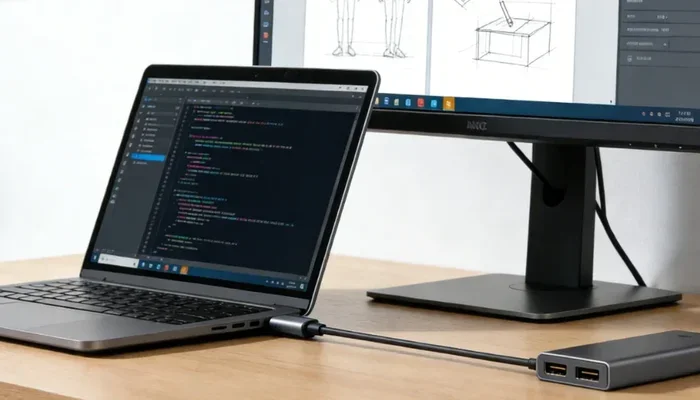
- Choose the right adapter. Look for a USB 3.0 to HDMI adapter or a USB 3.0 docking station that supports display output.
- Install DisplayLink drivers. Most USB display adapters require you to download and install the DisplayLink software from their official website.
- Plug in the adapter. Connect the USB 3.0 adapter to your computer.
- Connect your monitor. Use an HDMI cable to link the adapter to your external monitor.
- Install the monitor driver if prompted. Your operating system should recognize the new display almost immediately.
- Configure display settings. Go to your display settings and choose whether you want to mirror or extend your screen.
Quick Tips for a Smooth Setup
- Always use a USB 3.0 port, not a USB 2.0 port. USB 2.0 does not have enough bandwidth for video.
- Use a high-quality HDMI cable to avoid signal issues.
- Keep your DisplayLink drivers up to date for the best performance.
- If you experience lag, try lowering the resolution or refresh rate.
- Close unnecessary programs during setup to free up system resources.
Which Adapters Work Best with USB 3.0?
Not all adapters are created equal. Some popular and reliable options include:
- Plugable USB 3.0 HDMI Adapter: A solid choice for basic display needs. Easy plug-and-play setup.
- StarTech USB 3.0 to HDMI Dock: Offers additional ports like USB and Ethernet alongside video output.
- IOGEAR USB 3.0 Display Adapter: Supports dual monitor setups in some configurations.
- Dell USB-C Docking Station (with USB 3.0 backward compatibility): Great for Dell laptop users who want a clean desk setup.
USB 3.0 vs USB-C vs Thunderbolt for Display Output
Not all USB connections are the same. When it comes to transferring display signals, the differences between USB 3.0, USB-C, and Thunderbolt are significant. Let us break it down.
USB 3.0 (Type-A)
This is the traditional rectangular USB port most people are familiar with. It can transfer display signals, but only through adapters and software like DisplayLink. The bandwidth limit of 5 Gbps restricts the resolution and refresh rate you can achieve.
USB-C
USB-C is a newer, reversible connector that can do much more. Many USB-C ports support DisplayPort over USB, which means they can carry a native video signal without extra software. Some USB-C ports also support Thunderbolt 3 or Thunderbolt 4, which dramatically increases bandwidth.
USB-C with DisplayPort Alt Mode can handle 4K at 60Hz easily. Thunderbolt 3 can push up to two 4K displays at 60Hz or a single 5K display.
Thunderbolt
Thunderbolt is the heavyweight champion of display connectivity. Thunderbolt 3 offers 40 Gbps of bandwidth, and Thunderbolt 4 maintains that same speed. This makes it ideal for multi-monitor setups, high-resolution displays, and demanding creative workflows.
Comparison Table
| Feature | USB 3.0 | USB-C (DisplayPort) | Thunderbolt 3/4 |
|---|---|---|---|
| Max Bandwidth | 5 Gbps | 10 Gbps (USB 3.1 Gen 2) | 40 Gbps |
| Native Video Support | No (requires adapter) | Yes (with Alt Mode) | Yes |
| Max Resolution (Typical) | 4K at 30Hz | 4K at 60Hz | 4K at 120Hz or 8K |
| Setup Complexity | Moderate | Easy | Easy |
| Cost | Low to moderate | Moderate | Higher |
| Best For | Basic display needs | Everyday productivity | Professional and creative work |
If you have the choice, USB-C or Thunderbolt is always better for display output than USB 3.0. But if your laptop only has USB 3.0 Type-A ports, do not worry. You can still get an external monitor working.
Common Issues When Using USB 3.0 for Display
Using USB 3.0 for display output is not always a seamless experience. Here are some common problems people run into and how to fix them.
Black Screen or No Signal
This is the most common complaint. If your external monitor shows nothing, try these steps:
- Make sure the adapter is plugged into a USB 3.0 port, not USB 2.0.
- Check that your HDMI cable is securely connected on both ends.
- Restart your computer and the monitor.
- Reinstall the DisplayLink drivers.
- Try a different USB port to rule out a hardware issue.
Lag or Stuttering Video
If your display feels sluggish, the most likely cause is insufficient bandwidth or a overloaded CPU. USB 3.0 has limited bandwidth compared to native video connections. To reduce lag:
- Lower the display resolution to 1080p.
- Reduce the refresh rate to 30Hz.
- Close background applications that use heavy graphics.
- Make sure your DisplayLink drivers are current.
Audio Not Working Over USB Display
Some USB 3.0 adapters do not carry audio. This is a known limitation with certain DisplayLink setups. If you need audio, try using your monitor’s built-in speakers or connect a separate audio output.
Monitor Not Recognized After Sleep Mode
Sometimes, after your computer wakes from sleep, the external monitor is not detected. This is a common issue with USB display adapters. A quick fix is to unplug and replug the adapter, or restart the DisplayLink service in your system settings.
When Should You Use USB 3.0 for Display? (And When Should You Not)
Now that you know how USB 3.0 display transfer works, let us talk about when it makes sense and when it does not.
Great Use Cases for USB 3.0 Display
- Office productivity: Extending your screen for emails, spreadsheets, and documents works perfectly.
- Remote work setups: If your laptop lacks HDMI or DisplayPort outputs, a USB 3.0 adapter is a lifesaver.
- Presentations: Plugging into a projector or external screen in a meeting room is quick and easy.
- Light multimedia: Streaming videos or browsing the web with a second screen is smooth and enjoyable.
- Travel: USB 3.0 adapters are small and portable, making them great for on-the-go professionals.
When to Avoid USB 3.0 for Display
- Gaming: The latency and limited bandwidth make USB 3.0 a poor choice for gaming displays.
- Video editing: Color accuracy and real-time preview suffer without a native video connection.
- 3D rendering or CAD work: These tasks demand high bandwidth and low latency that USB 3.0 cannot deliver.
- Multi-monitor setups beyond two displays: USB 3.0 bandwidth gets stretched thin with more than two displays.
- 4K at 60Hz workflows: If you need smooth 4K, invest in a USB-C or Thunderbolt solution instead.
Expert Insights on USB 3.0 Display Technology
We reached out to a few tech experts to get their take on using USB 3.0 for external monitors. Here is what they had to say.
Mark Chen, Hardware Reviewer: “USB 3.0 display adapters have come a long way. DisplayLink technology has matured significantly. For basic dual-monitor setups, they are a practical and affordable solution. But power users should look toward USB-C or Thunderbolt.”
Sarah Lopez, IT Consultant: “I recommend USB 3.0 display adapters to small business clients all the time. Many of them have older laptops without modern video outputs. A simple USB adapter solves the problem instantly. Just make sure they install the latest drivers.”
Dr. James Park, Display Technology Researcher: “The fundamental limitation of USB 3.0 for video is bandwidth. You can compress and transmit video, but you will always sacrifice some quality or responsiveness compared to native connections. For general computing, it works well. For anything demanding, it falls short.”
Final Thoughts on USB 3.0 Display Transfer
So, can USB 3.0 transfer display to an external monitor? Absolutely. It is a real, working solution that has helped millions of people extend their screen real estate. Whether you use a USB 3.0 HDMI adapter, a docking station, or a DisplayLink-enabled device, you can connect an external monitor even without a dedicated video port.
That said, USB 3.0 is not perfect. It has bandwidth limitations, potential latency issues, and software dependencies. For everyday tasks like word processing, web browsing, and video calls, it works great. But for creative professionals and gamers, a native video connection is the way to go.
The technology landscape is always evolving. USB 3.0 served us well, but USB-C and Thunderbolt are quickly becoming the new standard. If you are shopping for a new laptop or dock, consider one with USB-C video output. It will save you headaches down the road.
For now, if USB 3.0 is all you have, do not let that stop you from adding an external monitor to your setup. With the right adapter and a little patience, you can enjoy a bigger, better display experience today.
Remember, the best setup is the one that fits your needs. Evaluate your workflow, choose the right tools, and make your workspace work for you.
Frequently Asked Questions
Can any USB 3.0 port support an external monitor?
Most USB 3.0 ports can support an external monitor, but you will need a compatible adapter or docking station. The USB 3.0 port itself does not natively carry a video signal. You need a DisplayLink adapter or a USB 3.0 to HDMI converter to make it work. Always check the adapter specifications before purchasing.
Is USB 3.0 display output good for gaming?
No, USB 3.0 is not ideal for gaming. The bandwidth limitations and added latency from software-based rendering make it a poor choice for gaming displays. If you want a smooth gaming experience on an external monitor, use a native connection like HDMI, DisplayPort, or a Thunderbolt/USB-C connection with direct video support.
Do I need to install drivers for USB 3.0 display adapters?
Yes, most USB 3.0 display adapters require you to install DisplayLink drivers. These drivers come with the adapter or can be downloaded from the manufacturer’s website. Without the proper drivers, your computer will not recognize the external display. Always keep your drivers updated for the best performance and compatibility.
Can I connect two external monitors via USB 3.0?
Yes, you can connect two external monitors using USB 3.0, but it depends on your computer’s USB ports and processing power. Each monitor will need its own USB 3.0 adapter or dock. Keep in mind that running two displays over USB 3.0 can strain your system and may result in reduced performance compared to a single monitor setup.
What is the difference between USB 3.0 and USB-C for display output?
USB 3.0 (Type-A) requires an adapter and software like DisplayLink to carry a video signal. USB-C, on the other hand, can support native video output through DisplayPort Alt Mode or Thunderbolt. USB-C generally offers higher bandwidth, better resolution support, and a more reliable display experience without the need for extra software.
Will a USB 3.0 display adapter work with a Mac?
Yes, most USB 3.0 display adapters work with Mac computers. However, you should verify compatibility with your specific Mac model. Some older Macs may have limited support, and macOS updates can sometimes affect DisplayLink driver performance. Always check the adapter manufacturer’s website for Mac-compatible models and the latest driver downloads.
=== CONCLUSION ===
Can USB 3.0 transfer display to an external monitor? Yes, it can, and it is a practical solution for many users. With the right adapter, DisplayLink software, and a USB 3.0 port, you can extend your workspace and boost productivity. Just remember the limitations: stick to 1080p or 4K at 30Hz for the best experience, and avoid using USB 3.0 for demanding tasks like gaming or video editing.
If you found this guide helpful, share it with someone who might benefit from knowing how to use USB 3.0 for external displays. And if you are in the market for new hardware, consider upgrading to a USB-C or Thunderbolt setup for a more future-proof display experience. Your eyes and your workflow will thank you.