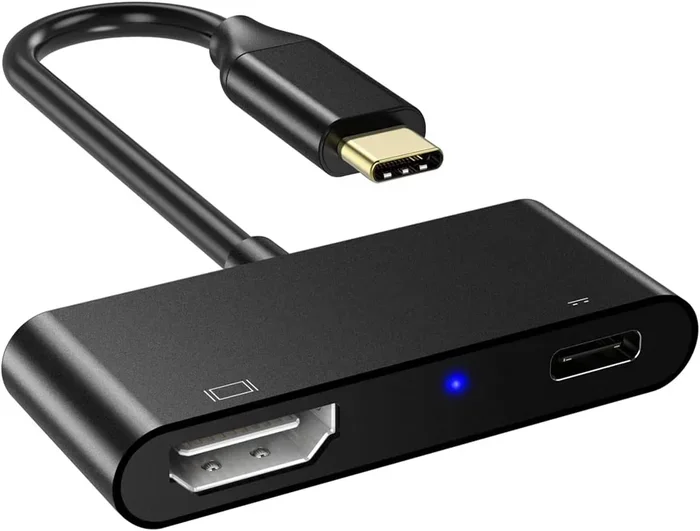
Can Usb 3 0 Handle Hdmi Everything You Need To Know
Can USB 3.0 handle HDMI? The short answer is yes, but with important caveats. USB 3.0 ports can transmit video signals to HDMI displays using the right adapter or cable, but your results depend on your port type, the adapter you choose, and your display needs. This guide covers everything from basic connections to resolution limits, so you know exactly what to expect.
Have you ever plugged a USB 3.0 handle HDMI cable into your laptop and wondered if it would actually work? Maybe you are sitting in a conference room, trying to connect your computer to a projector, and you only have a USB port available. Or perhaps you want to set up a second monitor at home but do not have enough HDMI ports on your computer.
The good news is that USB 3.0 can handle HDMI in many situations, but the answer is not always straightforward. Whether you are using a USB Type-C port or an older USB-A connector, the way video signals travel through USB cables can surprise you. In this guide, we will walk through everything you need to know about connecting USB 3.0 ports to HDMI displays.
By the time you finish reading, you will understand how the connection works, which adapters to buy, what resolution you can expect, and where the limits are. We will also compare USB 3.0 with newer versions like USB 3.1 and USB 3.2 so you can make the best decision for your setup. Let us dive right in.
Key Takeaways
- USB 3.0 can carry HDMI signals: With the correct adapter, USB 3.0 ports can output video to HDMI displays, including external monitors and TVs.
- USB Type-C is the key player: Most modern USB 3.0 ports use Type-C connectors that support DisplayPort Alt Mode for video transmission.
- Active adapters matter: Active adapters convert the signal properly, while passive adapters may not work with all setups.
- Resolution limits exist: USB 3.0 typically supports up to 4K at 30Hz, with higher refresh rates requiring newer USB versions.
- Bandwidth is the bottleneck: USB 3.0 offers 5 Gbps of bandwidth, which limits the video quality you can achieve over HDMI.
- Newer USB versions perform better: USB 3.1 and USB 3.2 offer more bandwidth and better HDMI support for demanding tasks.
📑 Table of Contents
What Is USB 3.0 and Why Does It Matter for HDMI?
Before we get into the details of HDMI connections, let us talk about what USB 3.0 actually is. USB 3.0 is a standard for connecting devices and transferring data. It was introduced back in 2008 and offered a big step up from USB 2.0 in terms of speed and power delivery.
Understanding USB 3.0 Basics
USB 3.0 provides a data transfer rate of 5 gigabits per second, which is about ten times faster than USB 2.0. This higher speed is what makes it possible to carry video signals alongside regular data. When you plug in a USB-C to HDMI adapter, you are using that extra bandwidth to send a video signal from your computer to a display.
Most modern laptops and desktops now come with USB 3.0 ports, often in the smaller USB Type-C form factor. These ports look similar to the older USB-A ports but are oval-shaped and reversible, making them much easier to plug in. The Type-C connector is the one that really unlocks the ability to output video to an HDMI monitor. It is small, versatile, and capable of doing many things at once.
How USB 3.0 Differs from Earlier Versions
USB 2.0 was never designed to carry video signals. It simply did not have enough bandwidth to handle the large amount of data that a video stream requires. When USB 3.0 came along, it opened the door to display output through USB connections. This was a real game changer for people who needed to connect their laptops to external monitors without dedicated video ports.
Here is a quick comparison of the USB versions and their capabilities:
- USB 2.0: 480 Mbps speed. No practical video support. Only good for basic data transfer and charging devices.
- USB 3.0: 5 Gbps speed. Can carry video signals with the right adapter. Supports up to 4K at 30Hz for most setups.
- USB 3.1: 10 Gbps speed. Better video support and higher refresh rates are possible with the right gear.
- USB 3.2: 20 Gbps speed. Excellent for 4K at 60Hz and even 8K in some special cases.
As you can see, each new version brings more video bandwidth to the table. But for now, let us focus on USB 3.0 and its HDMI capabilities, since that is what most people are working with today.
Can USB 3.0 Actually Handle HDMI Signals?
The short answer is yes, USB 3.0 can handle HDMI, but the way it works might not be what you expect. USB 3.0 does not have a native HDMI signal built into it. Instead, it uses a technology called DisplayPort Alt Mode to carry video data through the USB cable. The adapter then converts that signal into a standard HDMI output that your monitor or TV can understand.
The Role of USB Type-C in Video Output
Most USB 3.0 handle HDMI connections rely on the USB Type-C connector. This small, reversible port can do many things at once, including charging your device, transferring files, and sending video to an external display. When a USB Type-C port supports DisplayPort Alt Mode, it can take a video signal from your computer and send it through a USB-C to HDMI adapter or cable.
Not every USB Type-C port supports video output, though. Some ports are designed only for data transfer and charging. You need to check your device specifications to confirm that your USB port can handle display output. Look for terms like “DisplayPort Alt Mode” or “video output supported” in your laptop or computer manual. If you are unsure, check the manufacturer website or contact their support team.
Active vs Passive Adapters
One of the most important things to understand is the difference between an active adapter and a passive adapter. A passive adapter simply changes the physical connector shape from USB-C to HDMI. It does not add any processing power or signal conversion. These work well when your USB port already outputs a DisplayPort-compatible signal natively.
An active adapter, on the other hand, has a small chip inside that converts the signal from one format to another. This is necessary when your USB port uses a different video protocol or when you need to boost the signal for longer cable runs. Active adapters are more expensive but offer better compatibility and reliability across different devices and display types.
Here are some quick tips for choosing the right adapter:
- If your USB port supports DisplayPort Alt Mode, a passive USB-C to HDMI adapter will usually work fine.
- If you are connecting to a 4K HDMI 2.0 or HDMI 2.1 display, an active adapter may be necessary for the best results.
- Always buy adapters from reputable brands to avoid signal drops and compatibility issues.
- If you use a docking station, check whether it has its own processing chip for video conversion.
USB 3.0 vs Newer USB Versions for HDMI Output
While USB 3.0 can handle HDMI connections, newer versions of USB offer significantly better performance. If you are shopping for adapters or planning a new setup, it helps to understand the differences between each version.
Comparing USB 3.0, USB 3.1, and USB 3.2
Here is a side-by-side look at how these USB versions compare when it comes to HDMI output and overall performance:
- USB 3.0 (5 Gbps): Supports 4K at 30Hz. Great for everyday tasks like web browsing, document editing, and watching streaming videos. Not ideal for gaming or fast-motion content where smoothness matters.
- USB 3.1 Gen 2 (10 Gbps): Supports 4K at 60Hz and even 5K in some cases. A solid choice for creative professionals who need smooth, responsive visuals on their laptop display.
- USB 3.2 Gen 2×2 (20 Gbps): Supports 4K at 120Hz and 8K at 60Hz. Best for high-end monitors and demanding video work where every frame counts.
The key takeaway here is that bandwidth determines what you can do. USB 3.0 gives you 5 Gbps, which is enough for most basic display needs. But if you want higher refresh rates or larger resolutions, you will need a faster USB version to get the job done.
What This Means for Your Setup
If you have a laptop with only USB 3.0 ports, you can still connect to an external monitor. You just need to manage your expectations. For office work, email, and streaming videos, USB 3.0 HDMI output works perfectly fine. But if you are a gamer or a video editor who needs smooth motion at high resolutions, you might want to look into upgrading to a computer with USB 3.1 or USB 3.2 ports.
Many modern docking stations now include USB 3.1 or USB 3.2 connections specifically for this reason. They give you the video bandwidth you need while also providing extra USB ports, Ethernet connectivity, and charging capabilities all in one convenient device. If you work at a desk all day, a good docking station can simplify your setup enormously.
How to Connect USB 3.0 Ports to HDMI Displays
Setting up a connection between a USB 3.0 port and an HDMI display is straightforward once you know the steps. Here is how to do it the right way, whether you are a beginner or just need a quick refresher.
Step-by-Step Connection Guide
Follow these steps to connect your USB 3.0 port to an HDMI monitor or TV:
- Check your port type: Identify whether your computer has a USB Type-C port or a USB Type-A port. Type-C is much more likely to support video output and is the standard on most modern devices.
- Choose the right adapter: For USB Type-C, get a USB-C to HDMI adapter. For USB Type-A, you will need a different adapter that converts USB-A to HDMI, though these are less common and may have more limitations.
- Plug in the adapter: Connect the USB end to your computer and the HDMI end to your monitor or TV. Make sure both connections are firm and secure.
- Select the HDMI input: On your display, switch to the correct HDMI input channel using the input selector button or your TV remote control.
- Configure display settings: On your computer, go to display settings and choose whether you want to mirror your screen or extend it to the external display.
That is it. In most cases, your computer will automatically detect the external display and configure it correctly. If the screen stays black, try unplugging the adapter, waiting a few seconds, and plugging it back in. Sometimes a simple reset is all it takes to get things working.
Which Devices Support This Setup?
Most modern laptops from brands like Dell, HP, Lenovo, Apple, and Microsoft support USB 3.0 video output through Type-C ports. Many tablets and even some smartphones can also output video to HDMI using a compatible adapter. Desktop computers with USB 3.0 Type-C ports can also benefit from this setup, especially compact or mini PCs that may not have dedicated video outputs.
Here are some common devices that work well with USB 3.0 to HDMI connections:
- Ultrabooks and thin laptops with USB Type-C ports
- Desktop computers with USB 3.0 Type-C headers on the motherboard
- Tablets like the iPad Pro and Samsung Galaxy Tab series
- Chromebooks with USB Type-C connectivity
- Mini PCs and compact workstations
Always double-check your device specifications before purchasing an adapter. Not every USB port on every device supports video output, even if it is technically a USB 3.0 port. Compatibility can vary between manufacturers and models, so a quick check saves a lot of frustration later.
Limitations You Should Know About
While USB 3.0 can handle HDMI for many use cases, there are some important limitations you should be aware of before you buy an adapter. Understanding these limitations helps you set realistic expectations and avoid disappointment.
Resolution and Refresh Rate Caps
The biggest limitation of USB 3.0 for HDMI output is the resolution and refresh rate cap. With USB 3.0, you are generally limited to 4K at 30Hz or 1080p at 60Hz. If you try to push 4K at 60Hz, you may experience flickering, dropped frames, or no signal at all.
For most people, 4K at 30Hz is perfectly fine for reading documents, browsing the web, and watching videos. But if you are doing graphic design, video editing, or gaming, the lower refresh rate can feel sluggish and frustrating. This is where upgrading to USB 3.1 or USB 3.2 makes a real difference in your day-to-day experience.
Bandwidth Bottlenecks
USB 3.0 offers 5 Gbps of total bandwidth, and that bandwidth has to be shared between data transfer and video transmission. If you are simultaneously copying large files to a USB drive while using an external HDMI monitor, you might notice performance drops. The video bandwidth gets squeezed when the data connection is busy, leading to stuttering or lag.
This is another reason why newer USB versions perform better for HDMI output. They have more total bandwidth to spare, so your video signal stays smooth even when you are doing heavy data work at the same time. If you regularly multitask with heavy file transfers and external displays, this is an important consideration.
Compatibility Issues
Not all HDMI adapters work with all USB 3.0 ports. Some adapters are designed specifically for certain chipsets or operating systems. If you are using a laptop display setup with Windows, macOS, or Linux, make sure the adapter you choose is compatible with your operating system before you buy it.
Common issues you might run into include:
- No signal after plugging in the adapter
- Display shows at a lower resolution than expected
- Flickering or intermittent signal loss during use
- Audio not transmitting through the HDMI connection properly
Most of these issues can be resolved by updating your display drivers, trying a different adapter, or checking your display settings. But some cheap adapters simply do not work well with certain hardware, so investing in a quality product from a trusted brand is always worth the extra money.
Best USB 3.0 to HDMI Adapters and Docking Stations
Not all adapters are created equal. When you are shopping for a USB 3.0 to HDMI solution, you want something reliable that will give you a stable and consistent connection. Here are some things to look for and some recommendations to help you choose.
What to Look for in an Adapter
When shopping for a USB-C to HDMI adapter, keep these factors in mind:
- Chipset quality: Adapters with good chipset designs provide smoother video and better compatibility. Look for adapters that use DisplayLink or native DisplayPort Alt Mode technology for the best results.
- Build quality: A sturdy adapter with well-made connectors will last longer and maintain a stable connection over time. Avoid flimsy, cheap plastic adapters that feel like they will break easily.
- Brand reputation: Stick with well-known brands like Cable Matters, UGREEN, Anker, and StarTech for reliable performance and good customer support.
- Driver support: Some adapters require drivers, especially active ones. Make sure the adapter works with your operating system without complex setup or ongoing driver maintenance.
Top Recommendations for USB 3.0 to HDMI
Here are some popular options for connecting USB 3.0 to HDMI displays that have earned good reviews from users:
- Cable Matters USB-C to HDMI Adapter: A solid passive adapter for USB Type-C ports that support DisplayPort Alt Mode. Affordable, reliable, and easy to use.
- UGREEN USB-C to HDMI Adapter: Supports 4K at 30Hz and works with most modern laptops and tablets. Great value for the price point.
- Anker USB-C Docking Station: If you need more than just HDMI, a docking station gives you extra USB ports, Ethernet, and charging in one convenient device.
- StarTech USB 3.0 to HDMI Active Adapter: Best for situations where your USB port does not support DisplayPort Alt Mode natively and needs active signal conversion.
When choosing between a simple adapter and a full docking station, consider your needs carefully. If you just need one external monitor for occasional use, a simple adapter is all you need. If you want multiple displays, Ethernet connectivity, and USB ports for peripherals, a docking station is the better long-term investment.
Key Takeaways
- USB 3.0 can carry HDMI signals: With the correct adapter, USB 3.0 ports can output video to HDMI displays, including external monitors and TVs.
- USB Type-C is the key player: Most modern USB 3.0 ports use Type-C connectors that support DisplayPort Alt Mode for video transmission.
- Active adapters matter: Active adapters convert the signal properly, while passive adapters may not work with all setups.
- Resolution limits exist: USB 3.0 typically supports up to 4K at 30Hz, with higher refresh rates requiring newer USB versions.
- Bandwidth is the bottleneck: USB 3.0 offers 5 Gbps of bandwidth, which limits the video quality you can achieve over HDMI.
- Newer USB versions perform better: USB 3.1 and USB 3.2 offer more bandwidth and better HDMI support for demanding tasks.
Conclusion
So, can USB 3.0 handle HDMI? Absolutely. With the right adapter and a compatible port, you can connect your computer to an external monitor, TV, or projector without any hassle. USB 3.0 has made it possible to carry both data and video through a single cable, which is incredibly convenient for work, home, and travel setups alike.
However, it is important to understand the limitations. USB 3.0 is best suited for 4K at 30Hz or 1080p at 60Hz. If you need higher refresh rates or larger resolutions, you will want to look at USB 3.1 or USB 3.2 options. And always choose a quality adapter from a reputable brand to ensure a stable and reliable connection every time you plug in.
Whether you are a student setting up a laptop display in a dorm room, a professional connecting to a conference room projector, or a home user wanting a bigger screen for movies and games, USB 3.0 to HDMI adapters give you the flexibility you need. Just pick the right adapter for your setup, and you will be up and running in minutes.
Take some time today to check your USB ports, explore your options, and find the perfect HDMI adapter for your needs. Your external display setup is only a cable away, and the convenience of a second screen is well worth the small investment.
Frequently Asked Questions
Can any USB 3.0 port output HDMI video?
Not every USB 3.0 port supports video output. You need a port that specifically supports DisplayPort Alt Mode, which is common on USB Type-C ports. Check your device specifications to confirm before buying an adapter to avoid frustration.
What is the maximum resolution USB 3.0 can support over HDMI?
USB 3.0 typically supports 4K at 30Hz or 1080p at 60Hz. If you need higher refresh rates or 8K resolution, you will need a faster USB version like USB 3.1 or USB 3.2 for better video bandwidth and smoother performance.
Do I need an active or passive adapter for USB 3.0 to HDMI?
If your USB Type-C port supports DisplayPort Alt Mode, a passive adapter usually works fine. If your port does not support it natively or you need to connect to HDMI 2.0 or HDMI 2.1 displays, an active adapter with a conversion chip is recommended for the best results.
Can I use a USB 3.0 hub to connect multiple HDMI monitors?
Some USB 3.0 hubs support dual or multiple HDMI outputs, but they typically use active adapter technology inside. Make sure the hub you choose explicitly supports multi-display output and check its resolution and refresh rate specifications before purchasing.
Will USB 3.0 HDMI support work with gaming?
USB 3.0 can work for casual gaming at 1080p with a 60Hz refresh rate. However, for competitive gaming or high-refresh-rate monitors, USB 3.0’s bandwidth limitations may cause issues. Upgrading to USB 3.1 or USB 3.2 is recommended for serious gaming setups that demand smooth performance.
Does audio transmit through USB 3.0 to HDMI connections?
Yes, most USB 3.0 to HDMI adapters transmit both video and audio through the HDMI cable. This means you can connect your computer to an HDMI monitor or TV and get sound without needing a separate audio cable, making your setup cleaner and simpler.