Can You Replace The Battery In An HP Laptop Easily
Yes, you can replace the battery in an HP laptop in most models, and the process is simpler than you might think. Whether you own an HP Pavilion, HP Envy, or HP Spectre, this guide walks you through every step with confidence. We cover the tools you need, the right replacement battery to buy, and common mistakes to avoid. By the end, you will know exactly how to swap out your old battery and restore your laptop battery life like new.
Your HP laptop battery is dying faster than it used to. You keep hunting for a power outlet, and the battery percentage drops before you even finish a cup of coffee. It is frustrating, right? The good news is that replacing your HP laptop battery is often easier than you think. In this guide, we will walk you through everything you need to know. From understanding your battery type to picking the right replacement, we have you covered. Let us get your laptop running longer again.
Many people assume battery replacement is a job for professionals. They worry about breaking something or voiding their warranty. But the truth is, most HP laptops are designed with user-friendly battery access. Whether your HP laptop uses a removable battery or an internal one, the process is manageable with basic tools and a little patience. This article breaks it all down into simple, easy-to-follow steps. You will feel confident and ready to tackle the job by the time you finish reading.
Key Takeaways
- Most HP laptops allow battery replacement: Many models use removable or semi-removable batteries that you can swap yourself.
- You only need basic tools: A Phillips screwdriver, a plastic pry tool, and a soft cloth are all you require.
- Choose between OEM and third-party batteries: OEM batteries offer reliability, while third-party options can save you money.
- Follow safety precautions: Always power off your laptop and disconnect the charger before starting.
- Calibrate your new battery: A full charge-discharge cycle helps your laptop report accurate battery health.
- Check your warranty first: Replacing the battery yourself may void your HP warranty coverage.
- Seek help if you feel unsure: HP support and authorized service centers are always available for guidance.
📑 Table of Contents
- Understanding Your HP Laptop Battery
- Can You Replace The Battery In An HP Laptop Easily?
- Tools And Preparation For Battery Replacement
- Step-By-Step Guide To Replacing Your HP Laptop Battery
- Choosing The Right Replacement Battery
- Maximizing Battery Life After Replacement
- Common Mistakes To Avoid During Battery Replacement
- Final Thoughts
Understanding Your HP Laptop Battery
Before you start any replacement project, it helps to understand what kind of battery your HP laptop uses. Not all batteries are the same, and knowing the difference saves you time and frustration. HP laptops come in a few common battery designs, and each one has its own replacement approach.
Removable vs Internal Batteries
Older HP laptop models often feature a removable battery. You can slide a latch or switch, and the battery pops right out. Models like the HP Pavilion and HP Envy series from earlier years typically use this design. It makes replacement super easy. You do not even need a screwdriver.
Newer HP laptops, especially slim models like the HP Spectre and HP EliteBook, often use internal batteries. These are sealed inside the laptop chassis. You need to remove the bottom panel and carefully disconnect the battery connector. While this sounds intimidating, it is still very doable at home. The key is to go slow and follow each step carefully.
Lithium-Ion Battery Basics
Almost all modern HP laptops use lithium-ion batteries. These batteries are lightweight, hold a strong charge, and last for hundreds of charge cycles. A typical charge cycle means draining the battery from 100% to 0% and then recharging it fully. Over time, the battery health declines, and you notice shorter laptop battery life. Understanding this helps you know when replacement is the right move.
You can check your battery health through Windows settings. Simply type “Battery Report” in the search bar and open the generated file. It shows your battery cycle count and current capacity. If the capacity has dropped significantly, it is time to consider a replacement.
Can You Replace The Battery In An HP Laptop Easily?
The short answer is yes. Replacing the battery in an HP laptop is one of the most straightforward DIY upgrades you can do. Most HP laptops are built with accessible battery compartments or easy-to-remove bottom panels. You do not need advanced technical skills. You just need the right information and a few basic tools.
Let us look at the factors that determine how easy the replacement will be for your specific model.
Factors That Affect Replacement Difficulty
Several things influence how easy it is to replace your battery:
- Laptop model: Some HP models are designed for easy user access. Others require more disassembly.
- Battery type: Removable batteries are the easiest. Internal batteries need a bit more care.
- Warranty status: If your laptop is still under warranty, check with HP support before opening it. DIY battery replacement may void your warranty coverage.
- Your comfort level: If you have never opened a laptop before, start with a removable battery model. It builds confidence.
For most users, replacing an HP laptop battery takes between 10 and 30 minutes. That is it. You do not need an engineering degree or expensive equipment. With our step-by-step guide below, you will handle it like a pro.
Tools And Preparation For Battery Replacement
Before you dive in, gather everything you need. Having the right tools ready makes the process smooth and stress-free. You do not want to pause mid-project looking for a screwdriver.
Essential Tools You Will Need
Here is a simple list of tools to prepare before starting your battery replacement:
- Phillips head screwdriver: Most HP laptops use small Phillips screws. A precision set works great.
- Plastic pry tool or spudger: This helps you safely open the bottom panel without scratching the laptop.
- Anti-static wrist strap (optional): This prevents static electricity from damaging internal components.
- Soft cloth or microfiber towel: You will use this to place your laptop on a clean, safe surface.
- Small container or magnetic mat: Keeps screws organized and prevents you from losing them.
Safety Precautions
Safety comes first when working with any electronic device. Before you begin, follow these precautions:
- Power off your laptop completely. Do not just put it to sleep. Shut it down fully.
- Unplug the charger. Disconnect the AC adapter from the laptop and the wall outlet.
- Remove all external devices. Take off USB drives, headphones, and any connected peripherals.
- Work on a clean, flat surface. A table with good lighting is ideal.
- Avoid working on carpet or fabric. Static electricity can build up and damage components.
Taking these simple steps protects both you and your laptop. It also ensures a smooth HP laptop battery replacement experience.
Step-By-Step Guide To Replacing Your HP Laptop Battery
Now let us get into the actual process. We will walk you through replacing both removable and internal batteries. Follow each step carefully, and you will have a new battery in no time.
Replacing A Removable Battery
If your HP laptop has a removable battery, you are in luck. This is the easiest type to replace:
- Flip your laptop over. Look at the bottom panel for a battery release switch or latch.
- Slide the latch to the unlock position. Most HP removable batteries have a simple slider mechanism.
- Gently pull the battery out. It should slide out smoothly. Do not force it.
- Align the new battery with the compartment. Slide it in gently until you hear or feel it click.
- Switch the latch back to the locked position. This secures the new battery in place.
- Plug in the charger and power on. Let the new battery charge fully before using your laptop.
That is all there is to it. A removable battery swap takes less than five minutes. It is truly one of the simplest hardware upgrades you can do.
Replacing An Internal Battery
For HP laptops with internal batteries, the process requires a bit more care. Follow these steps closely:
- Power off your laptop and unplug the charger. Double-check that everything is disconnected.
- Flip the laptop over and locate the screws on the bottom panel. Use your Phillips screwdriver to remove them. Place each screw in your container or magnetic mat.
- Carefully pry off the bottom panel. Use your plastic pry tool to gently lift the panel. Start at a corner and work your way around.
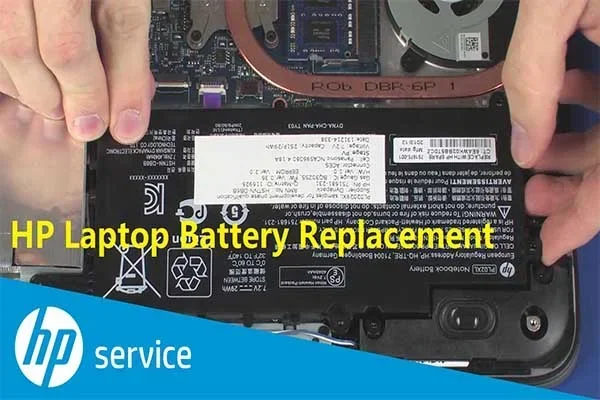
- Locate the battery inside the laptop. It is usually a large, flat cell held in place by one or two screws or a connector tab.
- Disconnect the battery connector. Use your pry tool or fingers to gently lift the connector off the motherboard. Do not pull on the wires.
- Remove any screws holding the battery in place. Keep track of every screw.
- Lift the old battery out carefully. It may be attached with a small adhesive strip. Pull gently and slowly.
- Place the new battery in the same position. Secure it with screws or reconnect the adhesive strip.
- Reconnect the battery connector to the motherboard. Press it down firmly until it clicks.
- Replace the bottom panel and screw it back in. Make sure all screws are snug but not overtightened.
- Charge the new battery fully before using your laptop. This helps calibrate the battery gauge.
Take your time with each step. Rushing through an internal battery replacement can lead to accidental damage. Patience is your best friend here.
Quick Tips For A Smooth Replacement
- Take photos at each step. This helps you remember how everything fits back together.
- Do not force any part. If something does not move easily, stop and double-check your approach.
- Keep screws organized. Different screws may have different lengths. Mixing them up can cause problems.
- Work in a well-lit area. Good lighting helps you see small connectors and screws clearly.
Choosing The Right Replacement Battery
Picking the correct replacement battery is just as important as the replacement process itself. Using the wrong battery can damage your laptop or even create safety risks. Here is what you need to know.
OEM Vs Third-Party Batteries
When shopping for a replacement battery, you have two main options:
OEM batteries are made by HP or an authorized manufacturer. They carry the HP brand name and are designed specifically for your laptop model. OEM batteries offer the best compatibility and safety. They also often come with a warranty. However, they tend to cost more than other options.
Third-party batteries are made by independent manufacturers. They can be significantly cheaper and still work well. Many third-party batteries come with their own warranties and positive reviews. The key is to buy from a reputable seller. Check reviews and verify the model number matches your laptop.
How To Find The Correct Battery Model
Finding the right battery for your HP laptop is straightforward:
- Check your laptop model number. You will find this on a sticker on the bottom of the laptop or in the system settings.
- Visit the HP official website. Use the HP Support page to search for your model and find compatible batteries.
- Look for the battery part number. This is printed on the old battery itself or listed in your battery report.
- Compare specifications. Make sure the voltage and capacity (measured in watt-hours or milliamp-hours) match your original battery.
Buying the correct HP laptop battery ensures safe operation and optimal battery health after replacement.
Maximizing Battery Life After Replacement
You have your new battery installed. Great! Now let us make sure it lasts as long as possible. A few simple habits can dramatically extend your laptop battery life.
Calibrate Your New Battery
After installing a new battery, run a full calibration cycle. This means charging the battery to 100%, then using your laptop until it shuts down from low battery. Then charge it back to 100% without interruption. Calibration helps Windows accurately report your battery level and health.
Adjust Power Settings
Windows offers built-in power management tools. Go to Settings > System > Power & Battery. You can choose a battery saver mode that reduces background activity and dims the screen. These small changes add up to significant battery savings over time.
Avoid Common Battery Drain Habits
Some habits wear down your new battery faster than they should:
- Keeping your laptop plugged in all the time. This can overheat the battery and reduce its lifespan.
- Letting the battery drop to 0% regularly. Deep discharges stress lithium-ion cells.
- Using your laptop on soft surfaces like beds. Soft surfaces block ventilation and cause overheating.
- Running too many apps at once. Heavy multitasking drains the battery faster.
By avoiding these habits, your new HP laptop battery will serve you well for years.
When To Seek Professional Help
While most users can handle a battery replacement, there are times when professional help makes sense:
- Your laptop is still under warranty. Contact HP support before opening anything. They may replace the battery for free.
- You feel uncomfortable opening the laptop. There is no shame in that. Authorized service centers can handle the job safely.
- You notice swelling or damage. A swollen battery is a safety hazard. Do not attempt to remove it yourself. Seek professional assistance immediately.
- You cannot find a compatible battery. HP support can help you locate the right part for your model.
HP offers both phone and chat support for battery-related questions. Their team can guide you through the process or connect you with an authorized service center near you.
Common Mistakes To Avoid During Battery Replacement
Even with the best guide, mistakes can happen. Here are common errors people make during battery replacement and how to avoid them:
- Forcing the battery connector: The connector should lift off with gentle pressure. If it resists, check for a locking tab before pulling harder.
- Mixing up screws: Different panels may use different screw sizes. Keep them organized and labeled.
- Using a metal tool instead of plastic: Metal pry tools can scratch or short-circuit components. Always use a plastic spudger.
- Skipping the calibration step: A new battery needs calibration for accurate battery reporting. Do not skip this.
- Buying the wrong battery model: Always double-check compatibility before purchasing. A wrong battery will not fit or may cause damage.
Avoiding these mistakes keeps your laptop safe and ensures a successful HP laptop battery replacement experience.
Final Thoughts
So, can you replace the battery in an HP laptop easily? Absolutely. Whether you have a removable or internal battery, the process is manageable for most users. You need basic tools, a little patience, and the right replacement battery. The steps are clear, and the results are rewarding. A fresh battery brings back the freedom of using your laptop anywhere without hunting for an outlet.
Remember to check your warranty before starting. Choose a quality replacement battery, whether OEM or a trusted third-party option. Follow the safety precautions and take your time with each step. And after the replacement, calibrate your battery and adjust your power settings to get the most out of it.
Your HP laptop is a valuable investment. Keeping it running at its best with a new battery is one of the smartest things you can do. You have everything you need to succeed. Now go ahead and give it a try. Your laptop and your wallet will thank you.
Frequently Asked Questions
How do I know if my HP laptop battery needs replacement?
If your laptop battery drains quickly, does not hold a charge, or shows a significantly reduced capacity in the battery report, it is likely time for a replacement. You can check battery health through Windows by searching for “Battery Report” in the Start menu.
Does replacing the HP laptop battery void the warranty?
It depends on your warranty terms. If your laptop is still under HP warranty, opening the device yourself may void the coverage. Check with HP support before proceeding, or visit an authorized service center for a warranty-covered replacement.
How long does it take to replace an HP laptop battery?
For removable batteries, the swap takes less than five minutes. For internal batteries, expect 15 to 30 minutes depending on your model. The process is straightforward and does not require advanced technical skills.
Can I use a third-party battery for my HP laptop?
Yes, third-party batteries are a cost-effective alternative to OEM batteries. Make sure to buy from a reputable seller, verify the model number matches your laptop, and check for positive reviews and a warranty from the seller.
Is it safe to replace the battery myself?
Yes, it is safe as long as you follow safety precautions. Power off your laptop, disconnect the charger, and use the right tools. If you are uncomfortable or your battery is swollen, seek professional help instead.
How often should I replace my HP laptop battery?
Most lithium-ion laptop batteries last between 2 and 4 years, or roughly 300 to 1,000 charge cycles. If you notice significantly shorter battery life, it is a good sign that a replacement will restore your laptop battery life to normal levels.