Can A Laptop Be Used As HDMI Output For Your TV Screen
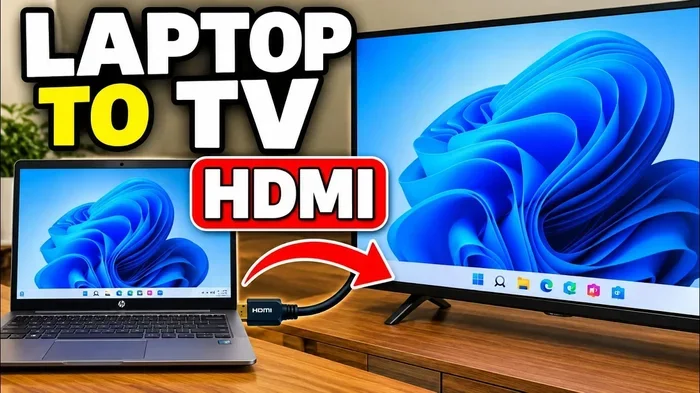
Yes, you can use a laptop as HDMI output to connect to a TV screen, but it depends on your laptop model and ports. This guide walks you through every method, from wired HDMI connections to wireless alternatives, so you can stream your laptop display on a bigger screen with confidence.
Have you ever wanted to watch a movie, play a game, or present a slideshow on a bigger screen? Using your laptop as HDMI output to a TV screen sounds simple, but it is not always straightforward. Many people buy a cable, plug it in, and then stare at a blank screen wondering what went wrong.
The good news is that most laptops today can send video and audio to a TV through an HDMI connection. The trick is knowing which ports your laptop has, what kind of cable or adapter you need, and how to adjust your display settings. This guide covers everything you need to know about using your laptop as an HDMI output for your TV screen.
Whether you are streaming content, working from home, or setting up a home theater, understanding how your laptop connects to a TV opens up a world of possibilities. Let us dive in and break it all down.
Key Takeaways
- HDMI output from a laptop is possible: Most modern laptops support sending video to a TV through an HDMI port or adapter.
- Check your ports first: Not all laptops have a full-size HDMI output, so you may need an adapter or USB-C to HDMI cable.
- Display settings matter: You can mirror or extend your screen once connected to your TV.
- Wireless options exist: If HDMI is not an option, screen mirroring tools like Chromecast or Miracast work well.
- Common issues are fixable: No signal, no audio, or blurry display problems usually have simple solutions.
📑 Table of Contents
- What Is HDMI Output And Why Does It Matter
- Can A Laptop Be Used As HDMI Output For Your TV Screen
- How To Connect Your Laptop To A TV Using HDMI
- Common Problems When Using Laptop As HDMI Output
- Alternative Ways To Send Your Laptop Screen To A TV
- Tips For Best Display Quality When Using Laptop As HDMI Output
- Can A Laptop Be Used As HDMI Output: Final Thoughts
What Is HDMI Output And Why Does It Matter
HDMI stands for High-Definition Multimedia Interface. It is a standard cable connection that carries both video and audio signals through a single cable. When we talk about HDMI output, we mean sending video and sound from a device to another display, like a TV or monitor.
Not every laptop is built the same way. Some laptops come with a full-size HDMI port right on the side. Others use smaller ports like USB-C or Mini HDMI. And a few older models may not have any HDMI capability at all. This is why understanding your specific laptop matters before you try to connect it to a TV.
The HDMI cable has become the go-to choice for people who want a reliable, high-quality connection between a laptop and a TV screen. It supports high resolutions, including 1080p and even 4K, depending on your hardware. That makes it ideal for watching movies, gaming, or giving presentations.
How HDMI Output Works On A Laptop
When your laptop has an HDMI output port, it acts as the source device. The video signal comes from your laptop’s graphics card, travels through the HDMI cable, and reaches the TV as a display. The audio follows the same path, so you get sound through your TV speakers without needing a separate audio cable.
Your laptop’s graphics card handles the video processing. The better the graphics card, the smoother the performance when you push high resolutions or play demanding content. Most everyday laptops handle standard HD output just fine, but if you are a gamer or a video editor, you may want to check your specs first.
Can A Laptop Be Used As HDMI Output For Your TV Screen
The short answer is yes, in most cases. But the longer answer depends on a few factors. Let us look at what determines whether your laptop can serve as an HDMI output device.
Check Your Laptop’s HDMI Port
Start by looking at the sides of your laptop. Do you see a rectangular port with small clips on each side? That is a standard HDMI port. If you find one, you are in good shape. You can plug in an HDMI cable directly from your laptop to your TV.
If your laptop does not have a full-size HDMI port, do not panic. Many modern laptops use USB-C ports that support video output. In that case, you need a USB-C to HDMI adapter or a USB-C to HDMI cable. Some laptops use Mini HDMI or Micro HDMI, which require a different adapter. Check your laptop’s manual or the manufacturer’s website to confirm what kind of video output your model supports.
Laptops Without HDMI Ports
What if your laptop has no HDMI port at all? You still have options. A USB-C to HDMI adapter is the most common solution. These adapters are affordable and widely available online. Some laptops support DisplayPort over USB-C, which makes the connection even easier.
Another option is a docking station. These devices connect to your laptop through USB-C and provide multiple ports, including HDMI output. Docking stations are great for people who work with external monitors regularly or who want a clean setup at home.
When A Laptop Cannot Be Used As HDMI Output
There are rare cases where a laptop cannot output video through HDMI. Some ultra-thin laptops prioritize wireless connectivity and skip physical video ports entirely. Others may have a port that only supports input, not output. If you are unsure, check your laptop’s specifications online or contact the manufacturer’s support team.
How To Connect Your Laptop To A TV Using HDMI
Setting up the connection is easier than most people think. Follow these steps and you will be watching your laptop on a big screen in minutes.
Step 1: Gather Your Equipment
You will need the following items:
- An HDMI cable (make sure it is long enough to reach from your laptop to your TV)
- A USB-C to HDMI adapter, if your laptop does not have a full-size HDMI port
- Your TV with an available HDMI input port
Try to use a high-quality HDMI cable that supports the resolution you want. Cheap cables sometimes struggle with 4K content or longer cable runs. A well-made cable ensures a stable picture and clear audio.
Step 2: Plug In The Connection
First, connect the HDMI cable to your laptop. If you are using an adapter, plug the adapter into your laptop first, then attach the HDMI cable to the adapter. Next, plug the other end of the HDMI cable into any available HDMI input on your TV.
Make sure both ends are fully seated. A loose connection is one of the most common reasons for a “no signal” error. You should hear a small click when the cable locks into place.
Step 3: Switch Your TV Input
Turn on your TV and use the remote to switch to the correct HDMI input. Most TVs label their HDMI ports as HDMI 1, HDMI 2, and so on. Use the input or source button on your remote to select the port where you plugged in the cable.
If your TV shows a signal, congratulations. If the screen stays black, move on to the next step.
Step 4: Adjust Display Settings On Your Laptop
Sometimes your laptop does not automatically detect the TV. On Windows, right-click the desktop and choose Display Settings. On macOS, go to System Settings and then Displays. Look for options to detect or identify the external display.
You can choose between two modes:
- Mirror display: The TV shows the same image as your laptop screen. Great for presentations and movie watching.
- Extend display: The TV becomes a second screen. This is useful for multitasking or using your laptop as a workstation while keeping the TV as a secondary monitor.
You can also adjust the resolution and orientation from these settings. Match the resolution to your TV’s native resolution for the sharpest picture.
Quick Tips For A Smooth Connection
- Restart both your laptop and TV before connecting them.
- Try a different HDMI port on your TV if the first one does not work.
- Update your laptop’s graphics drivers for the best compatibility.
- Use the shortest HDMI cable that meets your needs to reduce signal loss.
Common Problems When Using Laptop As HDMI Output
Even with the right equipment, things can go wrong. Here are the most common issues and how to fix them.
No Signal On The TV
This is the number one complaint people have. If your TV shows “No Signal,” start by checking the cable connections. Unplug the HDMI cable from both ends and plug them back in firmly. Try a different HDMI port on your TV. If you are using an adapter, test with a different adapter to rule out a faulty adapter.
Sometimes the issue is with your laptop’s display settings. Make sure your laptop is set to output video through HDMI. On Windows, press the Windows key plus P to bring up the projection menu and select Duplicate or Extend.
No Audio Through The TV
HDMI carries both video and audio, but sometimes the sound does not come through the TV speakers. This usually happens when the audio output is still set to the laptop’s speakers.
On Windows, right-click the speaker icon in the taskbar and select your TV from the list of audio output devices. On macOS, go to Sound Settings and choose the HDMI output. This simple change routes the audio to your TV.
Blurry Or Low-Resolution Display
If the picture looks fuzzy, your resolution settings are probably off. Go to your display settings and set the resolution to match your TV’s native resolution. Most modern TVs use 1920 x 1080 (Full HD) or 3840 x 2160 (4K). Setting the correct resolution makes a big difference in picture clarity.
Laptop Screen Flickers Or Goes Black
Flickering or black screens often point to a faulty cable or a loose connection. Try a different HDMI cable first. If the problem persists, your graphics card drivers may need updating. Visit your laptop manufacturer’s website and download the latest drivers for your graphics card.
Alternative Ways To Send Your Laptop Screen To A TV
HDMI is not the only way to connect a laptop to a TV. Several wireless and wired alternatives work well depending on your setup and needs.
Wireless Screen Mirroring
If you do not want to deal with cables, wireless screen mirroring is a great option. Technologies like Miracast, Chromecast, and Apple AirPlay let you cast your laptop screen to a TV over Wi-Fi. These methods are convenient, but they can introduce a slight delay or lower image quality compared to a wired HDMI connection.
Wireless casting works best for casual use like streaming videos or sharing photos. For gaming or video editing, a wired HDMI connection provides a more reliable and responsive experience.
Using A VGA Or DVI Adapter
Older laptops may have VGA or DVI ports instead of HDMI. You can use a VGA or DVI to HDMI adapter to connect to a modern TV. However, these older connections do not carry audio, so you will need a separate cable for sound. The image quality is also lower than HDMI, especially at higher resolutions.
Streaming Devices As A Bridge
Devices like Roku, Amazon Fire Stick, or Apple TV can act as a bridge between your laptop and TV. Some of these devices support screen mirroring directly from your laptop. This is a good option if your laptop lacks HDMI output and you do not want to buy an adapter.
Comparison Table: HDMI Vs Wireless Alternatives
| Feature | HDMI Cable | Wireless Mirroring | Streaming Device |
|---|---|---|---|
| Video Quality | Excellent (up to 4K) | Good (can vary) | Good (depends on device) |
| Audio Quality | Excellent | Good | Good |
| Latency | Near zero | Noticeable delay | Low to moderate |
| Ease Of Setup | Very easy | Easy | Moderate |
| Cost | Low | Free (if Wi-Fi exists) | Medium to high |
| Best For | Movies, gaming, presentations | Casual streaming, photos | Smart TV setups |
Tips For Best Display Quality When Using Laptop As HDMI Output
Once you have your laptop connected to a TV, you want the best picture possible. Here are some tips to get the most out of your setup.
Match The Resolution
Always set your laptop’s display resolution to match your TV’s native resolution. Sending a 4K signal to a 1080p TV, or vice versa, can result in a less-than-perfect image. Check your TV’s manual or settings menu to find the native resolution.
Use A High-Speed HDMI Cable
Not all HDMI cables are created equal. For the best results, use a High Speed HDMI cable or an Ultra High Speed HDMI cable. These cables support higher resolutions and refresh rates, which matters if you are watching 4K content or playing fast-paced games.
Adjust Brightness And Contrast
Your laptop screen and TV screen are different sizes and use different display technologies. You may need to adjust brightness and contrast settings on your TV for the best viewing experience. A picture that looks perfect on a laptop screen can appear too bright or too dark on a TV.
Keep Your Drivers Updated
Graphics card drivers play a big role in video output quality. Keeping them updated ensures compatibility with the latest display standards and fixes known bugs. Check for driver updates through your laptop manufacturer’s website or your graphics card vendor’s software.
Expert Insight: Why HDMI Still Beats Wireless For Most Users
While wireless options are improving every year, HDMI still offers the most reliable and highest-quality connection for sending a laptop screen to a TV. There is no compression, no Wi-Fi interference, and no noticeable delay. For anyone who cares about picture quality and consistency, a wired HDMI connection remains the best choice.
Can A Laptop Be Used As HDMI Output: Final Thoughts
So, can a laptop be used as HDMI output for your TV screen? Absolutely. Most laptops made in the last several years support HDMI output either directly or through a simple adapter. The process is straightforward, and once set up, you can enjoy a bigger, better screen for movies, games, work, and presentations.
The key is to know your laptop’s ports, get the right cable or adapter, and adjust your display settings properly. When issues come up, most have quick and easy fixes. And if HDMI is not an option for your laptop, wireless alternatives like screen mirroring and streaming devices can fill the gap.
Take some time to try out your setup. Experiment with different cables, adapters, and settings until you find what works best for your situation. Once you get it right, using your laptop as an HDMI output becomes second nature. You will wonder how you ever watched anything on a small screen again.
Frequently Asked Questions
Can any laptop be used as HDMI output to a TV?
Most laptops can, but it depends on the ports available. If your laptop has an HDMI port, a USB-C port with video output, or a Mini/Micro HDMI port, you can connect it to a TV. Laptops with no video output ports may need a docking station or streaming device to bridge the gap.
Do I need a special HDMI cable to connect my laptop to a TV?
A standard High Speed HDMI cable works for most setups. If you plan to watch 4K content or play games at high refresh rates, look for an Ultra High Speed HDMI cable. For everyday use like streaming videos or browsing, a basic HDMI cable is perfectly fine.
Why is there no sound when I connect my laptop to a TV via HDMI?
This usually happens because the audio output is still set to your laptop speakers. On Windows, right-click the speaker icon and select your TV as the output device. On macOS, go to Sound Settings and choose the HDMI output. This routes the audio through the HDMI connection to your TV.
Can I use a USB-C to HDMI adapter if my laptop does not have an HDMI port?
Yes, a USB-C to HDMI adapter is the most common solution for laptops without a full-size HDMI port. Make sure your laptop’s USB-C port supports video output. Most modern laptops do, but it is worth checking the specifications before purchasing an adapter.
Is wireless screen mirroring as good as HDMI for laptop-to-TV connections?
Wireless mirroring is convenient but generally not as good as HDMI for picture quality and reliability. HDMI provides a direct, uncompressed connection with no delay. Wireless options can suffer from interference, lower resolution, and noticeable latency. Use wireless for casual viewing and HDMI for the best experience.
What should I do if my TV shows no signal after connecting the HDMI cable?
Start by checking that both ends of the cable are firmly connected. Try a different HDMI port on your TV. Switch your TV input to the correct HDMI source. On your laptop, press Windows key plus P and choose Duplicate or Extend to force the laptop to output video through HDMI.
=== CONCLUSION ===
Using a laptop as HDMI output for your TV screen is one of the simplest and most rewarding upgrades you can make to your home entertainment setup. The connection gives you a bigger display, better sound, and a more immersive experience for everything from movie nights to work presentations.
With the right cable, the right adapter, and the correct display settings, you can turn your TV into an extension of your laptop in just a few minutes. Most common problems have straightforward fixes, and wireless alternatives are always there if HDMI is not an option.
Now that you know the answer to the question “Can a laptop be used as HDMI output,” it is time to grab your cable and give it a try. Your TV screen is waiting, and once you see your laptop content on a big display, you will never want to go back to a small screen again.