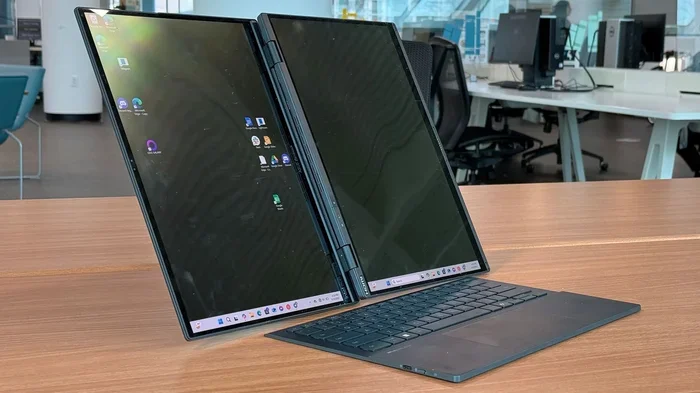
Can I Use Another Laptop As A Monitor For My Setup
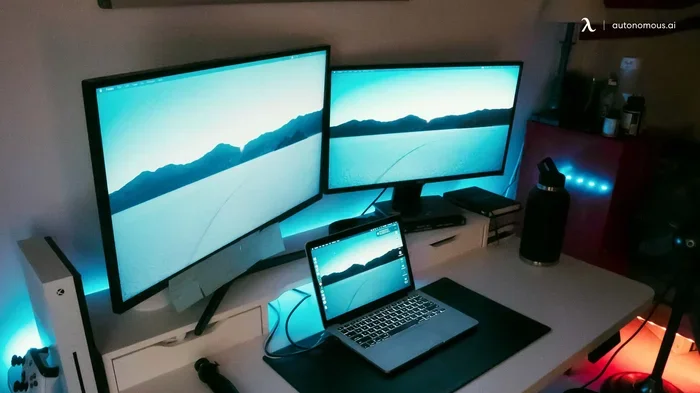
Yes, you can use another laptop as a monitor for your setup. Whether you want a dual screen setup, extra workspace, or a laptop-as-second-monitor solution, there are several reliable methods. This guide walks you through every option, from wired HDMI connections to wireless screen sharing and third-party software.
Have you ever looked at that old laptop sitting on your desk and thought, “I could use that as a second screen”? You are not alone. Many people want to use another laptop as a monitor to expand their workspace without spending money on a new display. The good news is that it is totally possible. And the best part? You do not need to be a tech expert to pull it off.
Whether you are a gamer, a programmer, a student, or someone who just needs more screen real estate, using a second laptop as a laptop-as-second-monitor setup can change the way you work. You get a bigger workspace, better multitasking, and a fresh use for an old device. In this guide, we will cover every method you can try, from simple cable connections to wireless tricks and smart software solutions.
Key Takeaways
- Multiple Methods Available: You can connect laptops using HDMI, USB-C, wireless display, or software tools.
- Wired Connections Are Fastest: HDMI and USB-C cables offer the best performance with minimal input lag.
- Wireless Options Offer Flexibility: Miracast, Space Desk, and Chrome Remote Desktop let you go cable-free.
- Check Compatibility First: Not all laptops support receiving external input natively.
- Software Can Fill the Gaps: Tools like Space Desk and Duet Display make almost any laptop work as a second screen.
- Performance Depends on Setup: Cable quality, resolution, and software choice all affect your experience.
📑 Table of Contents
- Why Would You Use a Laptop as a Monitor?
- How to Connect Another Laptop as a Monitor (Wired Methods)
- Wireless Methods to Use a Laptop as a Second Screen
- Software Solutions for Laptop-to-Laptop Display
- Pros and Cons of Using a Laptop as a Monitor
- Tips for Best Performance
- Frequently Asked Questions
- Conclusion
Why Would You Use a Laptop as a Monitor?
Before we dive into the how, let us talk about the why. There are many great reasons to turn a spare laptop into a second screen. Not all of them are obvious either.
Save Money on Extra Displays
A second monitor can cost anywhere from 100 to 300 dollars. If you already have a working laptop, why spend more? Using it as an external display saves you real cash. This is especially helpful for people on a tight budget or those setting up a home office quickly.
Boost Productivity
Studies show that dual screen users are more productive. Having two screens means you can keep your email open on one while working on a document on the other. You do not need to keep switching tabs. A dual screen setup gives you room to spread out and focus.
Repurpose Old Laptops
Old laptops still have perfectly good screens. Instead of letting them collect dust, you can put them to work. Even a laptop that is too slow for modern tasks can still serve as a display. This is a great way to reduce electronic waste too.
Perfect for Travelers and Students
If you travel often or study in different places, a portable second screen is a game changer. You can use your old laptop as a laptop monitor hack wherever you go. No need to carry an extra monitor. Just pack both laptops and set up your workspace anywhere.
How to Connect Another Laptop as a Monitor (Wired Methods)
Wired connections are the most reliable way to use a laptop as a second screen. They offer fast data transfer, low input lag, and stable performance. Let us look at the two most common wired options.
Using an HDMI Cable
HDMI is the easiest and most common method. However, there is one catch. Most laptops only have an HDMI output port, not an input port. This means you can send video from your laptop to a TV, but not the other way around. To receive input, your laptop needs an HDMI-in port, which is rare on most modern models.
Here is what you need to check:
- Does your laptop have an HDMI input port? Check the back or side of the device.
- If yes, use a standard HDMI cable to connect the two laptops.
- Go to display settings on the receiving laptop and switch to the correct input source.
If your laptop does not have an HDMI-in port, do not worry. There are other ways. Let us look at USB-C next.
Using a USB-C or DisplayPort Connection
USB-C is more versatile than HDMI. Many modern laptops support video input through USB-C. You can use a USB-C to HDMI or USB-C to DisplayPort adapter to make the connection work.
Follow these steps for a USB-C setup:
- Check if the receiving laptop supports video input via USB-C.
- Get the right cable or adapter. A USB-C cable with DisplayPort Alt Mode works best.
- Connect both laptops.
- On the receiving laptop, go to display settings and detect the new signal.
Quick Tips for Wired Connections
- Use high-quality cables. Cheap cables can cause signal loss or flickering.
- Check your cable length. Longer cables may reduce signal quality. Keep it under 6 feet for best results.
- Update your display drivers. Outdated drivers can cause connection issues or blank screens.
- Match your resolutions. If the source and display laptops have different resolutions, you may see scaling issues.
Comparison Table: Wired Connection Methods
| Method | Speed | Input Lag | Compatibility | Setup Difficulty |
|---|---|---|---|---|
| HDMI | Fast | Very Low | Limited (needs HDMI-in) | Easy |
| USB-C | Very Fast | Low | Moderate | Moderate |
| DisplayPort | Very Fast | Low | Moderate | Moderate |
As you can see, each method has its strengths. HDMI is the simplest if your laptop supports it. USB-C offers more flexibility and better compatibility with newer devices. Choose the one that fits your setup best.
Wireless Methods to Use a Laptop as a Second Screen
Not everyone wants to deal with cables. Wireless connections are convenient and keep your workspace clean. They do come with a small trade-off though. Wireless setups usually have a bit more input lag than wired ones. For most everyday tasks, this is not a problem.
Windows Miracast for Wireless Display
If you use a Windows laptop, Miracast is built right in. This feature lets you wirelessly project one screen onto another. Both laptops need to support Miracast for this to work.
Here is how to set it up:
- On the receiving laptop, open the Action Center and click “Project.”
- Select “Connect to a wireless display.”
- On the source laptop, press Win + K to open the projection menu.
- Select the receiving laptop from the list.
- Choose whether to duplicate or extend your display.
Miracast works well for basic tasks like browsing and document editing. It may not be ideal for gaming or video editing due to slight delays.
Using Space Desk for Wireless Streaming
Space Desk is a popular free tool that turns any Windows laptop into a wireless second monitor. It works over your local Wi-Fi network. The setup is simple and the performance is surprisingly good.
Steps to use Space Desk:
- Download the Space Desk driver on the receiving laptop.
- Install the Space Desk client on the source laptop.
- Make sure both laptops are on the same Wi-Fi network.
- Open Space Desk on the source laptop and it will detect the receiving laptop automatically.
Space Desk supports different screen resolutions and color depths. It is one of the best free options for screen sharing between laptops. The free version works great for most users.
Chrome Remote Desktop
Chrome Remote Desktop is another option, though it works differently. Instead of extending your display, it lets you view and control the receiving laptop’s screen remotely. This is more like remote access than a true second monitor.
This method works on both Windows and Mac laptops. You just need Google Chrome installed on both devices. The downside is that it adds noticeable lag, so it is better suited for light tasks.
Third-Party Apps for Wireless Display
Beyond the free options, there are paid tools that offer better performance and features:
- Duet Display: Works over USB-C or Wi-Fi. Very low latency. Paid app with a free trial.
- Laptop Monitor Pro: Designed specifically for laptop-to-laptop connections.
- Twomon USB: Uses a USB cable for a wired wireless hybrid experience.
Each tool has its own strengths. Duet Display is great for creative professionals who need color accuracy. Space Desk is perfect for budget users who want something free and simple.
Software Solutions for Laptop-to-Laptop Display
Software can fill the gaps when hardware does not cooperate. If your laptop does not support receiving video input natively, software tools can still make it work. These apps use your existing ports and network connection to create a virtual display.
Space Desk (Detailed Look)
Space Desk deserves a closer look because it is the most popular free option. It works as a virtual display driver on the receiving laptop. The source laptop sees it as a standard monitor.
Key features:
- Free for personal use
- Supports Windows 10 and 11
- Works over Wi-Fi or Ethernet
- Adjustable resolution and refresh rate
- Low input lag on fast networks
The main limitation is that it only works on Windows. If you use a Mac, you will need a different solution.
Duet Display (Detailed Look)
Duet Display is a premium tool that works on both Windows and Mac. It supports USB-C and Wi-Fi connections. The USB-C connection gives you the best performance with almost no lag.
What makes Duet stand out:
- Excellent color accuracy
- Very low latency over USB-C
- Supports Retina displays
- Works with Android tablets too
- Premium features for a one-time fee
Duet is ideal for designers, video editors, and anyone who needs precise color reproduction on their extended display.
Common Mistakes When Setting Up Software Solutions
- Using different Wi-Fi networks. Both laptops must be on the same network for wireless tools to work.
- Ignoring firewall settings. Your firewall may block the connection. Make sure to allow the app through Windows Firewall.
- Overlooking driver updates. Old network drivers can cause stuttering or disconnections.
- Using a slow network. A 5 GHz Wi-Fi connection works much better than a 2.4 GHz one for screen streaming.
Pros and Cons of Using a Laptop as a Monitor
Like any setup, using a laptop as a second screen has its advantages and disadvantages. Let us break them down clearly.
Pros of a Laptop-as-Monitor Setup
- Cost savings. You avoid buying a new monitor entirely.
- Portability. You can set up or break down your workspace in minutes.
- Eco-friendly. Repurposing old electronics reduces waste.
- Flexibility. You can use it only when you need extra screen space.
- Familiarity. You already know how your laptop works, so no learning curve.
Cons of a Laptop-as-Monitor Setup
- Limited input options. Most laptops only have HDMI-out, not HDMI-in.
- Potential input lag. Wireless setups can have delays that bother gamers.
- Resolution mismatches. Different screen sizes and resolutions can cause scaling problems.
- Battery drain. The receiving laptop uses power while acting as a display.
- Heat buildup. Running a laptop as a display for hours can generate extra heat.
Expert Insights: When It Makes Sense and When It Does Not
Expert Tip: “A laptop-as-monitor setup works best for productivity tasks like coding, writing, and browsing. For gaming or video editing that needs real-time response, a dedicated monitor is still the better choice. The input lag on wireless setups can be frustrating for fast-paced content.” — Mark T., IT Specialist with 12 years of experience
The bottom line is this. If you need a quick and cheap second screen for everyday work, go for it. If you are a competitive gamer or a video editor who needs zero lag, invest in a proper external monitor instead.
Tips for Best Performance
Want to get the most out of your laptop-as-monitor setup? Follow these practical tips to ensure smooth performance.
Optimize Your Network for Wireless Setups
- Use a 5 GHz Wi-Fi band instead of 2.4 GHz for faster speeds.
- Keep both laptops close to your router.
- Avoid using the network for heavy downloads while screen sharing.
- If possible, connect the source laptop via Ethernet for a more stable connection.
Adjust Display Settings for Comfort
- Match the screen resolution on both laptops to avoid blurry text.
- Set the same refresh rate if your software allows it.
- Adjust brightness on the receiving laptop to match your primary screen.
- Use night light or blue light filters to reduce eye strain during long sessions.
Keep Your Laptops Cool
Running a laptop as a display for hours can cause it to heat up. Place it on a hard, flat surface. A laptop cooling pad helps too. Avoid using it on your bed or couch where vents can get blocked.
Use the Right Cable for Wired Setups
- For HDMI, use a high-speed HDMI 2.0 cable or newer.
- For USB-C, make sure the cable supports video input and output.
- Buy cables from reputable brands to avoid signal issues.
- Keep cables as short as possible for the best signal quality.
Quick Tips Summary
- Always update your display drivers before setting up a new connection.
- Close unnecessary apps on the receiving laptop to free up resources.
- Test your setup with simple tasks first before relying on it for important work.
- Label your cables if you use multiple connections to avoid confusion.
Frequently Asked Questions
Can I Use Any Laptop As a Monitor for Another Laptop?
Not every laptop can receive video input natively. Most laptops only have output ports, not input ports. However, you can use software tools like Space Desk or Duet Display to make almost any laptop work as a second screen over Wi-Fi or USB. Always check your laptop’s ports and specs before starting.
Is It Better to Use a Cable or Go Wireless?
Wired connections offer better performance with lower input lag. They are ideal for tasks that need real-time response like gaming or video editing. Wireless methods are more convenient and keep your workspace cable-free. For general productivity work, wireless is perfectly fine.
Does Using a Laptop as a Second Screen Slow It Down?
The receiving laptop uses some processing power to display the extended screen. For most everyday tasks, this will not cause noticeable slowdowns. However, if the receiving laptop is very old or low on resources, you might experience minor lag or stuttering. Closing background apps helps improve performance.
Can I Use a Mac Laptop As a Monitor for a Windows Laptop?
Yes, but it requires a third-party app. macOS does not natively support receiving HDMI input. Tools like Duet Display or Space Desk (with Windows on the source side) can bridge the gap. You can also use Chrome Remote Desktop for a simple remote viewing setup between Mac and Windows.
What Is the Best Free Software for Using a Laptop as a Monitor?
Space Desk is the best free option for Windows users. It is easy to set up, works over Wi-Fi, and performs well for most tasks. For Mac users, Duet Display offers a paid solution with a free trial that works across platforms. Chrome Remote Desktop is another solid free choice for basic needs.
Can I Close the Lid of the Receiving Laptop While Using It as a Monitor?
Yes, you can close the lid and still use the laptop as a display. You just need to change the power settings so your laptop does not go to sleep when the lid is closed. Go to Power Options in Windows settings and adjust the “When I close the lid” setting to “Do nothing.”
Conclusion
Can I use another laptop as a monitor? The answer is a clear yes. You have multiple paths to choose from. Wired connections through HDMI or USB-C give you the best performance. Wireless methods like Miracast and Space Desk offer convenience and flexibility. Software tools fill in the gaps when hardware does not cooperate.
The right choice depends on your needs and your equipment. If you want a quick and free solution, try Space Desk. If you need the best performance and are willing to pay, Duet Display is worth every penny. For a simple plug-and-play setup, check if your laptop has an HDMI-in port and use a standard cable.
Using a spare laptop as a second screen is a smart move. It saves you money, reduces waste, and boosts your productivity. Try the method that fits your situation best and enjoy your expanded workspace today.
Start with one method, test it out, and adjust as needed. You will be surprised at how well a laptop-as-second-monitor setup works once you get it running. Your old laptop has more life in it than you think.