How Can I Improve My Eero Wifi Signal and Coverage
You can significantly improve your Eero WiFi by optimizing router placement, updating firmware, and using the right frequency bands. This guide covers practical steps to boost signal strength, reduce dead zones, and get the most out of your mesh network. Follow our expert tips to enjoy faster, more reliable WiFi in every room.
If your Eero WiFi is slow or spotty, you are not alone. Many people struggle with weak signals and dead zones even with a mesh system. The good news is that improving your Eero WiFi is easier than you think. With a few simple changes, you can get better coverage and faster speeds throughout your home.
This guide walks you through every proven method to improve your Eero WiFi signal and coverage. Whether you live in a small apartment or a large house, these tips will help. Let us dive in and get your network running at its best.
Key Takeaways
- Central Placement Matters: Where you put your Eero router has a huge impact on signal strength and coverage.
- Update Firmware Regularly: Keeping your Eero system updated ensures the best performance and security.
- Use the Right Frequency Band: Switching between 2.4GHz and 5GHz can solve many connectivity issues.
- Add an Eero Beacon for Dead Zones: Beams extend coverage to areas with weak signals.
- Reduce Interference: Keeping your Eero away from other electronics prevents signal disruption.
📑 Table of Contents
Why Your Eero WiFi Signal Might Be Weak
Before fixing the problem, it helps to understand what causes weak signals. Several common factors can hurt your Eero mesh network performance. Knowing these lets you target the right solutions.
Physical Obstacles
Walls, floors, and large furniture block WiFi signals. Thick concrete walls are especially tough on wireless signals. Metal appliances and mirrors also interfere with your connection. The more obstacles between your Eero and your device, the weaker your signal becomes.
Distance From the Router
The farther you are from your Eero unit, the weaker your signal gets. Mesh systems help spread coverage, but distance still matters. If your Eero sits in one corner of your home, rooms far away may suffer.
Electronic Interference
Other electronics can disrupt your WiFi signal. Microwaves, baby monitors, and cordless phones all operate on similar frequencies. Bluetooth devices can also cause minor interference. This is why proper Eero placement is so important.
Outdated Firmware
Running old software on your Eero can cause slow speeds and connection drops. Manufacturers release updates that fix bugs and improve performance. An outdated system simply cannot perform at its best.
Best Eero Placement Tips for Maximum Coverage
Where you place your Eero router makes a big difference. Good placement can boost your signal without spending a dime. Follow these tips to get the most from your mesh WiFi system.
Put Your Eero in a Central Location
Your Eero should sit in the middle of your home if possible. A central spot sends signals evenly in all directions. Avoid placing it in a back room or corner. The goal is to reach every area of your home with strong signal.
Keep It Elevated and Unobstructed
Place your Eero on a shelf or table rather than the floor. Signals spread better when the unit is elevated. Keep it away from walls and furniture that block the signal. A clear line of sight helps your WiFi coverage reach farther.
Avoid Cornnered and Hidden Spots
Do not hide your Eero inside a cabinet or closet. Enclosed spaces trap signals and reduce range. Open areas let the signal flow freely. Think of your Eero as a light bulb and make sure nothing blocks its glow.
Use Multiple Eero Units for Large Homes
If your home is large, one Eero unit may not be enough. Adding an Eero beacon extends your network to hard-to-reach areas. Place beacons halfway between your main router and the weak spot. This creates a strong chain of coverage across your home.
How to Optimize Your Eero WiFi Settings
Beyond placement, your Eero settings also affect performance. A few adjustments can make a noticeable difference in your network performance. Here is what you should check.
Run a WiFi Speed Test
Start by testing your current speeds. Use the Eero app or a website like Speedtest.net. This tells you where you stand and helps you measure improvements later. Write down your results so you can compare after making changes.
Switch Between 2.4GHz and 5GHz Bands
Your Eero broadcasts on two frequency bands. The 2.4GHz band travels farther but is slower. The 5GHz band is faster but has a shorter range. For devices far from the router, 2.4GHz works better. For streaming and gaming close to the router, use 5GHz.
If your Eero does not give you band selection options, you can add a 2.4GHz band to your router for better device compatibility. This is especially helpful for older smart home devices that only connect to 2.4GHz.
Enable Band Steering
Eero uses band steering to automatically assign devices to the best band. This feature works well in most homes. Make sure it is turned on in the Eero app. Band steering saves you from manually switching networks.
Change Your WiFi Channel
Busy neighborhoods can cause WiFi congestion. Your Eero may share a channel with your neighbor’s network. Switching channels can reduce interference and improve speeds. The Eero app usually handles this automatically, but you can check for optimal settings.
Update Your Eero Firmware
Always keep your Eero system up to date. Firmware updates bring performance improvements and security patches. Open the Eero app and check for available updates regularly. This simple step keeps your Eero setup running smoothly.
Adding Hardware to Boost Eero Coverage
Sometimes software tweaks are not enough. Adding hardware can solve stubborn coverage problems. Here are the best options to consider.
Add an Eero Beacon
An Eero beacon is the easiest way to extend your mesh network. It plugs into any wall outlet and expands your coverage. Beacons work seamlessly with your main Eero unit. They create a strong, unified network throughout your home.
For homes with thick walls or multiple floors, beacons are a game changer. Place them in hallways or stairwells for the best results. They are especially useful for covering WiFi dead zones in basements and attics.
Add an External Antenna
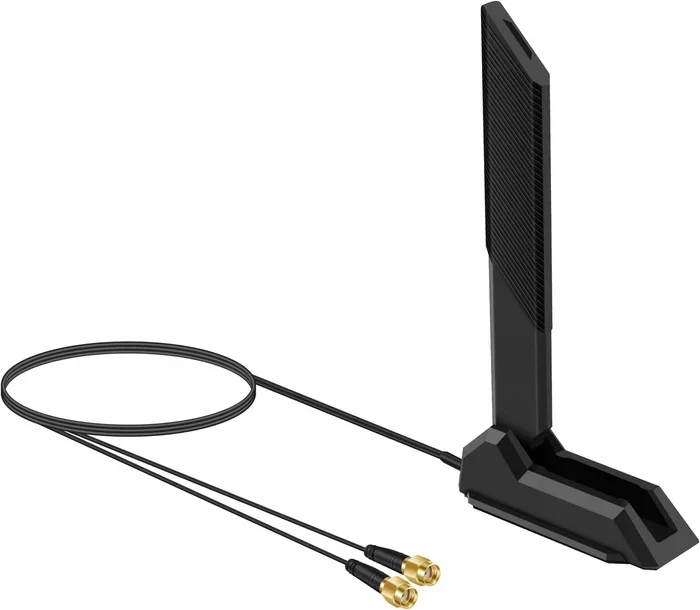
If your Eero supports external antennas, upgrading them can help. Better antennas send and receive stronger signals. This is a great option for large homes or areas with thick walls. You can add an external antenna to your router to improve range and signal quality.
Use a WiFi Range Extender
A range extender picks up your Eero signal and rebroadcasts it. This works well for single dead zones in your home. However, extenders can sometimes reduce your overall speed. Use them as a last resort when beacons are not an option.
Consider Upgrading Your Internet Plan
Sometimes slow WiFi is not a hardware problem at all. Your internet plan may not provide enough speed for your needs. Check with your provider about faster plans. A stronger internet connection makes your Eero network perform better.
Common Mistakes That Hurt Eero WiFi Performance
Avoiding common mistakes can save you a lot of frustration. Many people unknowingly sabotage their own WiFi performance. Here are the pitfalls to watch out for.
Placing Your Eero Near the Microwave
Microwaves operate on the 2.4GHz frequency. This causes major interference when your Eero is nearby. Keep your Eero at least five feet away from your microwave. This alone can improve your signal in the kitchen.
Hiding Your Router Behind the TV
It looks neat to hide your Eero behind electronics. But TVs, game consoles, and cable boxes create interference. They also block the signal from spreading freely. Keep your Eero out in the open for the best results.
Overloading Your Network
Too many devices on one network can slow things down. Smart home gadgets, phones, and computers all compete for bandwidth. Consider creating a separate network for IoT devices. This keeps your main devices running smoothly.
Ignoring the Eero App
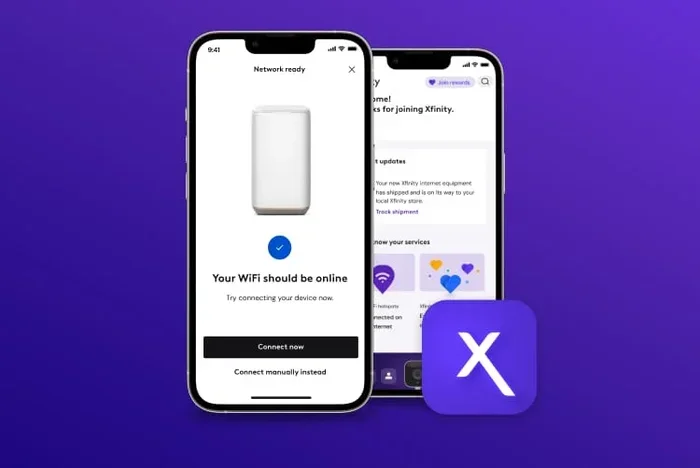
The Eero app gives you real-time insights into your network. It shows connected devices, signal strength, and speed data. Ignoring the app means missing valuable information. Check it regularly to spot problems early.
Skipping Regular Reboots
Like any tech device, your Eero benefits from occasional reboots. A quick restart clears memory and refreshes connections. Set a schedule to reboot your system once a month. This simple habit keeps your home network optimization on track.
Advanced Tips for Power Users
For those who want to squeeze every bit of performance from their Eero system, try these advanced techniques.
Set Up QoS (Quality of Service)
QoS lets you prioritize certain devices or activities. You can give your work laptop more bandwidth than a smart speaker. This ensures important tasks always get the speed they need. Check your Eero app for QoS settings and customize them to your needs.
Use Ethernet Backhaul When Possible
If your Eero units support Ethernet backhaul, use it. Wired connections between Eero units are faster and more stable than wireless. This is especially helpful for multi-story homes. Ethernet backhaul gives your mesh WiFi system maximum performance.
Run a WiFi Heat Map
A WiFi heat map shows signal strength across your entire home. You can use apps like NetSpot or WiFi Analyzer to create one. This helps you identify weak spots and place beacons strategically. Heat maps take the guesswork out of network optimization.
Keep Your Eero Away from Metal Objects
Metal objects block WiFi signals effectively. Filing cabinets, metal shelves, and appliances all cause interference. Keep your Eero in an open area away from large metal objects. This simple change can boost your WiFi signal strength significantly.
When to Reset Your Eero System
Sometimes the best fix is a fresh start. Resetting your Eero can solve persistent issues and improve performance. Here is when and how to do it.
Signs You Need a Reset
Reset your Eero if you notice frequent disconnections. Slow speeds that do not improve with other fixes are another sign. If your Eero app shows constant errors, a reset may help. Also consider a reset when you change your internet provider or move to a new home.
How to Reset Your Eero
Press and hold the reset button on your Eero for about 10 seconds. The light will flash to confirm the reset. You will need to set up your system again through the app. After resetting, place your Eero in a better location for improved results.
After a reset, take the time to optimize your settings. Update your firmware, run a speed test, and adjust your placement. This gives you a clean slate to build a strong network.
Conclusion
Improving your Eero WiFi signal and coverage does not require expensive equipment or technical expertise. Simple steps like adjusting placement, updating firmware, and using the right frequency band can make a huge difference. Adding beacons or external antennas helps solve stubborn coverage issues in larger homes.
Avoid common mistakes like hiding your router or overloading your network. Use the Eero app to monitor performance and catch problems early. With these tips, you can enjoy fast, reliable WiFi in every corner of your home. Start with one or two changes today and feel the difference in your Eero setup.
Frequently Asked Questions
How do I know if my Eero WiFi signal is weak?
You can check your signal strength in the Eero app. Look for devices showing low signal or frequent disconnections. You can also walk around your home and notice where your connection drops. A WiFi heat map app gives you a visual view of signal strength across every room.
Can I use my Eero without the main router connected to a modem?
No, your Eero system needs a modem connection to access the internet. The main Eero unit connects directly to your modem. Additional Eero beams extend the wireless signal but still rely on the main unit. Without a modem connection, your Eero creates a local network but has no internet access.
How many Eero beacons do I need for my home?
This depends on your home size and layout. A small apartment usually needs just one Eero unit. A medium home with one or two floors benefits from one beacon. Large homes with multiple stories or thick walls may need two or more beacons. Start with one and add more if you still see weak spots.
Does updating Eero firmware really improve performance?
Yes, firmware updates often include performance improvements and bug fixes. Manufacturers optimize their software based on user feedback and new technology. Updated firmware also patches security vulnerabilities that could slow your network. Make it a habit to check for updates every few weeks.
What is the difference between 2.4GHz and 5GHz on my Eero?
The 2.4GHz band covers a wider area but delivers slower speeds. The 5GHz band provides faster speeds but has a shorter range. Devices close to your Eero work best on 5GHz for streaming and gaming. Devices far away or in other rooms perform better on 2.4GHz for reliability.
Can I improve my Eero WiFi without buying new equipment?
Absolutely. Repositioning your Eero, updating firmware, and adjusting settings cost nothing. Reducing interference from other electronics also helps for free. Running a speed test and switching frequency bands can boost performance immediately. Many users see significant improvement with just placement and setting changes before spending any money.