Can You Make Phone Calls Over Wifi Heres The Full Guide
Yes, you can make phone calls over WiFi, and it is simpler than most people think. WiFi calling lets you use a Wi-Fi connection to place and receive calls instead of relying on a cellular network. This guide walks you through everything you need to know, from setup to troubleshooting, so you can stay connected anywhere.
Have you ever been inside your home and noticed your cell signal drops to nothing? Maybe you are in a basement, a concrete building, or a rural area where the nearest cell tower feels miles away. You pick up your phone, ready to make an important call, and you see those dreaded bars disappear. It is frustrating, right?
Here is the good news. You can make phone calls over WiFi, and it works surprisingly well. This feature, known as WiFi calling, has been around for a while, but many people still do not know it exists or how to use it. Whether you are dealing with poor indoor coverage, traveling abroad, or just want a backup plan for your cellular connection, WiFi calling can be a real game changer.
In this full guide, we will walk you through exactly how WiFi calling works, which devices support it, how to set it up, and what to watch out for. We will also compare it to traditional calling and app-based alternatives so you can make an informed decision. By the end, you will know everything you need to make crystal-clear calls using nothing but your Wi-Fi connection.
Key Takeaways
- WiFi calling works on most modern smartphones: Both iPhone and Android devices support this feature built into their settings.
- You need a stable Wi-Fi connection: A strong Wi-Fi signal ensures clear call quality and fewer dropped calls.
- It can save you money: WiFi calling helps avoid roaming charges when traveling internationally.
- Setup is usually straightforward: Most carriers include WiFi calling in their default phone settings.
- Emergency calls may have limitations: Your location accuracy can vary when calling 911 over WiFi.
- Not all carriers support it equally: Check with your mobile carrier to confirm availability and compatibility.
- App-based alternatives exist: Apps like Skype, WhatsApp, and FaceTime offer similar functionality for internet calls.
📑 Table of Contents
- What Is WiFi Calling and How Does It Work?
- How to Set Up WiFi Calling on Your Phone
- Benefits of Making Phone Calls Over WiFi
- Limitations and Things to Watch Out For
- WiFi Calling vs. App-Based Calling: What Is the Difference?
- Common Mistakes People Make with WiFi Calling
- Expert Tips for the Best WiFi Calling Experience
- Does WiFi Calling Work with 5G and 4G Networks?
- The Future of WiFi Calling
- Conclusion
What Is WiFi Calling and How Does It Work?
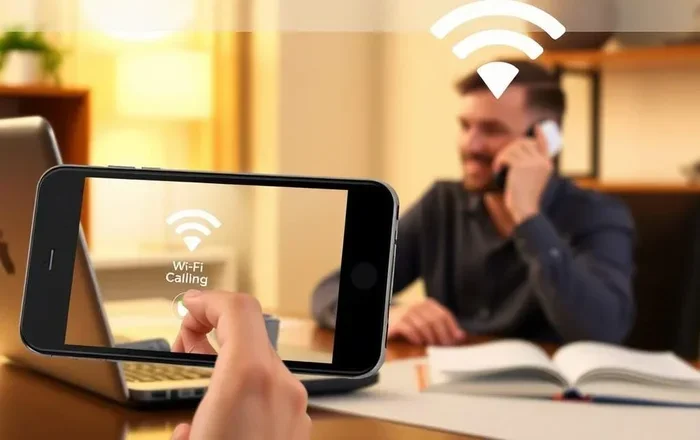
WiFi calling is a feature that lets you make and receive phone calls over a wireless internet connection instead of using the traditional cellular network. Think of it as turning your Wi-Fi router into a mini cell tower. Your phone sends voice data through your home or office internet connection, bypassing the need for strong cell signal.
Technically, WiFi calling uses a protocol called VoWiFi, which stands for Voice over WiFi. This is similar to how VoIP (Voice over Internet Protocol) works, but it is built directly into your phone and handled by your mobile carrier. When you make a call over WiFi, your voice gets converted into data packets, sent through your internet connection, and then converted back into voice on the other end.
How Is It Different from Regular Cell Calls?
Regular cell calls travel through radio waves between your phone and a nearby cell tower. If you are far from a tower or inside a building with thick walls, the signal weakens. WiFi calls, on the other hand, travel through your broadband internet connection. As long as you have a decent Wi-Fi signal, your call quality stays strong regardless of how far you are from a cell tower.
Another key difference is how your phone handles the switch. Most modern smartphones support seamless handoff. This means if you walk from your home Wi-Fi network into an area with strong cell coverage, your call transitions smoothly without dropping. Your phone automatically chooses the best connection available.
Who Provides WiFi Calling?
Your mobile carrier is the one who enables WiFi calling on your account. Major carriers like AT&T, Verizon, T-Mobile, and others support this feature. However, not every plan includes it by default. Some carriers require you to opt in, while others have it turned on automatically. It is worth checking your account settings or contacting your carrier to confirm.
Also, your phone itself needs to support WiFi calling. Most smartphones released in the last five years do, but older models may not. Here is a quick look at what you need:
- iPhone: iPhone 6 and later models support WiFi calling.
- Android: Most Android phones running Android 5.0 or later support it, though availability depends on your carrier and device.
- Carrier support: Your mobile carrier must offer WiFi calling for your specific plan.
How to Set Up WiFi Calling on Your Phone
Setting up WiFi calling is easier than most people expect. You do not need any special equipment or apps. Your phone already has everything built in. Here is how to get started on both iPhone and Android devices.
Setting Up WiFi Calling on iPhone
Apple makes it very simple to enable WiFi calling on iOS devices. Follow these steps:
- Open the Settings app on your iPhone.
- Tap on Phone.
- Select WiFi Calling.
- Toggle on WiFi Calling on This iPhone.
- Follow any on-screen prompts to register your address for emergency services.
That is it. Once enabled, your iPhone will automatically make and receive calls over WiFi when a Wi-Fi network is available. You will see a small “Wi-Fi” icon next to your carrier name in the status bar when a call is connected via WiFi.
Setting Up WiFi Calling on Android
Android devices have a slightly different path depending on the manufacturer and carrier, but the general steps are similar:
- Open the Settings app on your Android phone.
- Look for Network & Internet or Connections.
- Tap on Mobile Network or Cellular Network.
- Find and select WiFi Calling.
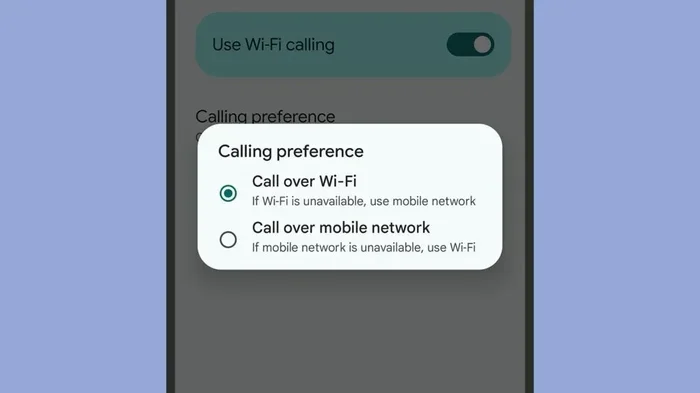
- Toggle it on and follow any setup prompts.
Some Android phones may have the WiFi calling option under Calling Preferences or SIM Settings. If you cannot find it, try searching for “WiFi calling” in your settings search bar. Your carrier may also offer a dedicated app that helps you configure WiFi calling with just a few taps.
Quick Tips for a Smooth Setup
- Make sure your Wi-Fi connection is stable: A weak or intermittent connection can cause call issues.
- Check your carrier settings: Update your carrier settings on iPhone or your APN settings on Android before enabling WiFi calling.
- Restart your phone after setup: This ensures all settings are applied correctly.
- Test with a friend: Make a test call to confirm everything works before relying on it for important conversations.
Benefits of Making Phone Calls Over WiFi
WiFi calling offers several real advantages that go beyond just fixing a weak signal. Here are the biggest benefits you can expect.
Better Call Quality Indoors
This is the number one reason people use WiFi calling. Inside buildings, especially those with thick walls, metal structures, or energy-efficient glass, cell signals struggle to penetrate. WiFi calling sidesteps this problem entirely by routing your call through your broadband connection. The result is clearer audio, fewer dropped calls, and a much more reliable connection.
Cost Savings When Traveling
Traveling internationally and worried about roaming charges? WiFi calling can help. Many carriers offer free WiFi calling to other US numbers, even when you are abroad. This means you can call home without racking up expensive international fees. Just connect to any Wi-Fi network, and your calls route through the internet instead of roaming networks.
Coverage in Dead Zones
Basements, parking garages, rural areas, and older buildings often have spotty or zero cell coverage. If you have a Wi-Fi connection in these spaces, you can still make and receive calls. This is especially helpful for people who work in basements or live in areas with limited cell tower coverage.
Battery Life Improvement
When your phone struggles to find a cell signal, it works harder and drains your battery faster. WiFi calling reduces this strain because your phone does not need to search for and maintain a weak cellular connection. Many users report noticeably better battery life after switching to WiFi calls when a Wi-Fi network is available.
Seamless Handoff Between Networks
Modern smartphones support seamless handoff between WiFi and cellular networks. You can start a call on WiFi at home and walk outside. As your phone connects to the cell tower, the call continues without interruption. This makes WiFi calling feel just as natural as regular calling.
Limitations and Things to Watch Out For
WiFi calling is not perfect, and it is important to understand its limitations before relying on it completely.
Emergency Call Accuracy
When you call 911 over WiFi, your location may not be as accurate as it is with a regular cellular call. Your phone sends your address during the WiFi calling setup, but if you are calling from a different location, emergency services might not pinpoint you correctly. Always provide your location clearly when making emergency calls over WiFi.
Wi-Fi Connection Dependency
You need an active Wi-Fi connection to make WiFi calls. If your internet goes down, your calls will not work over WiFi. This is why many people use WiFi calling as a supplement to their cellular service rather than a complete replacement.
Data Usage Considerations
WiFi calls use data, but the amount is very small. A typical voice call uses about 1 MB per minute. However, if you are on a metered internet connection or a data-limited plan, this is worth keeping in mind. Video calls and app-based calling use significantly more data than WiFi calling.
Carrier and Device Compatibility
Not all carriers support WiFi calling, and not all devices work with every carrier’s WiFi calling feature. Some budget carriers and prepaid plans may not offer it. Always verify compatibility with your carrier before assuming the feature is available.
International Calling Restrictions
While WiFi calling to US numbers is often free internationally, calling international numbers over WiFi may still incur charges. Check with your carrier about their international WiFi calling policies before relying on it for overseas calls.
WiFi Calling vs. App-Based Calling: What Is the Difference?
You might be wondering how WiFi calling compares to apps like Skype, WhatsApp, or FaceTime. Both let you make calls over the internet, but they work differently.
WiFi calling uses your phone’s native dialer and your mobile number. The person you call does not need the app or a special setup. They just see your regular phone number calling them. App-based calling, on the other hand, requires both parties to have the same app installed.
Here is a quick comparison:
- WiFi Calling: Uses your phone number, works with any phone number, no app needed on the receiving end, built into your phone.
- App-Based Calling: Requires both parties to have the app, offers extra features like video, messaging, and file sharing, works independently of your carrier.
For everyday voice calls, WiFi calling is more convenient because it feels exactly like a normal phone call. App-based calling shines when you need video, international features, or when you are communicating with people who prefer specific platforms.
Common Mistakes People Make with WiFi Calling
Even though WiFi calling is simple, people do run into issues. Here are some common mistakes to avoid.
Not Updating Carrier Settings
On iPhone, carrier settings updates often include fixes for WiFi calling. If your WiFi calling is not working, check for a carrier settings update first. Go to Settings > General > About, and if an update is available, you will be prompted to install it.
Ignoring Wi-Fi Network Quality
A weak Wi-Fi signal will cause poor call quality just like a weak cell signal does. Make sure you are connected to a strong, stable Wi-Fi network. If your router is far away, consider moving closer or using a Wi-Fi extender.
Forgetting to Register Your Address
During setup, your phone asks you to register your address for emergency services. Skipping this step can cause issues with 911 calls. Always complete this registration for safety.
Assuming All Networks Work the Same Way
Public Wi-Fi networks, like those in hotels or cafes, sometimes block VoIP traffic or WiFi calling. If your calls fail on public networks, it may be a network restriction rather than a problem with your phone.
Not Checking Data Roaming Settings When Traveling
If you are traveling abroad, make sure your data roaming settings are configured correctly. Some carriers require data roaming to be enabled for WiFi calling to work internationally.
Expert Tips for the Best WiFi Calling Experience
Want to get the most out of WiFi calling? Here are some expert-backed tips that make a real difference.
- Use a dual-band router: 5 GHz bands offer faster speeds and less interference, which improves call quality.
- Prioritize your phone on the network: Many modern routers have Quality of Service (QoS) settings. Set your phone as a priority device for smoother calls.
- Keep your phone charged: WiFi calling can drain your battery faster than regular calls if your Wi-Fi signal is weak and your phone is working hard to maintain the connection.
- Test before you need it: Do not wait for an emergency to try WiFi calling for the first time. Set it up and test it during normal conditions.
- Update your phone regularly: Software updates often include improvements to WiFi calling performance and bug fixes.
Does WiFi Calling Work with 5G and 4G Networks?
Yes, WiFi calling works alongside both 4G LTE and 5G networks. In fact, it works best when your phone supports the latest network standards. When you have a strong 5G or 4G signal, your phone can seamlessly switch between cellular and WiFi. This means you get the best of both worlds. At home, you rely on WiFi for calls. Outside, your phone uses the cellular network automatically.
Some newer phones also support Wi-Fi 6 and Wi-Fi 6E, which offer faster speeds, lower latency, and better performance in crowded areas. If your router and phone both support these standards, your WiFi calling experience will be even smoother.
The Future of WiFi Calling
WiFi calling is only going to get better. As carriers expand their support and phone manufacturers improve their hardware, we can expect even more reliable connections, better handoff technology, and wider compatibility. The rise of Wi-Fi 7 and ongoing improvements in broadband speeds will make internet calls indistinguishable from traditional cellular calls.
Some industry experts believe WiFi calling could eventually replace traditional cellular networks in certain environments, especially in densely populated urban areas where cell towers are overloaded. For now, it remains one of the most practical and accessible ways to improve your calling experience.
Conclusion
So, can you make phone calls over WiFi? Absolutely. WiFi calling is a powerful, convenient, and often free feature that can transform the way you stay connected. Whether you are dealing with poor indoor coverage, traveling abroad, or simply want a more reliable calling experience, setting up WiFi calling is one of the best things you can do for your phone.
The setup is quick, the benefits are significant, and the limitations are manageable. With a stable Wi-Fi connection and a compatible device, you can enjoy clear, reliable calls almost anywhere. Take a few minutes today to enable WiFi calling on your phone. You will wonder how you ever managed without it.
Give it a try, test it out, and see the difference for yourself. Once you experience the convenience of making calls over your Wi-Fi connection, you will never go back to relying solely on your cellular signal again.
Frequently Asked Questions
Is WiFi calling free?
For most domestic calls, WiFi calling is completely free. Your carrier does not charge extra for using WiFi to make calls within your country. However, international calling rates may still apply when calling numbers outside your home country, so check with your carrier to confirm.
Will the person I call know I am using WiFi?
No, the person you call will not see any difference. Your call appears as a regular phone call from your number. They will not know you are connected via Wi-Fi unless you tell them.
Can I use WiFi calling without a SIM card?
Generally, WiFi calling requires an active mobile carrier account and SIM card. Some carriers offer WiFi calling for devices that are not physically SIM-based, but this depends on your carrier’s specific policies and setup.
Does WiFi calling use a lot of battery?
WiFi calling typically uses less battery than struggling to maintain a weak cellular signal. However, if your Wi-Fi connection is poor, your phone may work harder to keep the call stable, which can increase battery usage slightly.
Can I make 911 emergency calls over WiFi?
Yes, you can call 911 over WiFi, but there is a caveat. Your location accuracy may be reduced compared to a regular cellular emergency call. Always provide your exact location when calling emergency services over WiFi.
What happens if my Wi-Fi connection drops during a call?
If you have seamless handoff enabled, your phone will automatically switch to the cellular network if the Wi-Fi signal drops. If you do not have a cellular signal available, the call may drop. Keeping your phone settings updated and enabling handoff helps prevent this.