Can I Use My WiFi Router As A WiFi Adapter Here Is How
Can I use my WiFi router as a WiFi adapter? Absolutely! You can turn an old router into a wireless adapter to share internet without buying extra hardware. WiFi router as a WiFi adapter mode is a simple trick that saves money and extends your network coverage to wired-only devices.
Can I use my WiFi router as a WiFi adapter? The short answer is yes. Many people have old routers sitting in a drawer and never realize those devices can do something amazing. Instead of buying a new wireless network adapter, you can repurpose your router to share internet with laptops, smart TVs, or gaming consoles that lack built-in WiFi. This trick works with most modern routers and even some older models. You just need to know the right settings. In this guide, I will walk you through everything you need to know about turning your router into a WiFi adapter. You will learn what client mode is, how to set it up, and what to watch out for. Let us get started.
A WiFi adapter is a small device that lets your computer connect to a wireless network. Your laptop or phone already has one built-in. But some desktop PCs and smart devices do not. That is where a router comes in handy. When you put a router into adapter mode, it acts like a bridge between a wireless network and your wired gadgets. It receives WiFi signals and shares them through an Ethernet cable. This is also called a wireless bridge or WiFi repeater setup. The process is simpler than you think, and it can save you a lot of money. Below, we will break down every step so you can do it yourself with confidence.
Key Takeaways
- You can repurpose any router: Most routers support client or bridge mode, turning them into a wireless adapter.
- No extra hardware needed: Use an old router you already own instead of buying a USB WiFi adapter.
- Two main methods: Router firmware settings or flashing custom firmware like DD-WRT for advanced features.
- Works for sharing internet: Great for extending WiFi to wired-only devices like smart TVs or game consoles.
- Check compatibility first: Not all routers support wireless client mode out of the box.
- Quick setup possible: You can have it running in under 15 minutes with the right guide.
📑 Table of Contents
Can I Use My WiFi Router As A WiFi Adapter? Here Is How It Works
Before you change any settings, it helps to understand what is happening behind the scenes. A WiFi router normally creates its own wireless network. It takes an internet connection from a modem and broadcasts it. But routers can also work in the opposite direction. They can connect to an existing WiFi network and then share that connection with devices plugged into them. This is the core idea behind using a router as a WiFi adapter. Two common modes make this possible: client mode and bridge mode.
What Is Client Mode?
In client mode, your router joins an existing WiFi network just like your phone or laptop would. It connects to the main router or access point and receives internet. Then it can share that internet through its Ethernet ports. Think of it as a WiFi receiver that also acts as a small switch. Not all routers call it client mode. Some brands use terms like wireless client, station mode, or WiFi adapter mode. The goal is the same. The router becomes a wireless client on the network.
What Is Bridge Mode?
Bridge mode is similar but slightly different. It connects to a WiFi network and then creates a new wired network behind it. Devices plugged into the bridge router get IP addresses from the main network. They appear as if they are directly connected to the main router. Bridge mode is often used to extend WiFi coverage to wired devices without creating a separate subnet. It is a clean way to share internet with smart TVs, printers, or old computers that only have an Ethernet port.
Why Would You Need This?
There are many reasons to use a router as a wireless adapter. Maybe you have a desktop PC in another room with no WiFi card. Or perhaps your smart TV does not support wireless connections. Instead of running a long Ethernet cable from your main router, you can place a second router in adapter mode near those devices. It is also a great way to reuse old hardware instead of throwing it away. This approach reduces e-waste and saves you the cost of a USB WiFi adapter or a range extender. The setup takes only a few minutes once you know the steps.
How to Set Up Your Router as a WiFi Adapter
Setting up your router in adapter mode is not difficult. You will need a computer, an Ethernet cable, and access to your router’s admin panel. I recommend using a wired connection during setup for the most stable experience. Follow these steps carefully, and you will have a working wireless bridge in no time.
Step 1: Check if Your Router Supports Client Mode
First, find out if your router can work in client mode. Check the user manual or visit the manufacturer’s website. Look for terms like client mode, wireless bridge, or WiFi adapter mode. Many popular routers from TP-Link, Netgear, and Asus support this feature natively. If your router is older, you might need to flash custom firmware. OpenWrt and DD-WRT are two popular options that add client mode support to almost any router. Before you do that, check the router’s chipset and make sure it is compatible.
Step 2: Connect to Your Router and Access the Admin Panel
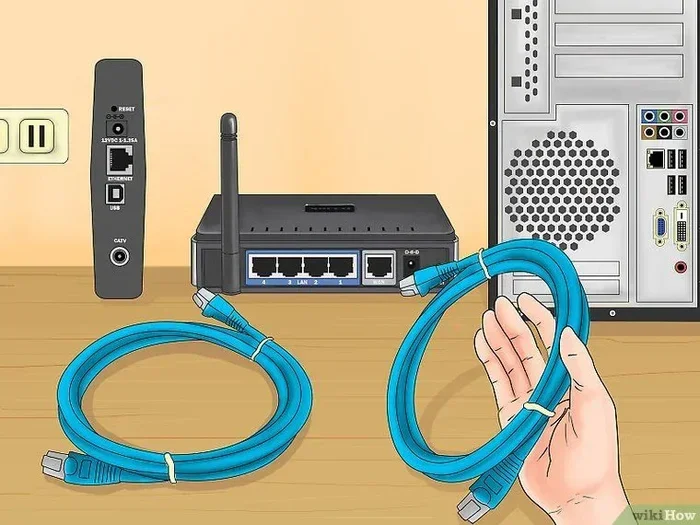
Plug your computer into one of the router’s LAN ports with an Ethernet cable. Power on the router. Open a web browser and type the router’s default IP address into the address bar. Common addresses are 192.168.1.1, 192.168.0.1, or 10.0.0.1. Log in with the admin username and password. If you never changed these, they are often printed on a sticker on the bottom of the router. Common defaults are admin/admin or admin/password.
Step 3: Find the Wireless Settings and Enable Client Mode
Once inside the admin panel, look for a wireless settings section. The exact location varies by brand. On TP-Link routers, you might find it under Advanced Settings, then Wireless, then Wireless Settings. On Asus routers, look for Operation Mode or Client Mode. You will see an option to switch from Access Point mode to Client mode or Bridge mode. Select the client mode or bridge mode option. Save your settings and let the router restart.
Step 4: Connect to the Target WiFi Network
After the router reboots, go back to the wireless settings page. You should now see a list of available WiFi networks. Select the network you want to connect to. Enter the WiFi password carefully. Make sure you choose the correct security type, such as WPA2. Some routers let you save the network profile and connect automatically. Once connected, the router’s wireless LED should show a solid connection or blink to indicate activity.
Step 5: Configure DHCP and IP Settings
This step is important to avoid IP conflicts. Your router in client mode should receive an IP address from the main router. Go to the LAN settings or DHCP settings. Make sure the DHCP server is enabled on the adapter router. Set the router’s IP address to something outside the main router’s DHCP range but within the same subnet. For example, if your main router uses 192.168.1.1, set the adapter router to 192.168.1.2. This allows you to access the adapter router’s settings later. Save and reboot one more time.
Step 6: Test Your Connection
Now plug a device into one of the adapter router’s Ethernet ports. Open a web browser and try loading a website. You should have internet access. Check the signal strength by looking at the router’s status page. You can also run a speed test to see how much bandwidth you are getting. If the connection is slow, try moving the adapter router closer to the main WiFi source. Walls and distance can reduce signal strength. A wireless bridge works best when there is a clear line of sight between the two routers.
Quick Tip: Use a short Ethernet cable to connect your computer directly to the adapter router during setup. This avoids any interference from the main WiFi network and gives you a stable connection for configuration.
Benefits and Limitations of Using a Router as a WiFi Adapter
Like any tech solution, using a router as a WiFi adapter has its pros and cons. Understanding them helps you decide if this is the right approach for your home.
Why You Might Want to Do This
- Cost savings: You reuse an old router instead of buying a new USB WiFi adapter or range extender.
- Multiple wired ports: A router gives you several Ethernet ports, so you can connect many devices at once.
- Better range: A dedicated router with external antennas often has stronger signal reception than a tiny USB dongle.
- No drivers needed: Unlike a USB WiFi adapter, a router in bridge mode works with any device that supports Ethernet.
- Reduced clutter: You get rid of an extra piece of hardware and use something you already own.
The Drawbacks You Should Know
- Not all routers support client mode: Some budget routers lack this feature in their stock firmware.
- Potential speed loss: Wireless bridging can cut your bandwidth in half because the router must receive and retransmit data on the same radio.
- Added latency: The extra hop can introduce slight delays, which may matter for competitive gaming or video calls.
- Setup complexity: Flashing custom firmware like DD-WRT or OpenWrt can be intimidating for beginners.
- Power consumption: An old router running 24/7 uses more electricity than a small USB adapter.
Expert Insight: According to networking professionals, routers with Atheros or Broadcom chipsets tend to have the most reliable client mode support. If you are choosing a router specifically for this trick, look for models with those chipsets or check DD-WRT compatibility lists before buying.
| Feature | Router as WiFi Adapter | USB WiFi Adapter |
|---|---|---|
| Cost | Free if you have an old router | $10 to $50 |
| Speed | Good, but may halve bandwidth | Good, direct connection |
| Ease of Setup | Moderate, requires admin access | Very easy, plug and play |
| Number of Ports | 4 Ethernet ports typically | 1 Ethernet port (some) |
| Range | Better with external antennas | Limited by small antenna |
| Compatibility | Depends on router firmware | Works with most computers |
Which Routers Support WiFi Adapter Mode?
Not every router can work as a WiFi adapter out of the box. Before you try this, check your router’s specifications. Many modern routers include a client mode or bridge mode option in their web interface. If your router does not, you can still make it work by installing custom firmware. Here are some popular models and what you need to know.
Routers with Built-In Client Mode
Brands like TP-Link, Netgear, and Asus often include client mode in their consumer routers. For example, the TP-Link Archer C7 supports client mode in its stock firmware. The Netgear Nighthawk R7000 also offers a wireless bridge feature. The Asus RT-AC68U lets you switch between access point and client modes easily. These routers are great choices if you want a simple setup without custom software. Check the exact model name on the manufacturer’s website to confirm support.
Routers That Need Custom Firmware
Older routers or ISP-provided models may not have client mode in their official firmware. In that case, you can flash DD-WRT or OpenWrt. DD-WRT supports a wide range of routers and includes a client bridge mode. OpenWrt is another open-source option that works on many devices. Before flashing, make sure your router’s chipset is supported. Flashing custom firmware can void your warranty and carries a small risk of bricking the device if done incorrectly. Always follow the official guide for your specific model.
Best Routers for the Job
If you are buying a router specifically to use as a WiFi adapter, look for dual-band models with external antennas. The TP-Link Archer A7, the Netgear R6700, and the Asus RT-AC56U are solid choices. They offer good range, stable client mode, and are affordable. You can also find used routers on marketplaces for a few dollars. Just make sure the model supports the features you need. A router with a dedicated wireless client mode will save you a lot of frustration.
Quick Tips and Common Mistakes
Setting up a router as a WiFi adapter is straightforward, but a few small mistakes can cause big headaches. Here are some tips to keep things smooth.
Quick Tips for Success
- Use a wired connection during setup: Always connect your computer with an Ethernet cable while configuring the adapter router.
- Check the IP address range: Make sure the adapter router’s IP address does not conflict with the main router.
- Update firmware first: Update your router’s firmware before enabling client mode. This fixes bugs and improves stability.
- Place the router strategically: Put the adapter router halfway between the main WiFi source and your wired devices for the best signal.
- Use WPA2 security: Connect to a WPA2-encrypted network for the best security and compatibility.
Common Mistakes to Avoid
- Forgetting to disable the DHCP server on the main router: If both routers hand out IP addresses, devices may get conflicting addresses and lose internet.
- Using the same WiFi channel: If the adapter router uses the same channel as the main router, interference can drop your connection.
- Ignoring signal strength: A weak WiFi signal on the adapter router will result in slow speeds. Move it closer to the main source if needed.
- Not saving settings after each change: Always click save or apply after every configuration step. Otherwise, you might lose your work.
- Assuming all routers work the same: Every brand has a different interface. Take a few minutes to explore your router’s admin panel before making changes.
Common Mistake Alert: One of the most frequent issues is setting the adapter router’s IP address inside the main router’s DHCP range. This causes IP conflicts and drops the connection for all devices. Always set a static IP outside the DHCP pool, such as 192.168.1.2 if your main router is 192.168.1.1.
Final Thoughts on Using a Router as a WiFi Adapter
Can I use my WiFi router as a WiFi adapter? Yes, and it is one of the smartest tricks you can do with old networking gear. Instead of letting that dusty router collect cobwebs, you can turn it into a useful wireless bridge. This approach saves money, reduces e-waste, and gives you extra Ethernet ports for wired devices. Whether you want to connect a smart TV, a desktop PC, or a gaming console, a router in client mode or bridge mode gets the job done. The setup is not complicated, and with the right guide, you can have it running in under 15 minutes. Just remember to check compatibility, follow the steps carefully, and avoid the common mistakes we covered. Your old router still has plenty of life left in it. Give it a new purpose today and enjoy a stronger, more connected home network.
Frequently Asked Questions
Can any WiFi router be used as a WiFi adapter?
Most routers can work in adapter mode, but it depends on the firmware. Many modern routers from brands like TP-Link and Asus include client mode or bridge mode in their stock settings. Older or ISP-provided routers might need custom firmware like DD-WRT or OpenWrt to unlock this feature. Always check your router’s manual or the manufacturer’s website to confirm support before you start.
What is the difference between client mode and bridge mode?
Client mode connects your router to a WiFi network and shares internet through Ethernet ports. Bridge mode does something similar but keeps all devices on the same network subnet as the main router. In simple terms, client mode creates a separate network segment, while bridge mode seamlessly extends the existing one. Both are useful depending on your setup needs.
Will using a router as a WiFi adapter slow down my internet?
Wireless bridging can reduce your bandwidth by up to half because the router must receive and retransmit data on the same radio. This is a limitation of single-band routers. Dual-band routers can use one band to connect to the main network and the other to serve your devices, which minimizes speed loss. For best results, use a dual-band adapter router and keep it close to the main WiFi source.
Do I need to buy any extra equipment for this setup?
No extra equipment is needed if you already have an old router and an Ethernet cable. You might want a short Ethernet cable to connect your computer during setup. Some people also use a power strip to keep the adapter router powered near their devices. A USB WiFi adapter is not required when you use this router trick.
Is it safe to flash custom firmware like DD-WRT?
Flashing DD-WRT or OpenWrt is generally safe if you follow the official guide for your exact router model. It can unlock features like client mode that are missing from stock firmware. However, there is a small risk of bricking the router if you interrupt the process or use the wrong firmware file. Always back up your current settings and double-check compatibility before you begin.
Can I use this setup to extend my WiFi range?
Yes, using a router in bridge mode or client mode is a form of wireless range extension. It receives the main WiFi signal and passes it to wired devices. For extending WiFi coverage to wireless devices, you might want to set the adapter router in access point mode instead. This creates a new WiFi network with the same name and password, effectively boosting your range without a separate network.