Can I Plug Speakers Into My Laptop for Better Sound
Yes, you can plug speakers into your laptop easily using a 3.5mm aux cable, USB port, or Bluetooth connection. Upgrading from your laptop’s built-in speakers dramatically improves sound quality for music, movies, and gaming. Whether you choose wired or wireless speakers, this guide walks you through every step to get better audio from your computer.
If you have ever watched a movie on your laptop and thought the sound was weak or tinny, you are not alone. Most laptops come with small built-in speakers that simply cannot deliver rich, full sound. The good news is that you can plug speakers into your laptop and transform your listening experience in minutes.
Whether you are a casual listener, a gamer, a music producer, or someone who watches lots of videos, better audio makes a huge difference. In this guide, we will walk you through every way to connect external speakers to your laptop. We will cover wired options, wireless options, setup steps, troubleshooting tips, and much more. By the end, you will know exactly how to get the best sound from your computer.
Key Takeaways
- Multiple Connection Options: You can connect speakers using a 3.5mm aux cable, USB, Bluetooth, or an audio interface.
- Better Sound Quality: External speakers outperform most laptop built-in speakers in volume, bass, and clarity.
- Wired vs. Wireless: Both options have pros and cons. Wired offers reliability, while wireless gives you freedom of placement.
- Easy Setup: Most speaker connections take less than five minutes and require no technical skills.
- Check Your Ports: Before buying speakers, check what audio ports your laptop has to ensure compatibility.
- Audio Settings Matter: Adjusting your laptop’s audio output settings ensures the best performance from your new speakers.
📑 Table of Contents
- Why Your Laptop Speakers Might Not Be Enough
- Ways to Connect Speakers to Your Laptop
- Wired vs. Wireless Speakers: Which Is Better for Your Laptop?
- Step-by-Step Guide to Setting Up Your Speakers
- Common Mistakes to Avoid When Connecting Speakers
- Best Types of Speakers to Plug Into Your Laptop
- How to Improve Laptop Audio Without Buying New Speakers
- Expert Tips for Getting the Most Out of Your Laptop Speakers Setup
- Frequently Asked Questions
- Conclusion
Why Your Laptop Speakers Might Not Be Enough
Laptop manufacturers design computers to be thin, light, and portable. To achieve that, they often sacrifice speaker quality. The tiny speakers inside your laptop are limited by size, power, and physics. They simply cannot produce deep bass or loud, clear audio.
Here are some common reasons why laptop speakers fall short:
- Small speaker drivers: The tiny speakers inside laptops cannot move enough air to produce rich sound.
- Shared audio hardware: Many laptops use a single chip for both headphone output and speaker output, which limits quality.
- Built-in volume limits: Laptop speakers are often capped at a volume that feels too quiet in noisy rooms.
- No bass response: Without a dedicated subwoofer, laptop speakers struggle to reproduce low-frequency sounds.
When you plug speakers into your laptop, you bypass these limitations entirely. External speakers bring bigger drivers, more power, and better audio engineering to your listening experience. Even an affordable set of desktop speakers can sound ten times better than your laptop’s built-in audio.
Ways to Connect Speakers to Your Laptop
There are several methods to connect external speakers to your laptop. Each method has its own advantages. Let us explore them all so you can pick the best option for your needs.
Using a 3.5mm Aux Cable
The most common way to plug speakers into your laptop is through a 3.5mm aux cable. This is the standard audio jack found on almost every laptop and speaker. It is also called a headphone jack or audio-out port.
Here is how to do it:
- Locate the audio output port on your laptop. It is usually a green-colored jack on the side or front.
- Plug one end of the 3.5mm cable into the laptop’s audio-out port.
- Plug the other end into the audio input port on your external speakers.
- Turn on the speakers and adjust the volume.
This method works with most basic computer speakers, portable Bluetooth speakers with a wired mode, and even home theater systems. The connection is simple, reliable, and does not require any software or drivers.
Using Bluetooth Wireless Connection
If you want a clutter-free setup, Bluetooth speakers are a fantastic choice. Many modern laptops support Bluetooth audio, which lets you connect wirelessly to compatible speakers.
Here is how to pair Bluetooth speakers with your laptop:
- Turn on your Bluetooth speakers and put them in pairing mode.
- On your laptop, open the Settings menu and go to Bluetooth & Devices (Windows) or System Preferences > Bluetooth (Mac).
- Find your speaker in the list of available devices and click Connect.
- Once paired, your laptop audio will automatically route to the Bluetooth speaker.
Bluetooth speakers offer great flexibility. You can place them anywhere in the room without worrying about cables. However, Bluetooth audio may have a slight delay compared to wired connections, and the sound quality depends on the Bluetooth codec your devices support.
Using a USB Connection
Some external speakers connect via USB. These speakers have a built-in digital-to-analog converter (DAC), which means they process audio digitally for better quality. USB speakers are especially popular for desktop setups.
To connect USB speakers:
- Plug the USB cable into an available port on your laptop.
- Wait for your laptop to recognize the device.
- Go to your audio settings and select the USB speaker as the default output device.
USB speakers often come with their own volume controls and sometimes even built-in amplifiers. They are a great choice if your laptop has a weak audio output or if you want plug-and-play simplicity.
Using an Audio Interface or DAC
For audiophiles and music producers, an audio interface or external DAC (Digital-to-Analog Converter) offers the best possible sound quality. These devices connect to your laptop via USB and provide high-quality audio output to professional or enthusiast-grade speakers.
This method is more advanced but delivers noticeably cleaner audio with less distortion. If you are serious about sound quality, investing in a good audio interface is worth every penny.
Wired vs. Wireless Speakers: Which Is Better for Your Laptop?
Choosing between wired and wireless speakers is one of the most important decisions you will make. Both options have clear strengths and weaknesses. Let us compare them so you can make an informed choice.
| Feature | Wired Speakers | Wireless Speakers |
|---|---|---|
| Sound Quality | Generally better and more consistent | Good, but can vary by Bluetooth codec |
| Convenience | Requires a cable connection | No cables needed, easy placement |
| Setup | Plug and play | Pairing required |
| Latency | Zero latency | Slight delay possible |
| Portability | Less portable due to cables | Highly portable |
| Price Range | Wide range, often more affordable | Tends to be slightly more expensive |
| Power Source | Sometimes needs external power | Usually battery-powered |
For most people, a simple set of wired desktop speakers connected via a 3.5mm cable provides the best balance of quality and simplicity. If you value convenience and a clean desk setup, Bluetooth speakers are the way to go. You can also use speakers that support both wired and wireless connections for maximum flexibility.
Step-by-Step Guide to Setting Up Your Speakers
Once you have chosen your speakers, setting them up is straightforward. Follow these steps to get your laptop audio working perfectly with your new external speakers.
Step 1: Connect the Speakers
Plug your speakers into your laptop using your chosen method. Whether it is a 3.5mm aux cable, USB, or Bluetooth, make sure the connection is secure. For wired connections, you should hear a click when the cable is fully inserted.
Step 2: Adjust Your Audio Settings
Your laptop may not automatically switch to the external speakers. Here is how to set the correct audio output:
- Windows: Right-click the speaker icon in your taskbar, select Open Sound Settings, and choose your speakers under Output.
- Mac: Go to System Preferences > Sound and select your speakers under the Output tab.
Setting the correct output device is the most common step people skip. If your sound is not working, double-check this setting.
Step 3: Test the Sound
Play some music or a video and check the sound quality. Adjust the volume on both your laptop and the speakers themselves. Start with the laptop volume at about 70% and use the speaker controls for fine-tuning.
Step 4: Optimize for Your Room
Speaker placement matters more than most people realize. Place your speakers at ear level, slightly angled toward your listening position. Keep them away from walls to reduce bass muddiness. For the best sound quality, try different positions until you find the sweet spot.
Common Mistakes to Avoid When Connecting Speakers
Even though connecting speakers is simple, some common mistakes can cause problems. Watch out for these pitfalls.
Using the wrong port: Many laptops have both a headphone-out port and a microphone-in port. Make sure you plug your speakers into the green audio-out jack, not the pink microphone jack. Plugging into the wrong port will result in no sound or very poor audio.
Forgetting to update audio drivers: On Windows, outdated audio drivers can cause crackling, distortion, or no sound at all. Go to your laptop manufacturer’s website and download the latest audio drivers. This simple step fixes many common issues.
Setting the wrong default output: If you have multiple audio devices connected, your laptop might still be routing sound to the wrong one. Always check your sound settings to confirm the correct output device is selected.
Overlooking cable quality: A cheap or damaged aux cable can introduce static, buzzing, or signal loss. Invest in a good-quality cable for the best results. A well-shielded cable reduces interference and delivers cleaner audio.
Placing speakers poorly: Even the best speakers will sound bad if they are placed in the wrong spot. Avoid corners, enclosed spaces, and surfaces that vibrate. Good placement is free and makes a noticeable difference.
Best Types of Speakers to Plug Into Your Laptop
Not all speakers are created equal. Different types serve different needs. Here are the most popular options for connecting to a laptop.
Portable Bluetooth Speakers
Portable Bluetooth speakers are compact, battery-powered, and easy to carry around. Brands like JBL, Bose, and Anker make excellent options. They are perfect for casual listening, outdoor use, and quick setups. Most portable speakers also support a wired aux connection, giving you flexibility.
Desktop Computer Speakers
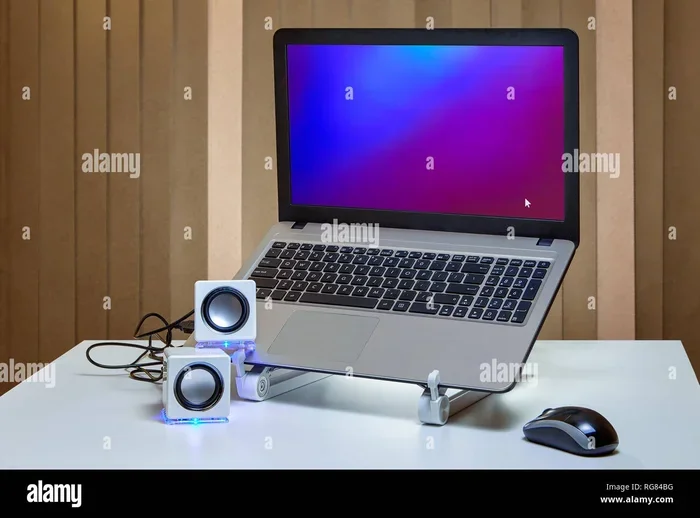
Desktop speakers are designed to sit on or near your desk and connect to your laptop for permanent use. They usually come with a subwoofer for deep bass and two satellite speakers for clear mids and highs. Brands like Logitech, Creative, and Edifier offer great options at every price point.
Soundbars
A soundbar is a sleek, compact speaker bar that dramatically improves audio compared to laptop speakers. They connect via aux, USB, or Bluetooth. Soundbars are a great middle-ground option if you want better sound without a full speaker system.
Active Monitor Speakers
Active monitors are used by audio professionals and serious music listeners. They deliver accurate, detailed sound and often include built-in amplifiers. These speakers connect via 3.5mm, RCA, or XLR cables and offer the highest audio fidelity for laptop use.
How to Improve Laptop Audio Without Buying New Speakers
If you are not ready to buy external speakers yet, there are a few things you can do to improve your laptop’s built-in sound.
- Update your audio drivers: New drivers often include improvements to sound processing and volume levels.
- Use equalizer software: Apps like Equalizer APO or built-in Windows Sound Enhancements can boost bass and clarity.
- Adjust the equalizer settings: Go to your sound settings and tweak the equalizer to favor frequencies that your laptop handles well.
- Keep your laptop on a hard surface: Placing your laptop on a soft surface like a bed or pillow can muffle the speakers. A hard, flat surface lets the sound breathe.
- Clean the speaker grilles: Dust and debris can block the tiny speaker vents. A soft brush can improve clarity instantly.
These tips will not match the quality of external speakers, but they can make a noticeable difference in everyday use.
Expert Tips for Getting the Most Out of Your Laptop Speakers Setup
Here are some pro tips to help you get the best possible sound from your external speakers connected to your laptop.
Use a dedicated headphone amplifier if needed: If your laptop struggles to drive higher-impedance speakers, a small headphone amp can provide the extra power needed for clear, loud audio.
Keep your laptop plugged in: Many laptops reduce audio output power when running on battery. Plugging in ensures maximum audio performance.
Experiment with speaker placement: Even a few inches of movement can change the sound dramatically. Try different positions and listen carefully to find the best setup.
Consider a subwoofer: If you enjoy bass-heavy music or movies, adding a subwoofer to your setup will fill in the low frequencies that your laptop speakers completely miss.
Match your speaker quality to your needs: You do not need expensive speakers for casual music listening. But if you are a music producer or a serious gamer, investing in higher-quality speakers or an audio interface will pay off in clarity and detail.
Check for firmware updates: Some Bluetooth speakers and audio interfaces receive firmware updates that improve connectivity and sound quality. Check the manufacturer’s website periodically.
Frequently Asked Questions
Can I plug any speakers into my laptop?
Most speakers can be connected to a laptop, but compatibility depends on the connection type. Check what audio ports your laptop has and choose speakers that match. Most laptops support 3.5mm aux, USB, and Bluetooth connections, which cover the vast majority of speakers on the market.
Do I need special software to connect speakers to my laptop?
No, most speakers work without any special software. Wired speakers using a 3.5mm cable or USB speakers are plug-and-play. Bluetooth speakers require pairing through your laptop’s Bluetooth settings, but no additional software is needed. Some advanced speakers with special features may include optional companion apps for customization.
Why is there no sound after plugging in my speakers?
The most common reason is that your laptop is still set to output audio through the built-in speakers. Check your sound settings and make sure the external speakers are selected as the default output device. Also, check that the cable is fully inserted and that the speakers are turned on and set to the correct input source.
Can I connect multiple speakers to my laptop at once?
Yes, but it depends on your setup. You can connect Bluetooth speakers and use audio grouping features in Windows or Mac. Some users also connect multiple wired speakers through a mixer or audio interface. For most casual users, connecting one set of external speakers is the simplest and most effective approach.
Are Bluetooth speakers as good as wired speakers for laptops?
Bluetooth speakers offer great convenience and decent sound quality. However, wired speakers typically deliver better audio fidelity, zero latency, and more consistent performance. If sound quality is your top priority, a wired connection is usually the better choice. If you value portability and a clean setup, Bluetooth speakers are an excellent option.
Can plugging speakers into my laptop damage the audio port?
No, plugging in standard speakers will not damage your laptop’s audio port. However, using the wrong cable, forcing a connector into the wrong port, or using speakers that require more power than your laptop can provide could cause issues. Always use the correct cable type and match your speakers to your laptop’s output capabilities.
Conclusion
Plugging speakers into your laptop is one of the easiest and most impactful upgrades you can make. Whether you use a simple aux cable, a USB connection, or a Bluetooth pairing, the improvement in sound quality is immediately noticeable. Your laptop’s tiny built-in speakers were never designed to deliver the rich, full audio that external speakers can provide.
From casual music listening to immersive gaming and crystal-clear video calls, the right speaker setup transforms your entire laptop experience. Take a few minutes to check your ports, choose the right connection method, and adjust your audio settings. The results are well worth the effort.
Now that you know how easy it is to connect external speakers, there is no reason to settle for poor audio. Plug speakers into your laptop today and enjoy better sound for music, movies, games, and everything in between. Your ears will thank you.